




Kahoot turns quizzes into fast-paced games, but the real learning happens when everyone sees the correct answers. If you understand how to show answers on Kahoot during and after a game, you can give students instant feedback, clear up confusion, and keep engagement high in every session.
As a host, you control when you show correct answers on Kahoot, whether you run a live game in class or assign a self-paced quiz. At the time of writing, Kahoot lets you display Kahoot answers on the main screen, show questions and answers on players’ devices, and review results later from the Reports area.
This guide walks you through how to show answers on Kahoot in a simple, step-by-step way. You will see how to adjust answer settings before you start, reveal answers during a live Kahoot quiz, and help students review what they got right and wrong once the game ends.
How To Show Answers On Kahoot In A Live Game
Live games give you the most control over when you reveal answers in Kahoot. You start from your account, choose the quiz, tweak the game options, then use the answer screen to explain each question as you go.
- Sign in to your Kahoot account in a desktop browser and open Library.
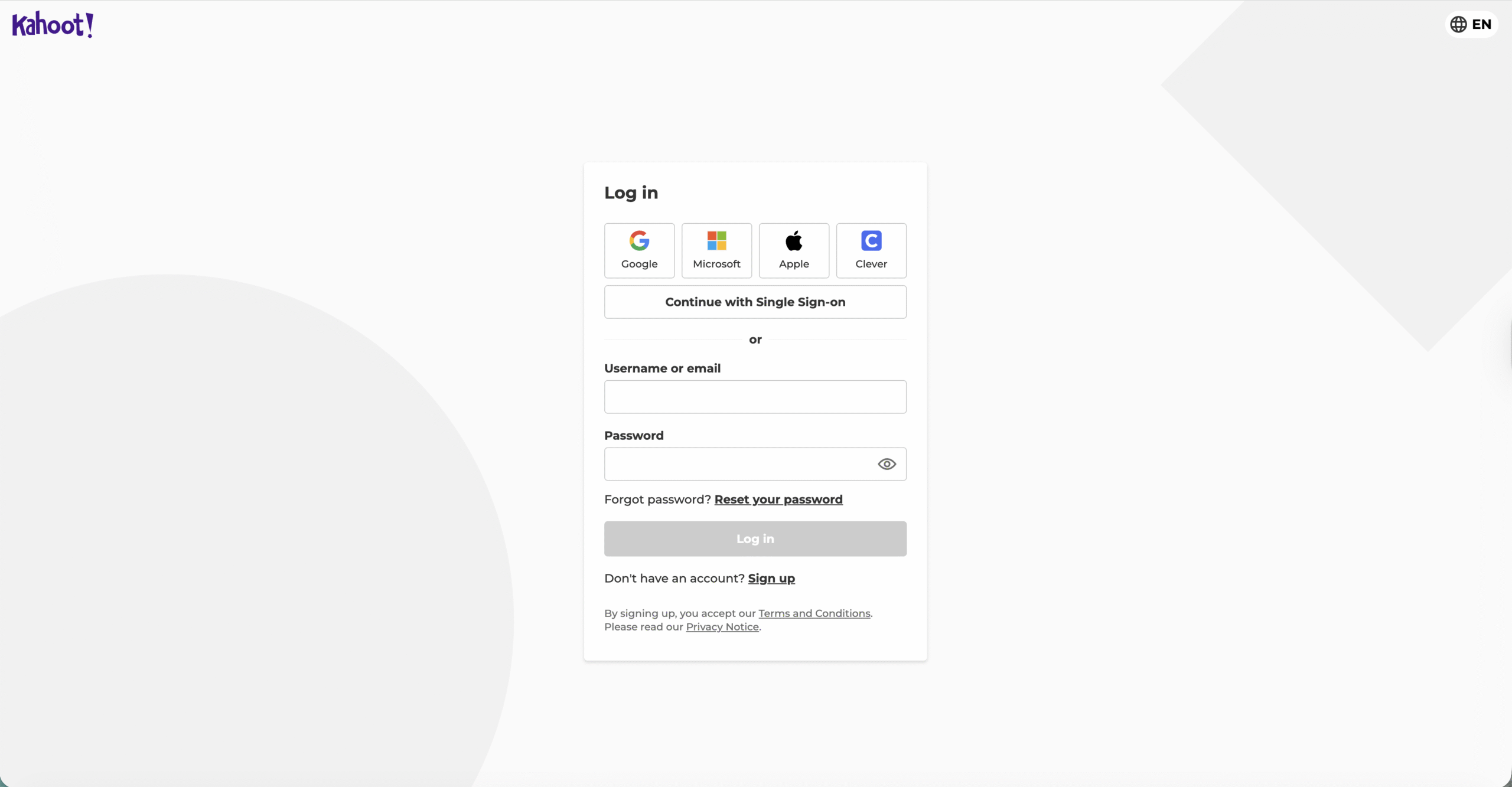
- Select the Kahoot you want to host and click Start or Play.
- Choose a live mode, such as Host, Teach, or Classic, so players join with a game PIN.
- Open Game options on the launch screen and review the settings for how Kahoot shows answers.
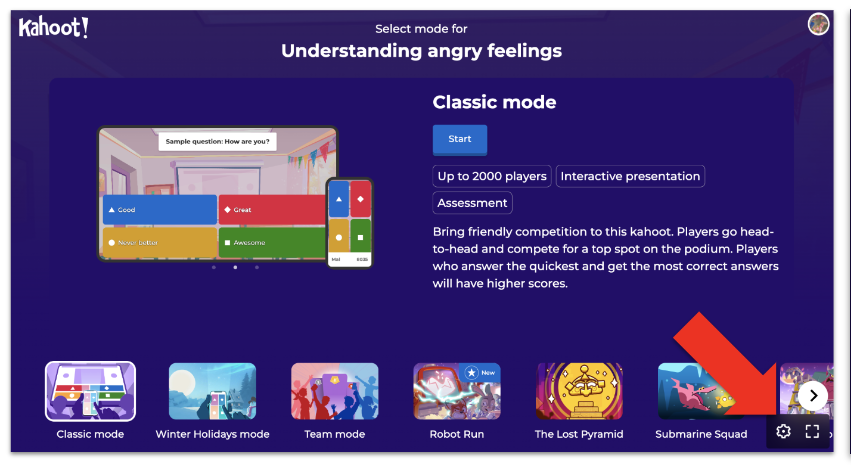
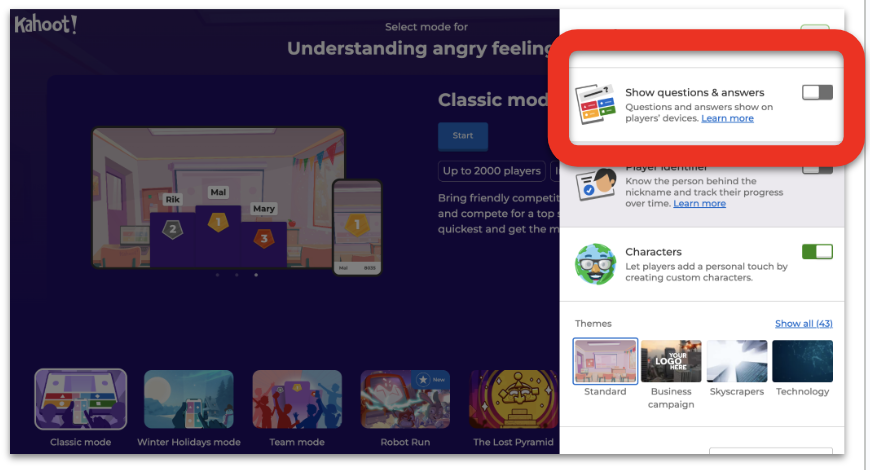
- Turn on the option that says something like Show questions and answers on player devices if you want students to see both on their screens.
- Check any other answer-related settings, such as Randomize answers or Single/multi-select, and apply your changes.
- Click Start to share the game PIN and let players join from their phones, laptops, or tablets.
- Run the question as normal and wait for the timer to finish or for everyone to answer.
- Watch the results screen as Kahoot highlights the correct answer in green and shows the answer breakdown by choice.
- Use that answer screen to explain why the correct answer works before you move to the next question.
When you host this way, you show correct answers on Kahoot automatically after each question. The main display highlights the right option and shows how many players chose each answer, so you can react in real time if a lot of students miss the same concept.
How To Show Questions And Answers On Player Devices
If students struggle to see the projector or learn online, you can show questions and answers on players’ devices instead of only on the host screen. This setting matters when you want a more accessible view on phones and laptops.
- On the game launch screen, click Game options before you start the Kahoot.
- Look for a toggle like Show questions and answers on player devices or a similar label.
- Turn this option on so students see the question text and answer choices, not just color shapes.
- Start the game and confirm that each player now sees the full question and answers on their own screen.
- Continue the game and use the host view to reveal answers and lead discussion after each question.
This option does not change which answer counts as correct. It only changes where you display Kahoot answers, which can make remote or hybrid quizzes easier to follow.
How To Show Answers On Kahoot In Assigned Mode
Self-paced or assigned games work differently from live hosting, but you can still show correct answers and let players review their results. This mode helps when students complete a Kahoot quiz for homework or during independent practice.
- Open Library in your Kahoot account and select the quiz you want to assign.
- Click Assign or Practice, depending on what your account shows.
- Set the due date and time, time limit per question, and how many attempts students can have.
- Turn on any setting that mentions Show questions and answers on player devices so they see full questions.
- Review answer-related options, such as whether players can see the correct answer after each question or only at the end.
- Create the assignment and share the link or game PIN with your students through your LMS or email.
- Ask students to complete the assigned Kahoot on their own devices and submit before the due date.
- After the assignment closes, go to Reports and open the report for that game.
- Use the report view to see each question, the correct answer, and how many students chose every option.
- Project key questions from the report in your next lesson so everyone can review the answers together.
You do not watch answers appear live in this mode, but you still show correct answers on Kahoot later when you review the report. That review step turns the quiz into a second teaching moment instead of just a score.
Troubleshooting Common Problems
Sometimes the answer screen does not behave the way you expect. These quick checks usually fix most issues with how Kahoot shows answers in your quiz.
- Answers Do Not Show After A Question: Confirm you run the Kahoot in a live host mode, not preview. Check that your browser window stays active and you do not close the results screen too quickly.
- Students Only See Color Shapes: Turn on the option to Show questions and answers on player devices before you start the game. Ask players to rejoin if their view does not update.
- Players Complain About Lag: Use a wired connection on the host device when possible and close other heavy tabs. Slower networks can delay when you reveal answers in Kahoot for everyone.
- Report Does Not Match What You Saw Live: Make sure you do not edit the Kahoot between hosting and opening the report. Editing questions or answers later can confuse the data you see in the results.
- Students Do Not See A Review Screen: Remind them to stay until the end-of-game summary, not just exit once they answer the final question. That summary screen often helps them revisit which answers they missed.
Tips
You can use Kahoot answer reveal screens as mini teaching moments, not just scoreboards. These tips help you get more value from every correct answer you show.
- Pause briefly on each results screen and ask a student to explain why the correct choice works.
- Use the answer breakdown to spot questions that most of the class missed and plan a quick reteach.
- Turn on questions and answers on player devices when you play remotely so nobody needs to juggle two screens.
- Mix shorter “check for understanding” Kahoots with longer review games to keep answer discussions focused.
- Save key reports and revisit the same Kahoot later in the term to show how scores and correct answers improve over time.
FAQ
Can Students See The Correct Answers On Their Own Devices?
Yes. When you enable the setting to show questions and answers on player devices, students see the question, answer options, and feedback on their own screens. The host view still shows the main results and highlights the correct answer.
Can I Turn Off Answer Reveal Completely?
You can move quickly past the results screen if you prefer not to linger on the correct answer. You can also focus more on the final podium and detailed report rather than each individual answer reveal during the game.
Do These Settings Work The Same Way In Assigned Kahoots?
Assigned games show answers differently because players move at their own pace. They still see which choice is correct on their device, and you use the report later to walk the group through the questions and answers together.
Can I Change Which Answer Is Correct After I Host A Game?
You can edit your kahoot after you host it, but those edits only affect future games. Past reports keep the original correct answers and scores so you can review what happened in the live session.
Summary
You control how to show answers on Kahoot from the game options and the way you host each quiz. Live games highlight correct answers on the main screen, while assigned games rely more on player devices and post-game reports.
- Use live host modes when you want to reveal answers in Kahoot in real time.
- Turn on questions and answers on player devices for better visibility and accessibility.
- Run assigned kahoots for homework and use reports later to review questions and answers.
- Watch answer breakdowns to find topics that need more practice or reteaching.
- Treat every answer reveal as a chance to explain, not just a way to show who scored highest.
Conclusion
When you learn how to show answers on Kahoot the right way, your games turn into powerful review sessions instead of simple contests. You decide whether students see questions and answers on their devices, how long you stay on each results screen, and how deeply you discuss the correct choice.
Use the built-in answer reveal tools in live and assigned games, then follow up with reports to check long-term progress. With a few small changes to your Kahoot host settings, you can show correct answers clearly, keep students engaged, and turn every quiz into a meaningful learning moment.


Discussion (0)
Be the first to comment.