



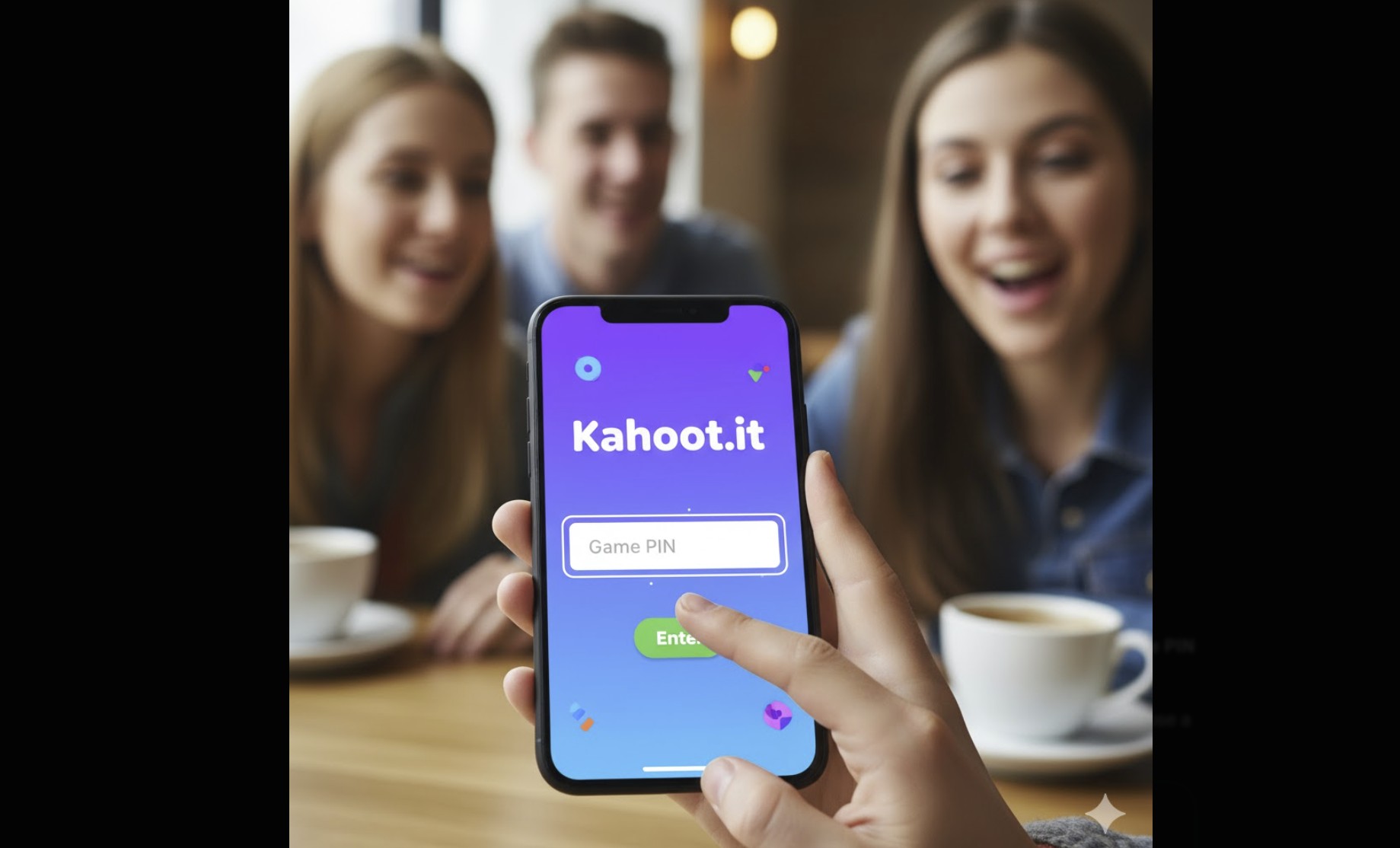
Trying to jump into a live quiz or homework challenge and don’t see where to enter the code? Joining a Kahoot is easy once you know the exact screen to use and what each option means. Follow these steps for desktop, iPhone, and Android, plus fixes for the most common join errors.
Before you start
- Have the Game PIN, QR code, or invite link from your host/teacher.
- You don’t need an account to join most live games or challenges.
- Pick a school‑safe nickname; profanity filters and name generators may be enforced.
- Use a stable connection. If Wi‑Fi is flaky, switch to mobile data.
1) Join from a Game PIN on a computer
- Open your browser and go to the Kahoot join page.
- Type the Game PIN shown on the host screen and press Enter.
- Enter your nickname (or choose one if a name generator appears).
- Wait for “You’re in!” The host controls when the quiz starts.
- Answer on your device. Your phone/PC shows answer tiles; the question stays on the host screen.
2) Join from a Game PIN on iPhone or Android
- Open the Kahoot app (or a mobile browser) and tap Join or Enter PIN.
- Enter the Game PIN and choose a nickname.
- Keep the app open—when the host starts, your answer tiles appear automatically.
Tip: Turn the phone landscape if the tiles feel cramped.
3) Join with a QR code (fastest in class)
- Point your phone’s Camera at the QR code on the host screen.
- Tap the banner that appears to open the join page with the PIN prefilled.
- Choose your nickname and you’re in.
4) Join from an invite link or “Challenge”
- Tap the invite link you received from your teacher or host.
- Choose a nickname and start. Challenges can be played asynchronously at your own pace.
- If it’s Team mode, enter the team name and pass the device among teammates when prompted.
5) Rejoin if you get disconnected
- Return to the join page and re‑enter the same Game PIN.
- Use the same nickname if possible. Some games restore progress; others rejoin with zero score.
- If the host ended or changed the PIN, you’ll need the new code.
Troubleshooting
- Invalid PIN: Verify every digit; PINs change each session.
- Nickname not allowed: The host may enforce a filter or a name generator—pick from the suggestions.
- Game is full: Ask the host to free a slot or raise the player limit.
- Can’t connect: Switch networks (Wi‑Fi ↔ mobile data), disable VPNs/proxies, and try a different browser.
- No answer tiles: You’re on the wrong screen—stay on your device; the question appears on the host display.
- Muted or loud music: Adjust volume on your device; the host controls lobby music for the room.
Tips
- Pro tip: Sit where you can clearly see the host screen; answers match shapes/colors, not the text.
- Pro tip: For remote classes, keep the video meeting on one screen and the answer tiles on another.
- Pro tip: Challenges are great for homework—no live host needed, and you can pause between questions.
FAQs
Do I need an account? No for most live games and challenges; yes if your teacher assigns work that tracks your name or uses specific classroom features.
Can I change my nickname? Usually before the game starts. After it begins, changes depend on host settings.
Why don’t I see the questions on my phone? That’s expected—your phone shows only the tiles. Watch the host screen for the question and options.
Can I play on two devices? Use one per player; duplicate connections can cause disconnects or bans.
Summary
- Open the join page.
- Enter the Game PIN or scan the QR code.
- Pick a nickname and wait for the host to start.
- Answer using the tiles on your device while you watch the question on the host screen.
- Rejoin with the same PIN if disconnected.
Conclusion
Joining a Kahoot takes seconds: code or QR, nickname, and you’re in. Keep the host screen visible, answer from your own device, and switch networks if you bump into errors. For homework, use challenge links to play on your own schedule.
Discussion (0)
Be the first to comment.