




Want to create a Kahoot game quickly? You can do this on both the web and mobile app. In this guide, we’ll show you how to set up a basic quiz, customize it with questions, and share it for others to join.
Before you start
- Ensure you have a Kahoot account with editor access.
- Use Chrome/Edge on desktop or the latest version of the app on mobile.
- Prepare images that are less than 2–3 MB in size for faster uploads.
Step 1: Sign in and start a new Kahoot

Log in to your Kahoot account. On the homepage, click Create and select Kahoot. Now select if you want to use a blank canvas, generate from a PDF, or using a URL. This will open the quiz editor.
Step 2: Add questions and answers

Type your question, then add 2–4 answer options. Mark the correct answer with a checkmark. Ensure your answers are clear and concise.
Step 3: Set timer and points
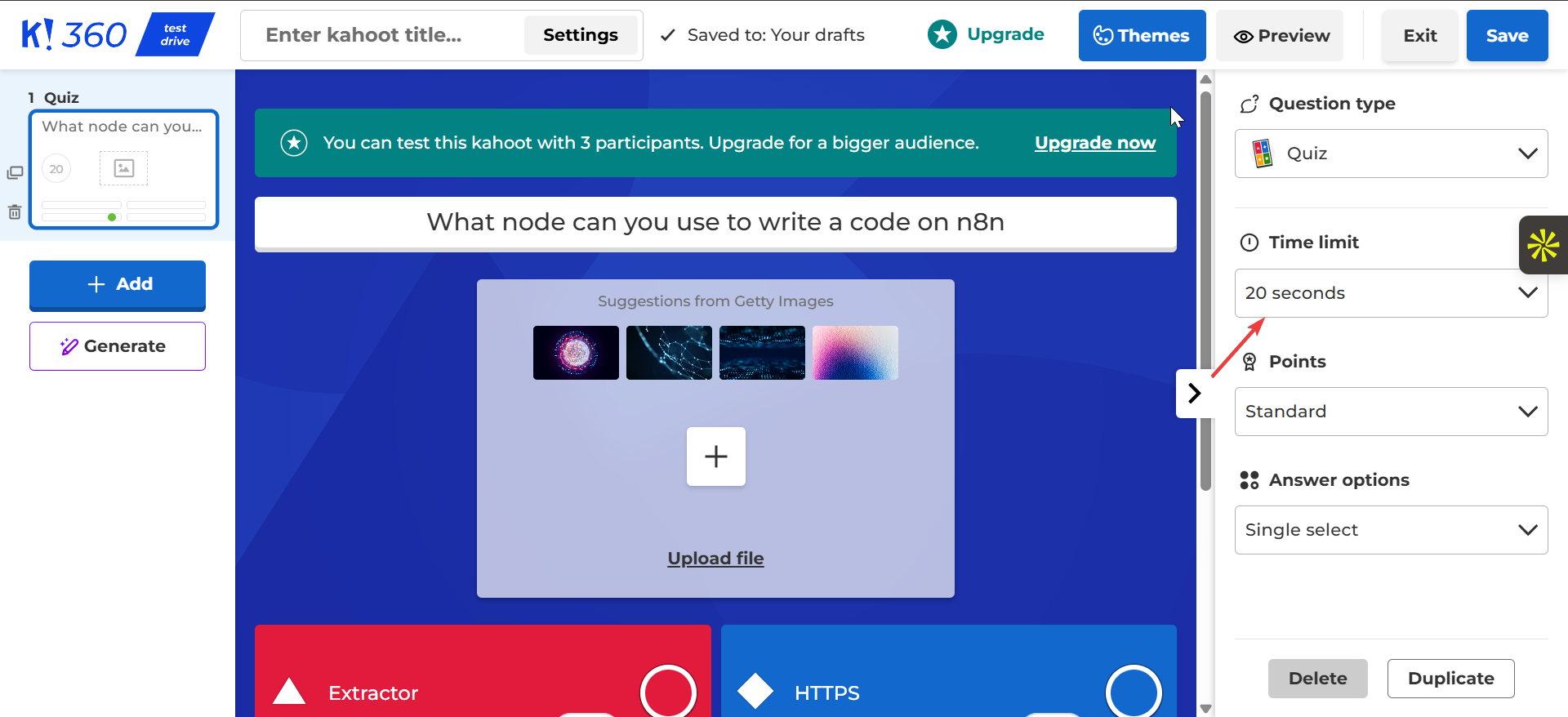
Set a Timer (20–60 seconds depending on the difficulty) and Points (Standard for most questions, Double for key items). This helps pace the quiz.
Step 4: Add media (optional)

Click on the Upload file button to add relevant visuals or videos to your questions. Make sure the file sizes are small to prevent upload issues.
Step 5: Save and set visibility
Once you’ve added all your questions, click Preview to test the quiz. When satisfied, click Save, give your quiz a title, and set the visibility to Public or Unlisted.
Step 6: Share and host the game
For live play, click Start and share the generated PIN for others to join the Kahoot game. For homework or self-paced quizzes, click Assign, set a due date, and share the link or QR code.
Tips for Creating a Game on Kahoot
- Keep questions clear and avoid double negatives.
- Use Type Answer or Puzzle to engage students and reduce guessing.
- Duplicate questions to save time and keep formatting consistent.
- Mix easy/medium items; reserve Double points for one high-value question.
- Preview every change before hosting.
FAQs
How many players can join a Kahoot game? Free accounts support typical classroom sizes; paid plans are needed for larger groups.
Can I add images and audio to my Kahoot quiz? Yes, but make sure the files are under 2–3 MB to avoid upload failures.
Can I edit a game after it’s assigned? Yes, but changes only apply to future plays. Duplicate the quiz if you need to adjust it for current participants.
Do players need Kahoot accounts? No, they can join with a PIN or link.
Summary
- Sign in and click Create to start a new Kahoot.
- Add your first question and set the correct answer.
- Set a timer and points for each question.
- Optionally, add images or videos to your questions.
- Save your quiz and set visibility.
- Host the game live or assign it for later.
Conclusion
The best way to create a Kahoot game is to start with simple multiple-choice questions, set the timer/points, and add media as needed. Expect a fully playable quiz in under 10 minutes. If you run into issues with saving or joining, check your account settings, browser compatibility, or app version. If the problem persists, reach out to Kahoot support.
Discussion (0)
Be the first to comment.