




Here’s how to set up a CyberPowerPC gaming mouse quickly, customize the DPI and buttons, and solve common problems. Most models work as plug-and-play, while Pro variants add software for deeper control.
What you need
- A free USB-A port on your PC.
- Windows updated to the latest build.
- (Optional) CyberPowerPC mouse software for RGB, DPI, and macros if your model supports it.
- A flat mouse pad for accurate tracking.
Quick setup (plug-and-play)
- Plug the mouse into a USB port—Windows installs the generic driver automatically.
- Move the mouse to confirm pointer movement and basic button clicks.
- Test the scroll wheel and side buttons in a web page or game launcher.
- Switch any onboard DPI button to cycle sensitivities and find a comfortable speed.
Install CyberPowerPC mouse software
Some models labeled “Pro” include software for advanced features. If your box or product page mentions RGB control, DPI stages, or macros, install the utility. You'll first need to download the CyberPowerPC mouse software that matches your exact model.
- Go to Google and type cyberpowerpc gaming mouse. Click on the first link you see

- Click on CyberPowerPC Brand
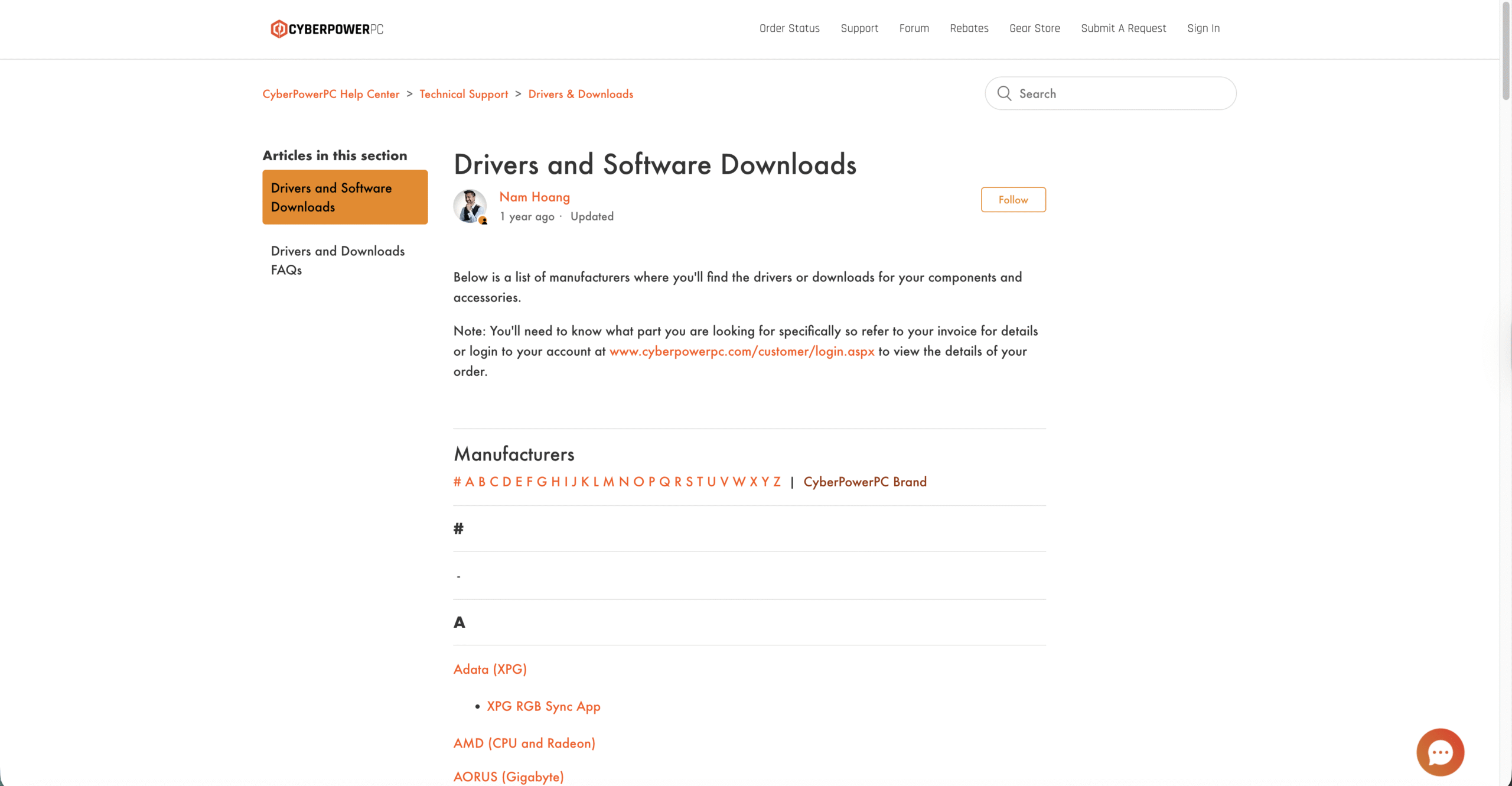
- Next, click CyberPowerPC Mouse.

- On the next page, click CYBERPOWERPC ELITE PRO M1 to download it.

- Once you download the zip, extract it and run the installer as an administrator.
- Restart the PC after installation if the wizard prompts you.
- Open the app and confirm the mouse appears on the home screen.
Not sure your model supports software?
- Check the product sticker under the mouse for the model name.
- Open the software—if it doesn’t detect the device, your model may be a non-Pro version.
- If software isn’t supported, you can still tune sensitivity using onboard DPI cycling and in-game settings.
Customize DPI, polling, and buttons
Tuning these settings improves accuracy and comfort. Keep changes small and test in your main game.
- DPI stages: Create 3–5 steps (e.g., 800, 1200, 1600, 2400, 3200). Lower DPI helps with precise aim; higher DPI speeds up navigation.
- Polling rate: Set 500–1000 Hz if your system handles it smoothly.
- Button mapping: Bind side buttons to reload, melee, or push-to-talk. Keep essentials under your thumb.
- RGB and effects: Use a single color or static effect to reduce distraction and power usage.
Create profiles and macros
- Create per-game profiles (FPS, MOBA, and desktop) to switch DPI and bindings automatically.
- Record simple macros only for allowed, non-automated actions in your games.
- Export profiles as backup so you can restore after a Windows reinstall.
Optimize pointer feel in Windows
- Open Windows Mouse settings and set pointer speed near the middle.
- Disable “Enhance pointer precision” if you want consistent raw input.
- Adjust wheel scroll lines to match your app workflow.
Fix CyberPowerPC mouse not working
- Move the USB plug to a rear motherboard port—avoid low-power front hubs.
- Unplug and firmly reseat the connector—look for debris in the port.
- Update the USB controller and chipset drivers in Device Manager.
- Disable USB selective suspend in Windows power options to stop random disconnects.
- Test on another PC to isolate cable or sensor issues.
- Reinstall the CyberPowerPC mouse drivers or software if detection fails.
Performance tips
- Use a cloth pad with a uniform weave for smoother tracking.
- Clean the sensor lens with a dry microfiber cloth—avoid liquids.
- Keep DPI consistent across Windows and games to build muscle memory.
- Save one low-DPI stage for precision tasks like sniping or photo edits.
FAQs
Do I need CyberPowerPC mouse software?
Non-Pro models usually run as plug-and-play. Pro models benefit from software to control DPI stages, polling, RGB, and macros.
Where do I get CyberPowerPC mouse drivers?
Install the official utility for your exact model. If Windows already recognizes the mouse, drivers aren’t required for basic use.
Why don’t extra buttons work in a game?
Bind them in the software to generic keys (like G, V, or F) and then map those keys in the game’s controls menu.
Can I change RGB without software?
Some models offer onboard cycles via a function button. If yours doesn’t, you need the software.
Summary
- Plug in and confirm movement and clicks.
- Install CyberPowerPC mouse software if your model supports it.
- Set DPI stages, polling rate, and map side buttons.
- Create game profiles and export backups.
- Use the troubleshooting steps if Windows doesn’t detect the mouse.
Conclusion
Once you know how to set up CyberPowerPC gaming mouse, you can dial in DPI, polling, and bindings for better aim and faster actions. Keep profiles simple, maintain your sensor and pad, and you’ll get consistent control across every game.

Discussion (0)
Be the first to comment.