




Facebook saves every Like and reaction you give, but it hides them inside the Activity Log. Once you know where to look and how to filter results, you can quickly find posts, photos, videos, and Reels you liked in the past.
Table of contents
How Facebook stores your liked posts
Facebook tracks Likes and reactions as part of your account activity, not as a separate feed. You must use the Activity Log to review this history.
Likes vs reactions
Facebook groups Likes, Loves, Haha, Wow, Sad, and Angry reactions together. When you open your Likes activity, you will see all reactions mixed in chronological order.
What you can and can’t see
You can only see content that still exists and remains visible to you. Deleted posts, removed groups, or content that became private will no longer appear.
See liked posts on Facebook using the mobile app
The Facebook app provides the most complete access to your liked content through profile settings.
Steps on Android
- Open the Facebook app and tap your profile picture.
- Tap the three horizontal dots under your profile, then select Activity log.
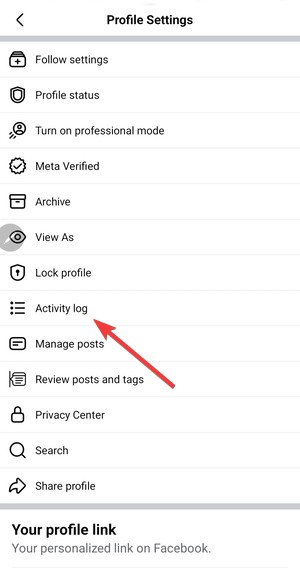

- Scroll the horizontal menu in blue font and select Likes and reactions.


- Scroll to view all posts, photos, and videos you liked.
Steps on iPhone
The steps on iOS match Android closely.
- Open the Facebook app and go to your profile.
- Tap the three horizontal dots next to Edit profile.


- Now, select Activity log.
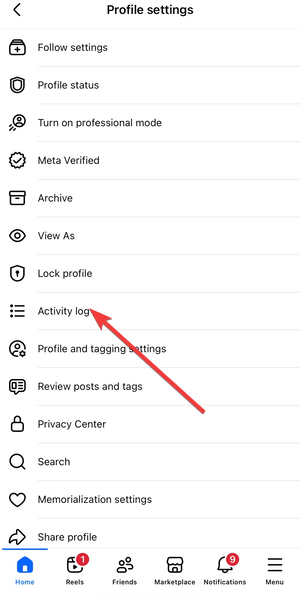

- From here, scroll the horizontal menu in blue font and choose Likes and reactions.
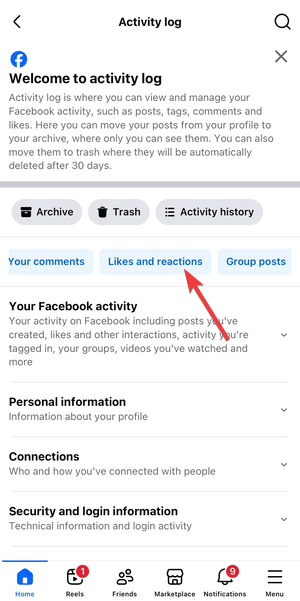

- You can now review your like posts here.
See liked posts on Facebook on desktop
Desktop access works best if you prefer a larger screen or keyboard navigation.
Steps using a web browser
- Go to facebook.com and click your profile picture.
- Click the three vertical dots on the menu bar and select Activity log.


- Next, select Your Facebook activity in the left pane.
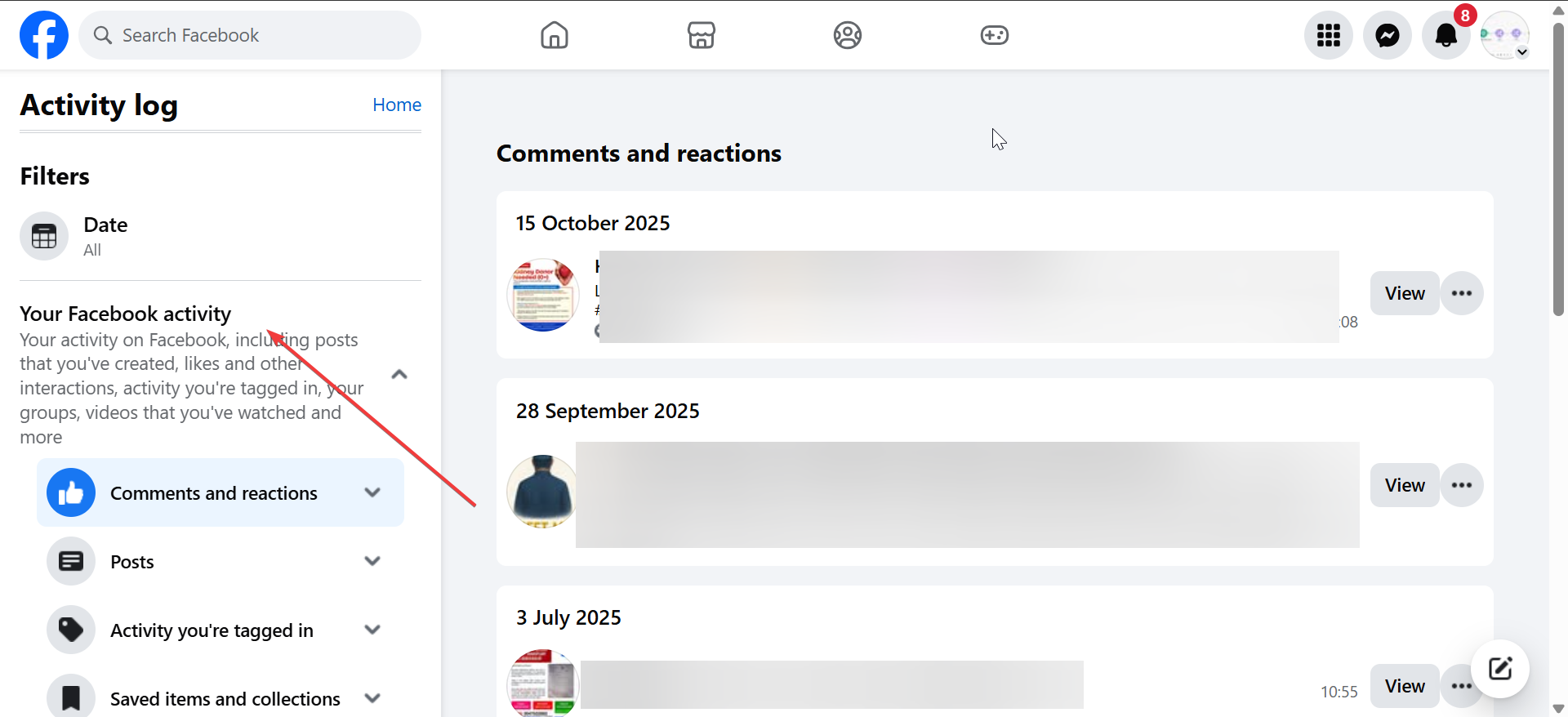
- Now, click the Comments and reactions option.
- Finally, click Likes and reactions and you will be able to your liked posts.

Filter liked posts by type
Filtering helps you avoid endless scrolling, especially on older accounts.
View only liked posts
Use the Likes and reactions filter inside Activity Log to limit results to content you actively liked.
View liked photos, videos, or Reels
Photos and videos often appear mixed together. Reels may show separately, depending on the app version and content type.
Why you can’t find some liked posts
Missing Likes usually point to visibility limits rather than a technical issue.
Posts deleted or made private
If the original poster deleted the content or changed privacy settings, Facebook removes it from your history.
Likes hidden by filters
Incorrect filters can hide older Likes or specific content types. Reset filters before scrolling again.
App or UI changes
Facebook frequently renames menus or moves options. If steps fail, update the app and recheck Activity Log paths.
Can other people see your liked posts
Privacy concerns often drive users to review liked activity.
Who can see your Likes
Most Likes remain public when you interact with public posts or pages. Likes inside private groups stay visible only to group members.
How to hide liked activity
You can adjust visibility inside Activity Log without removing the Like itself. This option hides activity from your profile timeline.
Tips for managing liked posts
- Use Activity Log filters before scrolling.
- Check both mobile and desktop if results look incomplete.
- Review privacy settings after major Facebook updates.
- Remove old Likes directly from Activity Log if needed.
FAQs
Can I see liked posts from years ago?
Yes, as long as the content still exists and remains visible to you.
Do Likes on Pages appear here?
Yes, page Likes and reactions appear inside the same Activity Log section.
Can I download my liked posts list?
Facebook includes Likes in your account data download, but it does not separate them cleanly.
Summary
- Open Activity Log from your profile settings.
- Select Interactions, then Likes and reactions.
- Apply filters to narrow content types.
- Check privacy or deletion issues if Likes are missing.
Activity Log remains the only reliable place to see liked posts and even view your shared posts on Facebook. If results look incomplete, filters and privacy changes usually explain the gap.


Discussion (0)
Be the first to comment.