




Facebook allows people to share posts, but it does not always make every share visible. Whether you can see who shared your post depends on notifications, post visibility, and the privacy settings used by the person sharing it.
If you are trying to find who shared your Facebook post, the methods below still work at the time of writing and apply to both desktop and mobile users.
Check Facebook Notifications
Facebook sends a notification when someone shares your post publicly or in a way that allows visibility. This is the fastest way to see who shared your post on Facebook.
- Click or tap the notification bell at the top of Facebook
- Select See All if needed
- Look for notifications that mention your post being shared
- Tap the notification to view who shared it and where
If email notifications are enabled, Facebook may also send an alert when someone shares your content.
Check The Original Post On Your Timeline
Facebook displays the number of shares directly under the original post when shares are visible to you. This method works best for public shares.
- Go to your Facebook profile

- Scroll to the post you want to check
- Look for the share count below the post
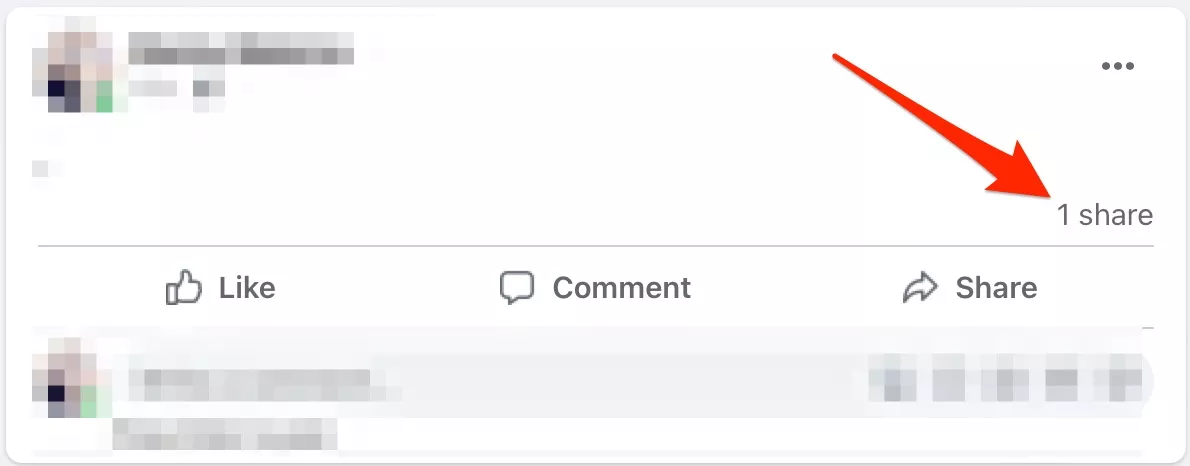
- Click the share count to view available share details
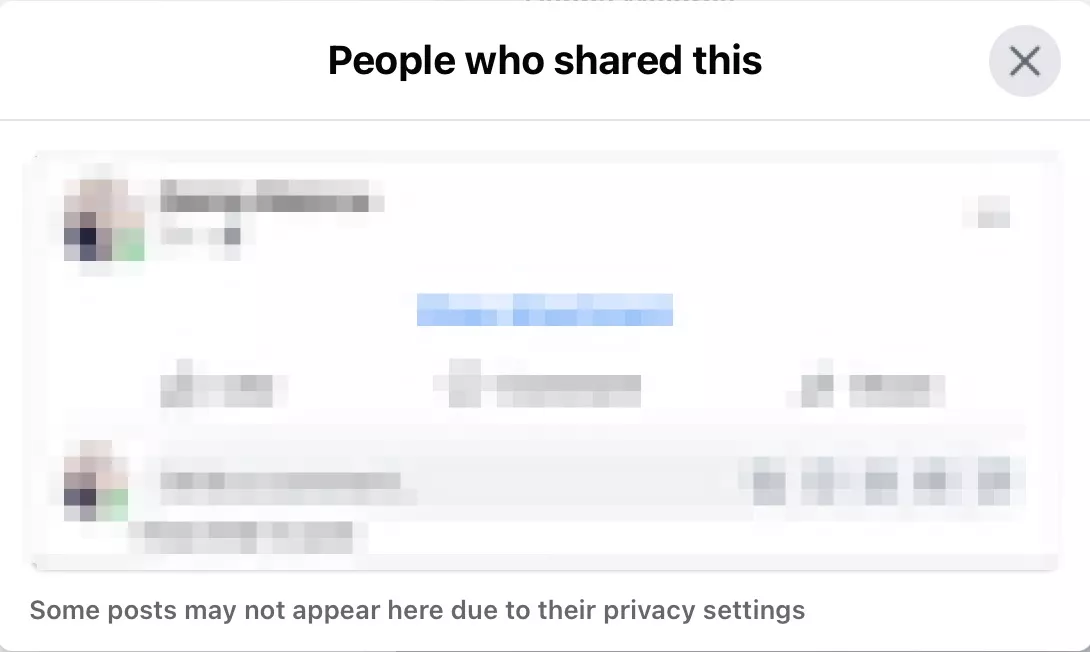
If the share was public or shared with a group you belong to, Facebook will show the name and any added commentary.
Understand Why Some Shares Are Not Visible
Not every Facebook post share shows a name. When someone shares your post privately or limits visibility to friends only, Facebook hides their identity from you.
This behavior is controlled entirely by privacy settings and cannot be overridden by the original poster.
Check A Friend’s Timeline Manually
If you suspect a specific friend shared your post, you can check their timeline directly. This method does not confirm all shares but helps in individual cases.
- Open the friend’s Facebook profile
- Scroll through recent posts
- Look for your shared content
This only works if the post remains visible on their timeline.
Troubleshooting Common Problems
If you cannot see who shared your Facebook post, the most common reason is restricted privacy settings. Shares set to friends-only or custom audiences do not display names.
Outdated app versions can also delay notifications. Updating the Facebook app and refreshing notifications often resolves missing alerts.
Tips
- Set posts to Public if you want maximum share visibility
- Enable email notifications for post activity
- Check shares shortly after posting for better accuracy
- Remember that private shares will never show names
FAQ
How do I allow people to share my Facebook posts?
Edit the post audience and select Public. Only public posts can be shared widely.
Can I see who shared my post privately?
No. Facebook does not reveal names for private or restricted shares.
Why does my post show a share count but no names?
This usually means the post was shared privately or with limited audiences.
Can I stop people from sharing my posts?
Yes. Set the audience to friends, specific friends, or only me.
Summary
- Facebook notifications show most public shares
- The original post displays visible share counts
- Privacy settings determine name visibility
- Private shares never reveal identities
Conclusion
Facebook offers limited transparency when it comes to post sharing, and that design protects user privacy. If a share is public or visible to you, Facebook will show it. If not, no setting or workaround can reveal the name.
Understanding how Facebook post shares work helps set realistic expectations and prevents unnecessary troubleshooting.


Discussion (0)
Be the first to comment.