




Facebook pictures usually load instantly, so when images stay blank, blurry, or stuck loading, something has gone wrong. In most cases, the cause sits with your connection, the app or browser, or a temporary Facebook-side issue. You can fix the problem quickly by following the steps below, starting with the simplest checks.
Table of contents
- Why Facebook pictures fail to load
- Check if Facebook is down
- Fix Facebook pictures not loading on any device
- Fix Facebook pictures not loading on mobile (iPhone and Android)
- Fix Facebook pictures not loading on desktop browsers
- Advanced fixes if Facebook images still won’t load
- Common scenarios users ask about
- Tips to prevent Facebook image loading issues
- FAQs
- Summary
Why Facebook pictures fail to load
Facebook images rely on a mix of content delivery networks, local cache files, and device permissions. When any of these break, photos fail to appear in the feed, comments, profiles, or messages. Common triggers include unstable internet, outdated apps, aggressive privacy tools, or temporary server problems.
Check if Facebook is down
Before changing anything on your device, confirm Facebook works normally for other users. A platform-wide outage or partial image CDN failure can cause missing pictures across feeds and profiles. If Facebook reports issues or users complain widely, wait it out instead of troubleshooting locally.
Fix Facebook pictures not loading on any device
These fixes apply to phones, tablets, and computers. Start here, since they solve most cases.
Check your internet connection
Slow or unstable connections often load text but fail on images. Open another image-heavy site to confirm your connection works properly. If pages struggle to load, restart your router or switch to a different network.
Switch networks or disable VPN
VPNs, proxies, and some public networks block Facebook image servers. Disable your VPN temporarily and reload Facebook. If images appear, the VPN or network caused the issue.
Restart the app or browser
A quick restart clears temporary glitches. Close Facebook completely, reopen it, and reload the feed. On desktop, fully close the browser instead of just refreshing the tab.
Fix Facebook pictures not loading on mobile (iPhone and Android)
If the issue only happens on your phone, focus on app and system settings.
Update the Facebook app
Outdated versions often contain image loading bugs. Open the App Store or Google Play and install any available Facebook updates. Many image issues disappear after updating.

Clear Facebook app cache
Corrupted cache files prevent images from loading correctly.
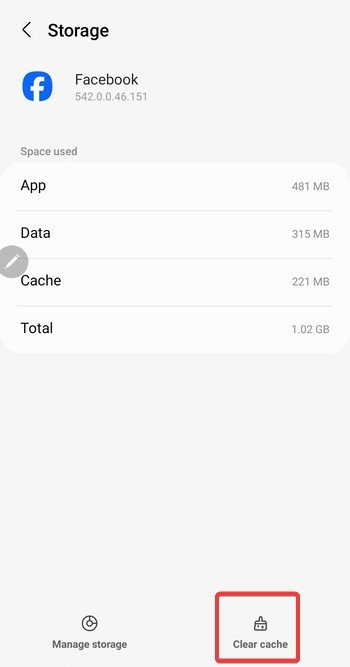
- On Android, open Settings > Apps > Facebook > Storage.
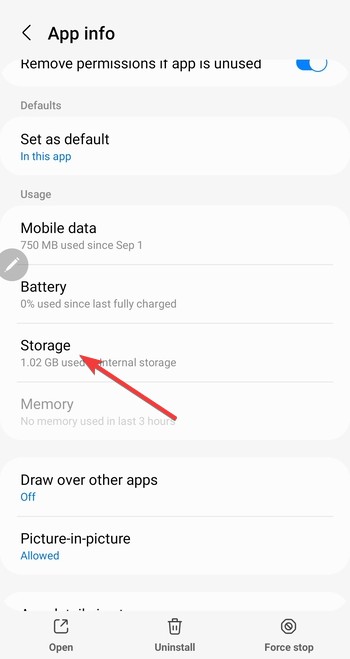

- Tap Clear cache, then reopen Facebook and check images.

- On iPhone, delete Facebook and reinstall it to clear cached data.
Check data saver and background data settings
Facebook’s Data Saver mode can reduce image quality or block images entirely. Open Facebook settings and turn off Data Saver. Also confirm your phone allows Facebook to use background data and mobile data.
Fix Facebook pictures not loading on desktop browsers
Desktop issues usually involve browser settings, extensions, or stored data.
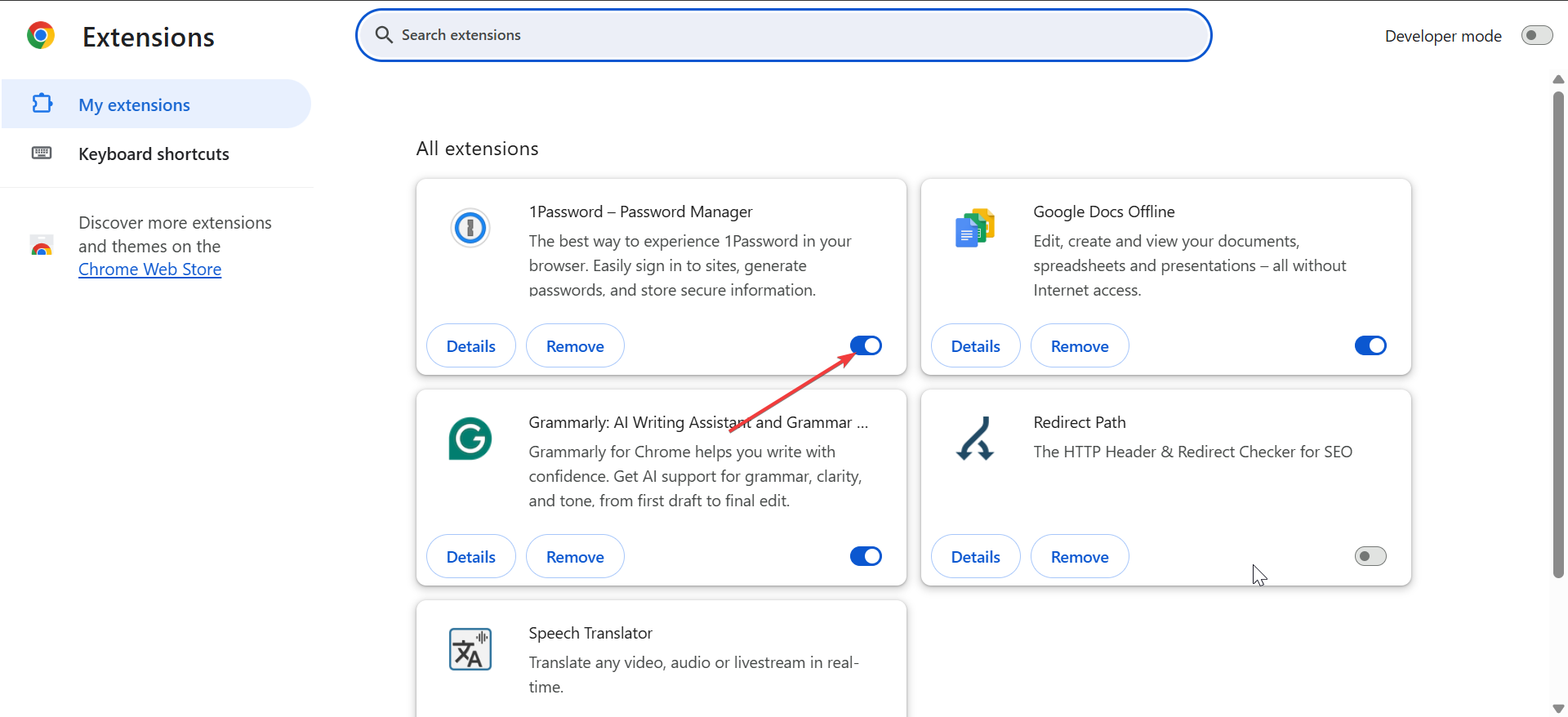
Disable browser extensions
Ad blockers, privacy tools, and script blockers frequently block Facebook images. Disable extensions one by one, then reload Facebook. If images appear, whitelist Facebook in the extension that caused the issue.
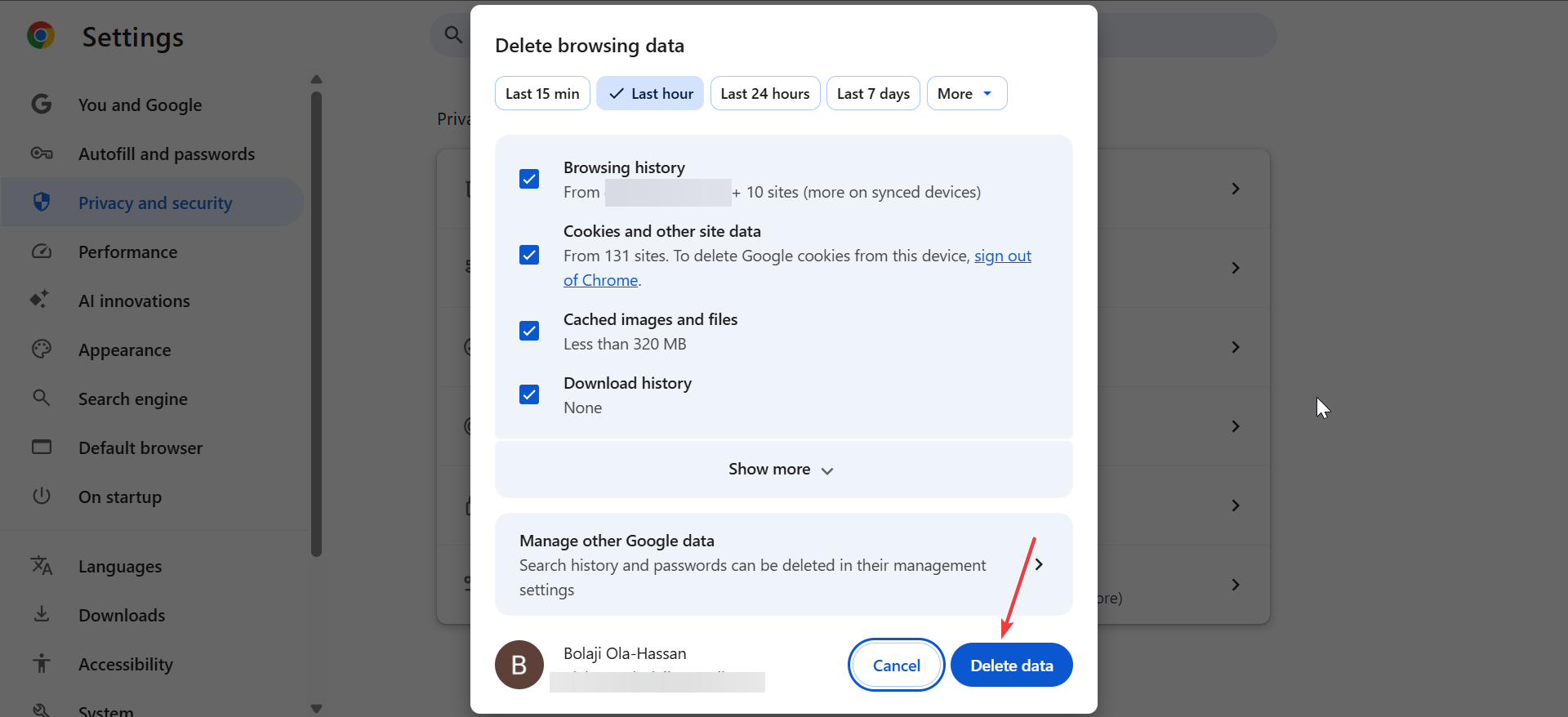
Clear browser cache and cookies
Old or broken cache files stop images from loading. Clear cached images and cookies for Facebook, then sign back in. This step often fixes blank or broken thumbnails.
Check browser image and site permissions
Browsers can block images at the site level. Open your browser’s site settings for Facebook and confirm Images, JavaScript, and media permissions remain enabled.
Advanced fixes if Facebook images still won’t load
Use these steps only if basic fixes fail.
Change DNS settings
Some DNS providers struggle with Facebook’s image servers. Switch to a public DNS, such as Google DNS or Cloudflare, then restart your connection. This often fixes images not loading on specific networks.
Check firewall or antivirus filtering
Security software may block Facebook image domains. Temporarily disable web filtering features or add Facebook as an allowed site, then test image loading again. Turn protection back on after testing.
Try Facebook Lite or the mobile web version
Facebook Lite and the mobile web version use simpler image delivery. If images load there, the main app or browser setup likely caused the issue.
Common scenarios users ask about
Facebook pictures not loading but videos work
Images and videos use different delivery systems. This issue often points to cache corruption, DNS problems, or blocked image domains rather than a full connection failure.
Facebook profile pictures or comment images missing
Profile and comment images rely heavily on cached data. Clearing the cache or switching networks usually fixes missing avatars and comment photos.
Facebook pictures not loading on Wi-Fi, but work on mobile data
Your Wi-Fi network likely blocks or misroutes Facebook image servers. Restart the router, change DNS settings, or check firewall rules.
Tips to prevent Facebook image loading issues
- Keep the Facebook app and your browser updated.
- Avoid running multiple ad blockers at once.
- Use a stable DNS provider on your home network.
- Clear cache periodically to remove corrupted files.
- Limit VPN use when browsing social media.
FAQs
Why are Facebook pictures not loading today?
It usually happens because of a Facebook outage, unstable internet, or app-related issues. Checking Facebook’s status helps confirm whether the problem sits on their side.
Why do Facebook images show as black or blank boxes?
Corrupted cache files, blocked image permissions, or browser extensions often cause this problem. Clearing the cache or disabling extensions fixes it in most cases.
Why do Facebook pictures load on one device but not another?
Each device uses different cache files, apps, and network settings. The problem usually affects only the device with outdated apps or restricted permissions.
Can Facebook updates break image loading?
Yes. New updates sometimes introduce bugs that affect images temporarily. Updating again or reinstalling the app usually resolves the issue.
Summary
- Check if Facebook is down and wait if the issue is widespread.
- Test your internet connection and disable VPNs or proxies.
- Update and restart the Facebook app or your browser.
- Clear cache, cookies, and confirm site permissions.
- Try DNS changes or security software checks only if needed.
Facebook pictures not loading usually result from simple connection, cache, or app issues rather than serious account problems. The issue prevents you from performing Facebook image search and other picture-related tasks.
To fix it, start with basic checks, then move to device-specific fixes only if needed. Images typically return after a few quick adjustments or once Facebook resolves a temporary server issue.


Discussion (0)
Be the first to comment.