




Screen mirroring lets you show your Android phone on your Roku TV or streaming device with one quick wireless connection. Most users run into issues because their Roku settings, Android menus, or Wi-Fi network are not configured correctly. This guide walks you through the exact steps that work on all major Android brands and Roku models.
Table of contents
- What you need before mirroring Android to Roku
- How to enable screen mirroring on Roku
- How to screen mirror from any Android phone
- How to mirror with Samsung, Google Pixel, Xiaomi, and Motorola phones
- How to mirror specific apps or media
- Alternative ways to display Android on Roku
- Fix Roku not showing up on Android cast list
- Fix screen mirroring not connecting or stuttering
- Tips for better screen mirroring on Roku
- FAQs
- Summary
What you need before mirroring Android to Roku
Confirm a few requirements before you start mirroring your Android to your TV. This prevents the common problem where Roku never appears in the cast menu.
Check Roku device compatibility
Roku OS supports screen mirroring on most Roku TVs, Streaming Stick models, Roku Ultra, and Roku Express models from 3900 or newer. Older Express models do not support mirroring.
Check Android version and wireless display support
Most phones running Android 7 or newer support wireless display features like cast, Smart View, or wireless display. The exact menu name depends on your phone brand.
How to enable screen mirroring on Roku
Roku must allow screen mirroring before your phone can connect. You only need to set this once unless the setting resets after an update.
Start by opening Settings on your Roku. Next, select System, then Screen mirroring. Set the mode to prompt or always allow to permit incoming Android connections.
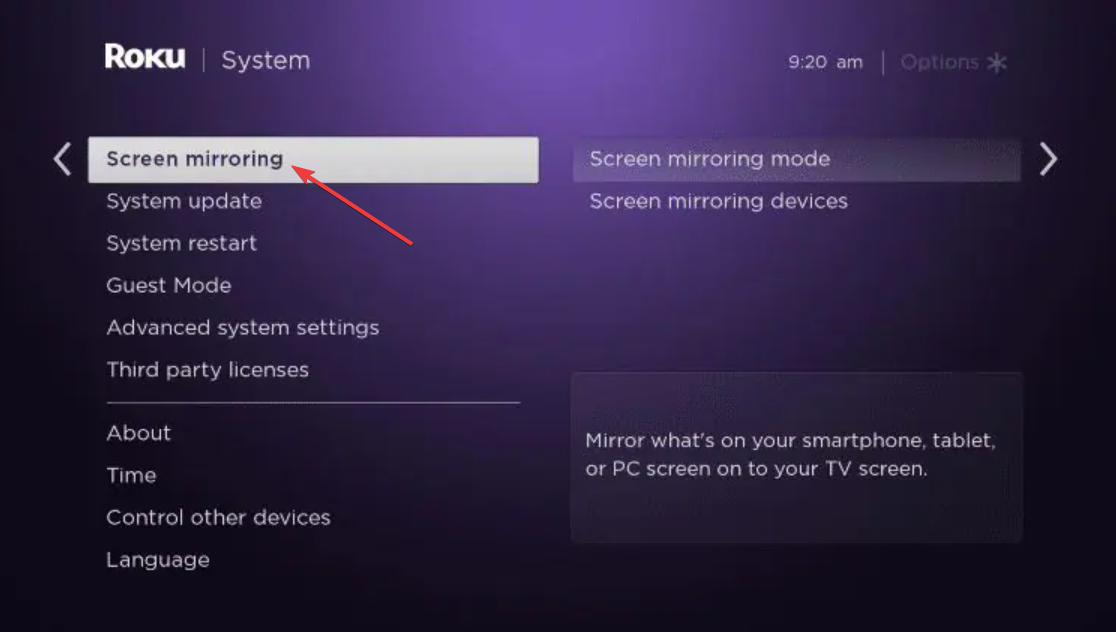
Note that your phone and Roku must use the same Wi-Fi network. If your router broadcasts 2.4 GHz and 5 GHz networks, connect both devices to the same band to avoid discovery issues.
How to screen mirror from any Android phone
These universal steps work on most modern Android phones, regardless of manufacturer.
Use the cast option in quick settings
Swipe down from the top of your Android screen to open quick settings. Look for cast, screen cast, or Smart View. Tap it and choose your Roku device from the list.

Approve the mirroring request on Roku
If Roku shows a permission prompt, use the remote to approve the connection. The phone screen should appear on your TV within a few seconds.
How to mirror with Samsung, Google Pixel, Xiaomi, and Motorola phones
Phone brands use different names for their casting features. These steps reflect current Android menus on major US models.
Samsung Smart View (One UI)
Swipe down to open quick settings. Tap Smart View. Select your Roku device to start mirroring. If Smart View does not appear, tap the pencil icon to add it.
Google Pixel cast
Open quick settings and tap Cast. If the tile is missing, go to settings, connected devices, then cast. Choose your Roku from the list.
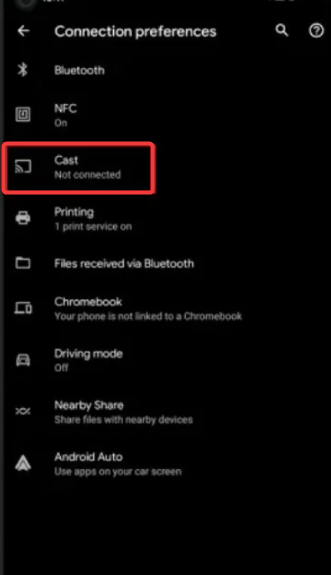
Xiaomi and Redmi wireless display
Open settings and search for wireless display. Enable Wireless display, then pick your Roku when it appears in the device list.
Motorola screen cast
Swipe down to open quick settings and look for screen cast. Select your Roku. Turn off battery saver if your phone fails to connect.
How to mirror specific apps or media
Some streaming apps block mirroring for copyright reasons. This section helps you avoid black screens and playback errors.
Mirroring streaming apps
Apps like Netflix, Hulu, and Prime Video block screen mirroring due to DRM. You will see audio but not video. This behavior is normal and cannot be bypassed.
Casting YouTube or photos instead of mirroring
Apps like YouTube and Google Photos support native casting. Tap the cast icon inside the app for smoother playback and lower battery usage.
Alternative ways to display Android on Roku
If mirroring still fails, these alternative methods help you get content on your TV.
Use Roku’s built-in apps instead of mirroring
Install apps like YouTube, Disney Plus, or HBO Max directly on Roku for better performance than mirroring.
Use third-party mirroring apps
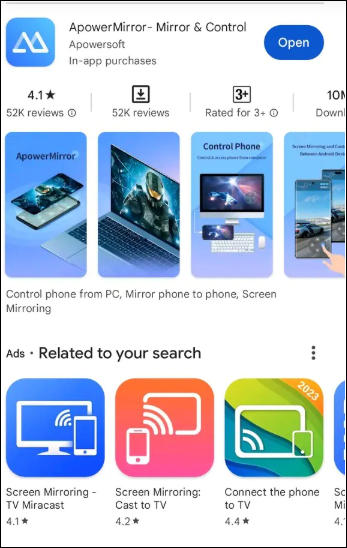
Some apps offer extended mirroring options for older devices. Use only trusted apps from the Google Play Store to avoid security risks.
Fix Roku not showing up on Android cast list
- Restart Wi-Fi and disable VPN or private DNS: Toggle Wi-Fi on your phone, restart the router if needed, and turn off VPN or private DNS features. These settings often block device discovery.
- Disable AP isolation on your router: Access point isolation prevents devices from talking to each other. Turn it off in your router settings to make Roku visible to your phone.
- Restart Roku’s network stack: Go to Settings, System, then System restart. Your Roku reconnects to Wi-Fi and becomes discoverable again.
Fix screen mirroring not connecting or stuttering
- Switch both devices to 5 GHz Wi-Fi: Mirroring needs fast wireless throughput. Use your router’s 5 GHz network to reduce interference and improve stream quality.
- Disable battery saver or adaptive performance: Battery saver limits broadcasting power on Android. Turn it off to maintain a stable connection with your Roku.
- Update Roku OS and Android system: Roku updates frequently improve mirroring reliability. Install pending updates to avoid compatibility issues.
Tips for better screen mirroring on Roku
- Keep your phone within 10 feet of your router
- Turn off Bluetooth if you see lag
- Close other wireless-heavy apps on your phone
- Restart both devices before long mirroring sessions
FAQs
How do I find the cast option on Android? You can find it in quick settings or under connected devices in the system settings.
Why does my Roku not show up in the cast list? This usually happens due to network isolation, VPNs, or different Wi-Fi bands.
Why is mirroring laggy? Slow Wi-Fi, 2.4 GHz networks, or battery saver modes commonly cause stutter.
Can I mirror Netflix or Prime Video? Screen mirroring for DRM-protected apps does not work. Use the official Roku apps instead.
Summary
- Check Roku compatibility and Android wireless display support.
- Enable screen mirroring mode on Roku.
- Use your phone’s cast or Smart View feature to connect.
- Approve the prompt on Roku to start mirroring.
- Apply network and performance fixes if mirroring fails or lags.
Your Android phone should mirror to your Roku quickly once both devices share the same network and the correct settings are enabled. If you still experience issues, switching to app-level casting or using Roku’s built-in streaming apps often delivers better performance.


Discussion (0)
Be the first to comment.