




Renaming photos on Android sounds simple, but it often causes confusion. Gallery apps, cloud backups, and file managers all treat photo names differently, which explains why changes sometimes fail or disappear. The steps below show reliable ways to rename photos and explain what actually changes each time.
Table of contents
- Rename photos using the built-in Files app (works on all Android phones)
- Rename photos from the Gallery
- Use a third-party file manager for batch renaming
- Understand file names vs photo metadata
- Rename photos stored on SD cards or external storage
- Fix issues when Android won’t let you rename photos
- Tips for naming photos on Android
- FAQs
- Summary
Rename photos using the built-in Files app (works on all Android phones)
This method changes the real file name stored on your phone. It works across most Android devices and avoids gallery-only name changes.
Open the Files app and locate your photo
- Open the Files or My Files app on your phone.
- Go to Images, Camera, or Downloads, depending on where the photo is saved.
This ensures you work with the actual file, not just a gallery preview.
Rename a single photo file
- Tap and hold the photo you want to rename.
- Tap the three-dot menu and select Rename.
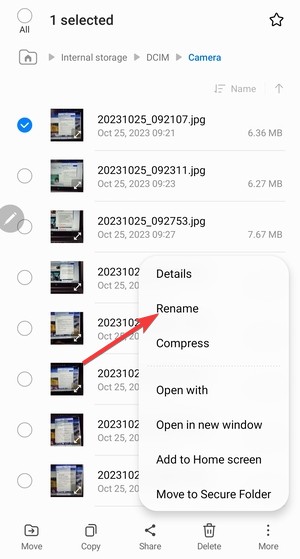

- Enter the new name and tap OK.
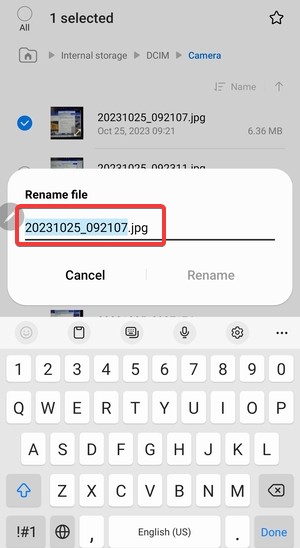

Android saves the new filename immediately.
Rename photos from the Gallery
Gallery apps often rename how a photo appears inside the app. They usually do not change the underlying file name.
Rename photos in Samsung Gallery
- Open Gallery and open the photo.
- Tap the menu and look for Details.
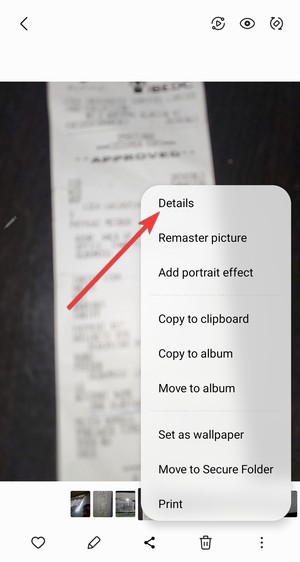

- Next, select Edit details.
- Finally, change the name field if Samsung shows it, then save.
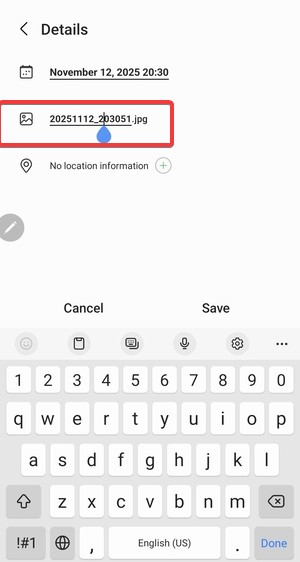
This method helps you change the name of most photos on Samsung devices. Also, you can move your photos from Google Photos to gallery if you want to use this method to change their names.
Use a third-party file manager for batch renaming
Third-party file managers offer stronger batch rename tools and better folder access, especially when you need consistent naming across many photos.
When you should use a third-party app
Use one when you need to rename dozens of photos quickly, add numbering automatically, or apply a consistent naming pattern across folders.
How batch renaming works on Android
Most batch tools let you add a prefix, suffix, or number sequence and then apply it across selected files. This keeps photo libraries easy to sort and search.
Understand file names vs photo metadata
File names and photo details are not the same thing on Android. A gallery app can show dates and titles that come from metadata, even when the file name stays unchanged.
What EXIF data is and why it matters
EXIF data stores details like capture date, location, and camera settings. Renaming a file does not change any of that information.
Why some photo names revert after syncing
Cloud backups may keep the original filename and restore it later, especially if the app treats renamed files as a new copy or re-uploads them with default names.
Rename photos stored on SD cards or external storage
External storage follows stricter permission rules on newer Android versions. You may need to grant file access before Android allows renaming.
Grant storage permissions correctly
- Open Settings > Apps.
- Open your file manager app.
- Tap Permissions and allow the highest storage access option available.
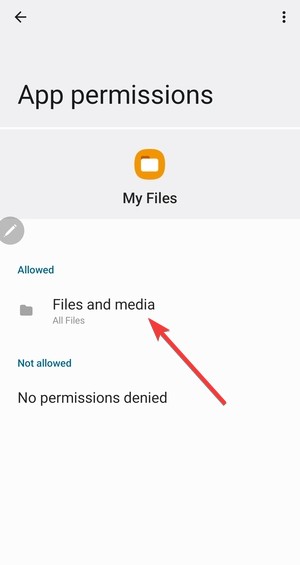

Without permission, Android can block renaming or hide the option entirely.
Common errors when renaming external photos
Read-only SD cards, USB drives, or protected folders often prevent changes. If the SD card uses a corrupted file system, move the photos to internal storage, rename them there, and then move them back.
Fix issues when Android won’t let you rename photos
Some rename attempts fail even when the steps look correct. Permission limits, protected folders, and sync conflicts cause most problems.
“Rename” option missing or grayed out
This usually means the photo sits in a protected folder or you opened it through a gallery view that does not expose the real file. Move the photo to Downloads or Pictures and try again in a file manager.
Name changes not saving
- Restart your phone to refresh storage indexing.
- Open Settings > Apps > your Gallery app.
- Tap Storage > Clear cache.
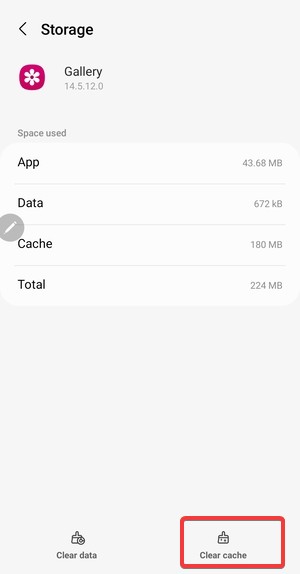

Sync conflicts and cached thumbnails can make it look like the rename failed when Android just has not refreshed the view.
Tips for naming photos on Android
- Use simple names and avoid special characters.
- Add dates to avoid duplicates, such as 2025-12-22.
- Rename photos before you upload them to cloud storage.
- Use a consistent pattern, like EventName_001, EventName_002, and so on.
FAQs
Does renaming a photo change its quality? No. Renaming only changes the filename, so the photo’s resolution and image data stay the same.
Will Google Photos keep my renamed filename? Usually not. Google Photos focuses on organizing cloud copies, and it may keep the original filename or re-upload photos with default names.
Why does my Gallery show one name but Files shows another? Your Gallery may display a label or title from metadata, while the Files app shows the real filename stored in the folder.
Can I rename photos on an SD card? Yes, but Android may require extra permissions. If the SD card is read-only or uses a restricted folder, move the photos to internal storage, rename them, then move them back.
Summary
- Use the built-in Files app to rename the actual photo file.
- Expect Gallery apps to change labels, not the real filename.
- Use batch renaming in a file manager when you rename many photos.
- Rename photos before cloud syncing to avoid names reverting.
Renaming photos on Android works best when you use a file manager and understand how Android separates file names from gallery labels. Rename files before syncing or sharing to keep names consistent across apps and backups.



Discussion (0)
Be the first to comment.