




Applies to: iPhone/iPad (Screen Time), Android (Digital Wellbeing), Windows 10/11 (Focus & Family Safety), macOS (Screen Time). Time to complete: 20–40 minutes for the core setup.
Goal: Cut daily personal screen time by 30–50% in 14 days without breaking essential work/family communication.
Before you start
- Decide your target: Example: down to 2h/day on phone, no social media after 21:30.
- Pick your “essential apps” list: calls, messages, maps, banking, calendar, 2FA, camera.
- Find a charging spot outside the bedroom: hallway/kitchen. Keep a cheap alarm clock by the bed.
- Turn off “Always-On Display”/wake-on-lift: reduces idle glances that snowball into sessions.
- Have a paper notepad: jot ideas so you don’t “open the phone to remember.”
Start here — high‑impact, low‑friction fixes (vetted)
These are the upgrades that consistently deliver the biggest time savings with minimal downsides. Do them in order. Most users see an immediate 20–30% reduction.
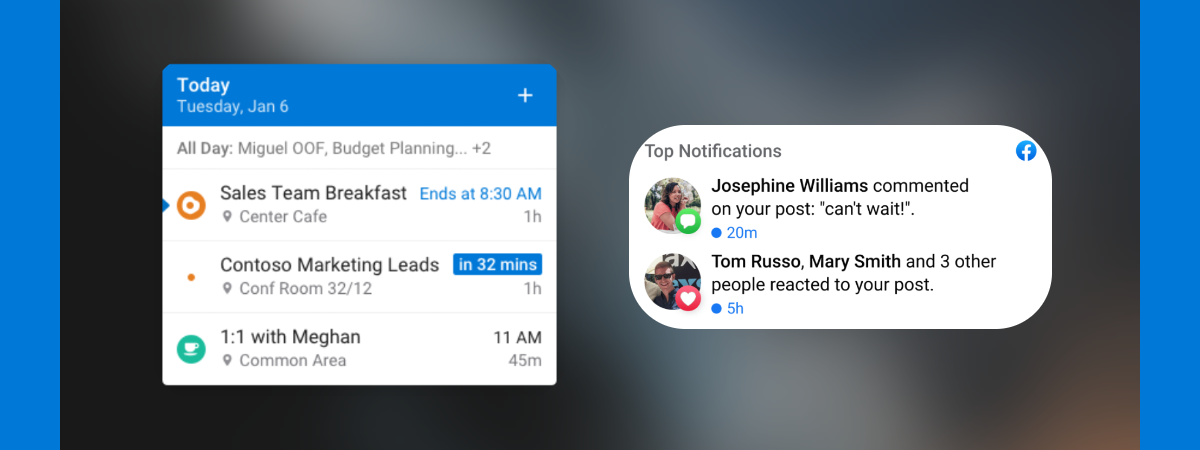
1) Silence non‑human notifications
- Keep: calls, texts/WhatsApp from favorites, calendar, ride‑share, deliveries, banking/2FA.
- Disable: social media “likes,” news alerts, shopping deals, games, streaming promos, “suggested for you.”
- iPhone: Settings → Notifications → per‑app → allow only “Time Sensitive” for essentials. Use Focus→Allowed People.
- Android: Settings → Notifications → App notifications → turn off marketing; set “Priority” only for people/apps that matter.
2) Set App Limits for the time‑sinks
- Cap social, Shorts/Reels/TikTok, games to 15–30 minutes/day each.
- iPhone/iPad: Settings → Screen Time → App Limits → Add Limit → pick categories/apps → set daily cap and “Block at End of Limit.”
- Android: Settings → Digital Wellbeing → Dashboard → app → Set timer.
- Windows/macOS: Use Family Safety/Screen Time to limit specific apps or all browsers after-hours.
3) Schedule Downtime (phone becomes “calls‑only” overnight)
- Set Sleep/Downtime from 21:30–07:00. Allow Calls and Messages from Favorites only.
- iPhone: Screen Time → Downtime → 21:30–07:00; Always Allowed → add essential apps.
- Android: Digital Wellbeing → Bedtime mode → grayscale + DND on schedule.
4) Grayscale + minimalist Home Screen
- Grayscale removes color rewards; minimal Home Screen removes triggers.
- iPhone: Settings → Accessibility → Display & Text Size → Color Filters → On → Grayscale. Keep page 1: Phone, Messages, Camera, Maps.
- Android: Digital Wellbeing → Bedtime mode → Grayscale; or Developer options → Monochromacy (varies by device).
- Move social, video, games off page 1 into a folder named “Later.”
5) Physical environment change
- Charge your phone outside the bedroom. Use a $10 alarm clock instead.
- Put a book/magazine next to the couch and bed to replace doom‑scrolling.
- Keep your smartwatch notifications to “people only.”
6) Add “Focus” presets for work, commute, family time
- Work Focus: allow coworkers + work apps; hide social; schedule weekdays 09:00–17:00.
- Family Focus: evenings/weekends; allow family; silence everything else.
- Driving Focus: auto-reply to messages; only navigation + music allowed.
7) Weekly review & adjust
- Open Screen Time/Digital Wellbeing every Sunday. Note the top 3 time‑sinks.
- Reduce each by 10–15 minutes next week or block specific hours (e.g., 19:00–21:00).
Measure your baseline (so wins are visible)
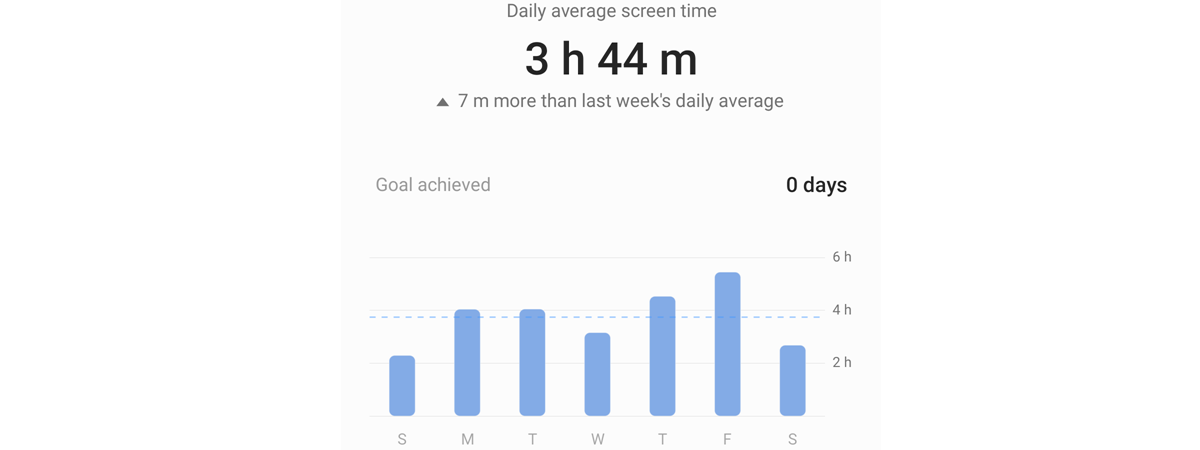
- Phone: Settings → Screen Time/Digital Wellbeing → note Daily Average and top apps.
- Computer: On Windows, check Focus Sessions’ streaks; on macOS, Screen Time → Weekly view.
- Target: −30% average in 14 days; −60 minutes on your top app.
Platform setup — step‑by‑step
iPhone/iPad: Screen Time quick setup
- Turn on Screen Time: Settings → Screen Time → Turn On. If for a child, select “This is My Child’s iPhone.”
- Downtime: 21:30–07:00 → Block at Downtime.
- App Limits: Social (20–30m), Video (30–45m), Games (20–30m). Enable Block at End of Limit.
- Always Allowed: Phone, Messages, Maps, Wallet, Calendar, Authenticator, Camera.
- Content & Privacy Restrictions: set age limits for children; consider blocking app store purchases at night.
- Focus: create Work, Family, Driving; allow specific people/apps; choose Home Screens by Focus.
- Notification summary: Settings → Notifications → Scheduled Summary → batch non‑urgent alerts twice per day.
Android: Digital Wellbeing quick setup
- Open Digital Wellbeing: Settings → Digital Wellbeing & parental controls.
- Dashboard timers: per‑app timers on social, video, games (15–30m).
- Bedtime mode: schedule to 21:30–07:00 → Grayscale + Do Not Disturb.
- Focus mode: add distracting apps → schedule during work/family hours.
- Notification hygiene: Settings → Notifications → per‑app → turn off marketing/promotions.
- Widgets/Home: remove social/video icons from the home page; keep dialer, messages, maps, camera.
Windows 10/11: Focus & Family Safety
- Focus sessions: Settings → System → Focus → start 25–50 minute sessions with break reminders; turn on Do not disturb during sessions.
- Notifications: Settings → System → Notifications → turn off for non‑essential apps; enable priority for Teams/Outlook.
- Family Safety: Use screen time schedules and app limits for child accounts; block inappropriate websites in Edge.
- Work PC: Ask IT about Quiet Hours/Focus and notification policies to keep your settings persistent.
macOS: Screen Time & Focus
- Turn on Screen Time: System Settings → Screen Time.
- App Limits: set caps on browsers/social/video apps; “Block at end of limit.”
- Downtime: 21:30–07:00, allow essential apps only.
- Focus: Work/Family/Drive; link to specific Home Screens and hide notifications from others.
- Reduce badges: System Settings → Notifications → turn off badges for distracting apps.
Add friction — make distractions harder to start
- Log out of the top 3 time‑sinks; require 2FA at login.
- Delete autoplay: turn off “Autoplay next video” inside YouTube/Netflix/Instagram/TikTok.
- Remove saved passwords for social/video sites on desktop; rely on the password manager prompt.
- Change phone unlock: require passcode at first unlock in the morning; disable Face ID when Downtime is active.
- Use a secondary user profile for entertainment on computers; switch accounts to watch content.
- Hide “For You” tabs by pinning Following/Subscriptions where possible.
Replace the habit — what to do instead
- Set 3 default replacements: a book or Kindle, a short walk, 10 push‑ups/stretching.
- Home screen stack: podcast player for long walks, notes for journaling, camera for quick photos.
- Micro‑goals: “No phone at breakfast,” “Phone‑free 20 minutes after work,” “Two phone‑free commutes per week.”
- Social substitution: call one friend/family member instead of scrolling for 15 minutes.
Family & kids — balanced controls
- Shared rules: devices charge outside bedrooms; screens off 90 minutes before bed; no phones at dinner.
- Family setup: use Apple Family Sharing or Google Family Link for child accounts and limits.
- Co‑create limits: let older kids propose their own caps; review every Sunday; tie screen time to routines (homework first).
- Model the behavior: parents use Focus during dinner and bedtime; announce your Downtime window.
Work/enterprise tips
- Split church and state: use a dedicated work phone or Focus that hides personal apps 09:00–17:00.
- Mute work apps after hours: Teams/Slack notifications only for mentions and during business hours.
- Batch email: schedule two 30‑minute email windows; keep mail closed otherwise.
- Calendar guardrails: block “no‑meeting” focus time; enable DND during those blocks.
Troubleshooting
- Limits don’t stick on iPhone: ensure “Block at End of Limit” is on; remove “Always Allowed” for the app; set a Screen Time passcode (don’t share it with kids).
- Android Bedtime doesn’t grayscale: confirm Digital Wellbeing is device default (some OEMs move it); check Do Not Disturb schedule.
- Windows notifications still appear: turn on “Do Not Disturb” during Focus sessions; disable “Priority” for distracting apps.
- Work apps bypass Focus: review Focus → Allowed People/Apps; if managed by MDM, ask IT to respect personal Focus.
- Family limits are ignored: make sure the child uses their account on all devices; set a strong parent PIN; audit “Always Allowed.”
Tips
- One change per week: stack wins without backlash; review Sundays.
- Use analog cues: wall calendar for workouts; paper book on the coffee table; printed recipe on the fridge.
- Home automation: smart plugs to auto‑cut TV/console power at 22:00.
- Travel mode: keep social apps deleted during trips; re‑install only if truly needed.
- Reward system: convert saved minutes into a walk, hobby, or a family activity.
FAQs
How much screen time is “healthy” for adults?
There is no universal number. A practical target is −30% from your current baseline while preserving essential work/family tasks and sleep quality.
What’s the fastest single change I can make?
Turn off non‑human notifications and move social/video apps off your first Home Screen. Most people see an immediate drop in pickups and session starts.
Does grayscale really help?
Yes. It reduces the reward signal from colorful UI. Combine it with Downtime and Focus for better results.
Should I delete social apps?
If caps are not enough, deletion for weekdays is highly effective. Use the web version on desktop during a scheduled window if needed.
Will this hurt my work responsiveness?
Not if you whitelist people and work apps properly in Focus. You’re cutting noise, not critical messages.
Summary (ordered steps)
- Measure baseline on phone and computer.
- Silence non‑human notifications; keep people and time‑sensitive alerts only.
- Set App Limits for social, video, and games (15–30m each).
- Schedule Downtime/Bedtime (21:30–07:00) with exceptions for essentials.
- Enable Grayscale and simplify the Home Screen.
- Create Work, Family, and Driving Focus modes.
- Change the physical environment (no phone in bedroom; charging station outside).
- Add friction (log out, remove autoplay, unsave passwords for time‑sinks).
- Replace the habit (book, walk, stretching, quick call).
- Review weekly and tighten caps by 10–15 minutes for top offenders.
Conclusion
Prioritized fixes: notification triage, app limits, Downtime, grayscale/minimal Home Screen, and Focus modes deliver the biggest wins fast.
Expected recovery window: you should see 20–30% less screen time within the first week and reach your target in about two weeks with weekly reviews.
Next action: perform the “Start here” checklist now, set your Downtime schedule, and put the charger outside the bedroom tonight. Revisit your Screen Time dashboard next Sunday and adjust.

Discussion (0)
Be the first to comment.