




Programming a smart TV remote takes only a few minutes when you use the right method. Most remotes connect through IR, Bluetooth, or RF, and each type follows a different pairing flow. This guide walks you through the fastest ways to program your smart TV remote and fix common issues.
Before you start, note that some smart TVs only work with their official remotes, while universal remotes support a wider range of devices. Confirming compatibility avoids repeated pairing failures. Also, insert fresh batteries, power on the TV, and keep a clear line of sight if your remote uses IR to send signals.
Once everything is set, you can proceed to the steps below.
Table of contents
1) Use automatic pairing mode
Many smart TVs enter pairing mode when you press a dedicated button or bring the remote close to the TV. Automatic pairing usually gives you the fastest option.

If the TV does not detect the remote, open the settings menu and find the remote or accessories section. This lets you force the TV into pairing mode.
2) Program the remote with IR code entry
To program universal remotes to Roku TV and other smart TVs, you need the numeric codes for the TV brand. First press the button for your device, then enter the code for your TV brand and test basic actions like power and volume.

If you do not have the code list, start an auto-scan. The remote cycles through codes until the TV responds, which helps when you lack documentation.
3) Program the remote for external devices
Some remotes control soundbars, cable boxes, or streaming devices. Programming additional devices lets you simplify your setup and reduce remote clutter.
HDMI-CEC lets your devices switch inputs automatically and sync audio with soundbars. Enabling it helps if only certain buttons or inputs respond.
4) Program voice-enabled smart remotes
Voice remotes need Bluetooth pairing plus microphone activation. Make sure the voice control button works and the assistant responds after pairing.
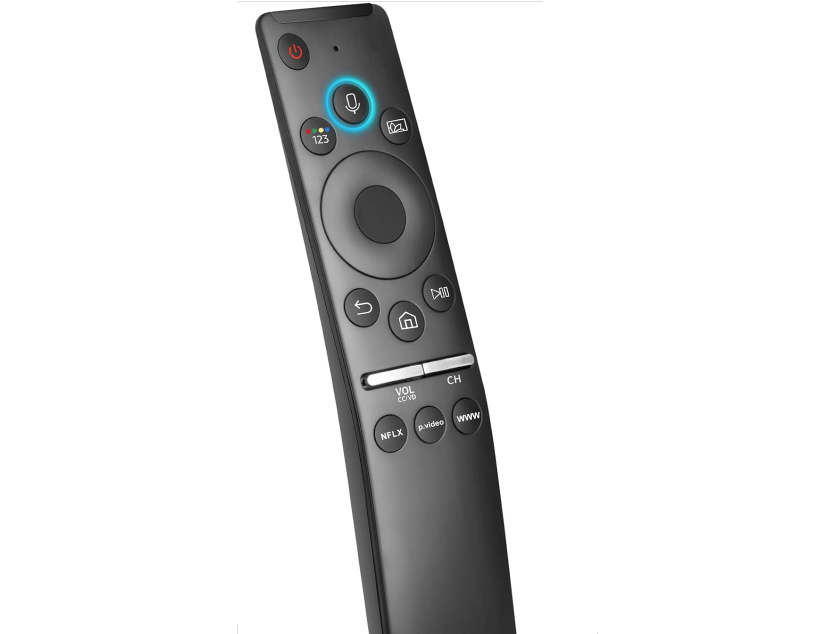
Reset and re-pair a smart TV remote
If the remote becomes unresponsive, a reset often restores full function. Re-pair the remote afterward so it reconnects with the TV.
Troubleshooting smart TV remote issues
- Fix Bluetooth or RF interference: Nearby routers, speakers, or wireless devices can interfere with the remote. Move these devices away or change their channels if pairing becomes unstable.
- Check for firmware updates: Smart TVs often push updates that improve remote compatibility. Updating your TV fixes bugs that affect remote performance.
- When to replace your remote: A remote that overheats, drains batteries quickly, or has unresponsive buttons likely needs replacement. Hardware failure does not improve through reprogramming.
Tips for programming a smart TV remote
- Keep new batteries installed to avoid weak signal output.
- Stand within five to ten feet of the TV for the best pairing results.
- Use the TV settings menu if auto-pairing does not start.
- Enable HDMI-CEC to control soundbars and streaming devices with one remote.
- Restart the TV before you troubleshoot pairing problems.
FAQs
What code do I need to program a universal remote? Each remote uses a different list of brand codes. You can use code entry or auto-scan if you do not have the list available.
Why will my smart TV not detect my remote? Weak batteries or blocked signals often cause detection issues. Bluetooth remotes may also need a manual pairing reset.
Can one remote control both my TV and soundbar? Yes. Many smart TV remotes support audio device pairing or HDMI-CEC to manage volume and inputs.
How do I fix a remote that only controls the TV power? This usually means the wrong IR code was used. Re-enter the correct code or use the auto-scan feature.
Summary
- Understand your remote type and confirm compatibility.
- Try automatic pairing first for fast connection.
- Use IR code entry or auto-scan when the remote supports codes.
- Configure external devices and HDMI-CEC for unified control.
- Reset and troubleshoot the remote when issues appear.
Smart TV remotes keep evolving, but most still follow straightforward steps for programming and pairing. Start with automatic pairing, then move to code entry or troubleshooting if you need more control. A few quick adjustments usually restore full control of your TV and connected devices.


Discussion (0)
Be the first to comment.