




Diablo Immortal started life as a mobile game, but you can now play Diablo Immortal on PC with full keyboard, mouse, and controller support. A larger screen, more precise controls, and better performance can make every demon hunt feel smoother and more cinematic.
In this guide, you will learn how to download and play Diablo Immortal on PC using the official Battle.net client, how to run Diablo Immortal on PC with an Android emulator if you prefer, and how to stream the mobile version to a Windows desktop. You will also see optimization tips so Diablo Immortal PC gameplay stays sharp and responsive.
Can You Play Diablo Immortal On PC?
Yes. Blizzard now offers a native Diablo Immortal PC client through Battle.net, so you no longer need to rely only on emulators. Progress syncs through your Battle.net account, so you can move between PC and mobile without losing your characters, cosmetics, or purchases.
You can still play Diablo Immortal on PC with Android emulators or screen-mirroring apps if you want to test different layouts or run multiple accounts, but the official Diablo Immortal PC version usually offers the most stable experience.
System Requirements For Diablo Immortal On PC
Before you install Diablo Immortal on Windows, check that your PC meets or exceeds Blizzard’s minimum specifications. Requirements may change with future patches, so always double-check the system requirements on Battle.net at the time of writing.
Minimum Specs For Diablo Immortal PC
- Operating System: Windows 10 64-bit or newer
- CPU: Intel Core i3 or AMD equivalent
- RAM: 4 GB or more
- GPU: Integrated graphics or entry-level dedicated GPU that supports DirectX 11
- Storage: At least 24 GB of free space for Diablo Immortal and Battle.net
- Internet: Stable broadband connection for online play and updates
Recommended Specs For Smoother Gameplay
- CPU: Modern quad-core Intel or AMD processor
- RAM: 8 GB or more
- GPU: Mid-range dedicated card such as GTX 1650 or better
- Storage: SSD for quicker load times and patching
Method 1: How To Play Diablo Immortal On PC With Battle.net (Recommended)
The official Diablo Immortal PC client gives you native WASD movement, optimized mouse targeting, and built-in Battle.net social features. This is the best way to install Diablo Immortal on a Windows gaming PC.
Step 1: Install The Battle.net Desktop App
- Open your web browser and go to the official Battle.net website.

- Download the Battle.net desktop app for Windows.

- Run the installer and follow the on-screen prompts.
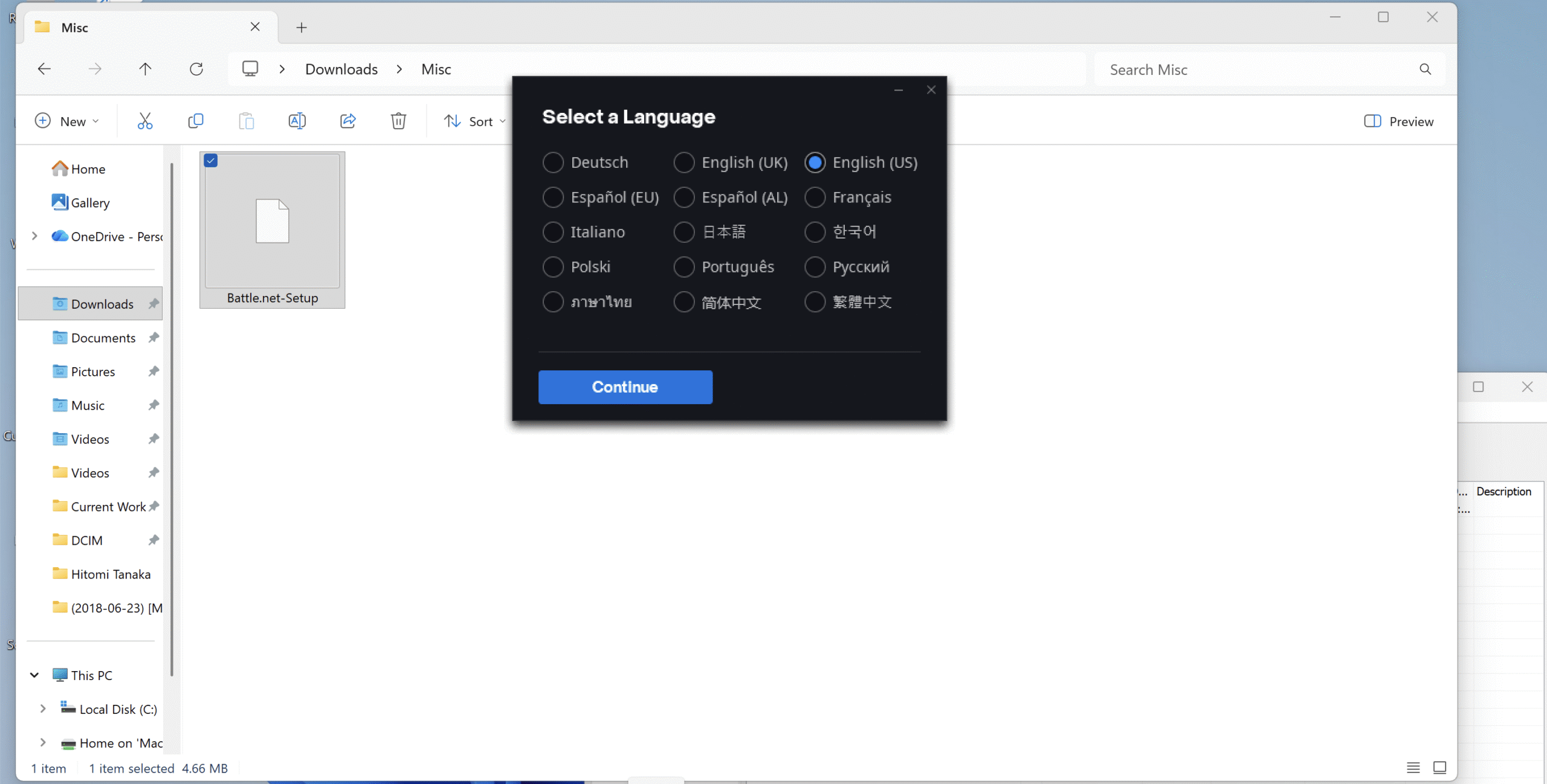
- Sign in with your Battle.net account or create a new one if you do not have one yet.
Step 2: Download Diablo Immortal On PC
- Launch the Battle.net app and sign in.
- Look for Diablo Immortal in the game list or search bar.
- Click the game, then select your install location.
- Press Install and let the download and installation finish.
Step 3: Link Your Mobile And PC Progress
- On your phone, make sure you are using the same Battle.net account in Diablo Immortal that you will use on PC.
- On PC, launch Diablo Immortal from Battle.net.
- Sign in with that same Battle.net profile when prompted.
- Confirm that your existing characters appear in the character select screen.
Step 4: Configure Diablo Immortal PC Settings
- Open the in-game menu and go to Settings.
- Set the Graphics preset lower if your PC struggles, or higher if you have a powerful GPU.
- Enable V-Sync or frame rate limits if you see screen tearing.
- Adjust Resolution to match your monitor’s native resolution for a crisper image.
Best Controls For Diablo Immortal On PC
When you play Diablo Immortal on PC, the default control layout uses WASD movement and mouse targeting. You can customize this to match your ARPG habits and get the most from Diablo Immortal PC gameplay.
Keyboard And Mouse Layout
- Use WASD to move your character instead of clicking to move.
- Use the Left Mouse Button for your primary attack.
- Bind your skills to keys such as 1–4, Q, and E so you can trigger them quickly.
- Assign a convenient key to Potion and Ultimate so you never fumble during boss fights.
Controller Support On PC
Diablo Immortal PC supports many popular controllers, including Xbox and PlayStation gamepads. If you prefer a console-style feel, this can make Diablo Immortal on Windows more comfortable.
- Connect your controller via USB or Bluetooth before launching the game.
- Open Settings and check the Controller tab.
- Enable controller support and review the default bindings.
- Rebind buttons if needed so your primary attacks, dodges, and ultimates feel natural.
Method 2: How To Play Diablo Immortal On PC With An Android Emulator
If you like the mobile interface or run multiple accounts, you can still play Diablo Immortal on PC using an Android emulator. This approach mimics an Android device on your desktop and lets you keep the exact mobile version of Diablo Immortal.
Step 1: Choose A Reliable Emulator
- Pick a mainstream emulator such as Bluestacks, LDPlayer, or NoxPlayer.
- Download the latest stable version from the official website.
- Avoid unofficial builds that may introduce security or performance issues.
Step 2: Install The Emulator On Windows
- Run the emulator installer and accept the basic settings.
- Allow the emulator to download any required Android components.
- Restart the emulator when setup completes.
Step 3: Install Diablo Immortal Through Google Play
- Open the emulator and sign in to the Google Play Store with your Google account.
- Search for Diablo Immortal in the Play Store.
- Click Install and wait for the download to finish.
- Launch Diablo Immortal inside the emulator once the install completes.
Step 4: Optimize Emulator Settings For Diablo Immortal PC Gameplay
- Increase the emulator’s CPU and RAM allocation if your PC has enough resources.
- Enable hardware acceleration such as VT-x or AMD-V in your BIOS if supported.
- Match the emulator resolution to your monitor for a sharper image.
- Use the emulator’s key-mapping tool to bind on-screen buttons to keyboard and mouse inputs.
Running Diablo Immortal on PC through an emulator usually consumes more resources than the native client, so expect higher CPU usage and more heat on older laptops.
Method 3: How To Stream Diablo Immortal From Phone To PC
Screen-mirroring apps let you stream the mobile version of Diablo Immortal to a PC window. This method keeps all processing on your phone while your PC displays the gameplay.
Step 1: Install A Screen Mirroring App
- Choose a mirroring tool that works with your phone and Windows, such as Scrcpy, AirServer, or ApowerMirror.
- Install the desktop client on your PC.
- Install the companion app on your Android or iOS device if the tool requires it.
Step 2: Connect Your Phone And PC
- Connect both devices to the same Wi-Fi network, or use USB if the app supports it.
- Launch the mirroring app on your PC and phone.
- Approve any screen-sharing permissions on your phone.
- Confirm that your phone screen now appears in a window on your PC.
Step 3: Launch Diablo Immortal On Mobile
- Open Diablo Immortal on your phone as you normally would.
- Rotate the phone to landscape mode to fill more of the PC display.
- Use your phone for touch controls while watching the game on the larger PC screen.
This method works best when your Wi-Fi network is strong and low latency. If you see lag or stuttering, try switching to a wired connection or moving closer to your router.
How To Optimize Diablo Immortal On PC
Once you have Diablo Immortal running on PC, you can tweak settings for a smoother, more stable experience, especially on lower-end hardware.
Graphics Settings To Adjust First
- Lower the overall graphics preset if you see frequent stutters or frame drops.
- Turn down shadows and post-processing effects, which often hit performance hardest.
- Reduce resolution scaling if you need extra frames and do not mind a softer image.
- Disable unnecessary background apps in Windows while you play.
Network And Latency Tips
- Use a wired Ethernet connection if possible for more stable ping.
- Close bandwidth-heavy apps such as large downloads or streaming services.
- Select the correct server region in Diablo Immortal to match your location.
Cross-Progression Between PC And Mobile
One major benefit of playing Diablo Immortal on PC is full cross-progression. You can grind dungeons at your desk, then switch to mobile for quick bounties when you leave the house.
- Always log in with the same Battle.net account on both PC and mobile.
- Verify that your characters appear on both platforms after a fresh login.
- Let the game fully sync after each session before you close it.
This shared progress makes Diablo Immortal PC gameplay feel like an extension of your mobile sessions rather than a separate profile.
Common Diablo Immortal PC Issues And Quick Fixes
Even with native PC support, you may run into performance or connection issues while you play Diablo Immortal on Windows. Here are quick troubleshooting steps.
If The Game Does Not Launch
- Run the Battle.net app as administrator.
- Use the Scan And Repair option for Diablo Immortal in Battle.net.
- Update your graphics drivers to the latest stable version.
- Temporarily disable overlays from other apps, such as recording tools or chat clients.
If You See Low FPS Or Stuttering
- Lower the in-game graphics preset and restart the client.
- Switch Diablo Immortal to fullscreen mode instead of borderless windowed.
- Make sure Windows Game Mode and GPU drivers are up to date.
- Check CPU and GPU temperatures to confirm the system is not throttling.
If Your Controller Does Not Work
- Connect the controller before you launch Diablo Immortal.
- Check that Windows detects the controller in the gamepad settings panel.
- Verify that controller support is enabled inside Diablo Immortal’s settings.
- Unplug other gamepads if they conflict with your primary controller.
Summary
- You can play Diablo Immortal on PC using the official Battle.net client, an Android emulator, or screen-mirroring tools.
- The native Diablo Immortal PC version offers WASD movement, improved mouse targeting, and full Battle.net integration.
- Check current system requirements and adjust graphics settings to keep frame rates stable on Windows 10 or Windows 11.
- Use keyboard and mouse or a supported controller for more precise combat and smoother dungeon runs.
- Link your mobile and PC accounts through Battle.net so you can move between platforms without losing progress.
- Troubleshoot launch, performance, or controller issues by updating drivers, scanning the game files, and adjusting in-game options.
Conclusion
Learning how to play Diablo Immortal on PC lets you enjoy the same fast, touch-friendly action with the precision of a gaming keyboard, mouse, or controller and a much bigger display. The official Battle.net client gives most players the best mix of stability and performance, while emulators and streaming tools add flexibility for niche setups.
Choose the method that fits your hardware and play style, dial in your graphics and control settings, and then focus on what matters most in Diablo Immortal on PC: shredding through demons, farming better gear, and pushing your favorite class deeper into endgame content.


Discussion (0)
Be the first to comment.