




If you want to relive classic PlayStation 2 titles on your computer, learning how to download PS2 games for PCSX2 is the first step. PCSX2 is a powerful PS2 emulator that lets you play your own games with higher resolutions, better performance, and modern controller support.
This guide shows you how to download PS2 games for PCSX2 legally, prepare your PS2 ISOs, add them to the emulator, and configure everything for smooth gameplay at the time of writing. Every method here follows the current PCSX2 workflow so you can avoid broken or outdated instructions.
Understand The Legal Side Of PS2 ROMs
Before you download PS2 games for PCSX2, you need to understand the legal basics. Emulation itself is legal, but downloading commercial PS2 ISOs you do not own counts as copyright infringement in many regions.
To stay on the safe side, follow these rules when you create or use PS2 game files in PCSX2:
- Only use PS2 ISOs created from discs you personally own.
- Dump your own PS2 BIOS from a real console instead of downloading BIOS files from random sites.
- Avoid “free PS2 ISO download” sites that distribute commercial games without permission.
- Check local law if you are unsure about backup copies and ROM usage.
This guide assumes you own the original PS2 discs and only want to back them up for use with the PCSX2 emulator.
Check Your PC And PCSX2 Requirements
PCSX2 runs on modern 64-bit versions of Windows, Linux, and macOS. At the time of writing, current builds focus on 64-bit systems and require reasonably recent hardware for smooth performance.
For most PS2 games on PCSX2, aim for these baseline specs or better:
- 64-bit Windows 10 or Windows 11, or a supported 64-bit Linux or macOS build
- Modern dual-core or quad-core CPU
- Dedicated GPU with support for DirectX 11, OpenGL, or Vulkan
- At least 8 GB of RAM
- Several gigabytes of free SSD or HDD space for PS2 ISOs and save data
Stronger hardware lets you increase internal resolution and apply widescreen patches without sacrificing frame rate.
Download And Install PCSX2
Next, install the PCSX2 emulator itself. This gives you the environment you need before you add or download PS2 games for PCSX2.
- Open your browser and go to the official PCSX2 website.

- Download the latest stable or nightly build for your operating system.
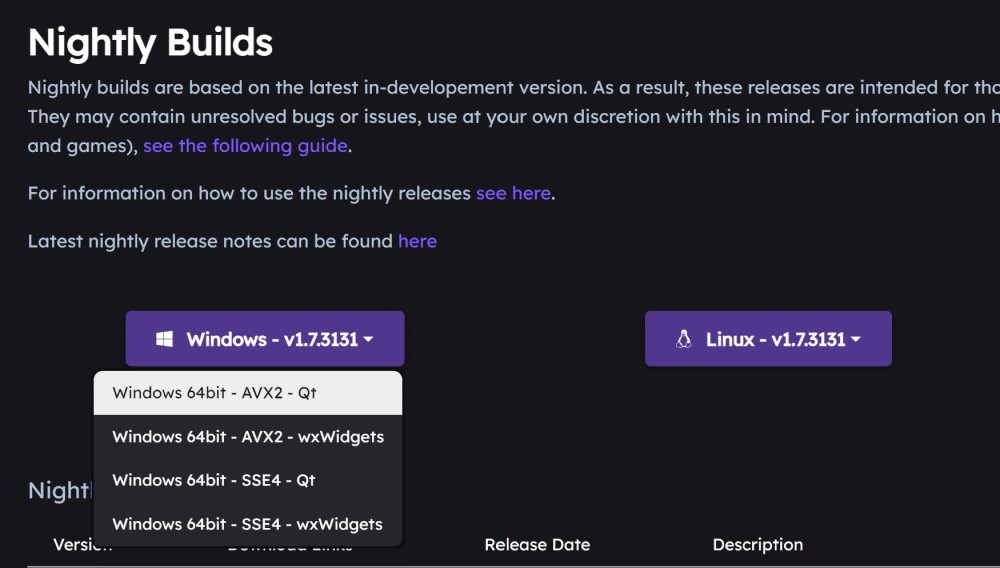
- Save the installer or portable archive to a folder outside the protected system directories, such as Documents or a custom Emulators folder.
- Run the installer or extract the portable build into your chosen folder.
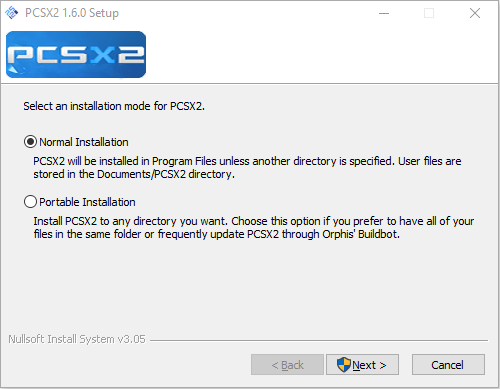
- Launch PCSX2 once to confirm it opens correctly.
Keeping PCSX2 in a dedicated folder makes it easier to manage BIOS files, memory cards, and your PS2 game directory later.
Dump And Install Your PS2 BIOS
PCSX2 will not run commercial games without a real PS2 BIOS. For legal reasons, the emulator cannot ship with this file, so you must extract it from your own console.
At a high level, the process looks like this:
- Use a legitimate BIOS dumper tool on your PlayStation 2 hardware.
- Copy the dumped BIOS files from your PS2 memory card or storage device to your PC.
- Create a BIOS subfolder inside your main PCSX2 directory.
- Place all BIOS files in that BIOS folder.
- Launch PCSX2 and let the first-time setup wizard scan for BIOS files.
- Select your region-appropriate BIOS and confirm.
Once PCSX2 detects a valid BIOS, it can boot into the console menu and run PS2 ISOs just like the original hardware.
Create Legal PS2 ISO Backups
The safest way to handle PS2 game downloads for PCSX2 is to create your own digital backups. That way, you avoid shady “PS2 ISO download” sites and keep full control over your collection.
You need a PC with a DVD drive and disc imaging software capable of reading PS2 game discs.
- Insert your original PS2 game disc into the DVD drive.
- Open your preferred imaging tool on Windows, macOS, or Linux.
- Select the option to create an image from disc.
- Choose ISO as the output format whenever possible.
- Save the ISO into a dedicated “PS2 Games” folder on your drive.
- Repeat the process for each PS2 disc you own and want to use with PCSX2.
These ISO files become the game images that PCSX2 reads when you play PS2 games on your computer.
Add PS2 Games To PCSX2
Modern PCSX2 builds make it easier to manage a full PS2 library. Instead of loading a single ISO every time, you can point the emulator to a folder and let it build a game list. This is the most convenient way to add PS2 games to PCSX2.
- Launch PCSX2 on your PC.
- Open the settings or game library menu, then look for an option like Add Game Directory or Game List.
- Browse to the “PS2 Games” folder where you store your ISOs.
- Select the folder and confirm so PCSX2 scans it for compatible games.
- Wait for the game list to populate with titles and box art where available.
If your version of PCSX2 still uses ISO selection instead of a game directory, you can load a title manually by browsing to the ISO file from the main menu.
Configure PCSX2 For Better Performance
After you download PS2 games for PCSX2 and add them to the library, tune the emulator so your games look and run the way you want. Small tweaks can make a big difference, especially on mid-range hardware.
Start with the core graphics and audio options:
- Open the Graphics or Video settings panel.
- Set the renderer to DirectX, OpenGL, or Vulkan, depending on what works best on your GPU.
- Increase the internal resolution above native for sharper visuals, or keep it at native for maximum performance.
- Enable optional effects like anisotropic filtering only if your system can handle them.
- Adjust audio settings to reduce stutter or crackling and match your output device.
You should also configure your controller so PS2 games feel natural on PC.
- Open the Controller or Pad settings.
- Select your gamepad, arcade stick, or keyboard and mouse.
- Map each PS2 button to the corresponding input on your controller.
- Test the layout in a game and tweak it until movement and camera controls feel right.
If you still experience slowdowns, explore performance options such as speedhacks, frame skipping, or different upscaling levels until you find a stable balance.
Launch And Play Your PS2 Games In PCSX2
Once everything is in place, you can finally play PS2 games on PCSX2 using your newly created ISOs. The exact steps vary slightly between older and newer builds, but the basic process stays the same.
- Open PCSX2 and go to your game list or ISO selector.
- Select the PS2 game you want to play from the library.
- Click the option to boot or start the game, often labeled Boot ISO or Boot Fast.
- Wait for the PS2 logo and game intro to appear.
- Use your configured controller or keyboard to start playing.
PCSX2 supports features the original console never had, such as quick save states, screenshots, and per-game configuration profiles. Use these to fine-tune tricky titles or resume long RPGs without relying on memory cards alone.
Troubleshoot Common PS2 Game And PCSX2 Issues
Even if you follow every step, you might run into problems the first time you download PlayStation 2 games for PCSX2 and try to play them. Most issues stem from BIOS configuration, corrupted ISOs, or aggressive graphics settings.
If a game refuses to run or looks wrong, start with these checks:
- Verify that your PS2 BIOS is valid and correctly selected inside PCSX2.
- Recreate the ISO from your original DVD if the image seems corrupted or fails to boot.
- Disable heavy graphics enhancements and try running at native resolution.
- Confirm you added the correct PS2 game directory and that PCSX2 can read the folder.
- Update to a more recent PCSX2 build if you still use an older version with known issues.
For stubborn titles, consult the official PCSX2 compatibility list and community guides to see if a specific game needs special patches or settings.
Conclusion
You now know how to download PS2 games for PCSX2 the right way, from dumping your own discs to adding PS2 ISOs into the emulator and tuning performance. By sticking to legal backups and using the latest PCSX2 builds, you keep your setup safe, stable, and future-proof.
Whether you revisit nostalgic favorites or discover classics you missed on the original console, PCSX2 turns your PC into a flexible PS2 gaming machine. Take the time to organize your library, adjust your settings, and enjoy your upgraded PlayStation 2 collection on modern hardware.


Discussion (0)
Be the first to comment.