




If you are curious about playing Nintendo Switch games on your PC, learning how to download games for Yuzu is only part of the story. You also need to understand the legal side, how the Yuzu emulator works, and how to add games safely without harming your system or breaking the law. At the time of writing, the original Yuzu project has been discontinued after legal action, so it is more important than ever to focus on legal use and your own backups.
This guide explains the general, legal-friendly workflow for preparing Yuzu, adding your own game backups, and organizing your library. It does not tell you where to download copyrighted Nintendo Switch games or how to bypass copy protection, because that would usually violate copyright law and platform terms of use.
Important Legal And Safety Notes
Before doing anything with Yuzu emulator or any other Switch emulator, you should understand the basics of what is allowed and what carries legal risk.
- Use Games You Own: Only use game files (backups) created from Nintendo Switch games you personally own. Downloading commercial game files from the internet almost always violates copyright.
- Avoid Piracy Sites: Do not search for “free ROMs,” “NSP download,” or similar sites. These typically host pirated content and can expose you to malware or legal problems.
- Dumping Has Legal Nuance: In many regions, making a backup of a game you own may be allowed, but bypassing encryption or DRM can still fall under anti-circumvention laws. When in doubt, get legal advice in your jurisdiction.
- Yuzu Is Discontinued: At the time of writing, Yuzu is no longer actively developed. Only obtain archived builds from trusted, verified sources and scan downloads with antivirus software.
- Respect Developers: If you enjoy a game, support the developers by buying a legitimate copy on Nintendo Switch.
This guide focuses on the general workflow for adding games to Yuzu emulator using your own content, not on acquiring games for free.
What You Need To Run Yuzu Emulator
Because Yuzu emulates Nintendo Switch hardware in software, it needs decent PC specs to run games smoothly. Exact requirements vary by game, but a modern gaming PC will handle most Yuzu titles better.
- Operating System: A 64-bit version of Windows or Linux is recommended for Yuzu emulator.
- Processor: A relatively modern multi-core CPU (for example, recent Ryzen or Intel Core chips).
- Memory: At least 8 GB of RAM, with 16 GB or more preferred for heavier Yuzu games.
- Graphics Card: A recent NVIDIA or AMD GPU with Vulkan or modern OpenGL support for higher performance.
- Storage: SSD storage for faster game loading and shader cache building.
Make sure your GPU drivers are up to date, because outdated graphics drivers are a common cause of crashes and poor performance in Yuzu.
Setting Up Yuzu Emulator Safely
Even though the original project has stopped, many users still have older builds of Yuzu installed. If you are setting up Yuzu for the first time, handle downloads and installation carefully.
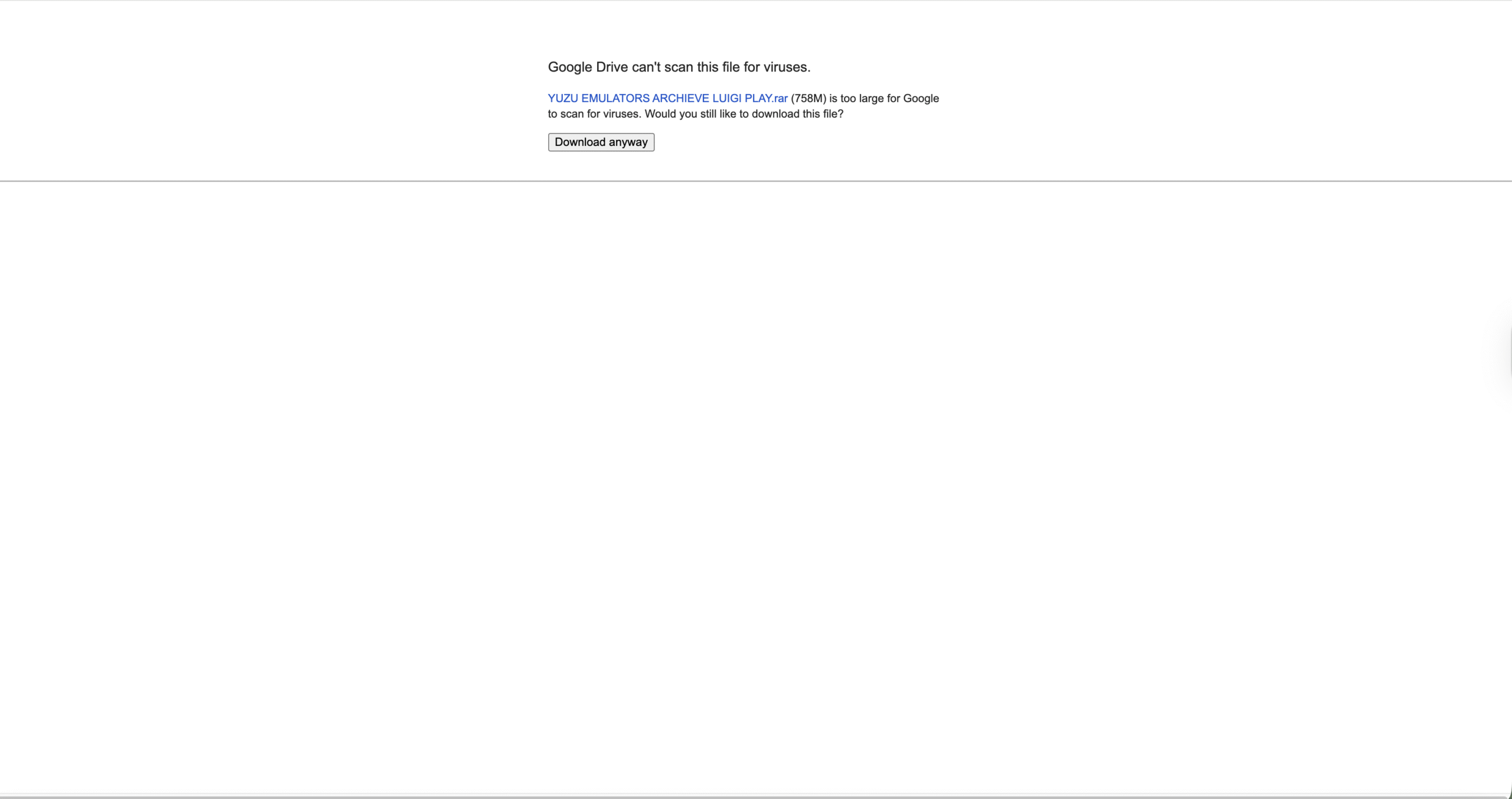
- Download Yuzu only from trusted, archived sources that clearly mirror the last legitimate builds, and never from random file-sharing links (like Google Drive links).
- Verify checksums if they are available or compare file sizes and signatures against community documentation.
- Extract and scan the installer and related files with reputable antivirus and antimalware tools before running anything.
- Install Yuzu in a dedicated folder, ideally on an SSD, and avoid mixing it with unrelated software.
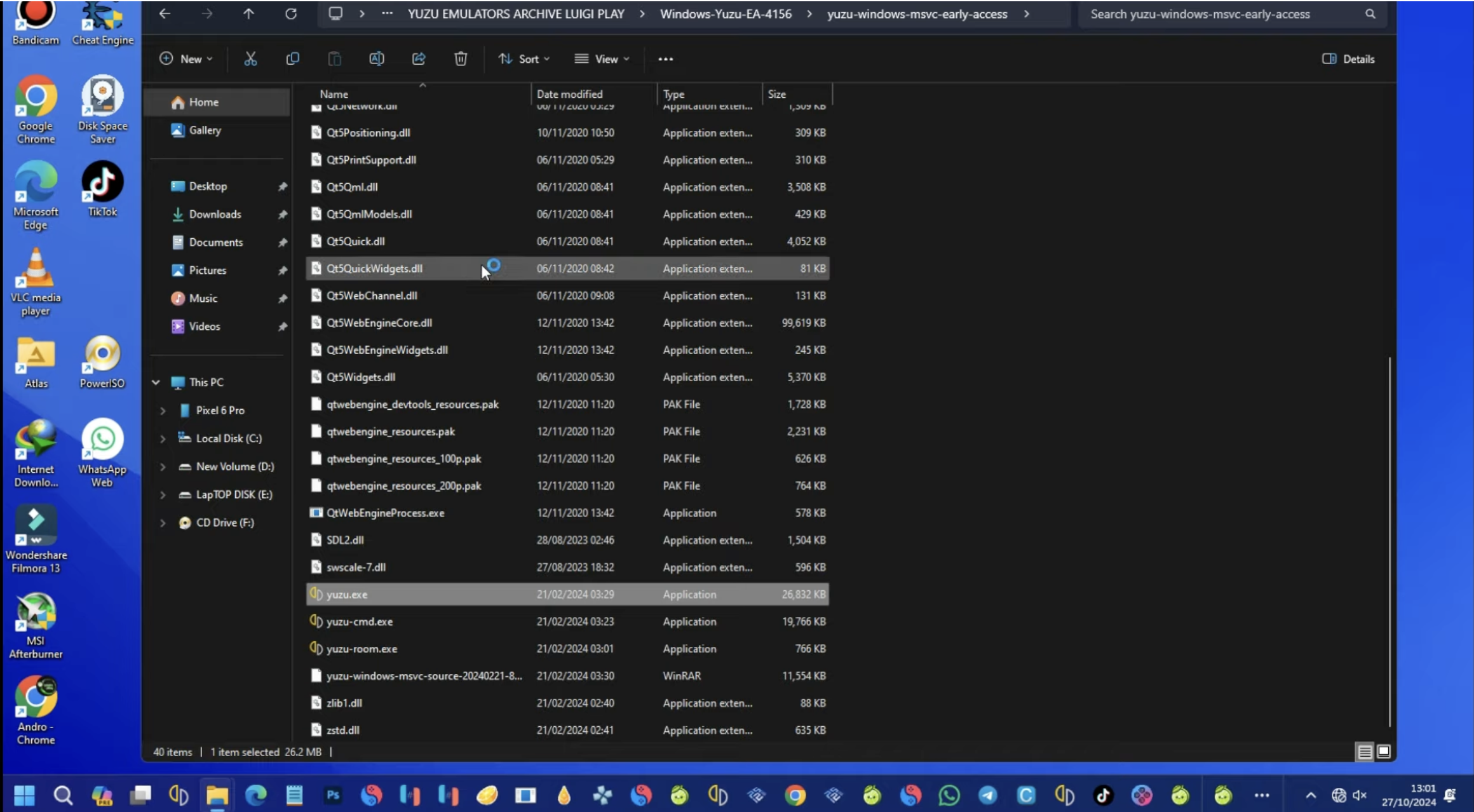
- Run Yuzu once so it can create its configuration directories and basic folders for game libraries and saves.
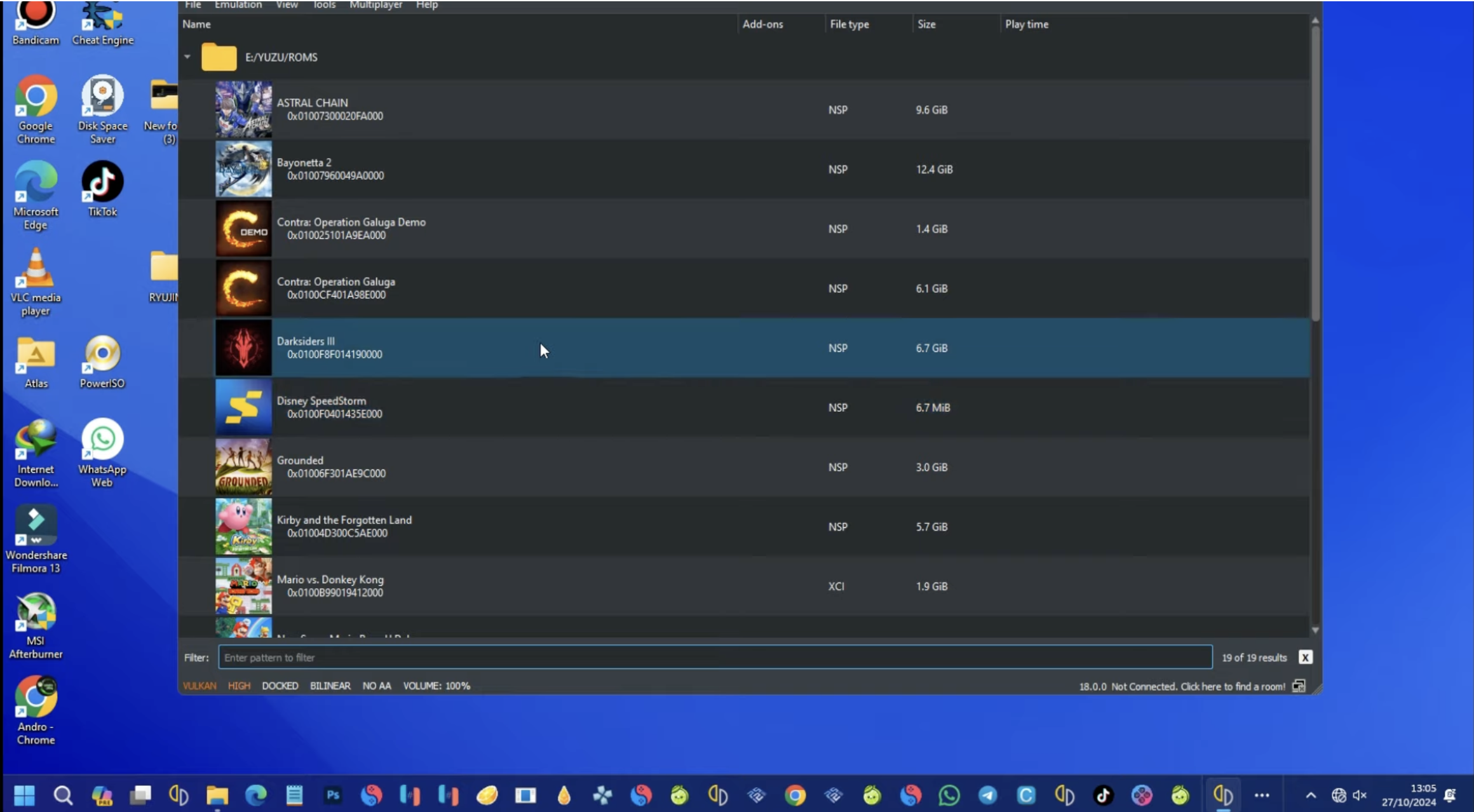
At this stage, Yuzu emulator is installed, but it does not yet know about any games. The next step is preparing your own legal game files.
How To Get Games For Yuzu Legally
When people talk about “how to download games for Yuzu,” they often mean grabbing pre-made ROMs from the internet. That is the part you should avoid. The legal approach is to create backups of your own Nintendo Switch games and transfer them to your PC.
- Use Your Own Switch: You need a Nintendo Switch console and physical game cartridges or digital purchases tied to your account.
- Follow A Legal-Friendly Dumping Guide: Look for high-level documentation from emulator communities that explains how to back up games you own. Avoid guides that explicitly focus on piracy or bypassing paid content.
- Keep Files Private: Treat your dumped game files like any other personal backup. Do not upload or share them publicly.
- Use Supported Formats: Yuzu typically works with formats such as XCI and NSP, but details can vary between builds.
- Document Your Library: Create a simple list or spreadsheet of the games you own and have backed up, so you can keep your Yuzu games organized.
This process gives you game files that Yuzu can recognize without resorting to questionable download sites.
How To Add Games To Yuzu Emulator
Once you have legal backups, you can add them to your Yuzu games library. This is the practical side of learning how to download games for Yuzu and actually make them playable.
- Open Yuzu and go to the main window where the game list appears.
- Create a dedicated folder on your PC for all of your Yuzu game backups, using clear names for each title.
- In Yuzu, open the menu and select the option to add or configure game directories.
- Point Yuzu to the folder that contains your XCI or NSP backups so it can scan them.
- Wait for the emulator to index your games; they should now appear in the main list with icons and titles.
- If a specific game does not show, double-check its file format and ensure it is in the correct folder.
After the initial setup, you only need to place new backups into one of the scanned folders and Yuzu emulator will detect them automatically.
How To Configure Games And Start Playing In Yuzu
Adding games is only the first step. To get good performance and a smooth experience, you should tune a few settings for Yuzu games on your PC.
- Select a game in the Yuzu list and open its properties or game-specific configuration.
- Choose the graphics backend (often Vulkan) if it is available and stable on your system.
- Adjust resolution scaling to match your GPU power; start close to native and increase gradually.
- Set controller input using a keyboard, Xbox controller, or another compatible gamepad.
- Enable or disable optional features such as asynchronous shaders depending on performance and visual glitches.
- Launch the game directly from the Yuzu list and monitor performance during the first few minutes.
Some games may need different settings than others, so consider saving per-game profiles within Yuzu emulator if that option exists in your build.
Fixing Common Yuzu Game Setup Problems
Even when you follow legal methods to add games to Yuzu, setup issues can still appear. Here are common problems and general fixes.
- Game Does Not Appear: Confirm the backup is in a scanned folder, uses a supported format, and is not corrupted. Try rescanning your game directories.
- Crashes On Launch: Update your GPU drivers, lower resolution, or switch the graphics backend. Check if the specific title has known issues with certain Yuzu builds.
- Very Low Performance: Reduce resolution scale, disable heavy visual enhancements, and close background apps that consume CPU or GPU resources.
- Audio Stutter Or Desync: Adjust audio latency in Yuzu settings and make sure your system is not throttling due to high temperatures.
- Controller Not Working: Reconfigure input in Yuzu, verify the controller works in Windows, and avoid using multiple mapping tools at once.
- Emulator Build Issues: Because Yuzu is discontinued, some builds may be unstable with newer drivers or Windows updates. Testing a different archived version can sometimes resolve stubborn bugs.
When you run into problems that are not resolved by simple tweaks, community forums and archived documentation can still provide useful pointers, especially for specific Yuzu game profiles.
Best Practices For Managing Yuzu Games
To keep your Yuzu games library clean and easy to use, treat it like a real console library instead of a random download folder.
- Keep each game in its own clearly named subfolder, especially if it has multiple content files or updates.
- Separate base games from update files and DLC so you can troubleshoot issues more easily.
- Document which games run well, which need tweaks, and which still have major issues on your hardware.
- Store your game backups on a fast drive and avoid cluttering the same drive with large temporary files.
- Back up your Yuzu saves and configuration files if you care about long-term progress.
These habits make it easier to manage your collection as you add more titles to your Yuzu emulator setup over time.
Final Thoughts
Understanding how to download games for Yuzu safely is really about learning how to use the emulator with your own Nintendo Switch library instead of chasing risky ROM sites. With a capable PC, legal backups, and careful setup, Yuzu emulator can still provide a strong experience for many games, even if active development has stopped.
Focus on legal sources, protect your system, and keep your expectations realistic for an emulator that is no longer updated. If you do that, you can enjoy a surprisingly polished experience with many of your favorite titles while respecting the rights of the creators behind them.


Discussion (0)
Be the first to comment.