




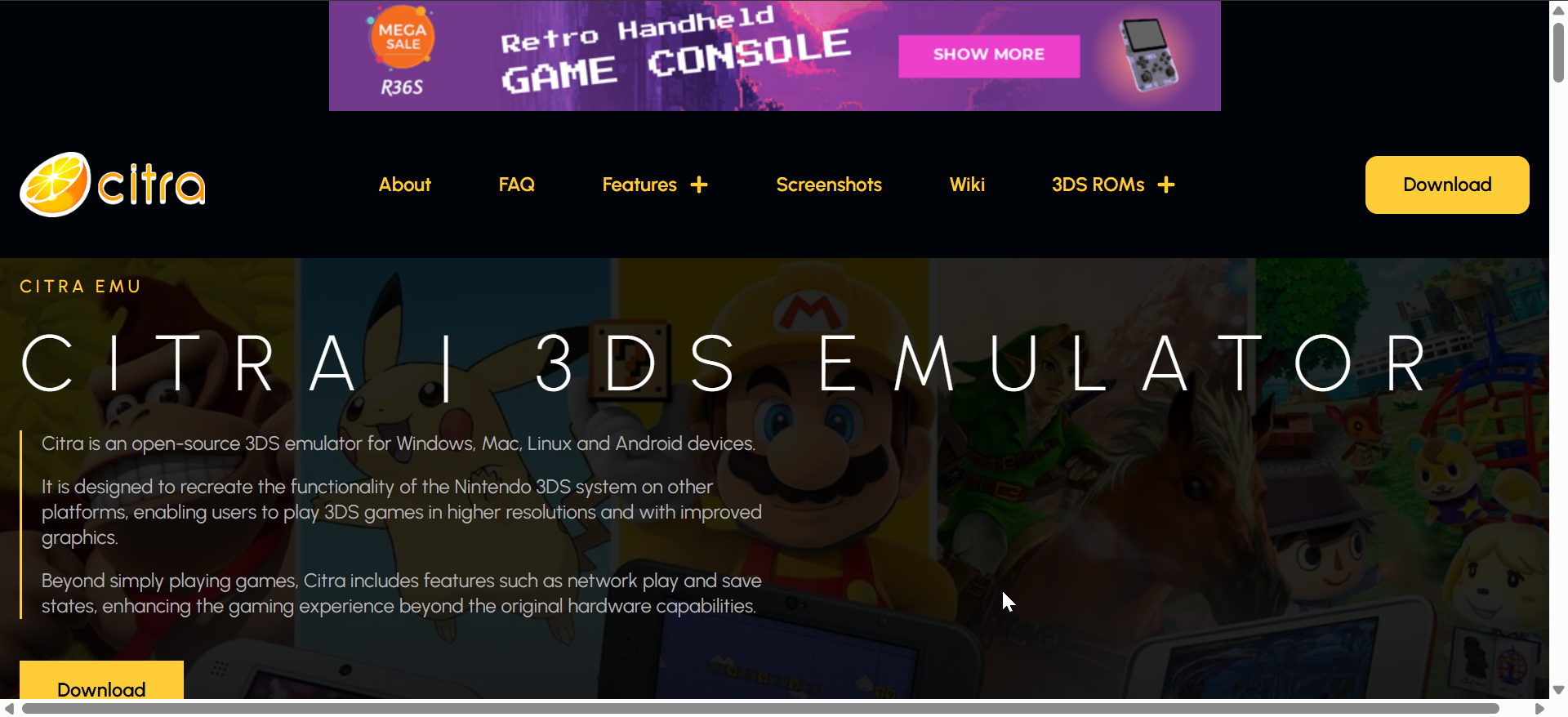
Citra is a free, open-source Nintendo 3DS emulator for Windows, macOS, Linux, and Android. It lets you play 3DS games on modern devices with improved resolution, performance, and controller support. Here’s everything you should know about how Citra works, its current status, and the best way to use it safely.
1) What is Citra Emulator?
Citra was built to bring Nintendo 3DS gaming to desktop and mobile users. As an open-source project, it mimics the handheld’s software environment so players can enjoy their legally owned games in HD with stable performance and customizable controls.
A brief history of Citra
Launched in 2014 by independent developers, Citra quickly became the go-to emulator for 3DS games. It evolved through community updates until 2024, when the official team discontinued it following Nintendo’s legal actions. Even so, the emulator’s source code remains active in open communities.
2) Citra Emulator system requirements

Before installing, check that your system meets at least the following requirements for smooth gameplay.
- Windows: 64-bit Windows 10 or newer, Intel i5 or Ryzen 5 CPU, 8 GB RAM, DirectX 11 GPU
- macOS: macOS 10.15 Catalina or later, Apple Silicon or Intel CPU
- Linux: Ubuntu 20.04 or newer, Vulkan-capable GPU
- Android: Android 9+, Snapdragon 845 or better, OpenGL ES 3.2 support
Recommended hardware for smooth gameplay
A mid-range GPU with at least 4 GB VRAM and a modern multi-core processor ensures consistent frame rates. External controllers are supported for both PC and mobile versions for a console-like feel.
3) How to install and set up Citra
Installing Citra is simple. The process is different depending on whether you’re on PC or Android.

On Windows or macOS, download the latest Citra version from the official website. Next, extract the ZIP file and open the citra-qt.exe file. Now, click File > Load File to select a 3DS ROM you legally own. Finally, adjust settings under Emulation > Configure for better visuals.

On Android, search for a verified Citra fork such as Lime3DS on the Play Store or download the APK from its GitHub page. Then, allow installation from trusted sources if prompted. Lastly, launch the app and grant storage permissions.
4) Configuring Citra for best performance
Adjust a few key settings to make your games look and run better.
Optimize graphics and resolution
Increase internal resolution to 3x for crisp visuals, but lower it if you notice frame drops. Enable V-Sync to reduce screen tearing and keep Accurate Multiplication turned on for stable rendering.
Improve game compatibility
Enable Hardware Shader and Disk Shader Cache to reduce stutter. Use custom texture packs for supported games to enhance visuals further.
5) How to load and play games on Citra
Citra supports .3DS, .CCI, and .CIA game files. These must come from your own legally owned cartridges, dumped using a compatible 3DS system.
Also, your saved files are stored in the Citra user directory. You can back them up manually or sync them via cloud storage to continue progress on another device.
6) Is Citra legal and safe to use?
Emulation itself is legal in the U.S. as long as you own the games you play. However, downloading or sharing copyrighted ROMs remains illegal. Always verify the authenticity of your emulator build to avoid malware or fake installers.
Nintendo’s legal actions and community response
In 2024, Nintendo took down the official Citra repositories. In response, open-source developers continued maintaining forks to keep legitimate preservation and research alive.
7) Alternatives to Citra
Several community-driven forks now carry the torch for Citra’s legacy, each improving stability and graphics performance.
Best forks still working
- Lime3DS: Most stable successor with frequent updates and cross-platform support.
- Panda3DS: Lightweight emulator optimized for mobile devices.
- Azahar: Focuses on graphical accuracy and mod support.
8) Troubleshooting common issues
Most problems stem from incorrect settings, outdated drivers, or unsupported game dumps. Here’s how to fix them quickly.
- Performance lag and crashes: Update your GPU drivers to the latest version, turn off Accurate Geometry Shader if frame rates drop, and close background applications to free up memory.
- Game not loading: Ensure your ROMs are decrypted before loading, verify you’re using the correct game file type (.3DS or .CIA), and clear the shader cache if persistent errors occur.
Tips for a better Citra experience
- Use a wired controller for lower input latency.
- Keep your emulator updated to the latest fork version.
- Experiment with screen layouts and fullscreen for immersion.
- Enable texture filtering for cleaner visuals on large monitors.
FAQs about Citra Emulator
Can Citra run popular 3DS games like Pokémon or Animal Crossing? Yes, many titles run smoothly, though performance may vary based on your hardware.
Does Citra support online multiplayer? Only local wireless and LAN play are supported on certain builds. Internet-based multiplayer is disabled for legal reasons.
Can I use Citra on iOS? No. Citra does not currently support iOS due to platform restrictions.
Summary
- Citra lets you emulate 3DS games on Windows, macOS, Linux, and Android.
- The official app ended in 2024, but forks like Lime3DS keep it alive.
- Performance depends on your hardware and emulator settings.
- Use only your legally owned ROMs for safe and compliant gameplay.
- Community forks continue to refine and improve the Citra experience.
Conclusion
Even though the original Citra project has ended, its legacy lives on through open-source forks that deliver smooth 3DS gameplay on modern systems. Stick to legitimate downloads, optimize your settings, and enjoy classic Nintendo titles with enhanced visuals and performance.

Discussion (0)
Be the first to comment.