



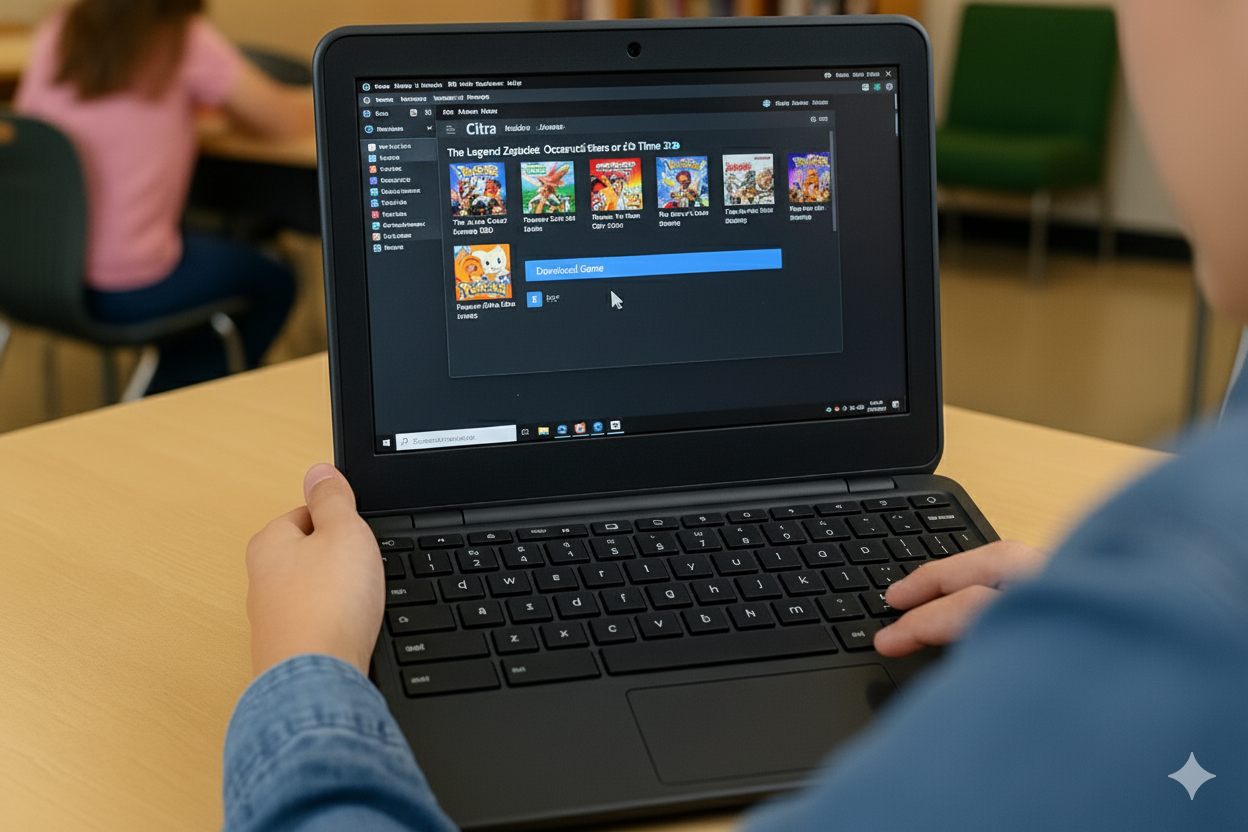
Citra lets you play Nintendo 3DS games on your PC or Android device with better performance and higher resolution. If you’re new to emulation, this guide walks you through how to download, add, and optimize games safely and legally.
But before you start downloading or loading any game, make sure your device has the latest version of Citra and all necessary system files. It’s also smart to prepare your folders to avoid errors later. Also, Citra runs smoothly on most modern systems.
However, for full-speed gameplay, you’ll need at least an Intel i5 or Ryzen 5 CPU and a dedicated GPU. Android users should have a Snapdragon 700-series or better for consistent performance.
Step 1: Get 3DS game files
Citra doesn’t include games by default. Downloading ROMs from unauthorized websites is illegal and can get you malware. The legal approach is to dump your own 3DS cartridges or digital copies using your console.
To do this, use a homebrewed 3DS system to extract your cartridges. Save them as .3ds or .cia files to your SD card. Then, transfer those files to your computer or Android device via USB or Wi-Fi.
You can also get the games on the citra-emulator.com website, which has a host of 3DS games that work on Citra.

It is also important to note that Citra only works with decrypted files. Tools like GodMode9 on the 3DS or PC utilities can decrypt your ROMs so the emulator can read them. Always back up the original copies before you make changes.
Step 2: Add games to Citra
On Windows, macOS, or Linux, open Citra and click File → Load File. Next, locate your decrypted .3ds or .cia game file and select the game. Now, click Open to launch it.

On Android, move your game files into the /Citra/games/ folder on your phone and open the Citra app. Then, tap the + icon to scan the directory. Lastly, choose the game from the list and start playing.
Step 3: Optimize game performance
After launching your first game, you can fine-tune settings for visuals and performance. Citra offers several graphics and control tweaks that improve gameplay on both PC and Android.
Adjust resolution and graphics
Open Emulation → Configure → Graphics. You can increase internal resolution for sharper visuals, enable hardware shaders, or turn on linear filtering for smoother textures. Higher settings may reduce speed on weaker devices.
Set up controls and shortcuts

In Input settings, map your controller buttons or keyboard keys. Assign hotkeys for quick save states, fast-forward, or camera tilt for a smoother experience.
Fix common errors when loading games
- Decryption failed error: This means your ROM is still encrypted. Re-run the decryption process using GodMode9 or similar tools and replace the old file in your Citra directory.
- Game not showing up in library: Ensure your file extension is
.3ds,.cia, or.cxi. Check that the game is placed in a scanned folder. You can rescan your directories from the File menu or restart Citra to refresh the list.
Tips for a better Citra experience
- Use custom textures and mods: Citra supports HD texture packs, 60 FPS mods, and fan-made enhancements. To install them, drop mod files into the Load Mods folder inside Citra’s directory. Always back up your saves before experimenting.
- Keep Citra updated: Frequent updates add new features and fix compatibility issues. You can check for updates through the emulator’s Help menu or download new builds from the official source.
FAQs about downloading games on Citra
Can I play encrypted .3ds files? No, Citra requires decrypted versions. You must use tools to decrypt them first.
Does Citra support online play? Some community servers support local multiplayer, but official Nintendo servers don’t work.
Why is my game lagging? Lower your resolution or enable hardware shaders. Also, check CPU usage and background apps.
Summary
- Install the latest version of Citra on your PC or Android device.
- Legally dump your 3DS game files and decrypt them for Citra use.
- Add your
.3dsor.ciafiles through the Load File option or Citra folder. - Adjust graphics and controls to improve game performance.
Conclusion
To play games on Citra, dump your own 3DS titles, decrypt them, and load them into the emulator’s library. With a few performance tweaks, you can enjoy your favorite Nintendo 3DS games in HD on any modern device.


Discussion (0)
Be the first to comment.