




Onn Wireless Earbuds offer an affordable way to enjoy Bluetooth audio on phones, tablets, laptops, and other devices. Learning how to pair Onn wireless earbuds only takes a few steps, and once connected, they usually reconnect automatically. This guide covers the correct pairing process, including how to connect Onn earbuds to Android phones, iPhones, Windows laptops, and Chromebooks. You’ll also find fixes for pairing problems and steps to sync both earbuds if only one connects.
If your earbuds won’t pair, keep disconnecting, or show red and blue flashing lights, the steps below help you get a stable Bluetooth connection working again. Most Onn true wireless models follow the same pairing procedure, regardless of the version you own.
Your earbuds must be powered on before your device can detect them. Most Onn earbuds turn on automatically, but some require manual activation.
- Remove both earbuds from the charging case.
- Wait for the LED indicator to light up.
- If they do not turn on, press and hold the multifunction button on each earbud.
- Look for a flashing red and blue light, which means pairing mode is active.
Enable Bluetooth On Your Device
Bluetooth must be enabled before your device can connect to the earbuds. Keep the Bluetooth screen open so you can see your earbuds when they appear.
- Open Settings on your device.
- Select Bluetooth.
- Turn Bluetooth on.
- Stay on the Bluetooth menu so you can view nearby devices.
Put Your Earbuds In Pairing Mode
Most Onn earbuds enter pairing mode when removed from the charging case. If they don't appear in your device list, activate pairing manually.
- Press and hold the multifunction button for several seconds.
- Wait for a fast blinking LED indicator.
- Some models play a voice prompt such as “pairing.”
- If your earbuds have a dedicated pairing button, press and hold it instead.
Connect Your Onn Earbuds To Your Device
The exact steps vary by device. Below are the correct pairing instructions for Android phones, iPhones, Windows laptops, and Chromebooks.
How To Pair Onn Wireless Earbuds To An Android Phone
Android uses a menu called Connected Devices to manage Bluetooth. These steps work on Samsung, Google Pixel, Motorola, and most other Android phones.
- Open the Settings app.
- Select Connected devices.

- Tap Pair new device.

- Wait for your Onn earbuds or headphones to appear in the list.
- Select your Onn device to complete pairing.
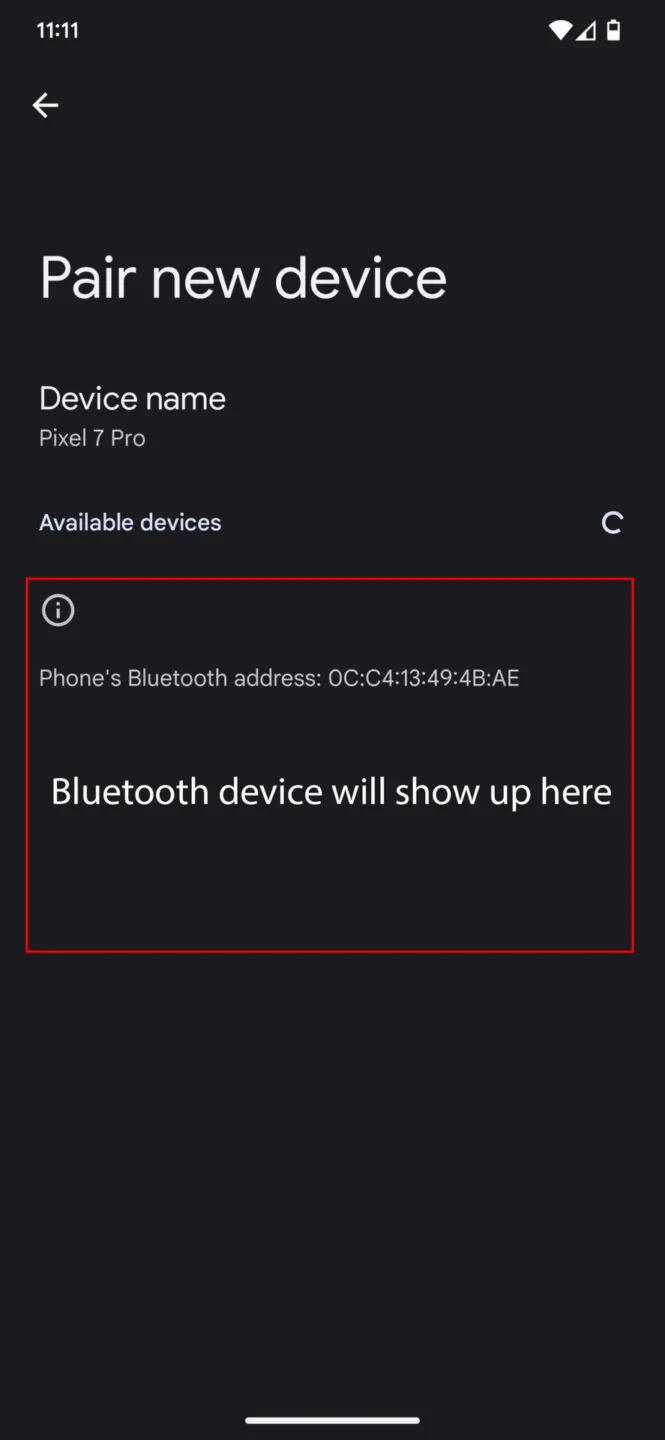
Once paired, your earbuds reconnect automatically when powered on near your phone.
How To Pair Onn Wireless Earbuds To An iPhone
- Open Settings.
- Select Bluetooth.
- Turn Bluetooth on.
- Find your Onn earbuds under “Other Devices.”
- Tap the name to connect.
How To Pair Onn Earbuds To A Windows Laptop
- Open Settings.
- Select Bluetooth & devices.
- Click Add device.
- Choose Bluetooth.
- Select your Onn earbuds from the list.
How To Pair Onn Earbuds To A Chromebook
- Click the time in the bottom-right corner.
- Select Bluetooth.
- Turn Bluetooth on.
- Select your Onn earbuds from the device list.
Troubleshooting Common Problems
If your Onn earbuds are not pairing or only one earbud connects, these steps usually fix the issue.
- Charge your earbuds fully before pairing.
- Toggle Bluetooth off and back on.
- Forget the earbuds in Bluetooth settings and re-pair.
- Reset the earbuds using the model's reset sequence.
- Keep devices close during pairing to avoid interference.
- Make sure both earbuds are removed from the case at the same time.
- Turn off other nearby devices that may auto-connect.
Tips
- Store earbuds in the case to keep them synced.
- Rename your earbuds in Bluetooth settings for easier identification.
- Update Bluetooth drivers on Windows for better compatibility.
- Check for low battery, which can cause disconnections.
- Pair your earbuds with one primary device to avoid conflicts.
FAQ
Why Are My Onn Earbuds Flashing Red And Blue? This means your earbuds are in pairing mode and ready to connect.
Why Won’t My Onn Earbuds Connect? Old pairings, interference, or low battery can block the connection.
How Do I Reset Onn Wireless Earbuds? Most models reset by holding the multifunction button for several seconds until the LEDs flash, then re-pairing from scratch.
Can I Pair Onn Earbuds With iPhone And Android? Yes, Onn earbuds connect to any Bluetooth-enabled device, including phones, laptops, and tablets.
Summary
- Turn on your Onn earbuds.
- Enable Bluetooth on your device.
- Put the earbuds in pairing mode.
- Select the earbuds in your Bluetooth menu.
- Confirm the connection and test the audio.
Conclusion
Pairing Onn Wireless Earbuds takes only a few steps, and once connected, they provide reliable Bluetooth audio across phones, laptops, and tablets. If your earbuds fail to connect or keep disconnecting, resetting them, recharging them, or clearing old pairings usually restores a stable connection. With the correct pairing process and the troubleshooting steps above, your Onn earbuds should work smoothly on any supported device.


Discussion (0)
Be the first to comment.