




Pairing your Onn Bluetooth headphones takes just a few steps. Whether you’re connecting to a phone, PC, or TV, the process depends on the model you have and how it enters pairing mode. This guide walks you through every method and fixes connection problems when your Onn device won’t show up.
1) Put Your Onn Headphones in Pairing Mode
Onn headphones and earbuds must be in pairing mode before connecting to your phone or computer. Watch for flashing lights to confirm pairing readiness.
For Onn over-ear and on-ear headphones, hold the Power button until the LED flashes red and blue. This signals that the headphones are ready to connect. If no light appears, charge the device for at least 15 minutes and retry.
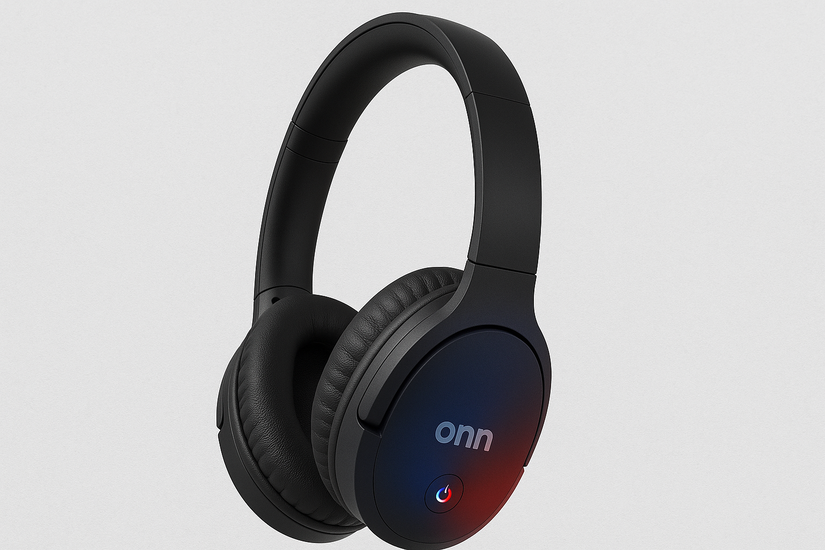
For Onn True wireless earbuds, remove both earbuds from the case. Press and hold the touch area on each earbud until both flash red and blue. Finally, wait until they sync together before starting the pairing process on your device.
2) Pair Onn headphones with different devices
The exact steps vary depending on the platform. Follow the matching section for your device.
Pair with Android
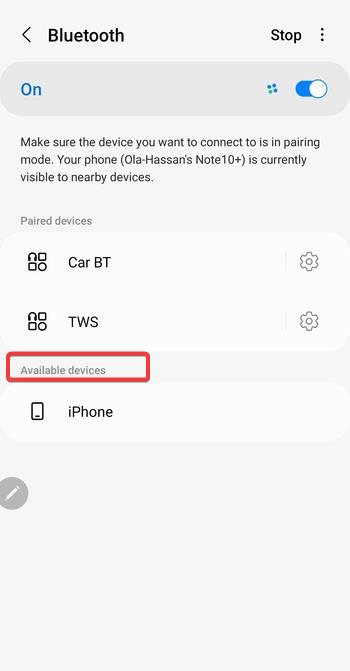
Open Settings > Connections > Bluetooth and turn Bluetooth on. Then, wait for your Onn device to appear in the list. Lastly, tap the name to connect and confirm the pairing message.
Pair with iPhone or iPad
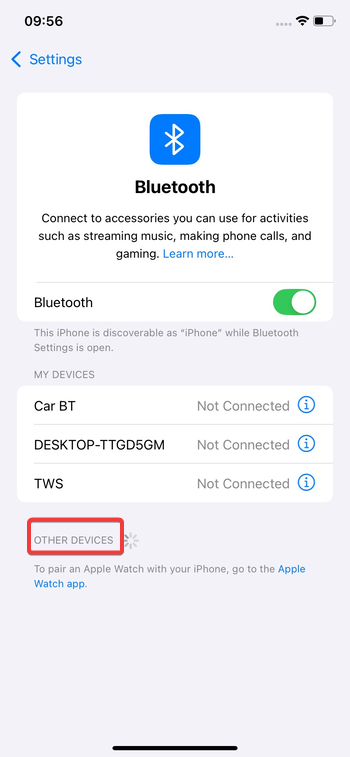
Go to Settings > Bluetooth. Under Other Devices, tap your Onn model. Wait till the status changes to Connected and test the audio output.
Pair with Windows 10 or 11
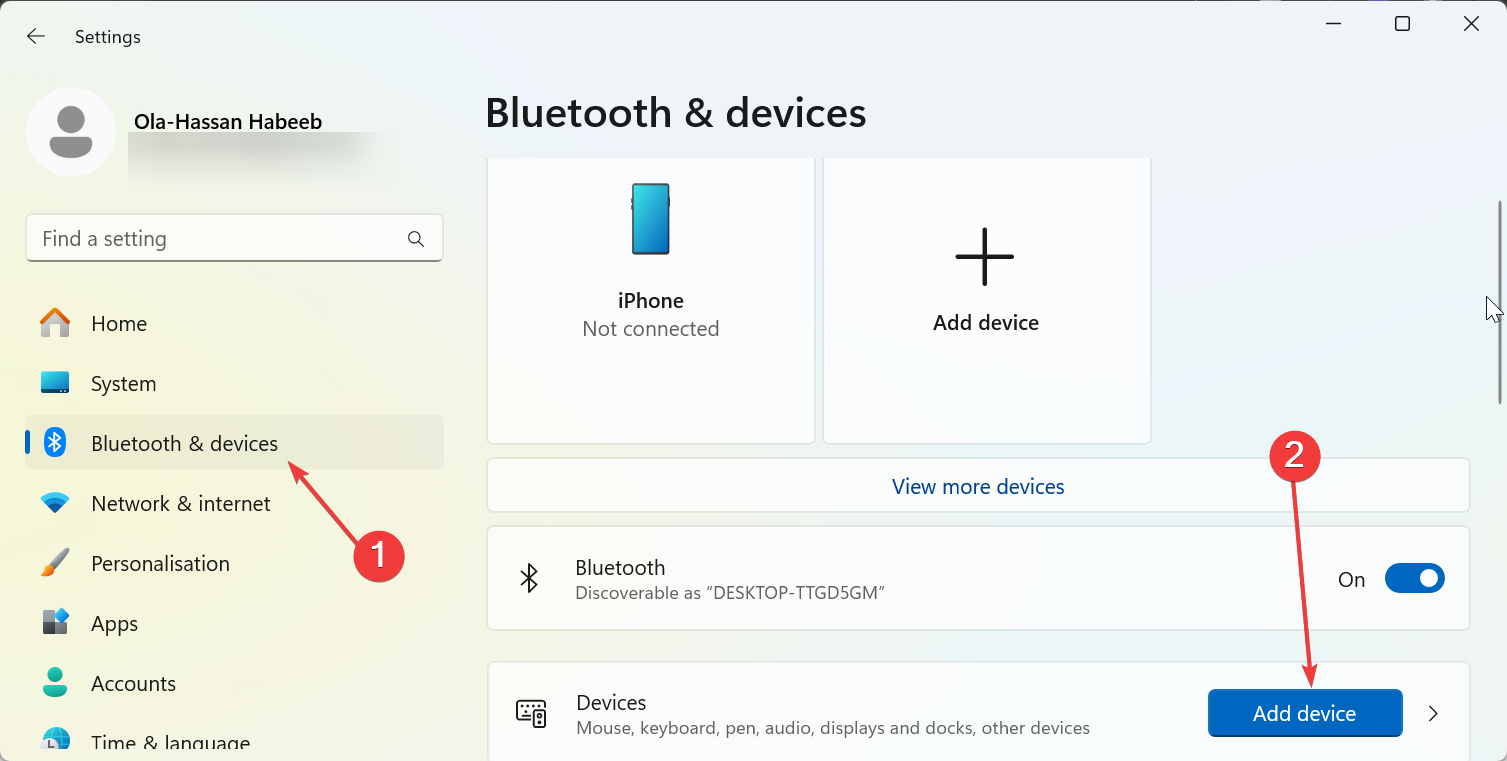
To turn on Bluetooth on Windows, press Windows + I, select Bluetooth & Devices, and toggle the switch before Bluetooth On. Now, click Add Device > Bluetooth, choose your Onn device from the list, and click Connect.
Pair with Mac
Go to System Settings > Bluetooth. Make sure Bluetooth is on, then find your Onn headphones. Now, click Connect and confirm pairing.
Pair with Smart TVs or game consoles
Smart TVs such as Roku or Fire TV support Bluetooth pairing directly from their Settings > Remotes & Devices menu. For consoles, pairing works only on models that support Bluetooth audio, like the PlayStation 5 with specific transmitters.
3) Reset Onn Bluetooth headphones
Resetting clears old connections and fixes pairing loops. Hold the Power button for 10 seconds or use the earbud case’s button combination until the lights flash white or red three times. Then reconnect using the normal pairing steps.
4) LED light guide for Onn headphones
| LED Indicator | Meaning |
|---|---|
| Red/Blue flashing | Pairing mode active |
| Solid blue | Connected successfully |
| Red flashing | Low battery warning |
| No light | Powered off |
5) Troubleshooting Onn headphone issues
- Onn headphones won't show up: Check Bluetooth status, charge your Onn headphones, and reset Bluetooth cache.
- Only one earbud plays sound: Place both earbuds in the case, remove them again, and hold the touch surface for five seconds to resync. The LEDs should flash simultaneously when both reconnect.
- Intermittent audio or lag: If you notice delay or stutter, remove the Onn headphones from your device list and re-pair. On PCs, ensure Bluetooth power-saving options are disabled to maintain performance.
Tips for a stable Bluetooth connection
- Keep your Onn headphones within 30 feet (10 meters) of the paired device.
- Avoid thick walls, metal furniture, or Wi-Fi routers near the signal path.
- For Windows users, updating Bluetooth drivers can also prevent dropouts.
FAQs
Can I pair my Onn headphones without the case? Yes, if the earbuds power on independently. Otherwise, you’ll need the case to activate pairing.
Why do my Onn headphones disconnect randomly? Weak battery or Bluetooth interference usually causes this. Keep the headphones charged and nearby the paired device.
Can I connect Onn headphones to my TV? Yes, if your TV supports Bluetooth audio. Otherwise, you can use a Bluetooth transmitter or adapter.
Can I pair Onn headphones to multiple devices? Some Onn headphones can remember two devices, like a laptop and a phone. Disconnect from one before pairing to another to avoid signal interference. Switching devices is faster when both are saved in memory.
Summary
- Put your Onn headphones in pairing mode.
- Connect through Bluetooth settings on your device.
- Reset or charge if pairing fails.
- Check LED lights to confirm connection.
- Keep devices close for stable performance.
Conclusion
Pairing Onn Bluetooth headphones is straightforward once you understand your model’s pairing behavior. By following the right steps and checking LED signals, you’ll maintain a stable wireless connection across all your devices.


Discussion (0)
Be the first to comment.