




If you just bought a new Mpow headset and want wireless freedom, you need to know exactly how to pair Mpow Bluetooth over-ear headphones with your devices. Most Mpow over-ear Bluetooth headphones follow the same basic pairing steps, so you can use one clear process for phones, tablets, and computers.
This guide walks you through putting your Mpow headphones in pairing mode, connecting them to Android, iPhone, Windows, and Mac, and fixing common Bluetooth pairing issues when the headset refuses to connect.
What You Need Before You Pair Mpow Headphones
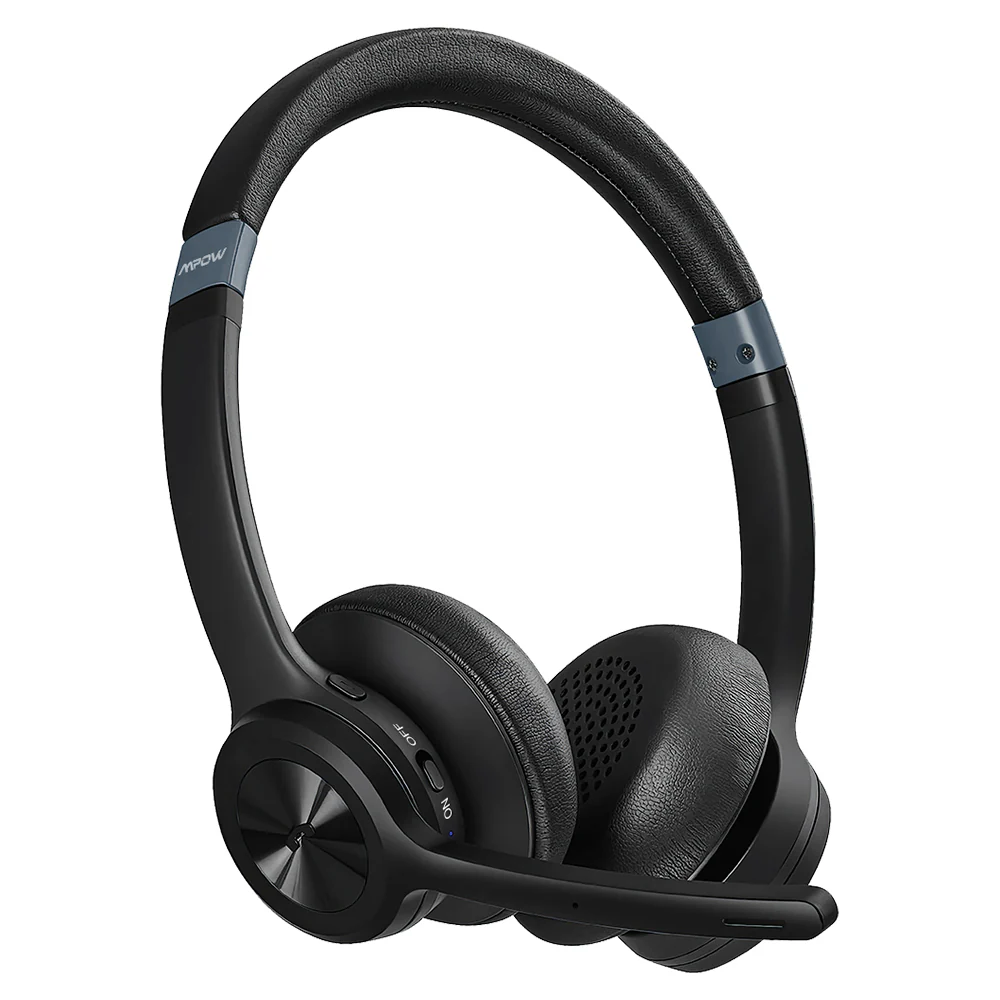
Before you start pairing Mpow Bluetooth headphones, check a few basics so you avoid random disconnects and failed connections.
- Charge your Mpow over-ear headphones until the battery reaches a safe level.
- Keep your phone, laptop, or tablet within a few feet of the headphones.
- Turn off other Bluetooth headsets nearby that might try to connect first.
- Know the exact Mpow model name so you can recognize it in the Bluetooth device list.
- Update your phone or computer to the latest stable software version for better Bluetooth support.
How To Put Mpow Bluetooth Over-Ear Headphones In Pairing Mode
Every successful connection starts with pairing mode. Most Mpow Bluetooth over-ear headphones use the power or multifunction button for this step.
- Turn off the Mpow over-ear headphones if they are already running.
- Press and hold the Power or Multifunction button for about five seconds.
- Watch for the LED to flash red and blue, or hear a “Pairing” voice prompt.
- Release the button once the light keeps blinking in a repeating pattern.
- Leave the headphones in this state while you open Bluetooth settings on your device.
If your Mpow headset already remembers another device, you may need to hold the button a little longer to reset the connection and enter pairing mode again.
How To Pair Mpow Bluetooth Headphones With Android
Android phones and tablets connect quickly once your Mpow headphones sit in pairing mode. The exact menu labels can change slightly between brands, but the process stays the same.
- Open the Settings app on your Android phone.
- Tap “Connected Devices” or “Bluetooth” depending on your phone brand.
- Turn Bluetooth on if it is off.
- Choose “Pair New Device” or a similar option to scan for nearby headsets.
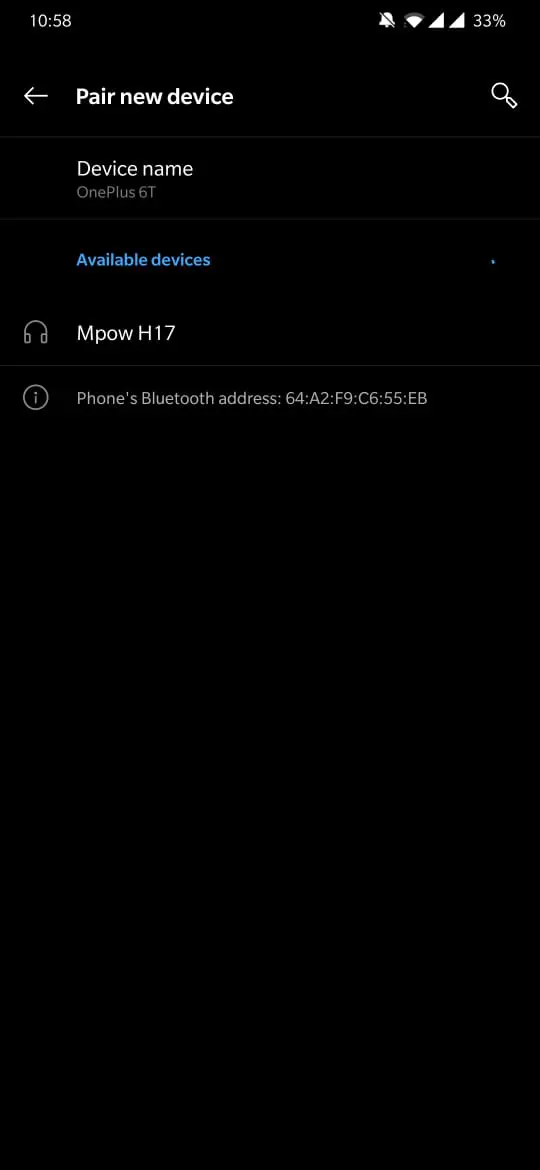
- Select your Mpow Bluetooth headphones from the list and confirm the pairing request.
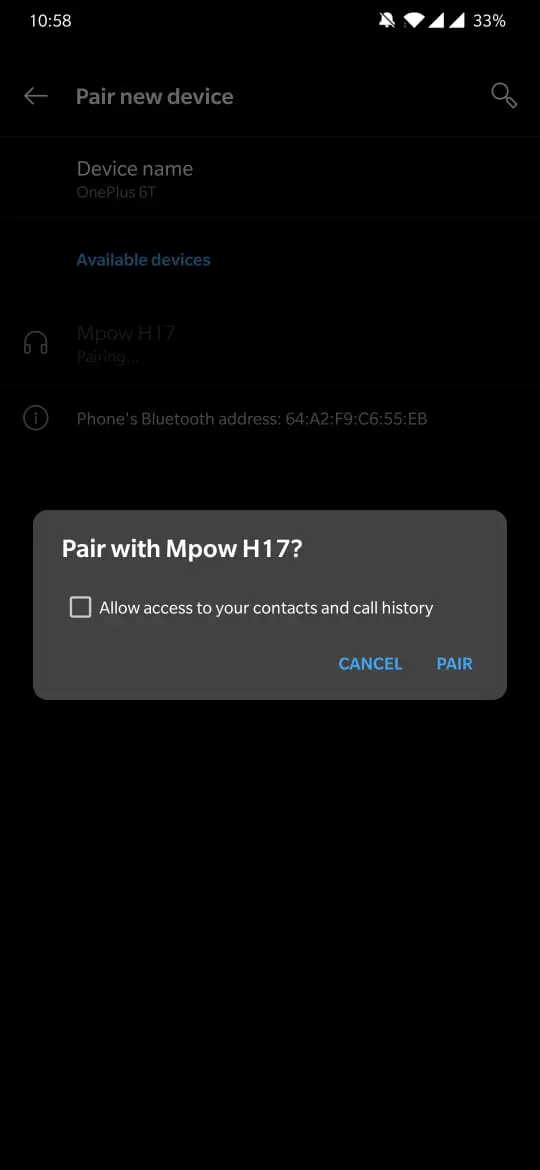
After the first pairing, your Android phone usually reconnects to your Mpow over-ear Bluetooth headphones automatically when you power them on with Bluetooth enabled.
How To Pair Mpow Bluetooth Over-Ear Headphones With IPhone Or IPad
Apple devices follow a simple Bluetooth workflow, so pairing Mpow headphones with iPhone or iPad takes only a few taps.
- Open the Settings app on your iPhone or iPad.
- Tap “Bluetooth” and toggle the switch to turn Bluetooth on.
- Wait for the “Other Devices” section to show your Mpow headset name.
- Tap the Mpow Bluetooth headphones entry to start the connection.
- Wait for the status to change to “Connected,” then play some audio to test.
Next time you turn on the same Mpow over-ear Bluetooth headphones near your iPhone, the connection should reappear without going through pairing mode again.
How To Pair Mpow Headphones With Windows 11 PC Or Laptop
If your computer includes Bluetooth, you can connect Mpow Bluetooth over-ear headphones just like any other wireless headset and use them for music, calls, and gaming.
- Click the Start button and open “Settings.”
- Select “Bluetooth & Devices” from the left sidebar.
- Turn on Bluetooth if it shows as off.
- Click “Add Device” and choose “Bluetooth.”
- Pick your Mpow headphones from the list and confirm the pairing request.
After Windows finishes pairing, set the Mpow headset as the default output and input device under the “Sound” settings so apps actually use your Bluetooth headphones.
How To Connect Mpow Bluetooth Over-Ear Headphones To Mac
MacBooks and iMacs also support Mpow Bluetooth pairing through the standard macOS Bluetooth menu. The steps stay similar between recent macOS versions.
- Click the Apple menu in the top left corner.
- Choose “System Settings” or “System Preferences,” then select “Bluetooth.”
- Turn Bluetooth on if it is disabled.
- Keep your Mpow Bluetooth headphones in pairing mode and wait for their name to appear.
- Click “Connect” next to the Mpow headset entry and wait for the status to change to “Connected.”
When you pair Mpow headphones with Mac successfully, click the sound icon in the menu bar and choose the headset as the active output device for music and videos.
How To Fix Mpow Bluetooth Over-Ear Headphones Not Pairing
Sometimes Mpow Bluetooth headphones refuse to show up or connect, even when you follow every step. A few quick checks usually solve these pairing problems without much effort.
- Toggle Bluetooth off and back on again on your phone or computer.
- Restart the Mpow over-ear headphones and hold the button long enough to re-enter pairing mode.
- Forget the old Mpow device entry in Bluetooth settings, then pair the headphones again from scratch.
- Move away from Wi-Fi routers, microwaves, or crowded wireless areas that cause interference.
- Charge both the headset and your device, because low battery can cause unstable Bluetooth connections.
- Reset the Mpow Bluetooth headphones by holding the Multifunction and Volume buttons together if your manual lists this option.
If your Mpow headset still will not pair with any device after you try these steps, test it with a second phone or laptop. A complete failure on multiple devices usually points to a hardware issue that needs support from Mpow.
Conclusion
Once you know how to pair Mpow Bluetooth over-ear headphones correctly, you can switch between Android, iPhone, Windows, and Mac without frustration. The core process always stays the same: put the Mpow headset in pairing mode, open Bluetooth settings, select the correct device name, and confirm the connection.
Use this guide whenever you connect Mpow Bluetooth headphones to a new device or need to fix pairing issues, and you will spend more time enjoying wireless audio and less time wrestling with Bluetooth menus.

Discussion (0)
Be the first to comment.