




Knowing how to open Clipboard in Windows 10 can help you copy, paste, and manage content more efficiently. The Clipboard stores everything you copy, from text and links to images, so you can quickly reuse information across apps. Modern versions of Windows 10 include Clipboard History, a feature that lets you view and manage items you've copied.
This guide explains several reliable ways to access Clipboard in Windows 10, using shortcuts, Settings, and other built-in tools—so you can choose the one that best fits your workflow.
1. Use the Clipboard Shortcut (Windows + V)
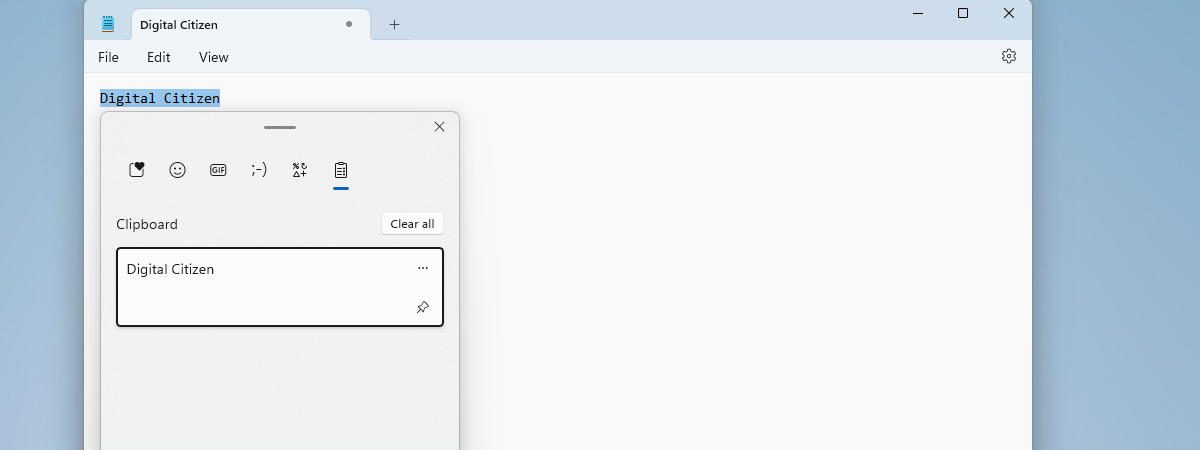
The fastest way to open the Clipboard in Windows 10 is by pressing the Windows key + V. If you haven’t used this before, you’ll be prompted to turn on Clipboard History. Once it’s enabled, pressing the same keys again shows all your recently copied items: text, images, and links.
To pin an important item, click the small pin icon beside it. Pinned items stay available even after you restart your PC. You can also click the three dots at the top of the Clipboard panel and choose Clear all to remove your saved data.
2. Open Clipboard via Settings
You can also view Clipboard in Windows 10 through the Settings app. Follow these steps:
- Press Windows + I to open Settings.
- Select System.
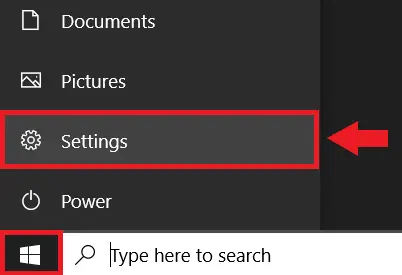
- Click Clipboard from the sidebar.

- Toggle Clipboard history to On.

- (Optional) Enable Sync across devices to share your Clipboard items between PCs using your Microsoft account.
This method is useful when you want to manage Clipboard options, such as turning on cloud sync or clearing stored data. It’s also a good way to troubleshoot if the shortcut doesn’t work properly.
3. Search for Clipboard in the Start Menu
Another quick way to access Clipboard settings in Windows 10 is through the Start Menu search bar:
- Click the Start icon or press the Windows key.
- Type clipboard into the search bar.
- Select Clipboard settings from the results.
This will take you directly to the same Clipboard settings page where you can enable or manage Clipboard History. It’s ideal if you prefer searching rather than using keyboard shortcuts.
4. Use the Command Prompt
If you prefer command-line tools, you can also manage Clipboard data using the Command Prompt:
- Press Windows + R to open the Run dialog box.
- Type
cmdand press Enter. - Type
echo off | clipand press Enter.
This command clears the Clipboard contents instantly. It’s especially handy if you want to remove sensitive information after copying it.
Tips for Using Clipboard Efficiently
- Pin items: Keep important copied content for future use.
- Sync devices: Turn on sync to share Clipboard data between your laptop and desktop.
- Clear old entries: Use the Clear All option to remove cluttered history.
- Check privacy settings: Disable cloud sync if you don’t want Clipboard data stored online.
FAQs About Clipboard on Windows 10
How do I open Clipboard in Windows 10?
Press Windows + V to open Clipboard History. If it’s off, click “Turn on” to enable it.
Where can I find Clipboard settings?
Go to Settings > System > Clipboard to enable history, manage sync, or clear data.
Can I view what I copied earlier?
Yes, Clipboard History stores multiple copied items. You can access them by pressing Windows + V.
How do I sync Clipboard across devices?
In Clipboard settings, toggle Sync across devices and sign in with your Microsoft account.
Summary
- Press Windows + V to open Clipboard History instantly.
- Enable Clipboard History in Settings if it’s turned off.
- Search “Clipboard” in Start Menu to access its settings.
- Use Command Prompt to clear Clipboard content quickly.
- Turn on sync to share Clipboard data across devices.
Conclusion
Now that you know how to open Clipboard in Windows 10, you can save time and stay organized when copying and pasting content. Whether you prefer the Windows + V shortcut, the Settings menu, or command-line tools, each method gives you full control over your Clipboard History. Turning on sync and pinning important items can further boost your productivity when working between devices.


Discussion (0)
Be the first to comment.