




Safari downloads on iPhone and iPad often confuse users because files do not open automatically or appear inside the browser. Instead, Safari saves downloads to the Files app, where location settings and storage choices matter.
Once you know where downloads go and how to control them, you can manage files quickly, avoid failed downloads, and keep storage organized across devices.
Table of contents
- How Safari downloads work on iPhone and iPad
- Where to find Safari downloads on iPhone and iPad
- How to change Safari’s download location
- How to manage downloaded files
- Differences between managing downloads on iPhone vs iPad
- Fixing common Safari download problems
- Tips for managing Safari downloads efficiently
- FAQs about Safari downloads
- Summary
How Safari downloads work on iPhone and iPad
Safari saves downloaded files directly to the Files app instead of keeping them inside the browser. This design makes downloads easier to organize, share, and use offline.
Default download behavior in Safari
When you download a file, Safari shows a progress indicator next to the address bar. After completion, the file saves automatically to a predefined folder in the Files app.
Supported file types and limits
Safari supports common file types like PDFs, images, ZIP files, audio, and documents. Very large files may fail if storage space runs low or the connection drops.
Where to find Safari downloads on iPhone and iPad
Downloads do not open automatically in most cases, which often causes confusion. Knowing where to look prevents unnecessary re-downloads.
Accessing downloads from the Safari download manager
Tap the download icon near the address bar to view active and recent downloads. From there, you can open the file directly or jump to its storage location.
Finding downloaded files in the Files app
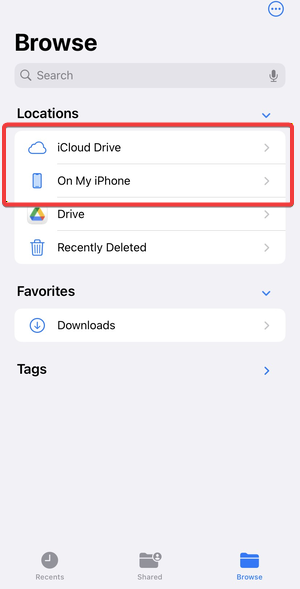
Open the Files app and go to either iCloud Drive or On My iPhone or iPad. Safari places downloads inside the Downloads folder by default.
How to change Safari’s download location
Safari lets you control where files save, which helps with offline access and file organization.
Switching between iCloud Drive and local storage
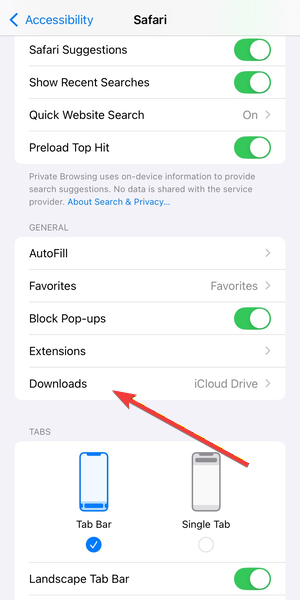
Open Settings > Apps, tap Safari, then tap Downloads. Choose iCloud Drive to sync files across devices or On My iPhone or iPad to keep files stored locally.
Choosing a specific folder for downloads
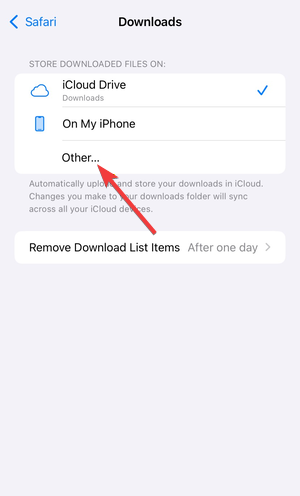
Inside the Downloads setting, tap Other and select any folder in the Files app. This option works well for separating work files, PDFs, or media downloads.
How to manage downloaded files
Once files are saved, the Files app becomes the main control center for downloads.
Renaming, moving, and deleting downloads
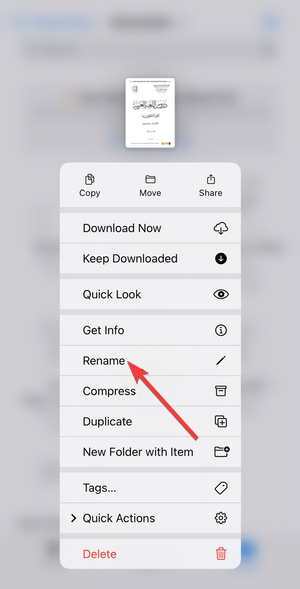
Press and hold a file to rename it, move it to another folder, or delete it. These actions help keep storage clean and prevent clutter.
Sharing and opening downloads in other apps
Use the Share menu to send files to Mail, Messages, or compatible apps. You can also open files directly in apps that support their format.
Differences between managing downloads on iPhone vs iPad
Safari behaves similarly on both devices, but the interface changes affect how you manage files.
Multitasking and drag-and-drop on iPad
iPad supports Split View and drag-and-drop, which allows you to move downloaded files between folders or apps faster. This setup works especially well for document-heavy workflows.
Interface differences in Safari and Files
iPad shows a sidebar layout in the Files app, while iPhone uses stacked navigation. Safari’s download manager remains in the same location on both devices.
Fixing common Safari download problems
- Downloads not appearing or failing: Check available storage and confirm the selected download location still exists. Restart Safari if the download manager does not update.
- Safari downloads stuck or paused: Tap the download icon and cancel stalled downloads, then retry. Switching networks or disabling Low Data Mode often resolves the issue.
Tips for managing Safari downloads efficiently
- Keep downloads saved locally if you need offline access
- Use folders to separate personal and work files
- Delete unused downloads regularly to free storage
- Rename files immediately to avoid confusion later
FAQs about Safari downloads
Safari downloads not showing up on iPhone or iPad?
This usually happens when Safari saves files to a different location. Open the Files app and check both iCloud Drive and On My iPhone or iPad.
Can I change the default download folder in Safari on iPhone and iPad?
Yes. Open Settings, tap Safari, tap Downloads, then choose iCloud Drive, On My iPhone or iPad, or select a custom folder.
Where do Safari downloads go on iPad?
Safari saves downloads in the Files app under the Downloads folder. The location depends on your Safari download settings.
Why do Safari downloads keep failing on iPhone?
Downloads often fail because of low storage, unstable internet, or Low Data Mode. Free up space and retry the download on a stable connection.
Summary
- Safari saves downloads directly to the Files app
- You can change the download location in Safari settings
- Files app handles renaming, moving, and sharing
- iPad offers faster file handling with multitasking
Safari’s download manager works best when paired with proper file organization. Once set up, downloads stay easy to find and simple to manage across iPhone and iPad.
Lastly, if Safari is not working at all on your iPhone or iPad, check our guide on the topic to fix it quickly.


Discussion (0)
Be the first to comment.