




Setting Yahoo as your homepage in Google Chrome gives you quick access to Yahoo News, Yahoo Mail, and your favorite dashboard tools the moment the browser opens. If you use Yahoo frequently, learning how to make Yahoo my homepage on Google Chrome helps streamline your daily browsing and keeps essential updates front and center. This guide walks you through every step using Chrome’s built-in homepage settings and startup controls.
Why Set Yahoo As Your Homepage In Chrome?
Setting Yahoo as your Chrome homepage ensures you land directly on Yahoo’s search, news, and email tools without manually navigating to the site. It’s useful whether you prefer Yahoo’s dashboard, rely on Yahoo Finance, or simply want the homepage to match your daily browsing habits. Chrome’s homepage and startup controls make this process simple and customizable.
How To Make Yahoo My Homepage On Google Chrome
Follow these steps to change your Google Chrome homepage settings and set Yahoo as your default landing page. These steps work on Windows, macOS, Linux, and ChromeOS.
Step 1: Open Google Chrome
- Launch Google Chrome from your desktop, taskbar, Dock, or apps menu.
- Check that the browser is fully loaded before continuing.
Step 2: Go To The Yahoo Homepage
- Click the address bar at the top of Chrome.
- Type www.yahoo.com and press Enter.
- Verify that the Yahoo homepage loads correctly.
Step 3: Open Chrome Menu
- Click the three vertical dots in the top-right corner of Chrome.

- This opens Chrome’s full settings and tools menu.
Step 4: Open Chrome Settings
- Select Settings from the dropdown menu.
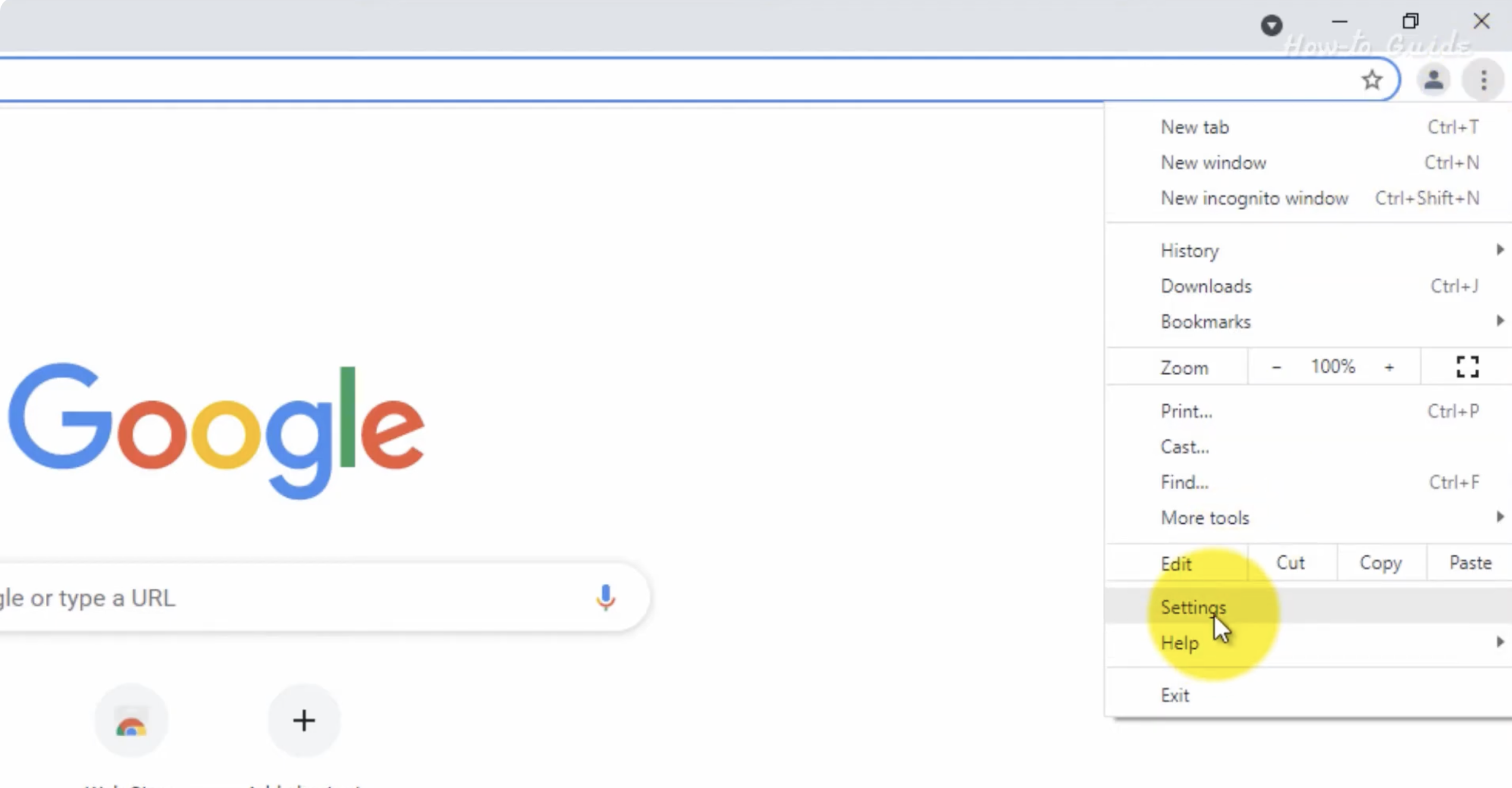
- Chrome opens the settings page in a new tab.
- Go to the Appearance section.

Step 5: Enable And Set The Home Button
- Switch on the option labeled Show home button.
- Choose the option to enter a custom web address.
- Type https://www.yahoo.com into the field.
- Your browser’s home icon will now take you directly to Yahoo.
Step 6: Set Yahoo As Your Startup Page
If you also want Yahoo to open every time Chrome starts, adjust your startup preferences.
- Scroll to the On startup section.
- Select Open a specific page or set of pages.
- Click Add a new page.
- Enter https://www.yahoo.com and save your changes.
Troubleshooting Yahoo Homepage Issues In Chrome
- Homepage keeps changing: Check for unwanted extensions under chrome://extensions.
- Yahoo won’t save as homepage: Ensure Chrome isn’t managed by an organization or policy.
- Chrome opens a different page: Recheck the On startup section to ensure Yahoo is the only saved page.
- Yahoo loads slowly: Clear browsing data and disable unused plugins.
Conclusion
Learning how to make Yahoo my homepage on Google Chrome gives you instant access to Yahoo’s search tools, trending stories, and email dashboard every time you open the browser. By adjusting Chrome’s homepage, home button, and startup settings, you can streamline your browsing flow and create a faster, more personalized experience. Once set, Yahoo becomes your default hub for daily updates and quick navigation.

Discussion (0)
Be the first to comment.