




A smart home built around Alexa gives you hands-free control over lighting, security, entertainment, and automation. This guide explains how to choose an Alexa device, connect smart home accessories, create routines, and manage everything through the Alexa app. At the time of writing, these methods work on all supported Echo devices and compatible smart home gear.
Choose The Right Alexa Device
Your smart home starts with the Alexa device you place at home. Each Echo model fits a different room or need. Pick an option that matches your layout and how you plan to use voice control.
Here are the most common choices:
- Echo (Standard) — Works well as a main hub with strong microphones and good speakers.
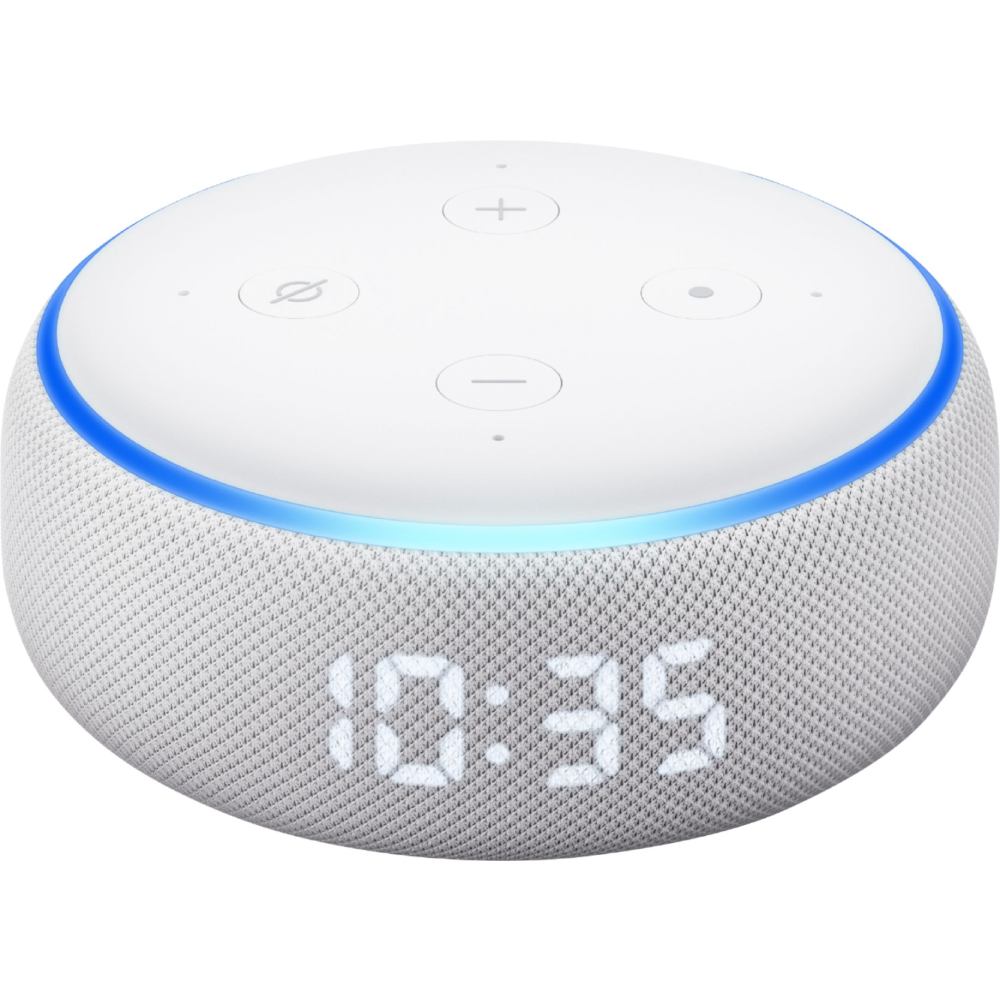
- Echo Dot — A compact speaker ideal for bedrooms or smaller spaces that still gives full Alexa features.
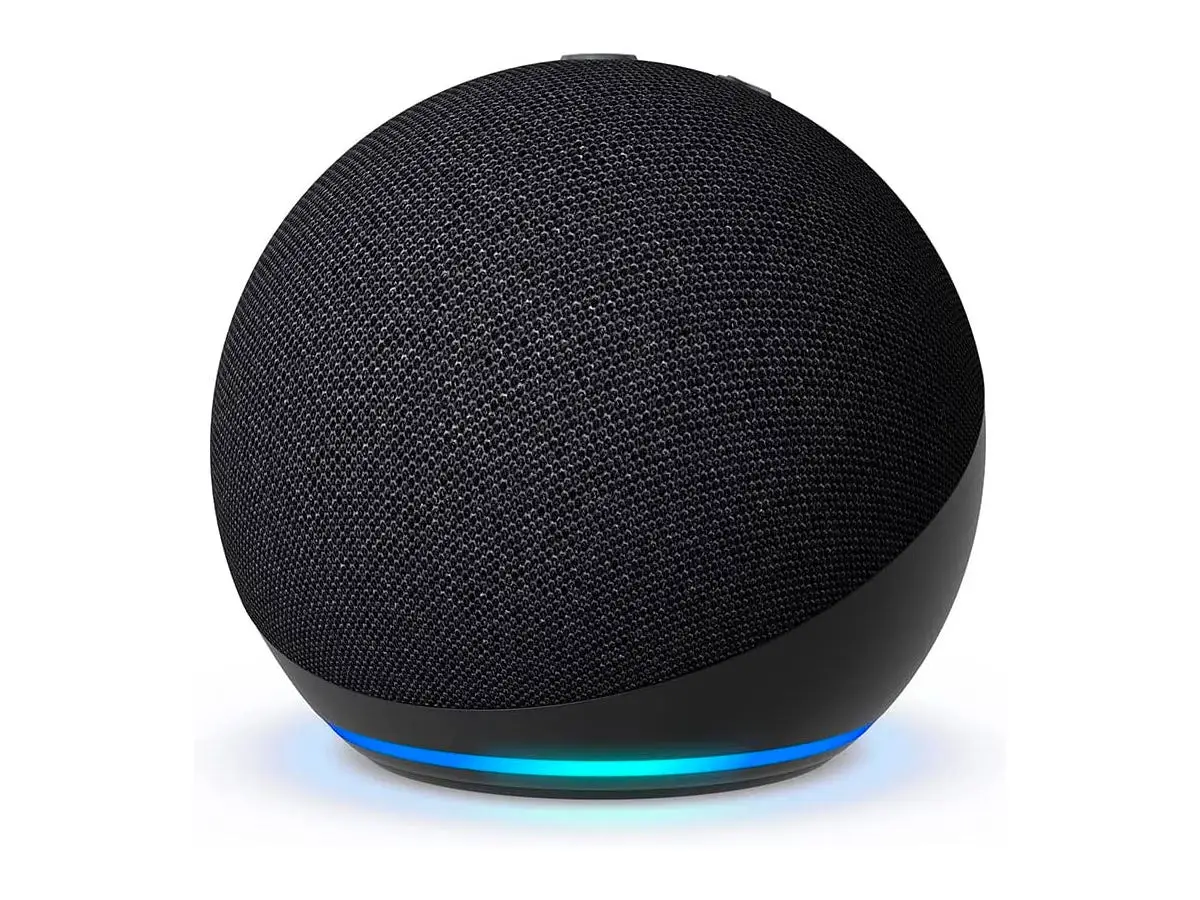
- Echo Show — Adds a screen for video calls, camera feeds, visual timers, and smart home dashboards.
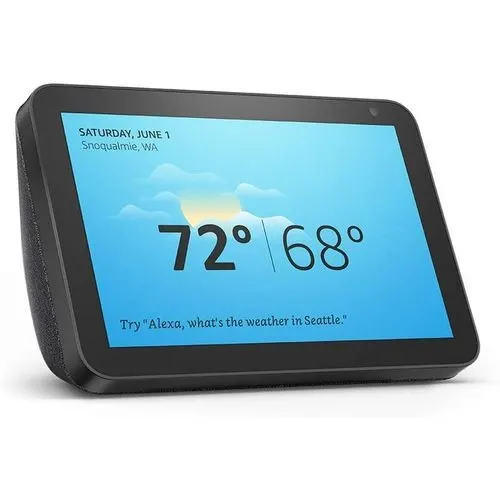
- Echo Flex — Plugs directly into an outlet and fits small or high-traffic areas.

Set Up Your Alexa Device
After choosing a device, connect it to your Wi-Fi network so Alexa can control your smart home accessories.
- Plug the Alexa device into a power outlet.
- Install the Alexa app on your iOS or Android phone.
- Sign in with your Amazon account.
- Select your Echo device in the app.
- Connect it to your home Wi-Fi network.
- Complete the on-screen setup steps.
Add Smart Devices To Alexa
Alexa controls smart devices through Wi-Fi, Zigbee, Matter, or manufacturer integrations. Most products labeled “Works With Alexa” pair in minutes.
- Install your smart device (plug, bulb, thermostat, camera, or lock).
- Open the Alexa app and tap Devices.
- Select Add Device.
- Choose the product type you are adding.
- Enable the required Alexa Skill if the brand needs one.
- Allow Alexa to scan and connect to the new device.
Control Your Smart Home With Alexa
Once devices are connected, Alexa becomes your hands-free controller. Use natural commands to adjust lighting, temperature, or security settings at any time.
- “Alexa, turn on the living room lights.”
- “Alexa, set the thermostat to 72 degrees.”
- “Alexa, lock the front door.”
- “Alexa, show the backyard camera.”
Create Alexa Routines For Automation
Routines help Alexa perform multiple actions at once. You can trigger them by time, voice command, motion sensor, or smart home activity.
- Open the Alexa app and tap More.
- Select Routines.
- Tap + to create a new routine.
- Pick a trigger, such as a phrase or schedule.
- Add actions like lights, thermostats, or music.
- Save the routine and test it.
Manage Everything In The Alexa App
The Alexa app acts as the control center for your smart home. It also gives you a visual way to rename devices, adjust groups, and review activity logs.
- Organize devices into rooms and groups.
- Create scenes for lighting moods or energy savings.
- Check which voice commands were used recently.
- Update device settings or rename accessories.
Troubleshoot Common Alexa Smart Home Issues
If something isn’t responding, quick adjustments usually fix the problem.
- Reconnect your Alexa device to Wi-Fi.
- Ensure the smart device is powered on.
- Disable and re-enable the device’s Alexa Skill.
- Update the firmware on your smart device.
- Restart your router to clear network congestion.
Tips
- Place your main Echo in a central area so microphones hear commands clearly.
- Group lights, plugs, and rooms in the Alexa app to simplify voice commands.
- Use short, memorable names like “Lamp” or “Desk Fan” for easier voice control.
- Create routines for repetitive tasks like morning lights or bedtime checks.
- Use an Echo Show for quick camera views and a visual smart-home dashboard.
- Enable Guard mode if you want Alexa to listen for alarms when you are away.
FAQ
Do I need an Echo to use Alexa with smart home devices?
You need at least one Alexa-enabled device, such as an Echo speaker, Echo Show, or a compatible third-party product.
Why won’t Alexa find my smart device?
The device may not be on the same Wi-Fi network, may require its own app setup first, or may need an Alexa Skill enabled.
Can Alexa work without Internet?
Alexa requires an Internet connection for most smart-home commands and cloud actions. Basic device setup also needs Wi-Fi.
Does Alexa support Matter?
Yes. Newer Echo models work as Matter controllers, allowing simpler pairing with compatible smart-home devices.
Can multiple people control Alexa at home?
Yes. You can add household profiles or allow guest access through the Alexa app.
Summary
- Choose an Echo device that fits your room and smart-home layout.
- Set up the Echo through the Alexa app and connect it to Wi-Fi.
- Add smart devices using “Add Device” and enable Skills when needed.
- Control everything with voice commands or Alexa app controls.
- Create routines to automate daily tasks across multiple devices.
- Troubleshoot issues by checking Wi-Fi, Skills, firmware, and device power.
Conclusion
Alexa makes it easy to build a smart home that handles lighting, climate, entertainment, and daily routines through simple voice commands. By choosing compatible devices, connecting everything through the Alexa app, and setting up automation routines, you can create a home that works efficiently and responds naturally. As smart home technology expands, Alexa continues to support more devices and features, giving you even more ways to simplify your day.


Discussion (0)
Be the first to comment.