




Connecting a Bluetooth speaker should feel simple, but it can get confusing when devices fail to show up or pairing modes differ across brands. Most problems come from missed steps, old pairings, or menu settings hidden deep inside the OS.
This guide shows clear, step-by-step instructions for connecting a Bluetooth speaker to Android, iPhone, Windows, macOS, and TVs. You also get tips for fixing pairing issues, improving audio quality, and linking multiple speakers.
But before you start, ensure the speaker is well charged, as most speakers enter low-power mode when the battery drops too low. Also, enable pairing mode on the speaker and remove previous device connections.
1) Connect a Bluetooth speaker to an Android phone
Swipe down from the top of your screen and tap the Bluetooth icon to enable it. Next, long-press the Bluetooth icon to enter full settings and tap Pair new device to start scanning.
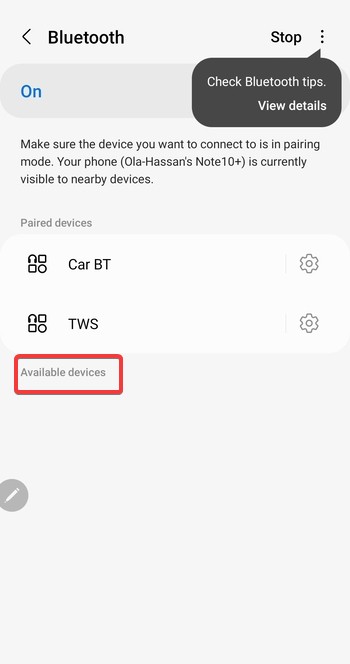
Now, choose your speaker from the Available devices list and tap Pair and wait for the confirmation tone or LED change.
2) Connect a Bluetooth speaker to an iPhone
Swipe down from the top-right corner and tap the Bluetooth icon to turn it on. Next, go to Settings > Bluetooth and keep the page open while your iPhone searches for devices.

From here, select the speaker from the Other Devices list. Now, wait for the Connected indicator to appear.
3) Connect a Bluetooth speaker to a Mac
Click the Bluetooth icon and turn it on if it's disabled. Next, select Bluetooth Settings and wait for your speaker to appear in the device list. Now, click Connect next to your speaker.
Finally, open System Settings > Sound and select the speaker if needed.
4) Connect a Bluetooth speaker to a Windows laptop or PC
Press the Windows key + I key and select Bluetooth & devices in the left pane. Now, toggle Bluetooth on and click Add device.
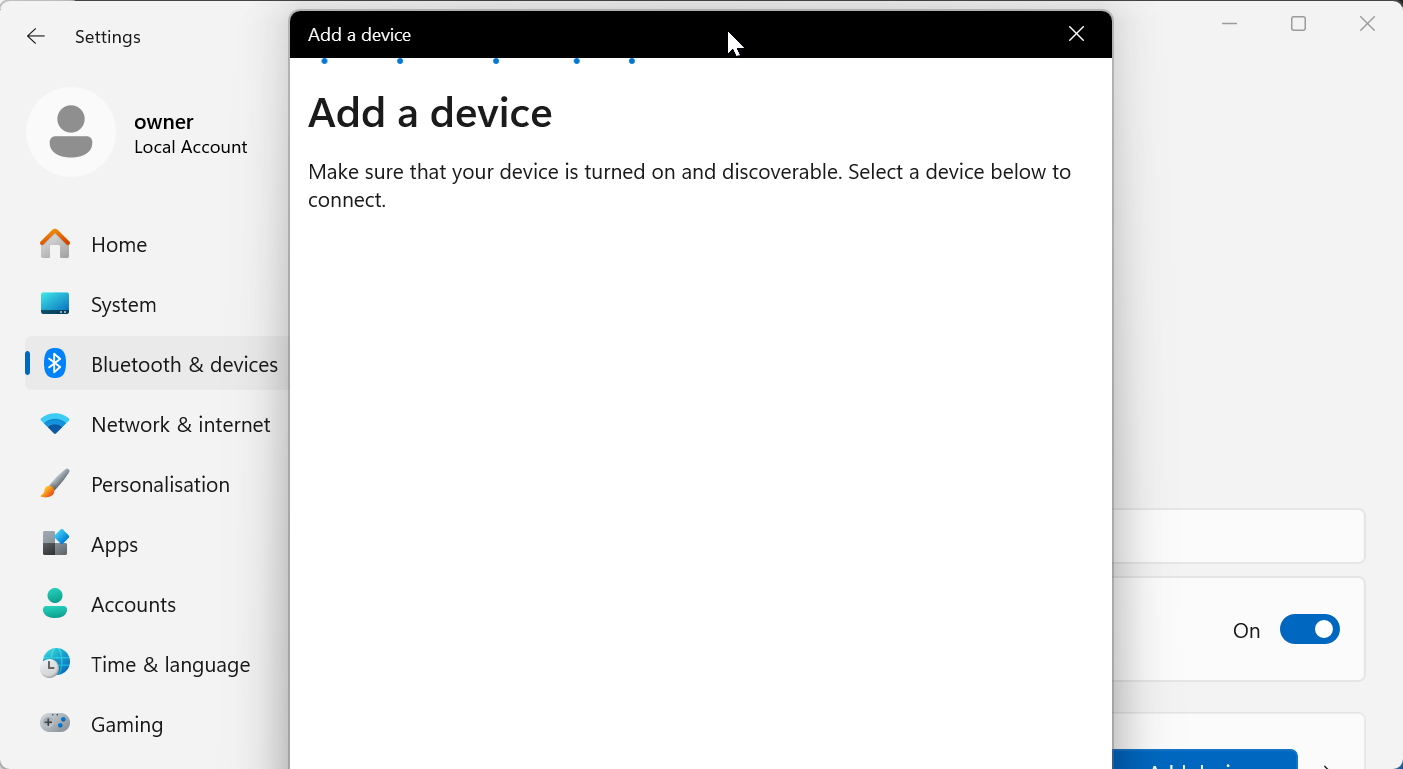
From here, choose Bluetooth and select your speaker. Finally, click the speaker icon on the taskbar and choose your Bluetooth speaker under the output list if Windows doesn't switch automatically.
5) Connect a Bluetooth speaker to a TV
On a Smart TV with Bluetooth, open your TV's Settings and go to the Sound or Audio Output menu. Next, select Bluetooth or Wireless Speakers and choose your speaker.

If you are using a TV without Bluetooth, plug the transmitter into the TV’s headphone jack, RCA audio ports, or optical port. Then, put the transmitter and speaker in pairing mode.
Tip: Some TVs require turning off TV speakers or selecting External Audio. This prevents sound from routing to the wrong device.
6) Connect multiple Bluetooth speakers
Android Dual Audio
Open Settings > Bluetooth and turn on Dual Audio (available on many Samsung phones). Then, pair the two speakers and enable them.
iPhone Audio Sharing
iPhone supports shared audio for headphones, but for limited speakers. Just connect the first speaker and use AirPlay to mirror audio to supported speakers.
Fix Bluetooth speaker not connecting
- Move devices closer: Walls, distance, and metal surfaces weaken Bluetooth signals.
- Reset the Bluetooth speaker: Most speakers reset by holding the power and Bluetooth buttons for several seconds.
- Remove old pairings on your device: Old saved devices can block new connections.
- Restart Bluetooth on both devices: Turn Bluetooth off and back on to refresh the connection stack.
- Update phone or PC system software: Firmware updates improve Bluetooth compatibility.
Tips: Improve Bluetooth audio quality
- Reduce wireless interference
- Choose the right audio output mode
- Use Bluetooth 5+ devices where possible
FAQs
Why isn’t my Bluetooth speaker showing up? It usually means the speaker isn’t in pairing mode or is connected to another device.
How do I pair a Bluetooth speaker without a pairing button? Many speakers enter pairing mode automatically after a long press on the power button.
Can I connect a Bluetooth speaker to a desktop without Bluetooth? Yes. A USB Bluetooth adapter enables wireless audio on any PC.
How far can my Bluetooth speaker stay from my device? Most Bluetooth 5 speakers reach up to 30–100 feet depending on walls and interference.
Summary
- Turn on your speaker and enable pairing mode.
- Enable Bluetooth on your phone, PC, or TV.
- Select your speaker in the device list to pair.
- If issues appear, reset the speaker or remove old connections.
Conclusion
Bluetooth speakers pair quickly when devices are in discoverable mode and previous connections are cleared. If pairing fails, a reset or short distance adjustment solves the issue in most cases.
Discussion (0)
Be the first to comment.