




If you think someone else has access to your Instagram account, logging out on all devices should be your first move. Instagram does not include a single log out everywhere button, but it gives you two reliable ways to end active sessions remotely. You can remove individual devices from your account or force a full logout by changing your password.
This guide shows the safest and fastest methods you can use to log out of all devices on Instagram, with additional details on how to know if it is successful.
Table of contents
- How logging out of Instagram on all devices works
- How to log out of Instagram on all devices on Mobile
- How to log out of Instagram everywhere by changing your password
- How to log out of Instagram sessions using Meta Account Center
- How to confirm you’re logged out on all devices
- What to do if Instagram still shows unknown or active sessions
- Tips for keeping your Instagram account secure
- FAQs about logging out of Instagram on all devices
- Summary
How logging out of Instagram on all devices works
Instagram tracks every device and browser signed into your account. You can view and remove these sessions from Account Center, or you can invalidate them all at once by changing your password.
Both methods work on iPhone, Android, and desktop. The best choice depends on whether you want to remove one suspicious device or secure your entire account immediately.
How to log out of Instagram on all devices on Mobile
- Open the Instagram app and go to your profile.
- Tap the menu icon in the top-right corner.


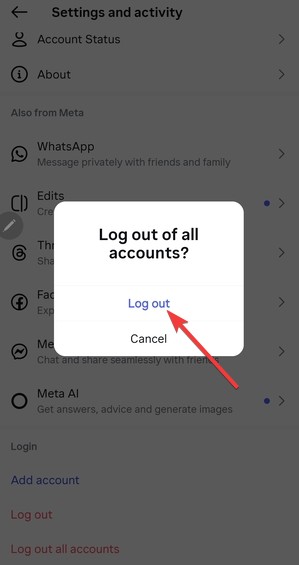
- Next, scroll down and select Log out all accounts.
- Finally, tap the Log out option to confirm the action.

How to log out of Instagram everywhere by changing your password
Change your Instagram password Account Center
- Click the Menu button on the Instagram web app and select Settings.
- Next, click Meta Account Center.
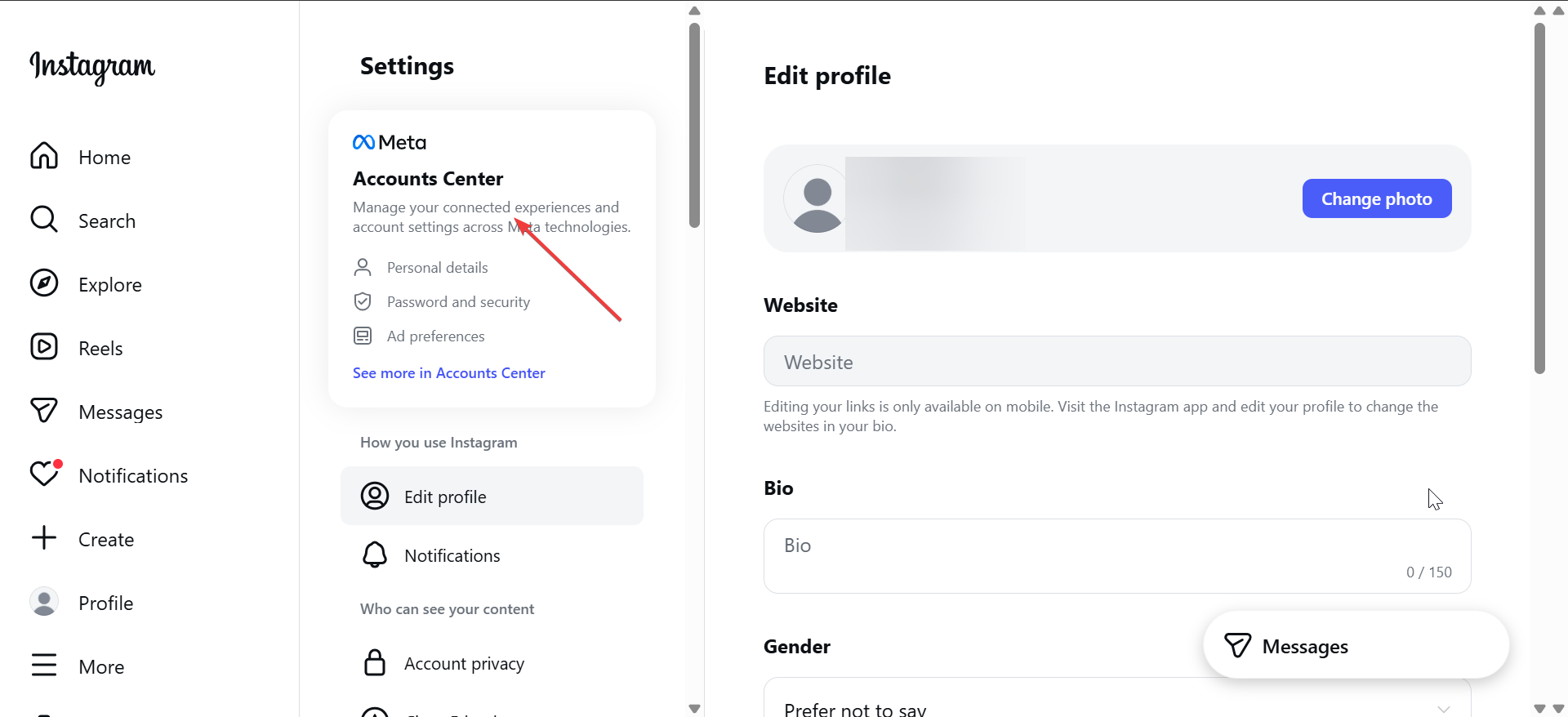

- Now, choose Password and security, then Change password.
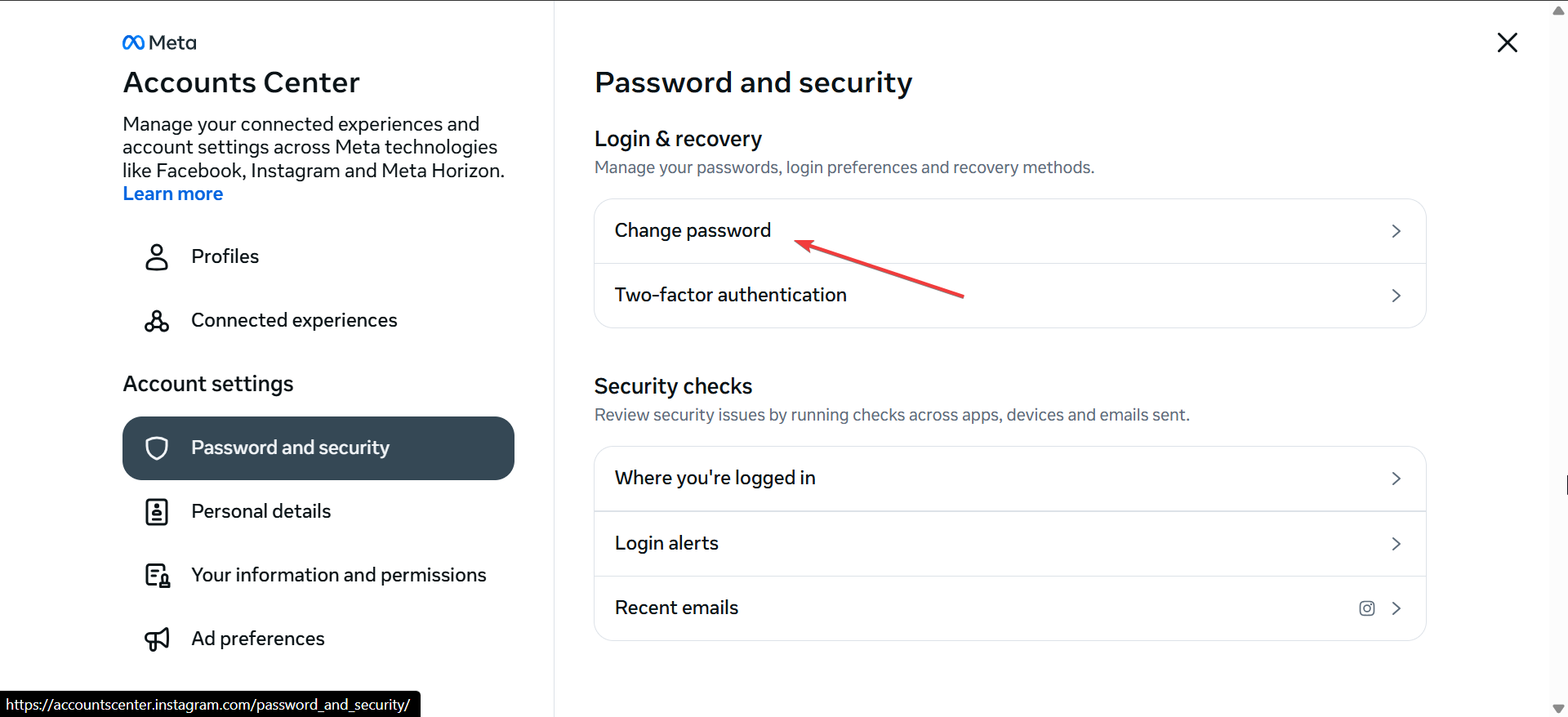
- From here, enter your current password followed by the one you want to change to.
Instagram logs out all active sessions as soon as the password changes. If you have forgotten your password, check our guide on how to find your Instagram password to retrieve it.
What happens after you change your password
Every device, app, and browser using your old password loses access. You will need to sign back in on your own devices using the new password.
This method works best if you suspect hacking, account sharing, or unauthorized access.
How to log out of Instagram sessions using Meta Account Center
When Meta Account Center controls Instagram sessions
Some accounts route security settings through Meta Account Center, especially if Instagram connects to Facebook. In this case, Instagram redirects session management to Meta.
You will see a prompt that opens the Meta Account Center automatically.
Remove Instagram devices from the Meta Account Center
- Open the Meta Account Center from Instagram settings.
- Tap Password and security.
- Open Where you’re logged in.
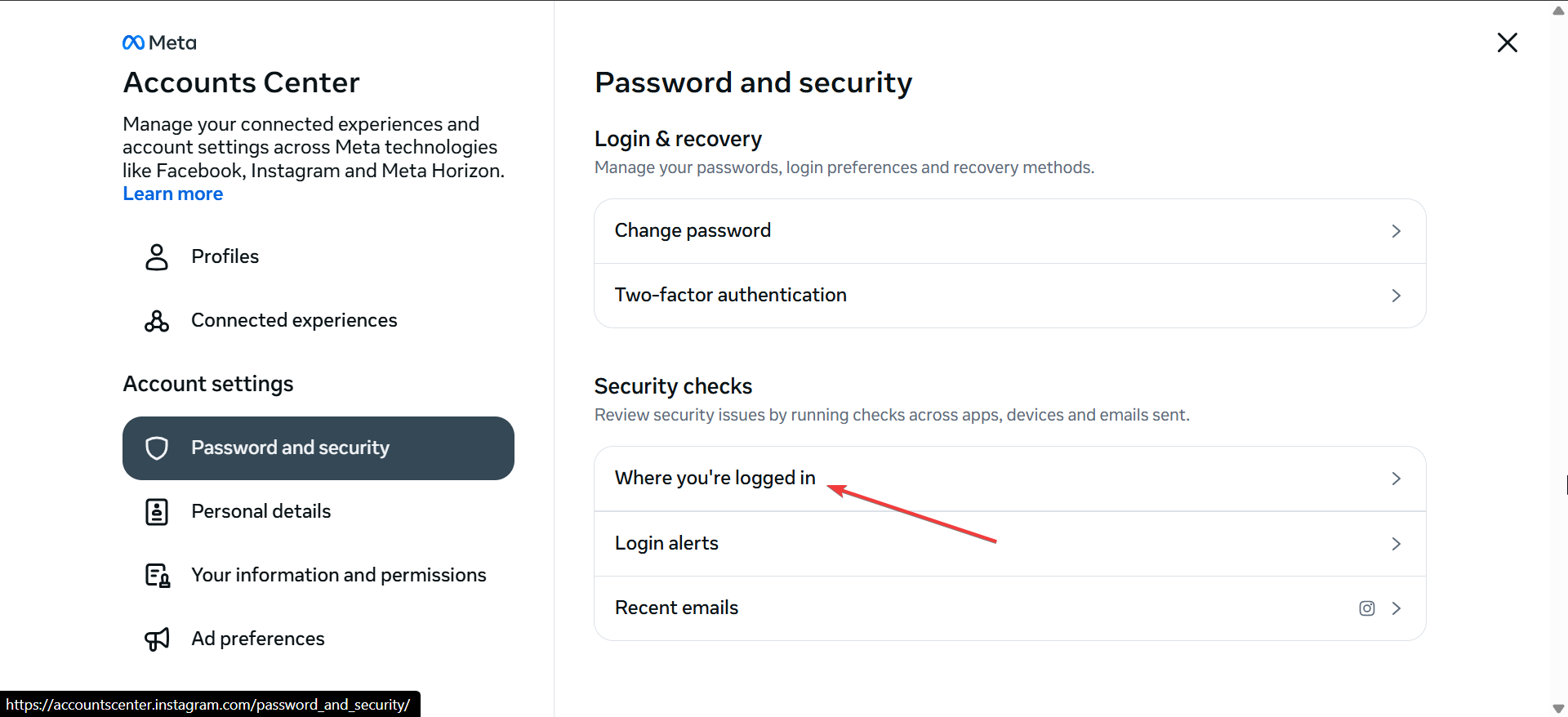
- Now, select your Instagram account.
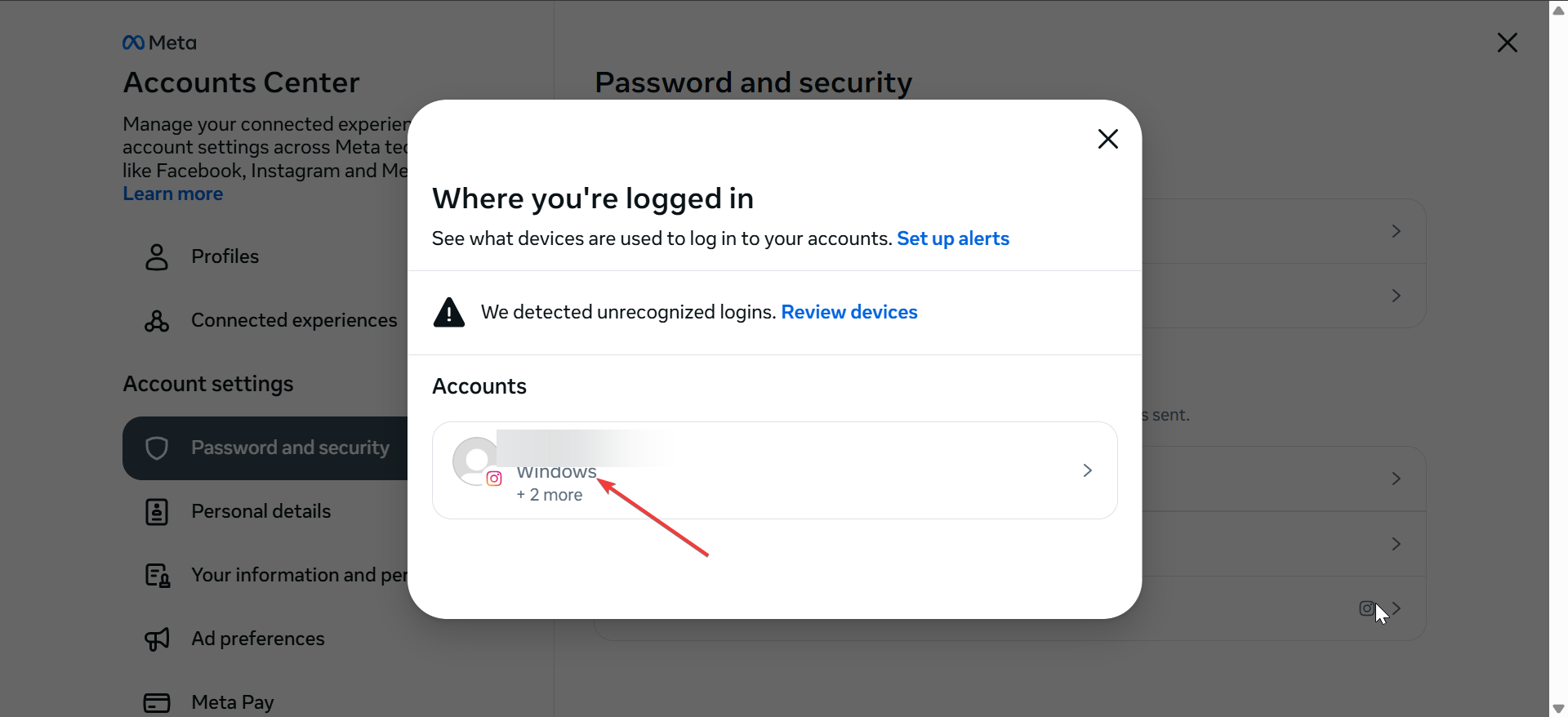
- Next, click the Select the devices to log out from option.
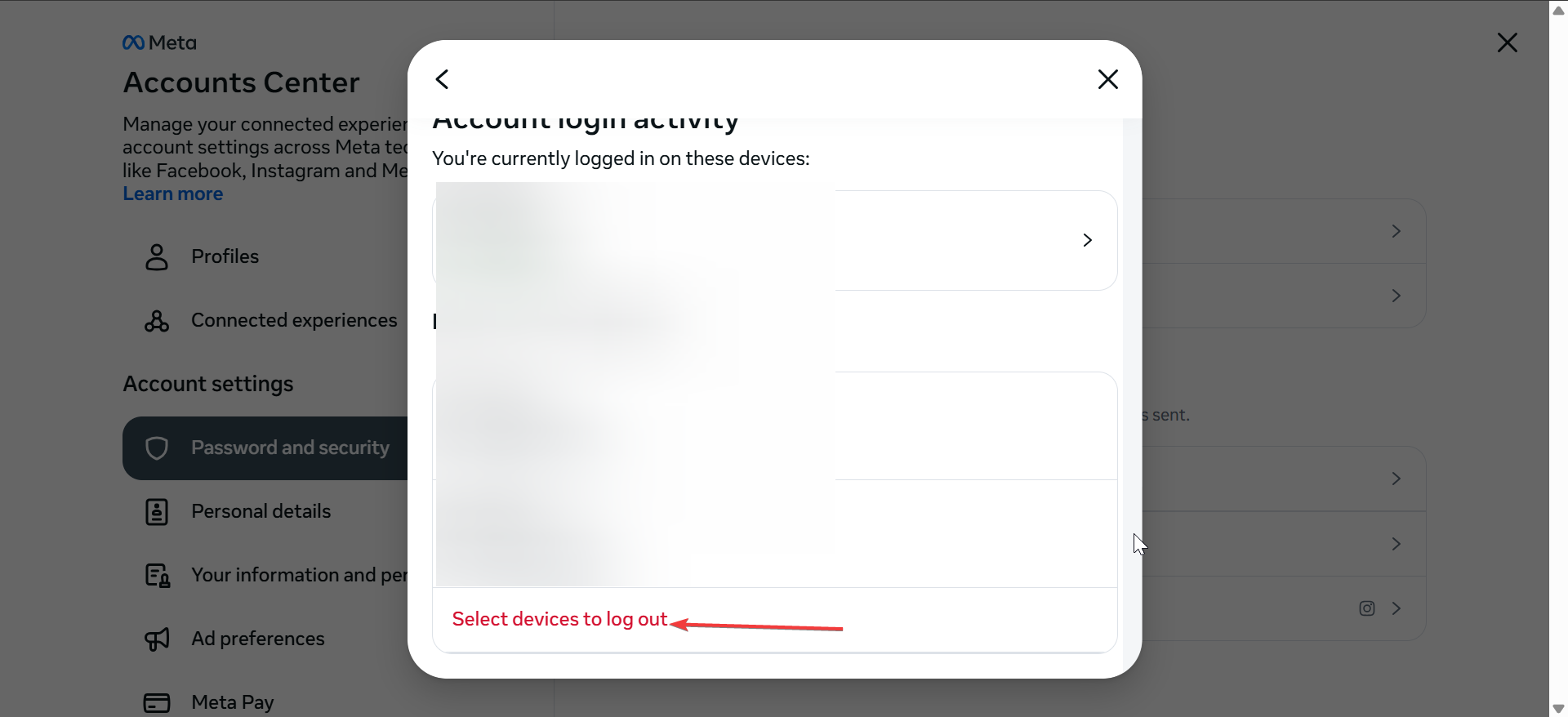
- Finally, to log out of all devices at once, click the Select all option at the top and click Log out.

Changes apply to Instagram immediately.
How to confirm you’re logged out on all devices
Return to Account Center and confirm only your current device appears. If you changed your password, wait a few minutes and refresh the page.
Signs that Instagram fully logged out other devices
Other devices will show a login screen or request your new password. You may also receive security alerts confirming recent activity.
What to do if Instagram still shows unknown or active sessions
- Refresh Login activity and wait for sync: Session updates may take several minutes to refresh. Close the app, reopen it, and check again.
- Secure your account if sessions keep returning: Change your password again and enable two-factor authentication. Review connected apps and remove any you no longer use. Repeated unknown sessions usually indicate a compromised password.
Tips for keeping your Instagram account secure
- Use a strong, unique password you do not reuse elsewhere.
- Enable two-factor authentication with an authenticator app.
- Avoid logging in on shared or public computers.
- Review Login activity regularly.
- Remove old devices you no longer use.
FAQs about logging out of Instagram on all devices
Does Instagram have a log out of all devices button?
No. Instagram requires you to remove sessions manually or force a logout by changing your password.
Will changing my password log me out everywhere?
Yes. A password change invalidates all active sessions automatically.
Why do I still see devices after logging them out?
Session lists may take time to update. Refresh the app or wait a few minutes.
Can someone log back in after I log them out?
Only if they know your password. Change it immediately if you suspect unauthorized access.
Summary
- Log out individual devices you do not recognize.
- Change your password to force a full logout everywhere.
- Check Meta Account Center if Instagram redirects security settings.
- Verify sessions and enable extra security.
Logging out of Instagram on all devices protects your account and stops unauthorized access quickly. If security matters, changing your password remains the fastest and most reliable solution.


Discussion (0)
Be the first to comment.