




If you can’t remember your Instagram password, don’t panic. You can see or reset it through your phone, browser, or password manager. This guide covers every working method, whether you’re still logged in or completely locked out.
1) Check if you are logged in to Instagram
Start by confirming whether you’re already signed in. If you can access your profile, you can change your password without recovering it.
On the Instagram app, tap your profile icon → the menu (☰) → Settings and Privacy. Next, select Accounts Center → Password and Security to confirm your login.
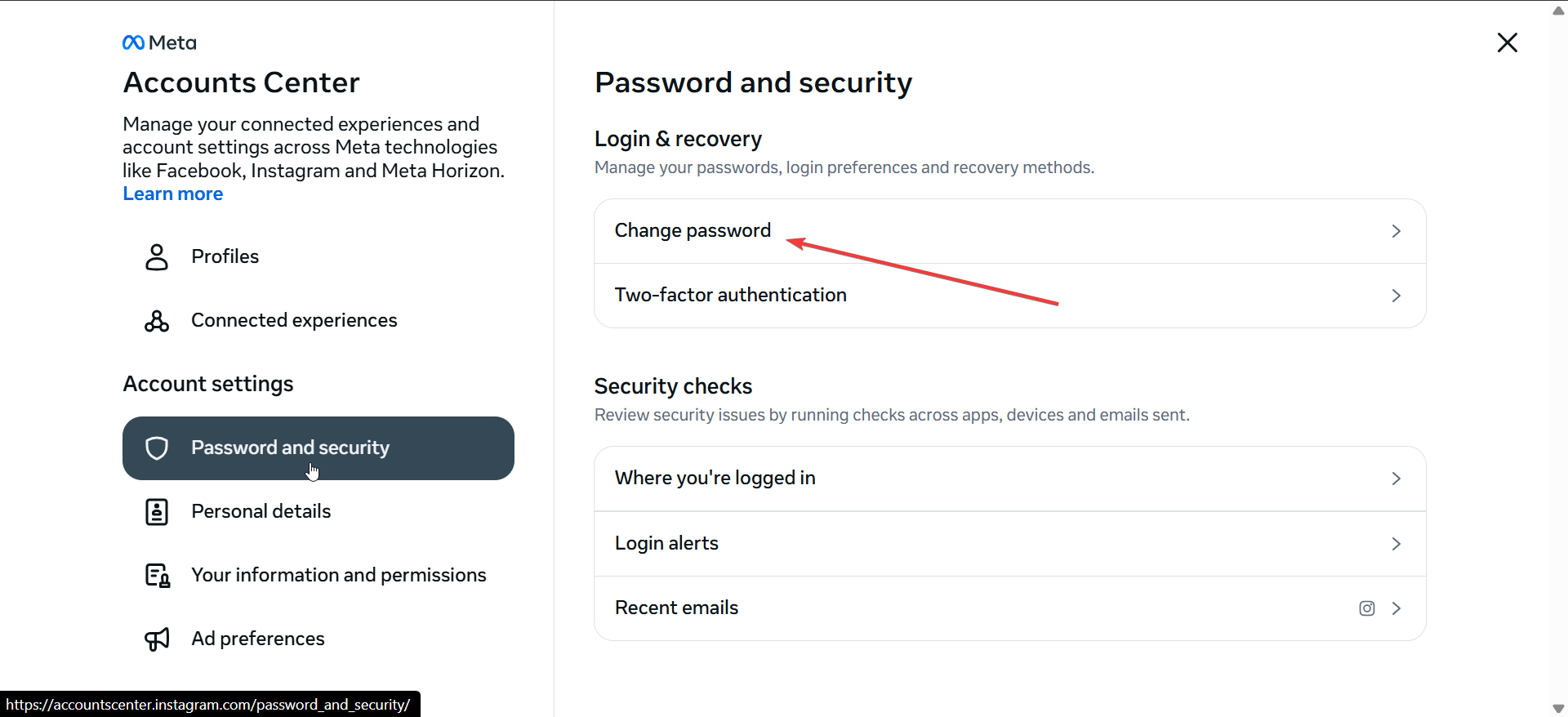
If you want to use your browser, go to Instagram.com and look for your profile icon in the top-right corner. If it’s visible, you’re logged in and can change your password directly.
2) Find your saved Instagram password
If you’ve ever saved your Instagram credentials in your phone or browser, you can view them through your password manager. This method doesn’t require resetting anything.
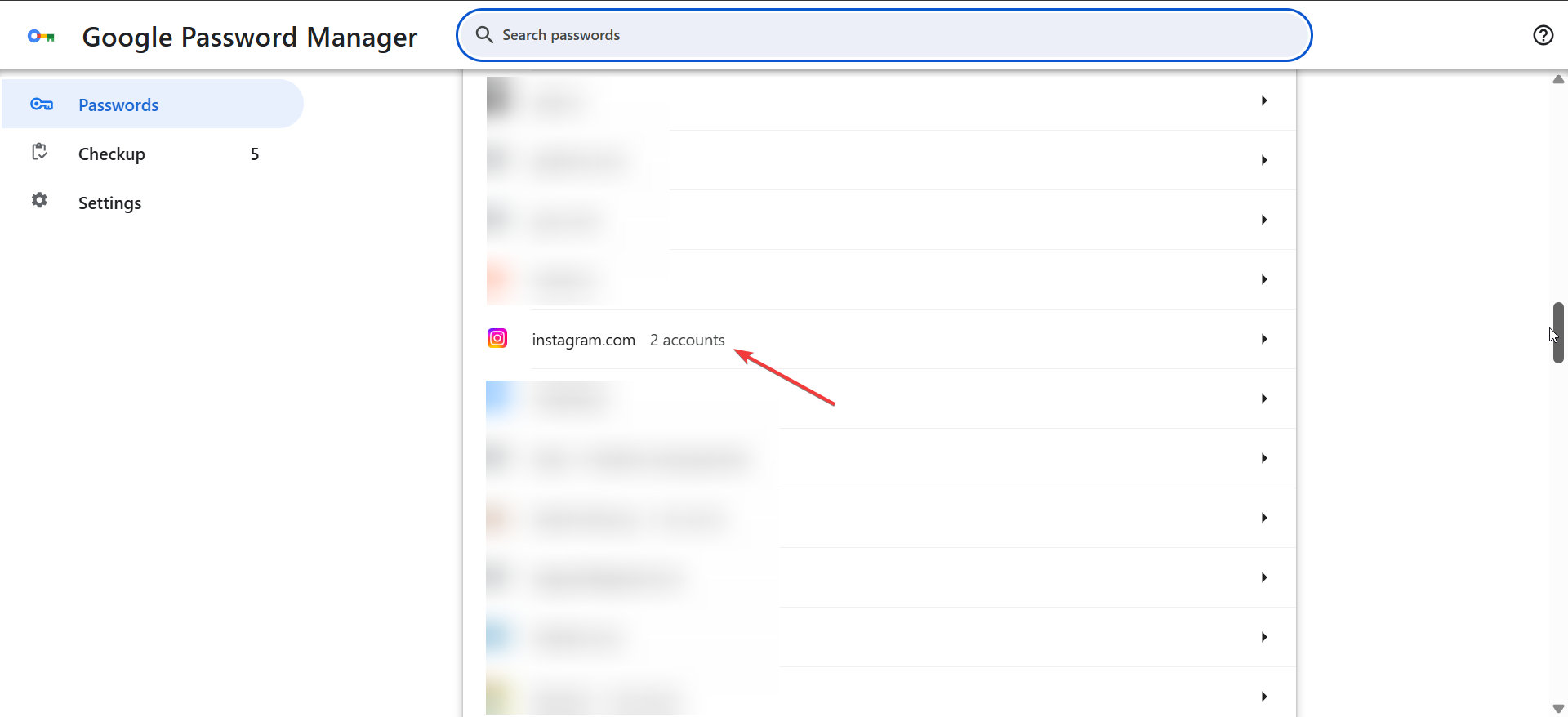
On Android: Open Settings → Passwords & Accounts → Google → Password Manager. Next, search for Instagram.com and tap to reveal your saved password after confirming your fingerprint or PIN.
On iPhone: Go to Settings → Passwords and search for Instagram.com. Tap the entry and use Face ID or Touch ID to see your password.
On Chrome or Edge browser: Open your browser settings and select Passwords. Now, search for Instagram.com and click the eye icon to reveal it after system verification.
3) Reset your Instagram password
If you’re logged out and can’t remember your password, you can reset it through the app or the web login page. The reset link will arrive via email or SMS.
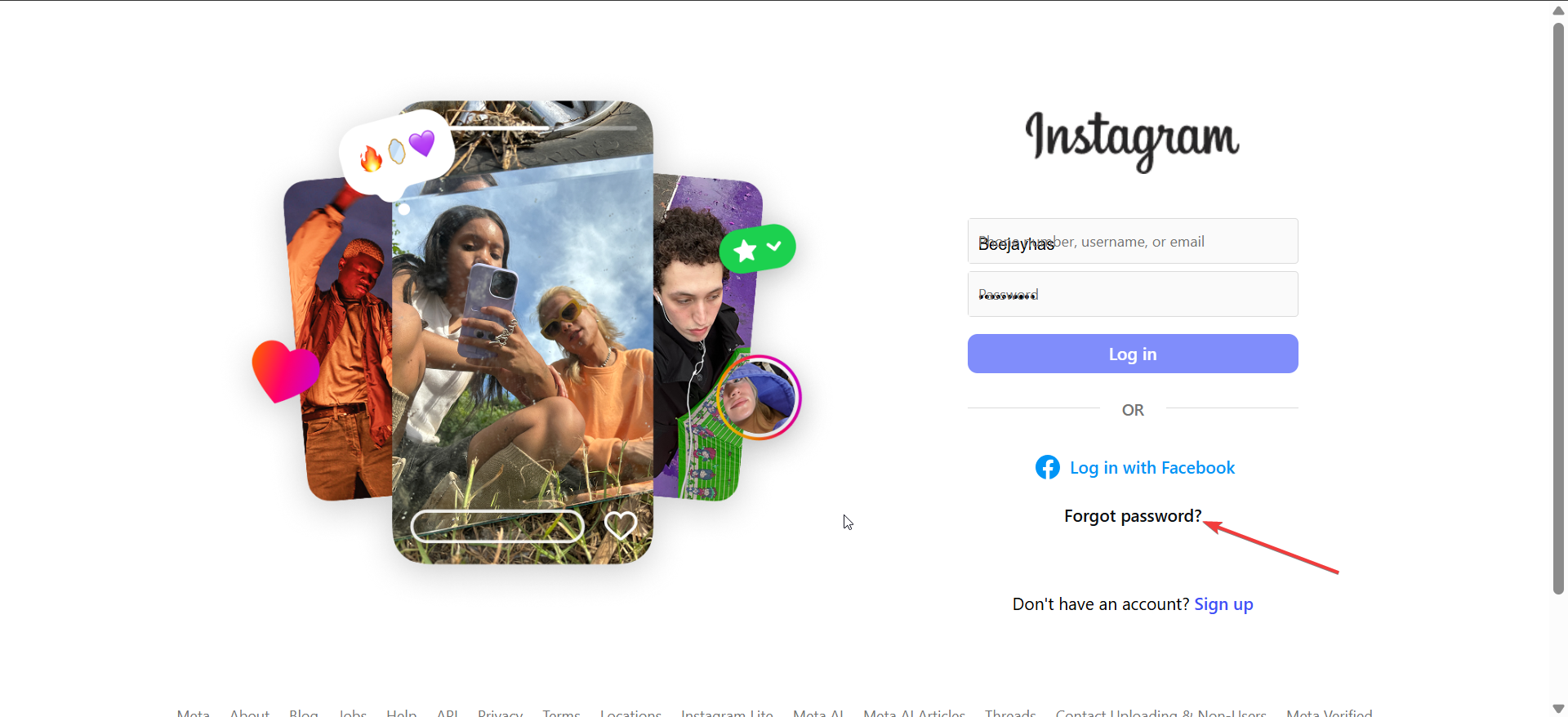
To do this, just go to Instagram.com sign in page on your browser or open the app and select Sign in. Now, select Forgot password? and follow the onscreen instructions to get the Password reset email.
4) Recover password without email or phone
If you can’t access your registered email or phone, you can still recover your account using your username or Facebook login. Just go to the Instagram login page and select the Log in with Facebook option. If your accounts are linked, you’ll regain access immediately.
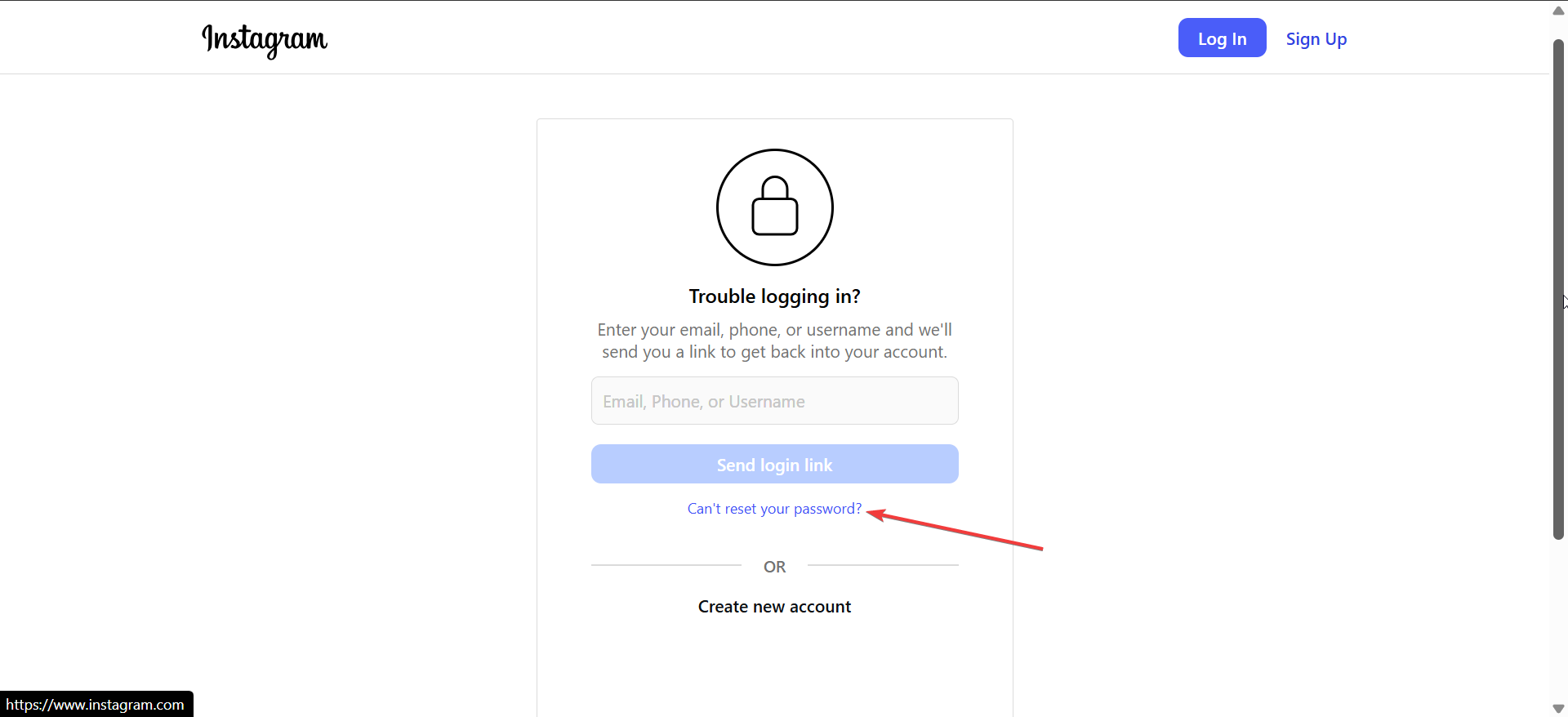
Another option you can use to recover your password is to use Can't reset your password? option. You can access it by clicking Forgot Password? → Can't reset your password? on the login page. From here, just follow the onscreen instructions, and you will be able to confirm ownership of your account.
If all of these fail, you have no choice but to contact Instagram support. Make sure you prepare all the required details, like your phone number, and be ready to verify your identity.
5) Troubleshooting login problems
If your reset link doesn’t work or you never received it, these tips solve the most common login issues.
- No reset email or SMS: Check your spam or junk folder and ensure the correct email or phone is linked to your account.
- Expired reset link: Request a new link and use it immediately. Reset links usually expire within 10–15 minutes.
- Two-factor authentication problems: Use your backup codes or confirm login through your authenticator app. If you lost both, contact support and verify your identity manually.
Tips to avoid losing your Instagram Password again
- Store credentials in Google Password Manager or iCloud Keychain.
- Enable Two-Factor Authentication inside Instagram’s security menu.
- Keep your recovery email and phone number updated.
- Never enter your password on unofficial websites or random pop-ups.
FAQs
Can I see my Instagram password directly? No, Instagram never displays passwords. You can only view saved credentials through your phone or browser’s password manager.
What if I forgot my password and email? Use your username or linked Facebook account to recover access. If that fails, submit an ID-based recovery request.
Is it safe to store my Instagram password? Yes, built-in managers like Google Password Manager and iCloud Keychain use encryption to keep credentials secure.
Summary
- Check if you’re already logged in.
- Retrieve your password from saved credentials on your phone or browser.
- Use the “Forgot password?” option to reset your login details.
- Recover access through Facebook or ID verification if you lost contact info.
- Change your password regularly and enable Two-Factor Authentication.
Conclusion
Finding or recovering your Instagram password is simple when you know where to look. Whether you retrieve it from your saved passwords, reset it using a login link, or recover your account with ID verification, each method takes only a few minutes. Always keep your recovery details updated and enable two-factor authentication for stronger protection.



Discussion (0)
Be the first to comment.