




Facebook profiles often contain years of personal photos, posts, and details that strangers can still access by default. If you want tighter control over who sees your information, Facebook’s Profile Lock feature provides a simple privacy layer.
Locking your Facebook profile limits visibility to friends only, while still allowing people to find your profile and send friend requests. The steps below show how to lock your Facebook profile using the iPhone app. The process for Android phones is similar.
How To Lock Your Facebook Profile Using the iPhone App
The Facebook iPhone app offers the most reliable way to enable Profile Lock, provided the feature is available in your region and your account is not using Professional Mode.
- Open the Facebook app and tap the three-line icon in the top-right corner.
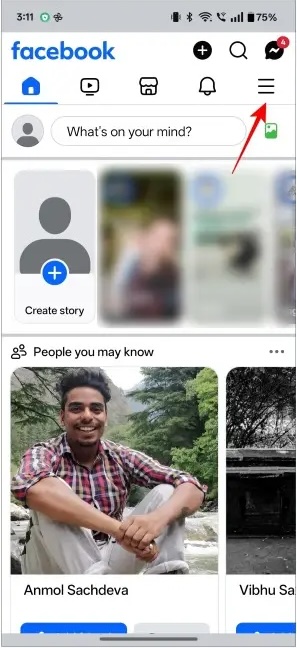
- Tap See Your Profile to open your profile page.
- Tap the three dots icon next to the Edit Profile button.
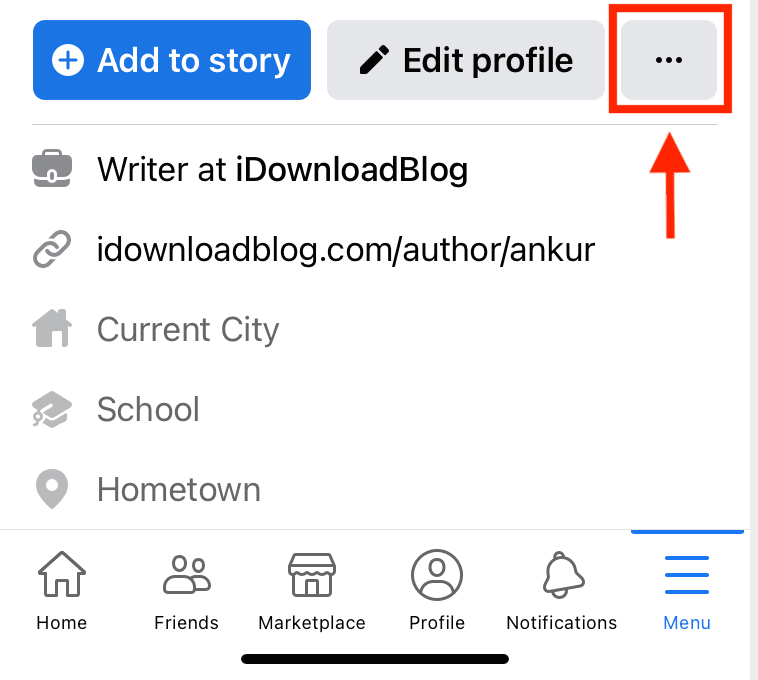
- Tap Lock Profile.
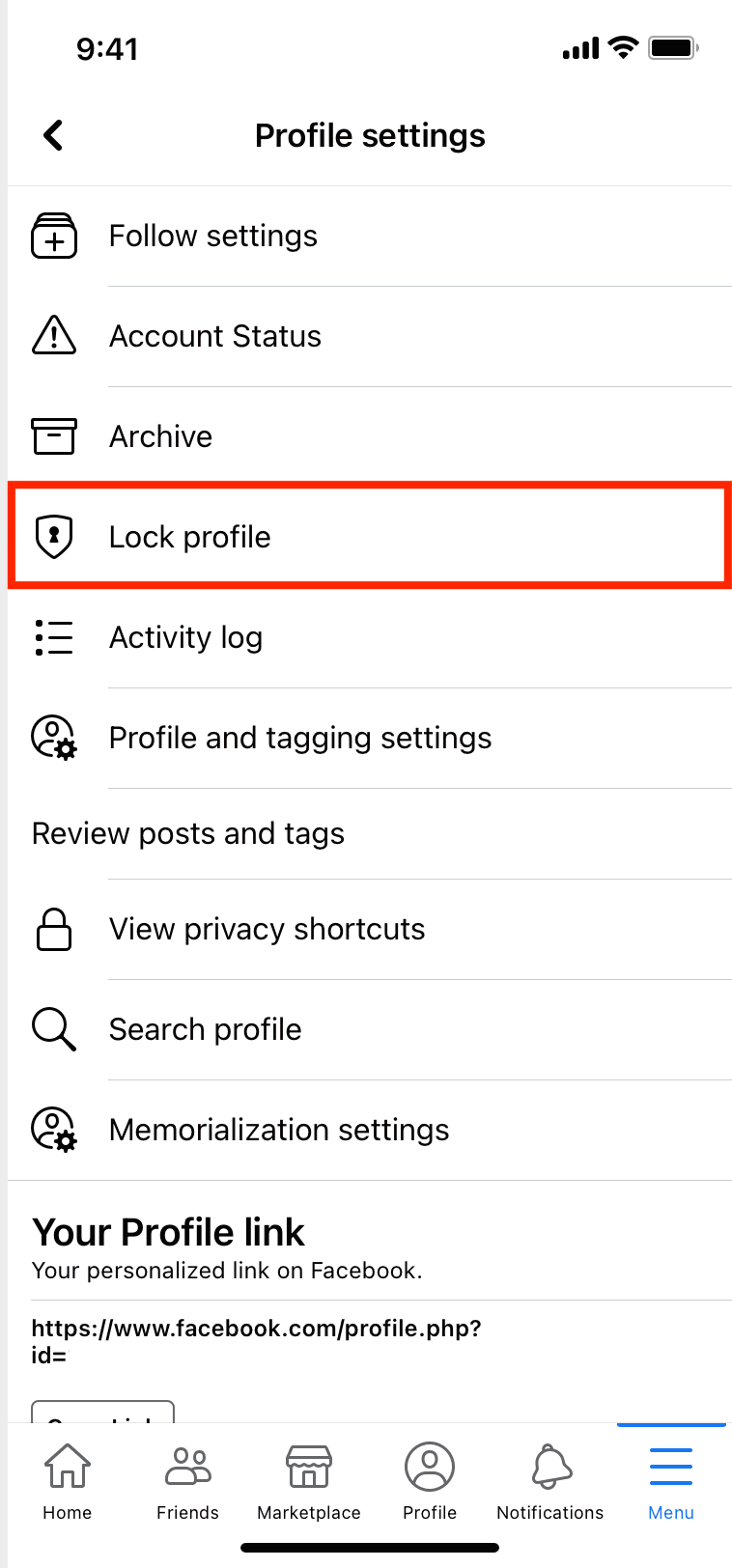
- Tap Lock Your Profile to confirm.
Once confirmed, Facebook applies the privacy restrictions immediately. Facebook applies the lock immediately.
How To Lock Your Facebook Profile On Android
The steps on Android closely mirror the iPhone process, with slight navigation differences depending on device and app version.
- Open the Facebook app.
- Tap the three-line icon in the top-right or bottom-right corner.
- Tap See Your Profile.
- Tap the three dots icon next to Edit Profile.
- Select Lock Profile.
- Tap Lock Your Profile to confirm.
Your profile switches to restricted mode immediately.
How To Lock Your Facebook Profile On Web
You can also lock your Facebook profile using a desktop or laptop browser.
- Go to facebook.com and sign in.
- Open your profile page.
- Click the three dots icon next to Edit Profile.
- Select Lock Profile.
- Click Lock Your Profile and confirm.
Once confirmed, Facebook redirects you back to your profile with the lock enabled.
What Changes After You Lock Your Facebook Profile
After locking your profile, only friends can see your posts, stories, and full-size photos. Non-friends see limited information and smaller, non-expandable images.
Timeline and tag review turn on automatically, and most About details become hidden from people who are not on your friends list.
How To Unlock Your Facebook Profile
You can unlock your profile at any time using the same menu on mobile or web.
- Open your Facebook profile.
- Tap or click the three dots icon.
- Select Unlock Profile.
- Confirm the action.
Previously public posts return to their original visibility.
Troubleshooting Common Problems
If the Lock Profile option does not appear, the feature may not be available in your region or your account may be using Professional Mode.
Updating the Facebook app, switching back to a personal profile, or logging out and back in often resolves the issue.
Tips
- Review older posts to ensure visibility matches your intent.
- Use the View As tool to preview your public profile.
- Check story and Reel privacy after locking.
- Remove unused third-party app permissions.
- Combine Profile Lock with timeline review for added control.
FAQ
Does locking my Facebook profile hide it from search?
No. Your profile remains searchable, and people can still send friend requests.
Does Profile Lock work on Facebook Pages?
No. The feature only applies to personal profiles.
Is Profile Lock permanent?
No. You can unlock your profile at any time.
Summary
- Profile Lock limits profile visibility to friends.
- The feature works on iPhone, Android, and web.
- Photos and posts become restricted.
- You can undo the lock anytime.
Conclusion
Locking your Facebook profile is one of the simplest ways to improve privacy without disabling your account. If controlling who sees your personal content matters, Profile Lock delivers fast and effective protection across all devices.


Discussion (0)
Be the first to comment.