




Hiding contacts on an iPhone sounds simple, but iOS does not offer a direct “hide contact” option. Still, you can achieve similar results by using account sync controls, contact groups, Focus modes, and a few privacy settings. This guide shows the most reliable methods, depending on what you want to hide and for how long.
Table of contents
- Understand what “hiding contacts” means on iPhone
- Hide contacts by removing synced accounts
- Hide contacts using contact groups (iCloud method)
- Hide contacts from Messages and Phone suggestions
- Hide contacts temporarily using Focus mode
- Hide contacts using third-party apps
- What you cannot do on iPhone
- Tips for keeping contacts private on iPhone
- FAQs
- Summary
Understand what “hiding contacts” means on iPhone
Before changing anything, it helps to know how iOS handles contacts. Apple ties contacts to accounts and system-wide features, not individual visibility toggles.
Why iOS does not include a hide option
iOS treats every contact in an account equally. Because of this design, you cannot hide a single contact natively without affecting others in the same account.
Hide contacts by removing synced accounts
If your contacts come from different accounts, this method works fast and cleanly.
Turn off Contacts sync for an account
You can hide all contacts from Google, Outlook, or another account without deleting them.
- Open Settings.
- Tap Apps > Contacts.
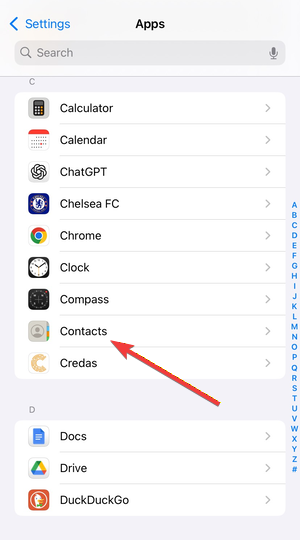

- Next, select Contacts Accounts.
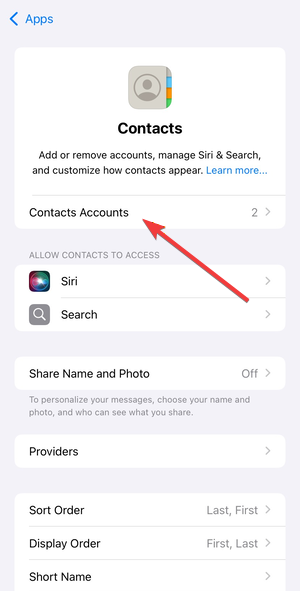

- Now, choose the account you want to hide.
- Finally, turn off Contacts.
The Contacts app removes those entries immediately, while the data stays safe in the account.
What happens when you turn sync back on
When you re-enable Contacts sync, iOS restores every contact from that account. This makes the method ideal for temporary hiding.
Hide contacts using contact groups (iCloud method)
Contact groups let you control visibility without disabling syncing.
Create contact groups
You can create groups using iCloud on a computer.
- Go to iCloud Contacts.
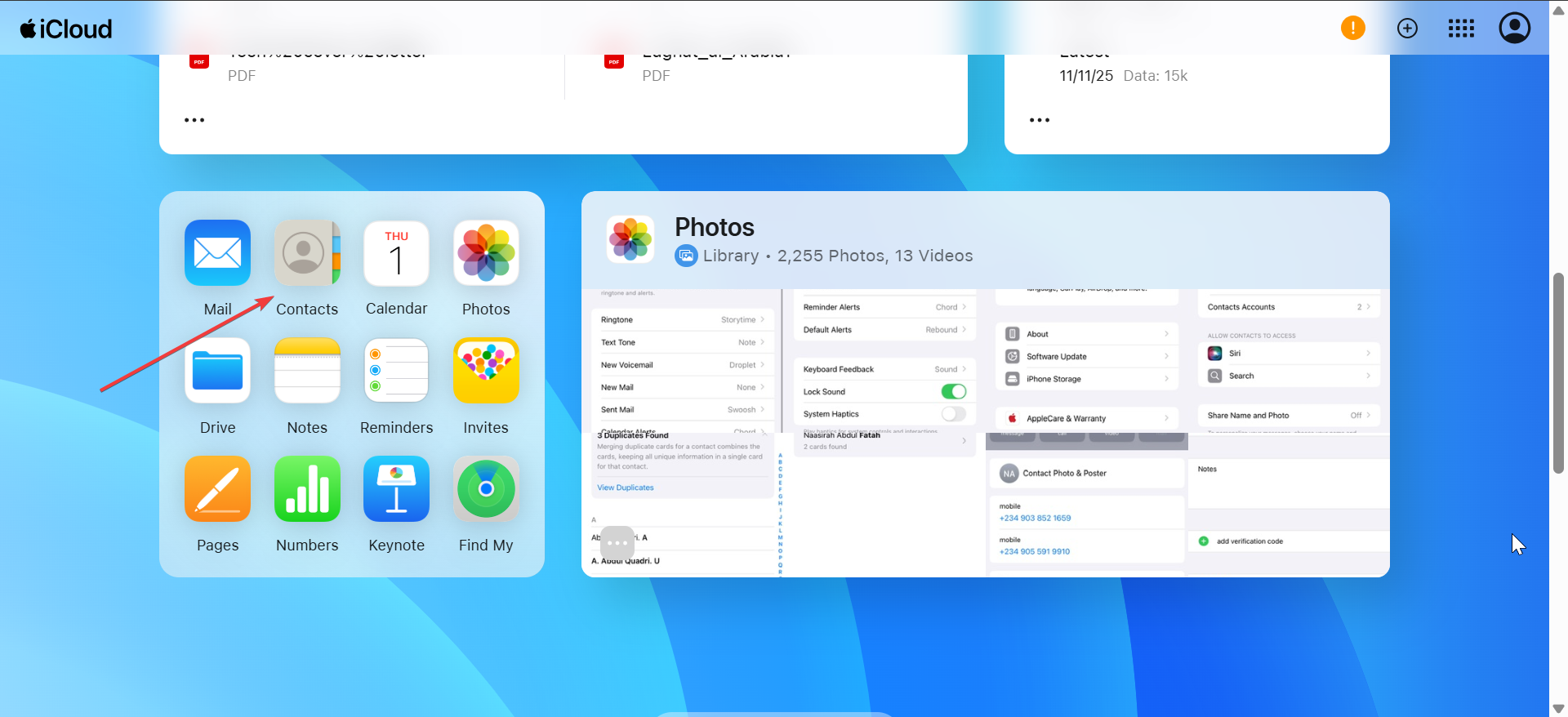

- Create a new group, such as “Private” or “Work.”
- Move selected contacts into that group.
Groups help organize contacts and make hiding predictable.
Show or hide groups on iPhone
Once groups exist, you can toggle them directly on the device.
- Open the Contacts app.
- Tap Lists or Groups.
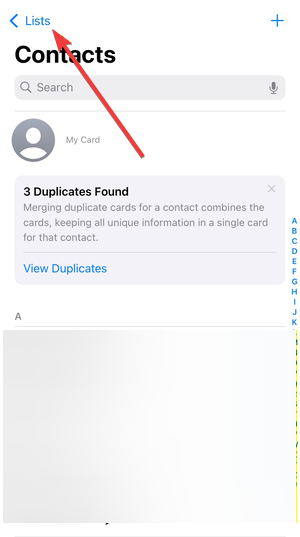

- Next, tap Edit in the top left corner.
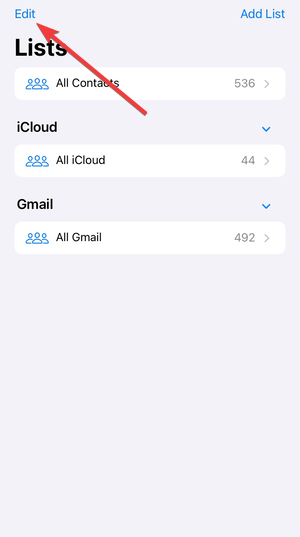
- Uncheck the group you want to hide.
- Tap Done.
The hidden group disappears from view without deleting anything.
Hide contacts from Messages and Phone suggestions
Some users want contacts hidden only from suggestions, not from the Contacts app.
Disable contact suggestions
Turning off suggestions removes names and photos from Recents, Share Sheet, and message suggestions.
- Open Settings.
- Tap Phone and Messages.
- Disable Show Contact Suggestions where available.
Limit Siri and search access
This prevents contacts from appearing in Spotlight and Siri suggestions.
- Open Settings.
- Tap Siri.
- Next, select Apps.
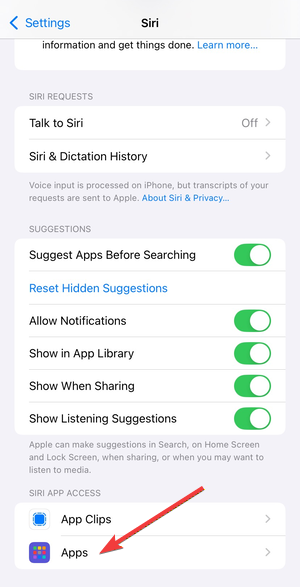

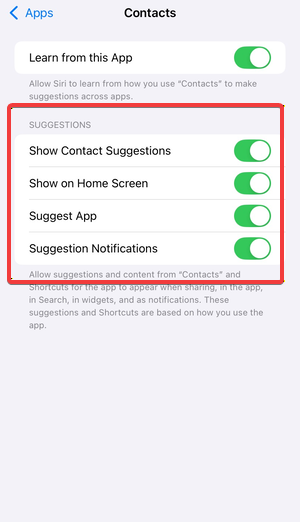
- Now, choose Contacts.
- Lastly, turn off all suggestion options.

Hide contacts temporarily using Focus mode
Focus mode works well when you need short-term privacy.
Allow calls and messages from selected contacts
Focus lets you filter who can reach you.
- Open Settings.
- Tap Focus.
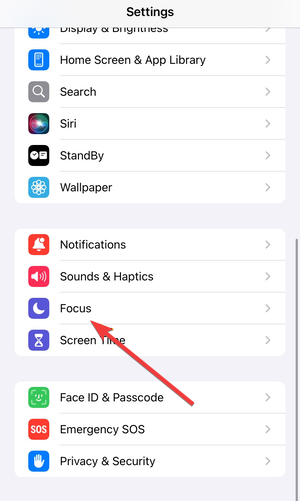

- Create or edit a Focus mode.
- Allow notifications only from selected contacts.
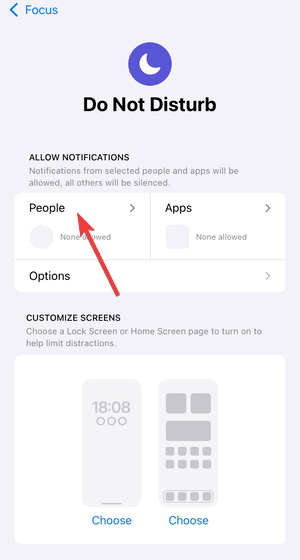

Bypassing iPhone silent Focus mode for some contacts allows you to receive notifications from them while contacts outside the allowed list stay silent and out of view during Focus.
Use Focus filters
On newer iOS versions, filters reduce what appears in apps like Messages.
- Open your Focus settings.
- Add app filters for Messages or other supported apps.
- Activate the Focus mode.
This creates contextual hiding without permanent changes.
Hide contacts using third-party apps
Some apps offer stronger hiding features with password protection.
When third-party apps make sense
Vault-style apps work best for a small number of sensitive contacts. They store entries separately from the main Contacts app.
Privacy and security considerations
These apps require contact access and may store data locally or in the cloud. Always review permissions and privacy policies before using them.
What you cannot do on iPhone
Setting limits avoids frustration and data loss.
You cannot hide a single contact natively
iOS does not allow per-contact visibility controls inside the same account.
You cannot hide contacts from someone with full device access
Anyone who unlocks the iPhone can view visible contacts unless Focus modes or account settings restrict them.
Tips for keeping contacts private on iPhone
- Separate work and personal contacts into different accounts.
- Use Focus modes on shared or work devices.
- Disable Siri suggestions if privacy matters more than convenience.
- Back up contacts before changing sync or group settings.
FAQs
Is it possible to hide one contact without deleting it?
No, iOS does not allow hiding a single contact on its own. You need to use workarounds like contact groups, Focus mode, or third-party apps to limit visibility without deleting data.
Can I hide contacts from Messages but keep them in Contacts?
Yes, you can reduce their visibility by disabling contact suggestions and limiting Siri and search access. You can also use Focus mode to silence messages from specific contacts while keeping them saved.
Do hidden contacts still sync to iCloud?
Yes, hidden contacts continue syncing as long as the account remains enabled. Hiding only affects visibility on the device, not cloud storage or backups.
What is the safest way to hide sensitive contacts?
Using a separate account or a reputable third-party vault app offers the most control. Always back up contacts before making changes to sync or visibility settings.
Summary
- iPhone does not support true per-contact hiding.
- Account sync and contact groups provide the most reliable workarounds.
- Focus mode helps hide contacts temporarily.
- Third-party apps offer extra protection with trade-offs.
Hiding contacts on iPhone requires choosing the right workaround for your situation. Account syncing and groups work best for long-term control, while Focus mode handles temporary privacy needs. Once you understand iOS limits, you can keep your contacts private without risking data loss.


Discussion (0)
Be the first to comment.