




If you search for how to get Facebook Watch on LG Smart TV today, you quickly notice something important: the old Facebook Watch TV app no longer works on most platforms. Meta now focuses on Facebook video in the main app and website, but you can still watch Facebook Watch on LG Smart TV models using a browser or casting from your phone.
This guide shows you the current, working methods to get Facebook Watch on LG Smart TV, including using the built-in web browser, casting from Android, mirroring from iPhone, and using streaming devices when your LG webOS apps feel limited. You do not need any hacks or unofficial firmware, just a Facebook account, a decent network, and a supported LG Smart TV.
LG once offered a dedicated Facebook Watch LG TV app in the LG Content Store, but Meta discontinued the TV app service. If you look for “Facebook” or “Facebook Watch on LG Smart TV” in the app store now, you usually will not find an official TV app to install.
Instead of relying on a Facebook Watch LG TV app, you now get Facebook videos on LG Smart TV by using the built-in browser, screen mirroring, or casting from your phone or tablet. These methods work across most recent LG webOS models and keep your setup simple.
Method 1: Use The LG Web Browser To Watch Facebook Videos
The easiest way to watch Facebook videos on LG Smart TV without extra hardware uses the LG webOS browser. This method works best when you mostly scroll your feed or watch longer Facebook Watch shows.
- Press the Home button on your LG remote and open the Web Browser app.
- Use the on-screen keyboard or a paired keyboard to go to facebook.com or facebook.com/watch.
- Sign in with your Facebook account so Facebook Watch can show your usual feed and recommendations.
- Open the Watch section or search for the show, page, or creator you want to watch.
- Switch to full-screen mode for a cleaner TV experience and adjust volume with the LG remote.
This method does not feel as smooth as a native app, but it still gives you a simple way to watch Facebook videos on LG Smart TV directly from the TV interface.
Method 2: Cast Facebook Watch From An Android Phone
If you want a smoother interface, the best way to get Facebook Watch on LG Smart TV is to cast from your Android phone. Many LG Smart TVs support casting or screen sharing from Android, and plenty of Android devices support built-in Cast, Smart View, or similar features.
- Connect your LG Smart TV and your Android phone to the same Wi-Fi network.
- On your LG TV, open the Screen Share or Device Connector option if your model offers it.
- On your Android phone, open the Facebook app and go to the Watch tab or any video you want.
- Swipe down to open Quick Settings and tap Cast, Smart View, or Screen Share (name varies by phone brand).
- Select your LG Smart TV from the list of available devices.
- Play a Facebook Watch video and let it mirror to the TV in real time.
This approach keeps navigation on your phone, which feels faster than using the LG TV browser. It also works well if you often watch Reels, live streams, or videos your friends share.
Method 3: Mirror Facebook Watch From iPhone or iPad With AirPlay
Many newer LG Smart TVs support Apple AirPlay, which lets you mirror Facebook Watch from an iPhone or iPad. If your LG TV and iOS device support AirPlay, you can mirror Facebook videos to the big screen in seconds.
- Make sure your LG Smart TV and your iPhone or iPad use the same Wi-Fi network.
- On the LG TV, go to Settings > Connection > AirPlay (or a similar menu) and turn AirPlay on.
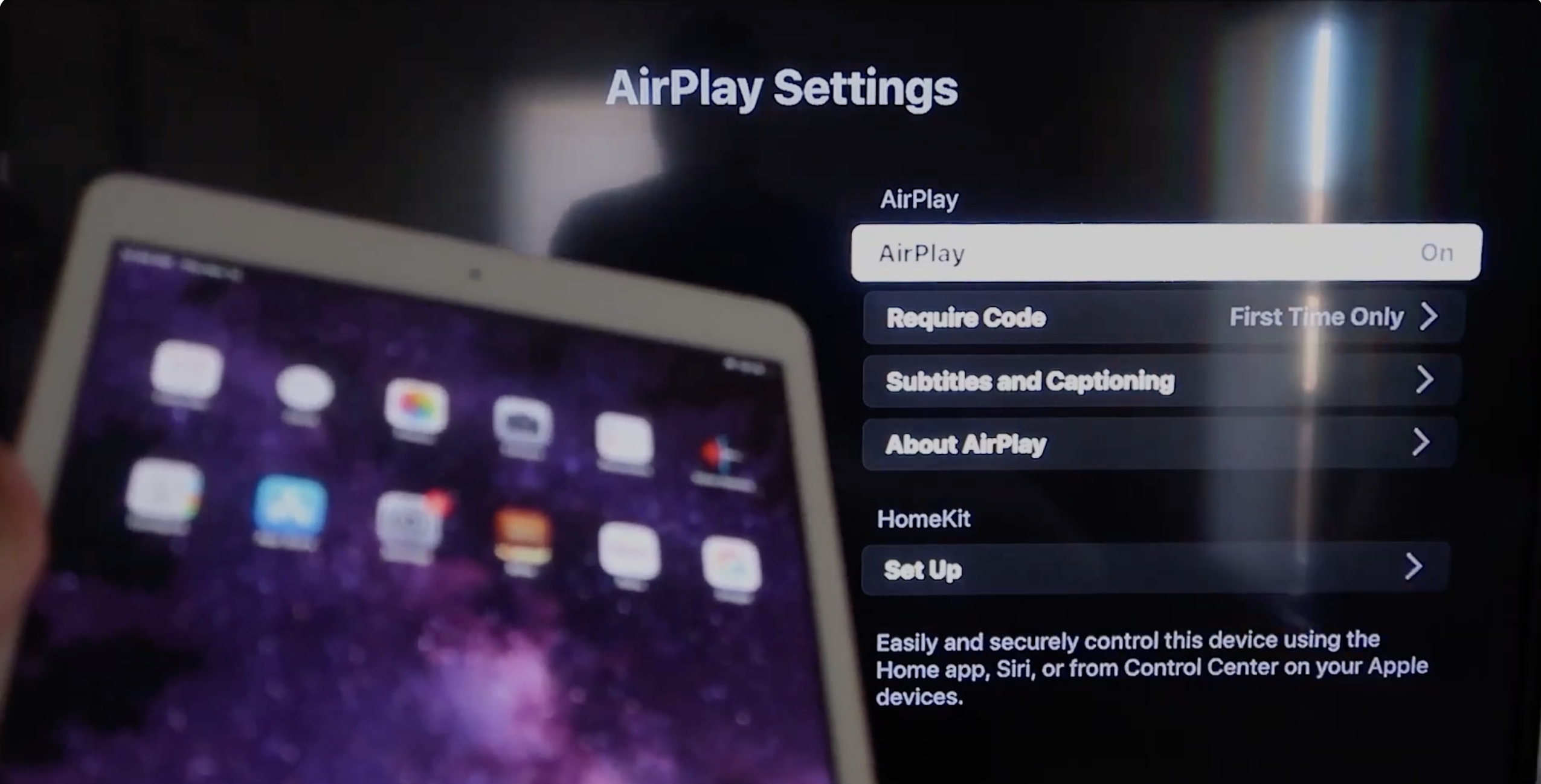
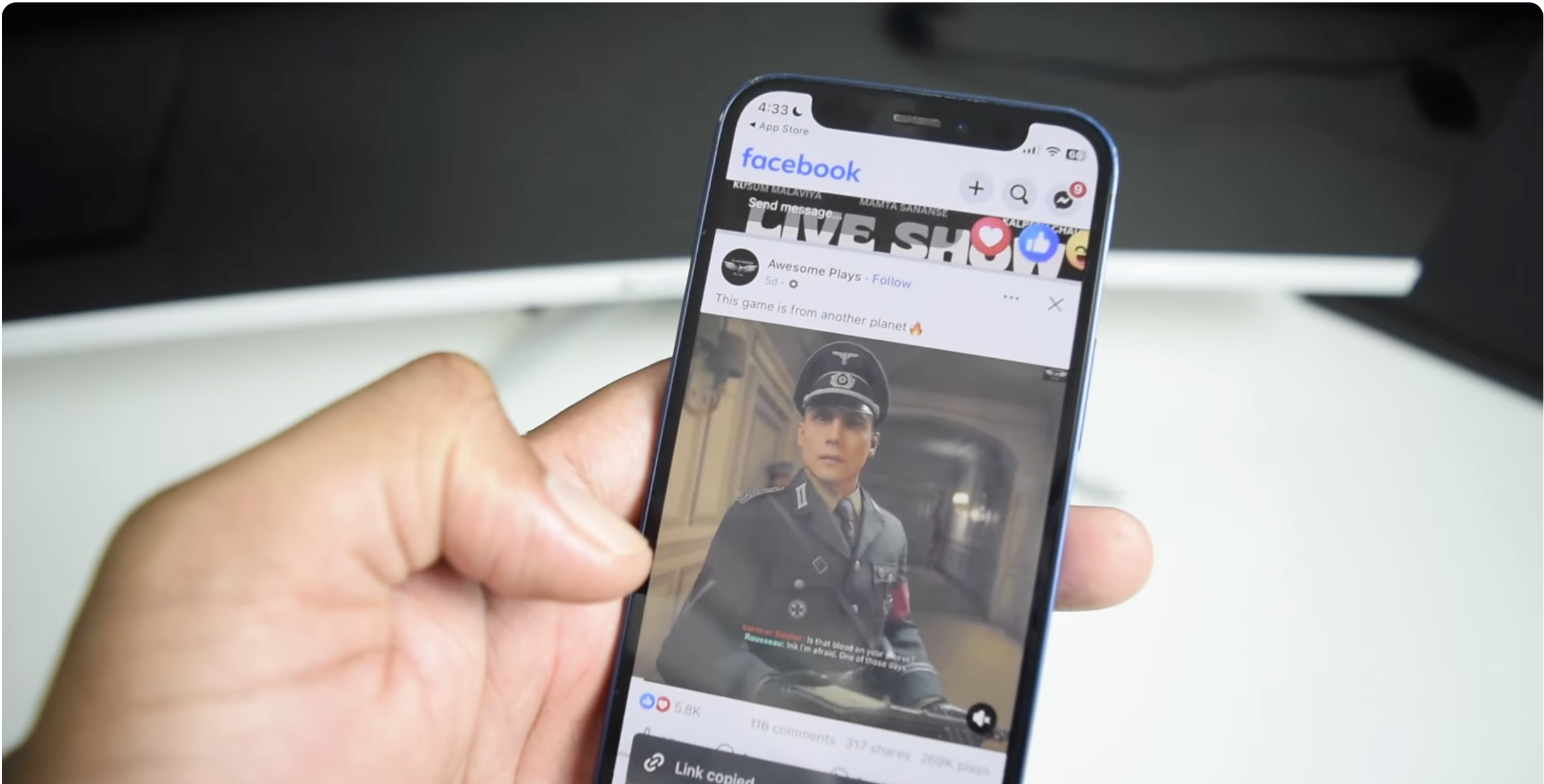
- Open the Facebook app on your iPhone or iPad and go to Watch or open any video.
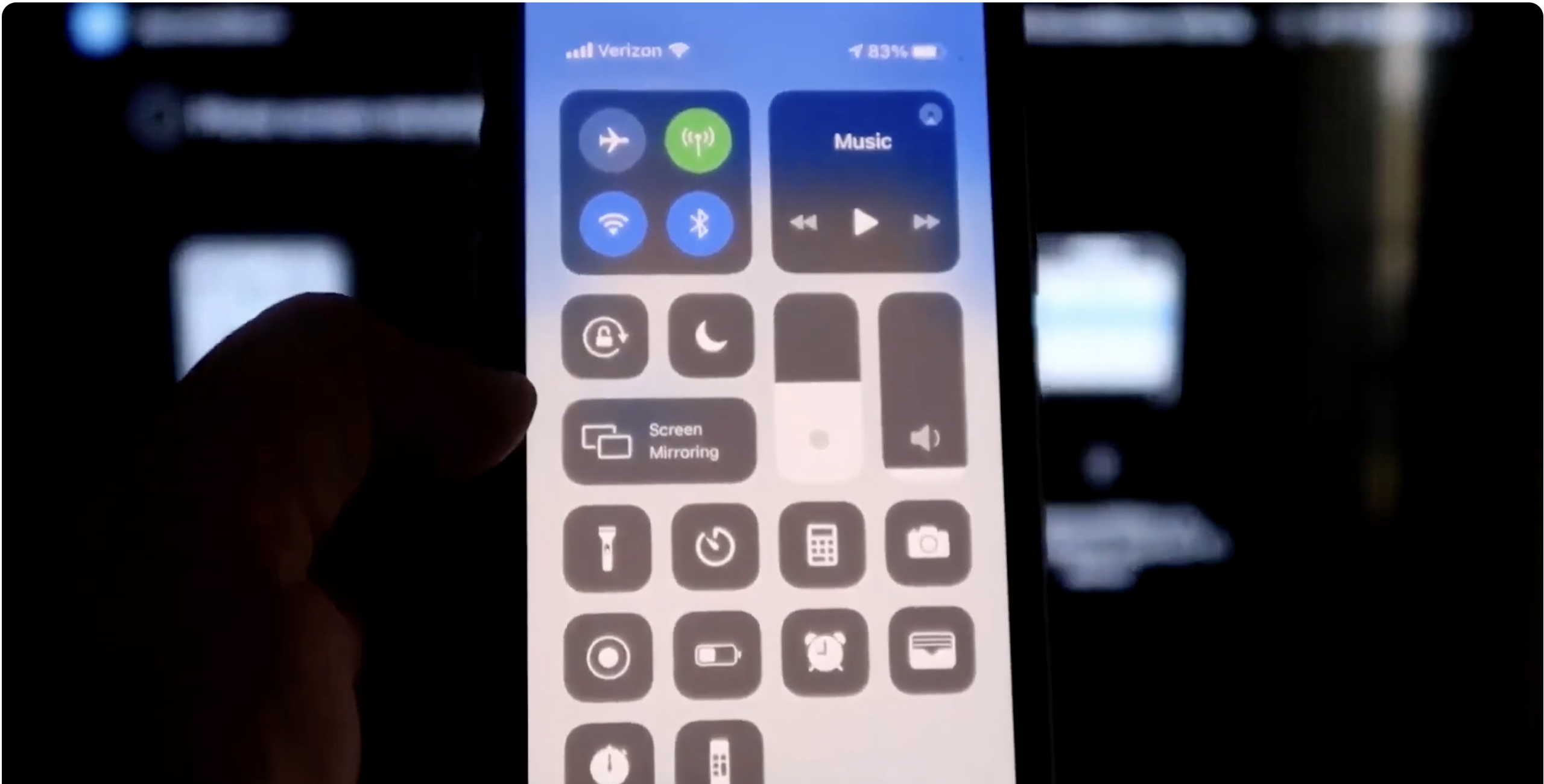
- Swipe down from the upper-right corner to open Control Center and tap Screen Mirroring.
- Select your LG Smart TV from the list of available AirPlay devices.
- Start the Facebook Watch video and let iOS mirror it to the TV.
This method gives you an easy way to watch Facebook videos on LG Smart TV without installing anything new on the TV itself, as long as your model supports AirPlay.
Method 4: Use A Streaming Device To Get Facebook Watch On Older LG TVs
If your LG Smart TV runs an older version of webOS or does not support stable casting, you can still get Facebook Watch on LG Smart TV by plugging in an external streaming device. Devices like Chromecast, Roku, Apple TV, or Fire TV add casting or browser options that older LG sets lack.
- Connect a streaming device such as Chromecast, Roku, Apple TV, or Fire TV Stick to an available HDMI port.
- Set up the streaming device on your LG TV and connect it to the same Wi-Fi network as your phone or computer.
- Open Facebook Watch in a browser or Facebook app on your phone, tablet, or laptop.
- Use the device’s cast, mirroring, or AirPlay feature to send the video to your streaming device.
- Control playback from your phone or computer while the TV handles display and sound.
This method works well when you already own a streaming device and want a consistent way to watch Facebook Watch on any LG Smart TV in your home.
Troubleshooting Common Problems
Facebook Watch App Does Not Appear In LG Content Store
If you search the LG Content Store and cannot find a Facebook Watch LG TV app, that behavior is normal now. Meta ended the dedicated TV app, so you should use the browser or casting methods instead of hunting for an app that no longer shows up for most users.
LG Smart TV Does Not Show Up As A Cast Target
If your phone cannot find your LG Smart TV when you try to cast Facebook Watch, check your basic network and device settings first.
- Confirm your phone and LG Smart TV use the same Wi-Fi network and band (2.4 GHz or 5 GHz).
- Restart your router, your LG TV, and your phone to clear temporary glitches.
- Enable Screen Share, Miracast, or AirPlay on the TV, depending on your model.
- Update your LG webOS firmware and your phone’s OS to their latest versions.
Video Plays But You Hear No Sound On LG TV
Silent Facebook video on LG Smart TV usually comes down to muted outputs or mismatched sound settings.
- Turn the TV volume up and confirm you did not mute sound on your phone or tablet.
- Check Settings > Sound on your LG TV and pick the correct output (TV speakers or soundbar).
- If you use Bluetooth audio, test Facebook Watch with Bluetooth turned off to rule out pairing issues.
Facebook Videos Buffer Or Look Blurry
Facebook Watch on LG Smart TV needs stable bandwidth, especially when you mirror or cast. Lag or blurry video often means your network struggles under load.
- Move your LG Smart TV and router closer together or use a wired Ethernet connection on the TV when possible.
- Pause large downloads or streaming sessions on other devices while you watch Facebook videos.
- Switch from mobile data to home Wi-Fi on your phone before you cast or mirror.
Tips For A Better Facebook Watch Experience On LG Smart TV
- Use casting or AirPlay for quick control and scrolling, then switch to full-screen on the TV once you start a video.
- Favorite or follow your go-to creators and pages on Facebook so Watch surfaces their content first.
- Keep your LG Smart TV firmware current to avoid random connection drops or mirroring issues.
- Pair a Bluetooth keyboard with your LG TV to make typing in the browser faster when you use facebook.com/watch.
- Lower your TV’s energy saving mode if it darkens the screen too aggressively during long Facebook Watch sessions.
FAQ
Can I Still Install A Facebook Watch App On LG Smart TV?
No. Meta ended the Facebook Watch app for TVs, so you generally cannot install an official Facebook Watch LG TV app from the LG Content Store anymore. Use the browser or casting methods instead.
Do I Need A Facebook Account To Use Facebook Watch On LG TV?
You can sometimes view public videos without signing in, but you need a Facebook account to follow creators, subscribe to shows, and see your personalized Watch feed.
Does Facebook Watch Stream In 4K On LG Smart TV?
Facebook Watch focuses mostly on HD playback. Some content may reach higher resolutions, but you should expect 1080p most of the time, especially when you mirror from a phone.
Will These Methods Work On Older LG Smart TVs?
If your LG Smart TV includes the web browser, you can usually use facebook.com/watch. For very old models, a streaming device like Roku, Fire TV, or Chromecast gives you more reliable casting options.
Is It Safe To Log In To Facebook Through The LG TV Browser?
Yes, as long as you use the official facebook.com site and your own secure network. Always sign out when you finish if other people share the TV.
Summary
- The old Facebook Watch TV app is gone, so you now get Facebook Watch on LG Smart TV using the browser, casting, or mirroring.
- You can watch Facebook videos on LG Smart TV through the built-in web browser by signing in at facebook.com/watch.
- For the smoothest experience, cast or mirror Facebook Watch from an Android phone or an iPhone/iPad over the same Wi-Fi network.
- Streaming devices like Chromecast, Roku, or Apple TV provide extra options when your LG webOS apps feel limited.
- Basic checks for Wi-Fi, firmware updates, audio output, and screen share settings solve most casting and playback issues.
Conclusion
Even though Meta retired the dedicated Facebook Watch TV app, you still have several reliable ways to watch Facebook Watch on LG Smart TV models. The built-in browser works for quick access, while casting and AirPlay give you a smoother interface and faster scrolling on your phone or tablet.
Pick the method that fits your LG Smart TV generation and your mobile devices, then save your favorite shows and creators so Facebook Watch always has something worth putting on the big screen. With a little setup, your LG Smart TV can handle Facebook videos as easily as your phone does.


Discussion (0)
Be the first to comment.