




If your iPhone vibrates without showing any notification, a hidden alert or system setting usually causes it. In most cases, you can stop random vibrations by checking notification settings, Focus modes, and system haptics. Hardware problems remain rare, so start with software fixes first.
Table of contents
- Identify what is causing the vibration first
- Fix notification-related vibration issues
- Check Focus modes and Scheduled Summary
- Fix system haptics and accessibility settings
- Check Live Activities, Find My, and system alerts
- Update iOS and restart your iPhone
- Reset settings if vibrations continue
- When random vibrations indicate a hardware issue
- Tips
- FAQs
- Summary
Identify what is causing the vibration first
Before changing multiple settings, confirm what actually triggers the vibration. This saves time and avoids disabling features you still want.
Check recent notifications
Swipe down to open Notification Center right after a vibration. If you see new alerts without sound or banners, notifications likely cause the issue.
Notice vibration patterns
Single short vibrations usually point to app notifications. Repeating or double vibrations often come from system features like Focus, Live Activities, or Find My alerts.
Fix notification-related vibration issues
Notifications cause most “phantom” vibration complaints on iPhone.
Adjust system notification vibration settings
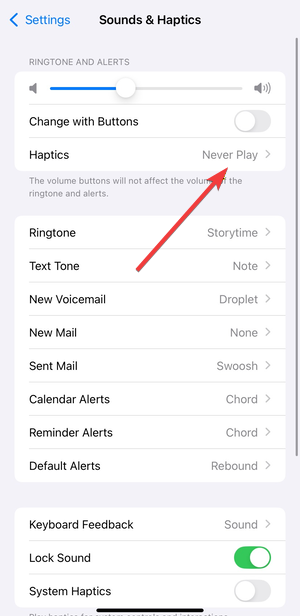
Go to Settings → Sounds & Haptics → Haptics. Review the default vibration pattern and disable vibrations for alert types you do not need.
Check Focus modes and Scheduled Summary
Focus modes often create delayed or silent alerts that feel random.
Review active Focus modes
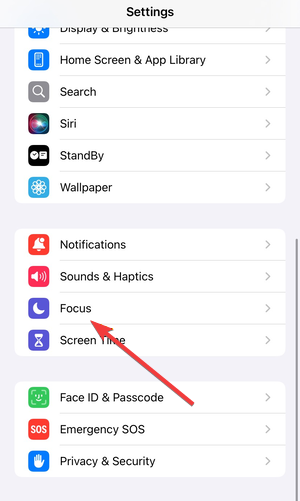
Open Settings → Focus. Check for scheduled or automation-based Focus modes that stay active in the background.
Turn off or customize Scheduled Summary
Go to Settings → Notifications → Scheduled Summary. Batched alerts can vibrate all at once, which feels unexpected.

Fix system haptics and accessibility settings
System-level feedback can vibrate even when no notification appears.
Disable unnecessary system haptics
Open Settings → Sounds & Haptics. Turn off System Haptics to stop UI feedback vibrations.

Review Accessibility vibration options
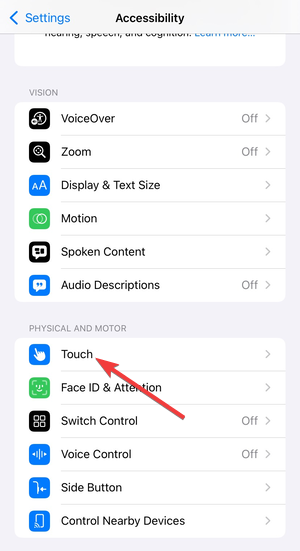
Go to Settings → Accessibility → Touch. Turn off vibration-related options you do not use.
Check Live Activities, Find My, and system alerts
Newer iOS features can trigger vibrations without obvious alerts.
Disable Live Activities vibration
Open Settings → Notifications → Live Activities. Disable vibration for apps that update frequently.
Review Find My and system service alerts
Open Settings → Privacy & Security → Location Services → System Services. Alerts from device or location tracking can vibrate silently.

Update iOS and restart your iPhone
Software bugs sometimes cause stuck haptic feedback.
Install the latest iOS update
Go to Settings → General → Software Update. Updating your iOS software often fixes notification and vibration glitches.

Restart the device properly
Power off your iPhone completely, wait 30 seconds, then turn it back on. This resets background haptics services.

Reset settings if vibrations continue
Use this step only after trying all other fixes.
Reset all settings
Open Settings → General → Transfer or Reset iPhone → Reset → Reset All Settings. This keeps your data but resets system preferences.

When random vibrations indicate a hardware issue
Hardware problems rarely cause random vibrations, but they can happen.
Signs of hardware-related vibration problems
If vibrations occur during startup, feel unusually strong, or continue after a full settings reset, the Taptic Engine may need service.
Tips
- Disable vibration for non-essential apps first to isolate the cause.
- Keep only one Focus mode active at a time.
- Restart your iPhone after changing multiple notification settings.
- Update iOS before resetting settings.
FAQs
Why does my iPhone vibrate but show no notification?
Silent notifications, Focus modes, or system haptics usually trigger vibrations without banners.
Can a third-party app cause random vibrations?
Yes. Many apps use vibration-only alerts, especially messaging, fitness, or delivery apps.
Does resetting all settings delete my data?
No. It resets preferences like Wi-Fi and notifications but keeps your apps and files.
Should I replace my iPhone if it keeps vibrating?
No. Try all software fixes first. Hardware repair only makes sense after a full reset.
Summary
- Check Notification Center and vibration patterns first.
- Disable vibration for specific apps and system alerts.
- Review Focus modes, Scheduled Summary, and system haptics.
- Update iOS, restart the device, and reset settings if needed.
Random iPhone vibrations almost always come from notifications or system settings. Once you identify the trigger and adjust the right options, the issue usually stops immediately.


Discussion (0)
Be the first to comment.