




If the App Store is missing on your iPhone or iPad, the app is not deleted. iOS and iPadOS do not allow removing core system apps, so the icon is either hidden, restricted, or affected by a layout or system issue.
In most cases, you can restore the App Store in under two minutes by checking search, Screen Time, or Home Screen settings.
Table of contents
Quick checks before troubleshooting
Start with the fastest checks. These steps confirm whether the App Store still exists on your device but does not appear where you expect it.
Search for the App Store using Spotlight
Spotlight search finds apps even when the icon disappears from the Home Screen. This step confirms whether the App Store is hidden or restricted.
- Swipe down from the middle of the Home Screen.
- Type App Store.
- Tap the result if it appears, then long-press the icon and choose Add to Home Screen.
If Spotlight does not return the App Store, move to the next section.
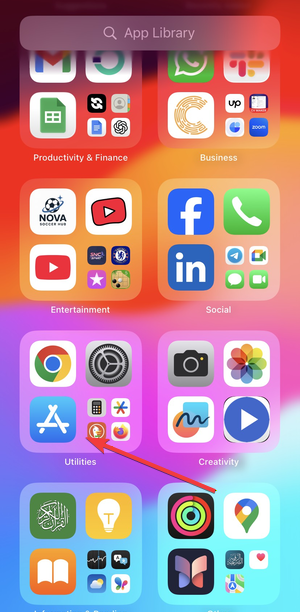
Check the App Library on iPhone and iPad
The App Library often hides system apps after layout changes or Home Screen cleanup.
- Swipe left past your last Home Screen page.
- Scroll or use the App Library search bar.
- Locate App Store, then drag it to the Home Screen.

Check Screen Time restrictions
Screen Time is the most common reason the App Store goes missing on both iPhone and iPad.
App Store disabled in Screen Time settings
Content restrictions can completely hide the App Store icon.
- Open Settings.
- Tap Screen Time.
- Select Content & Privacy Restrictions.


- Tap iTunes & App Store Purchases.
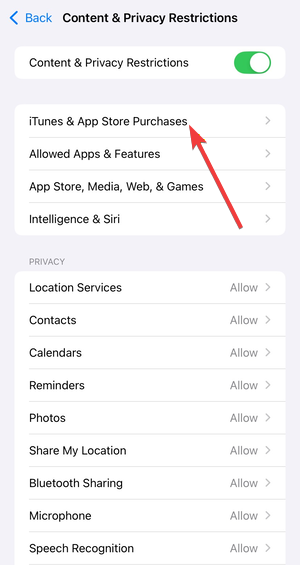

- Set Installing Apps to Allow.
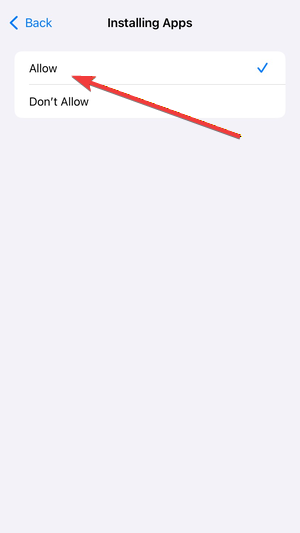

Return to the Home Screen and check if the App Store appears.
Family Sharing and child device restrictions
On child devices, the organizer controls App Store access.
- Open Settings on the parent device.
- Tap Family Sharing and select the child profile.
- Open Screen Time.
- Enable App Store access under purchase restrictions.
Changes apply instantly, without restarting the device.
Fix Home Screen and layout issues
Sometimes the App Store exists but stays hidden due to layout glitches.
Reset the Home Screen layout
Resetting the layout restores default app placement without deleting data.
- Open Settings.
- Tap General.
- Select Transfer or Reset iPhone or Transfer or Reset iPad.
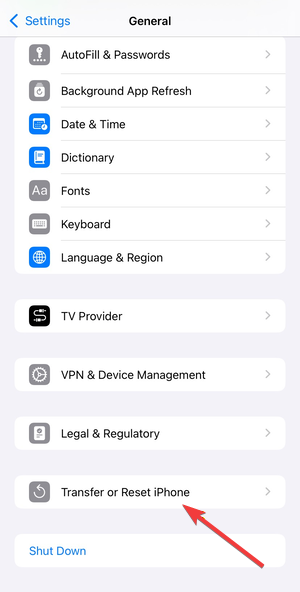

- Tap Reset.
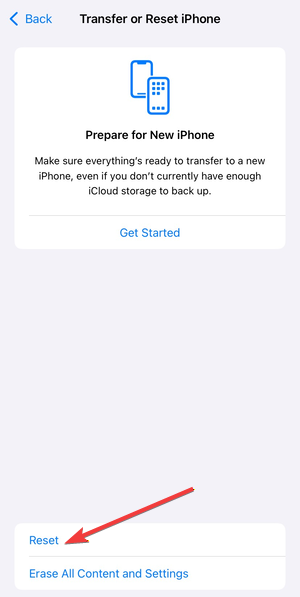

- Choose Reset Home Screen Layout.
After the reset, the App Store returns to its default position.
iPad multitasking and dock visibility issues
On iPad, Split View and Stage Manager can confuse app visibility. Close all open apps and return to the Home Screen. Check the dock and App Library again before moving on.
Check device profiles and management
Work or school devices often block the App Store using management profiles.
Remove configuration profiles or MDM restrictions
Managed devices may hide system apps by design.
- Open Settings.
- Tap General.
- Select VPN & Device Management.
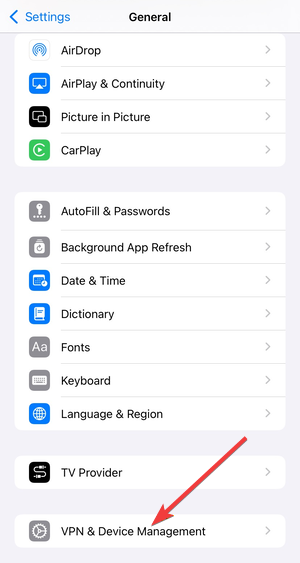

- Review installed profiles.
If a profile controls app access, you may need administrator approval to restore the App Store.
Software and system-related fixes
Use these steps only if settings and layouts look correct.
Restart the iPhone or iPad
A restart clears temporary UI glitches that affect system apps. Power off the device completely, wait 10 seconds, then turn it back on.

Update iOS or iPadOS
System bugs sometimes hide default apps after updates.
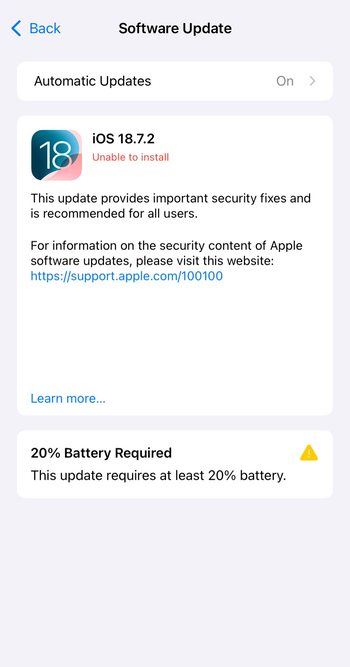
- Open Settings.
- Tap General.
- Select Software Update.
- Install any available update.

Last-resort options
These fixes apply only when everything else fails.
Reset all settings
This option resets preferences without deleting apps or files.
- Open Settings.
- Tap General.
- Select Transfer or Reset.
- Tap Reset.
- Choose Reset All Settings.


When to contact Apple Support
If the App Store still does not appear, the issue may involve account-level restrictions or system corruption. Apple Support can confirm this quickly.
FAQs about the missing App Store
Can the App Store be deleted from an iPhone or iPad?
No. iOS and iPadOS do not allow deleting the App Store.
Why does the App Store disappear after an update?
Updates can reset Screen Time or layout settings, which may hide the icon.
Does Reset All Settings remove apps?
No. Apps and personal data remain intact.
Summary
- Search for the App Store using Spotlight and App Library.
- Check Screen Time and Family Sharing restrictions.
- Reset the Home Screen layout.
- Review device management profiles.
- Reset settings or contact Apple Support if needed.
You cannot download the App Store, so when it's missing, know that it is still somehow on your device. Once you identify what hides it, restoring access takes only a few taps.


Discussion (0)
Be the first to comment.