



Showbox has long been known as a popular streaming app for Android users, offering a wide selection of movies and TV shows from around the world. Although it’s no longer available on the Google Play Store, you can still install the Showbox APK manually and enjoy unlimited entertainment on your smartphone or tablet.
This guide explains how to download Showbox on Android, including setup steps, installation tips, and reliable alternatives. You’ll also find troubleshooting solutions and answers to the most common questions users have about Showbox.
Requirements:
- Android device: A phone or tablet running Android.
- Stable internet connection: Needed to download the APK and stream videos smoothly.
- Sufficient storage: The Showbox APK is just 24 MB, but ensure you have at least 200 MB of free space for installation.
- Enable Unknown Sources: Required to install apps not available on Google Play.
- Reliable APK source: Only download from verified, trusted websites to avoid malware.
Step 1: Enable Installation from Unknown Sources
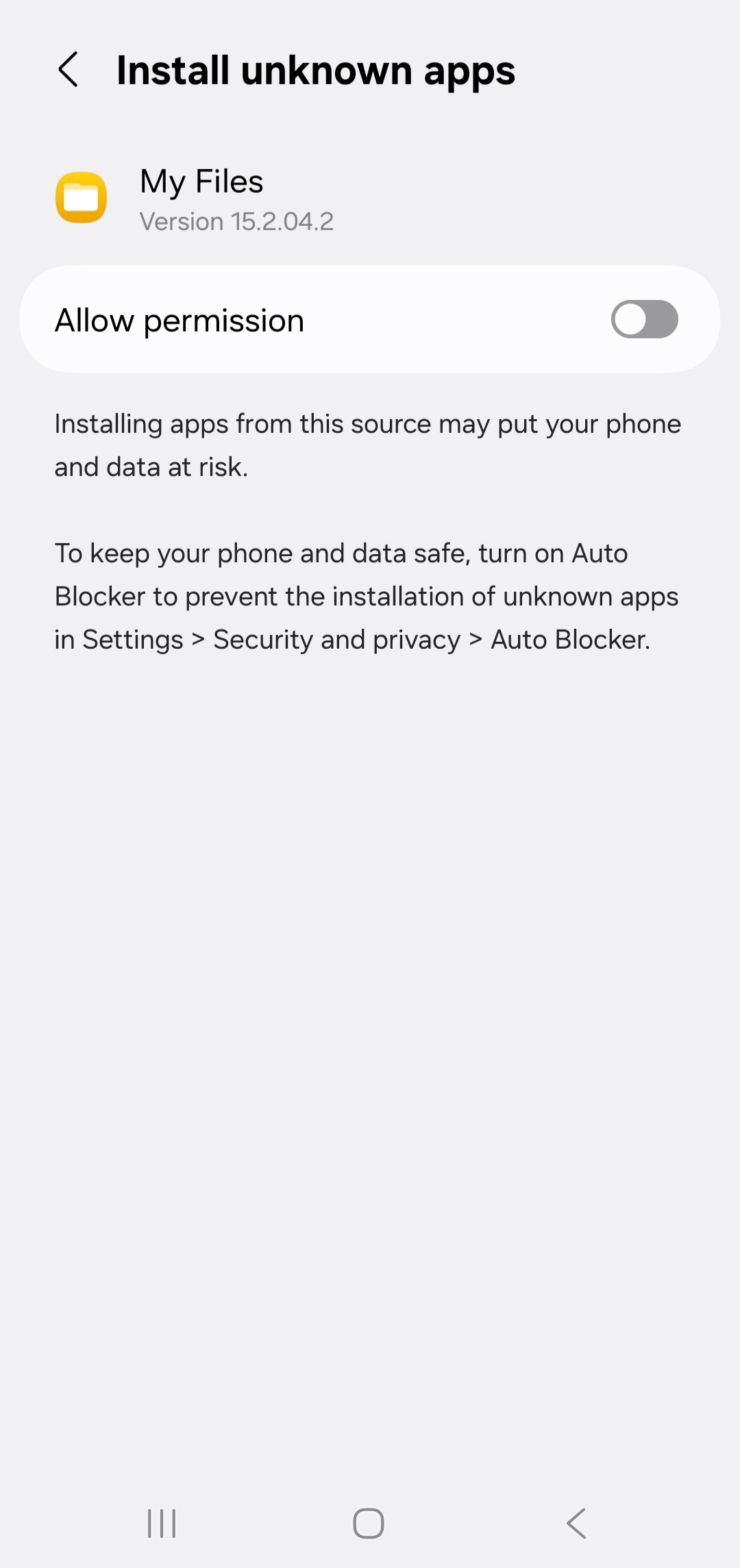
Because Showbox isn’t on the Play Store, you need to allow app installations from outside sources. This step lets Android accept the Showbox APK.
- Open the Settings app on your Android device.
- Tap Security or Privacy (this may vary by manufacturer).
- Scroll to find Install unknown apps or Unknown sources.
- Select your web browser (e.g., Chrome) and toggle Allow from this source.
Tip: You can disable this setting later after installation to maintain security.
Step 2: Download the Showbox APK File
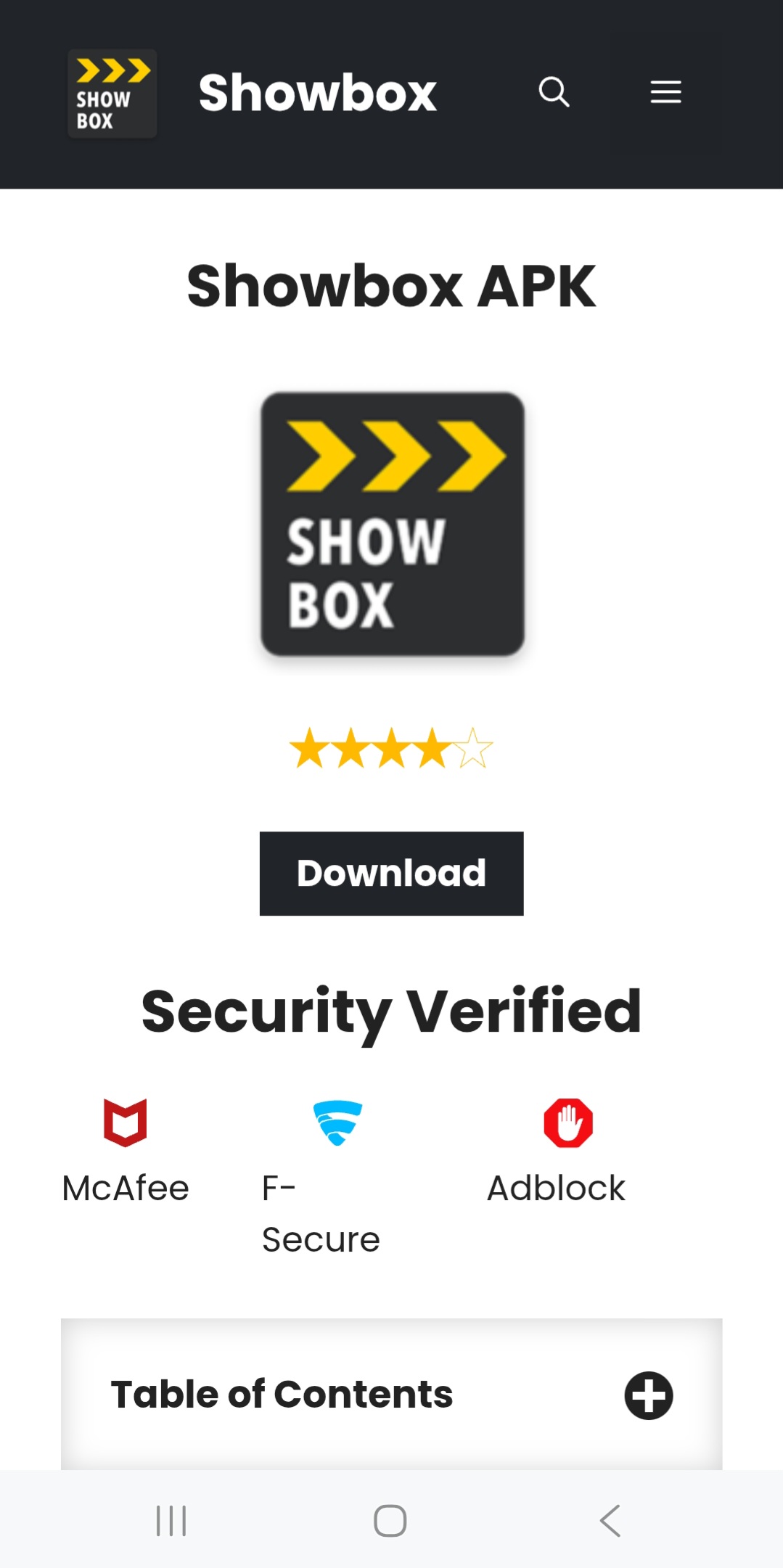
Once your device is ready, follow the steps below to see how to download Showbox on Android from a reputable site. Avoid unofficial clones or outdated versions, as they may contain malware or broken links.
- Open your preferred web browser on Android.
- Search for Showbox APK download.
- Select a trusted source with good reviews and recent updates.
- Tap the download link and wait for the APK file to finish downloading.
The file will usually appear in your Downloads folder. Do not open it yet until you verify the source and file integrity.
Step 3: Install Showbox on Android
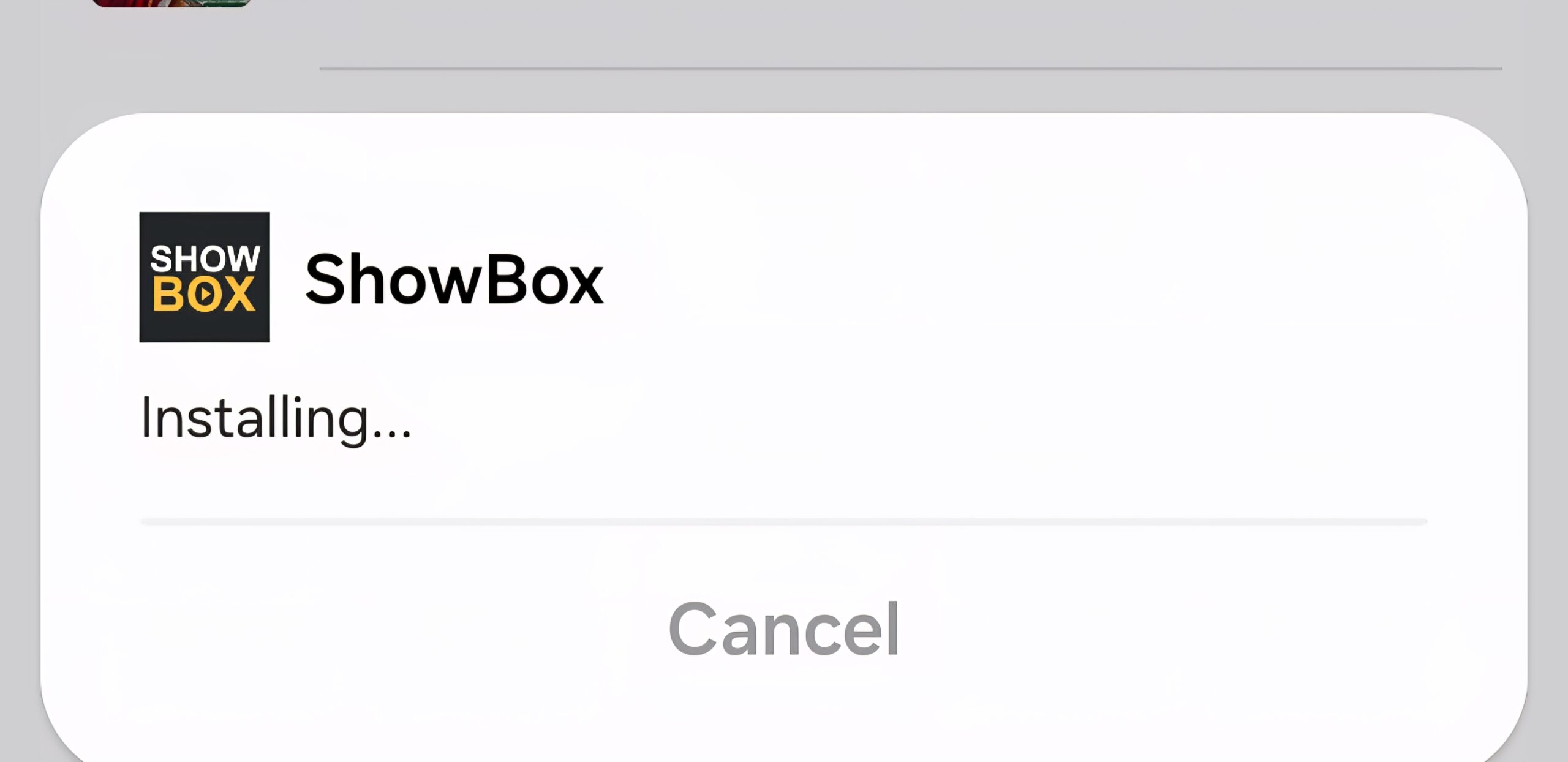
Once the APK is downloaded, follow these steps carefully to install Showbox on Android:
- Open your File Manager or Downloads app.
- Find the Showbox.apk file.
- Tap it to start the installation process.
- Review the app permissions, then tap Install.
- Wait for the process to complete. A confirmation message will appear once the process is complete.
Note: If your device blocks the installation, double-check that “Allow from this source” is enabled for your browser or file manager.
Step 4: Open Showbox and Start Streaming
After installation, you can launch the app and start exploring. Here’s how to get started:
- Locate the Showbox app on your home screen or app drawer.
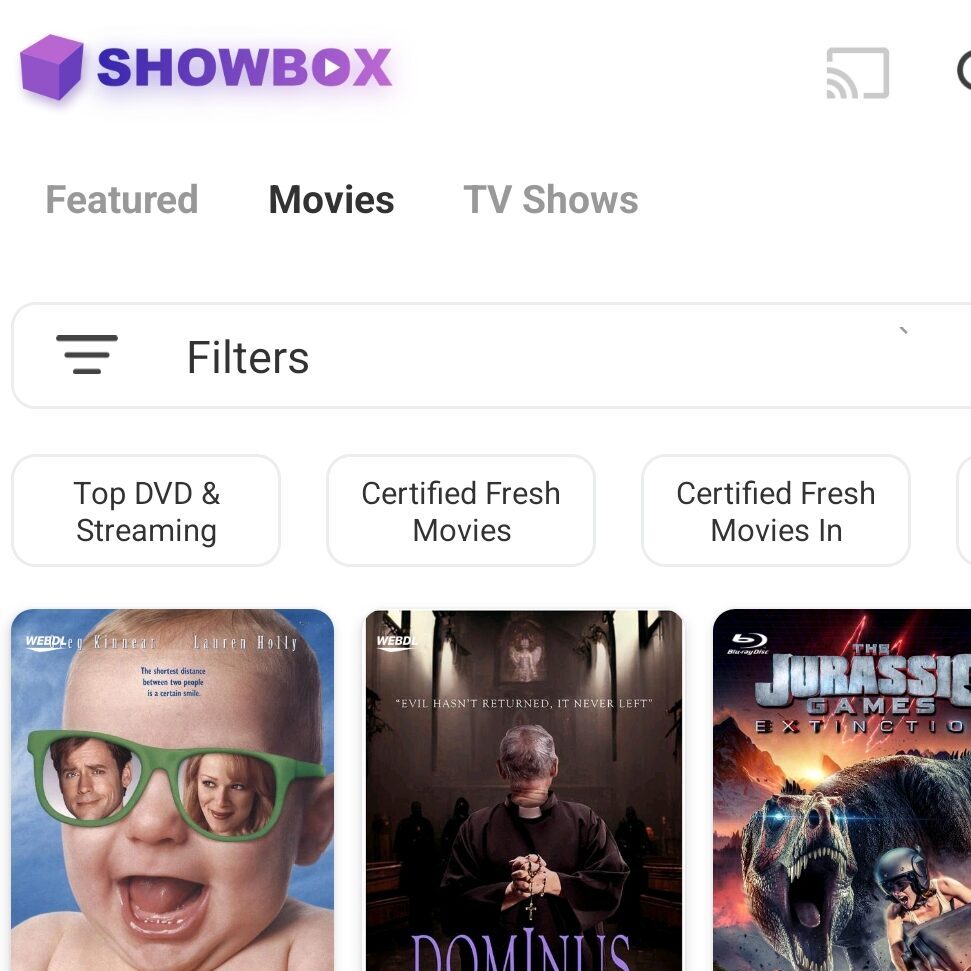
- Tap to open. You’ll see categories such as Movies, TV Shows, and Downloads.
- Search or browse for titles you want to watch.
- Select the streaming quality that fits your internet speed.
- Tap Play to start streaming.
Once inside, you can customize preferences, add favorites, and explore trending recommendations. Use a VPN for extra privacy while streaming.
Showbox vs Modern Alternatives
| App | Availability | Free or Paid | Content Type | Why It Matters |
|---|---|---|---|---|
| Showbox | APK only (not on Play Store) | Free | Movies, TV shows (unofficial sources) | Huge catalog, but inconsistent reliability |
| Tubi | Play Store | Free (ad-supported) | Licensed movies and series | Safe and legal streaming platform |
| Popcorn Time | APK only | Free | Torrent-based movie streaming | Fast interface, requires VPN for safety |
| Plex | Play Store | Free / Paid | APK only (not on the Play Store) | All-in-one legal media solution |
Why it matters: Showbox offers wide access to content but operates in a gray legal area. Apps like Tubi provide licensed entertainment with no installation risks.
Troubleshooting Common Issues
- Showbox not installing: Recheck your APK source and ensure Unknown Sources are enabled.
- App not opening: Clear cache or restart your device.
- Video not loading: Use a stable Wi-Fi connection or switch servers within the app.
- App keeps crashing: Reinstall an older version of Showbox or try an alternative app.
- Security warning: Only use trusted APK providers and avoid pop-up ads or redirects during download.
FAQ
Is Showbox still available?
Showbox’s official app has been discontinued, but several working Showbox APK versions are available online. Always verify the file's authenticity before installation.
What replaced Showbox?
Legal apps like Tubi and Plex offer similar streaming experiences without legal or security concerns.
Is Showbox safe to download?
Only if downloaded from a reputable source. Avoid unknown APK sites that may include malware or phishing ads.
Can I use Showbox on Samsung or Android TV?
Yes, if your device supports APK installation. Enable Unknown Sources in settings and follow the same process described above.
Why is Showbox not working?
Server outages or outdated app versions can cause issues. Try reinstalling a recent version of the Showbox APK or using a Showbox alternative, such as Tubi.
Summary of Steps
- Enable installation from unknown sources.
- Download the latest Showbox APK from a trusted source.
- Install the APK on your Android device.
- Open the app and start streaming content.
Conclusion
Downloading Showbox on Android gives users access to a vast library of free entertainment, but it comes with certain risks. Follow this guide to learn how to download Showbox on Android, install the app correctly, and use it safely.
Always download APK files from trusted sources, keep your device updated, and use a VPN for extra privacy. With the proper precautions, you can enjoy movies and TV shows on your Android device anytime, anywhere.


Discussion (0)
Be the first to comment.