




If you search for ways to speed up your computer, you may stumble on the idea of downloading RAM. RAM exists as physical hardware, so you can’t download it like an app or file. Instead, you can boost performance by optimizing your system, increasing virtual memory, or installing new RAM sticks.
1) Why you can’t download RAM
RAM works as physical memory chips on your motherboard. These chips hold active apps and system processes so your computer runs smoothly. Since RAM is hardware, no website or program can download more into your device.
2) Check your current RAM and usage
You need to check your usage before you make any changes. Low RAM or high pressure levels often explain slowdowns, freezing, or long loading times.
How to check RAM on Windows
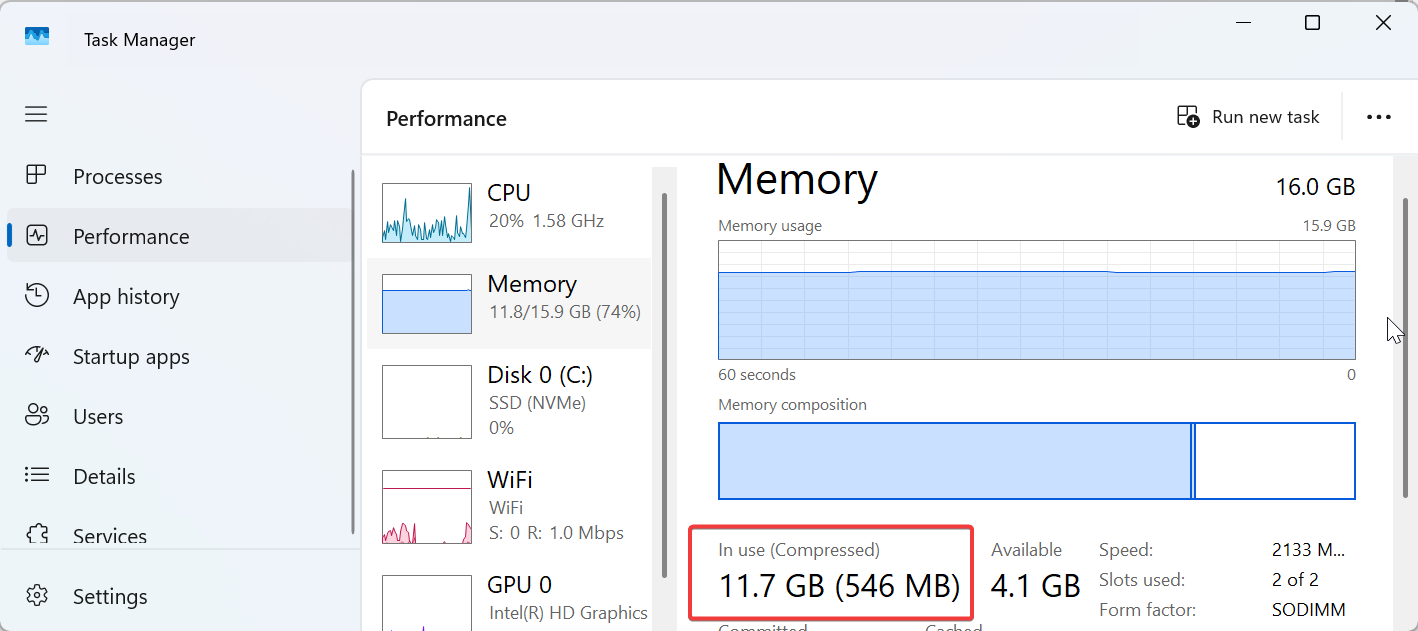
Open Task Manager and select Performance. Click Memory to see installed RAM, current usage, and available slots. This helps you confirm whether the system runs out of memory during normal use.
How to check RAM on macOS
Open the Apple menu and select About This Mac. Choose More Info and review your installed memory. Open Activity Monitor and check the Memory Pressure graph to see if your system struggles under load.
3) Free up RAM without downloading anything
You can improve performance quickly by clearing apps that use memory unnecessarily. This often gives you extra breathing room without spending money.
Close background apps
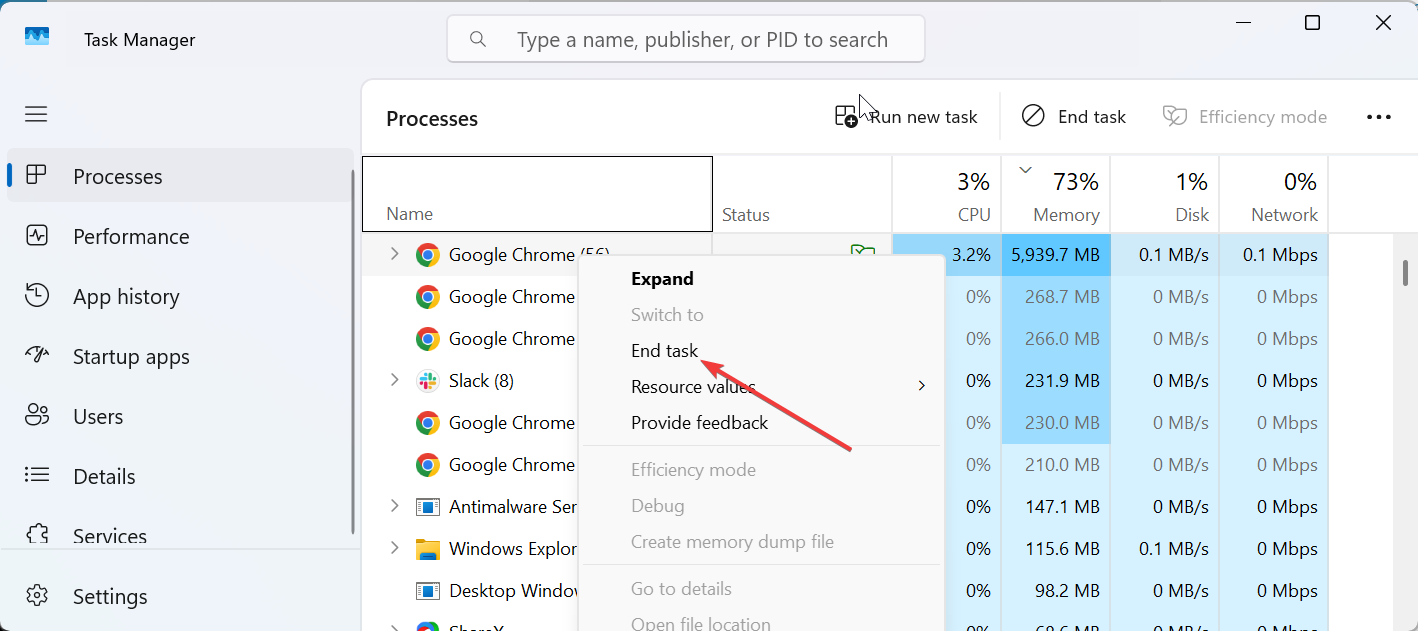
Open Task Manager or Activity Monitor and look for large apps that sit open in the background. Right-click and select End task to quit anything you don’t need so your system frees RAM instantly.
Disable startup programs
Many apps launch at startup and take memory you don’t need. Open your startup settings and turn off entries that slow your boot time or run constantly.
Clear browser memory usage
Browsers build up heavy caches and multiple tabs use large amounts of RAM. Close unused tabs, reset the browser, or toggle extensions you don’t need.
4) Increase virtual memory (page file) as a temporary boost
You can’t replace real RAM with virtual memory, but you can reduce crashes and slowdowns by increasing it. This works well for light multitasking or older PCs.
Adjust virtual memory on Windows
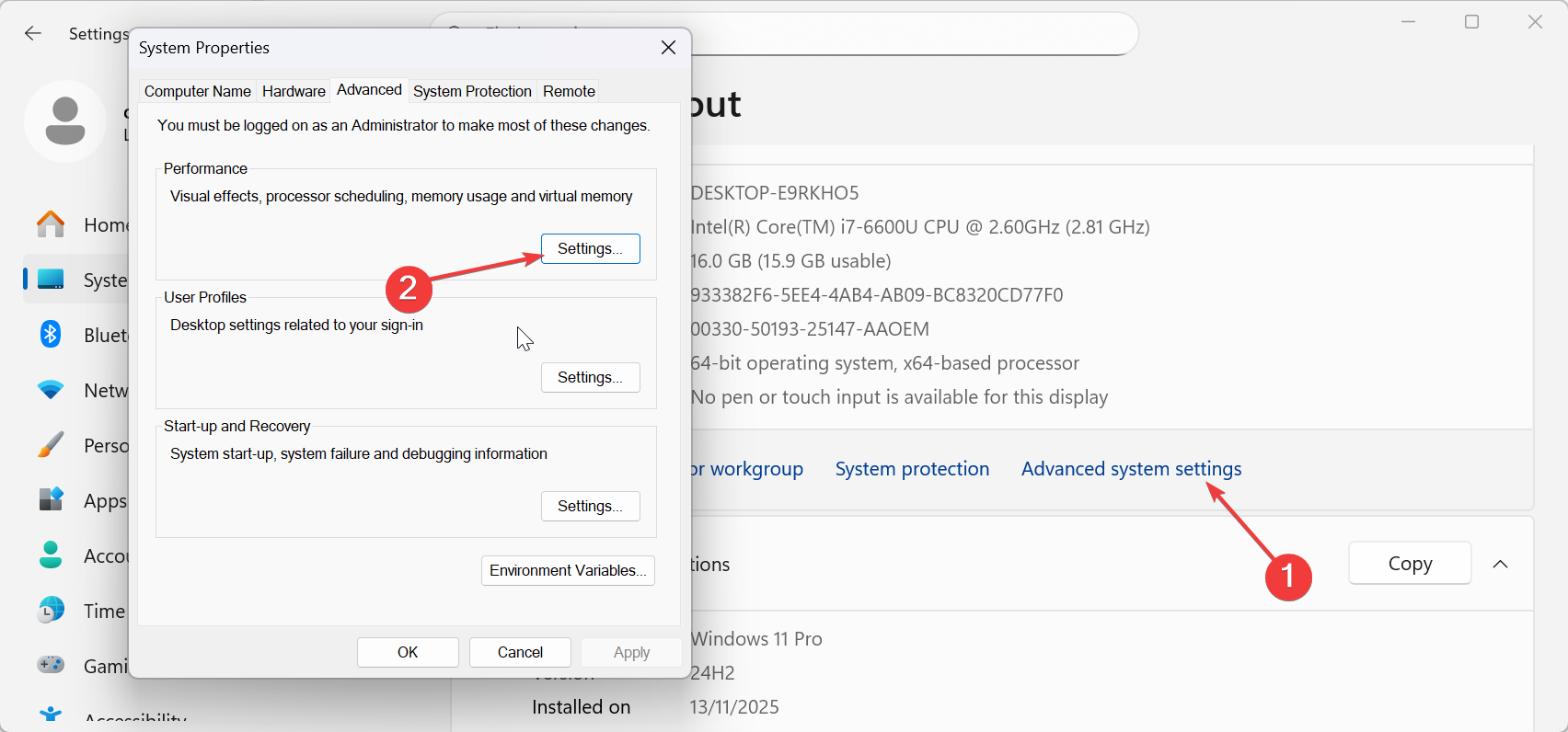
Open Settings > System and click Advanced system settings. Click the Settings button under the Performance section. Increase your page file size so Windows uses your drive as backup memory.
Memory compression on macOS
macOS manages virtual memory automatically and compresses your RAM when the system feels pressure. You can check this in Activity Monitor to confirm everything runs normally.
5) Upgrade your RAM the right way
A RAM upgrade solves slowdowns permanently. You need to check compatibility first to avoid buying the wrong memory.
Check compatibility before buying
Review your PC model, motherboard limits, and supported DDR version. Confirm whether your device uses DIMM or SODIMM modules and check the maximum capacity it supports.
How to install RAM in a desktop
Shut down your PC and unplug the power supply. Open the side panel, locate the RAM slots, and press the latches open. Insert the new module in the correct orientation until the clips lock in place.
How to install RAM in a laptop
Remove the bottom cover to access the memory compartment. Replace the existing modules or add new ones if your laptop includes extra slots. Some laptops use soldered memory, so you need to confirm upgradability before you buy.
6) When buying more RAM makes sense
You should upgrade only if your device hits its limit regularly. This gives you a smoother experience with gaming, editing, or heavier workloads.
Signs you need more RAM
Frequent freezes, slow multitasking, and long app load times often mean your system runs out of memory. If you hear your storage drive working constantly, your PC likely swaps data due to low RAM.
Ideal RAM amounts for common use cases
Most everyday users stay comfortable with 8 GB to 16 GB. Gamers, creators, and power users benefit from 32 GB or more. Heavier workloads like 4K editing or virtual machines need even higher amounts.
FAQs
Can I really download more RAM? No. RAM only comes as physical hardware modules that you install on your motherboard.
Why do websites claim I can download RAM? Some sites run jokes, while others try to install malware. Avoid any service that promises downloadable memory.
Is virtual memory the same as RAM? Virtual memory helps your system stay stable, but it doesn’t match the speed of real RAM.
How much RAM should I install? Most users stay comfortable with at least 16 GB. Heavy workloads benefit from 32 GB or more.
Summary
- You can’t download RAM because it exists as physical hardware.
- Check your RAM usage to confirm whether your system needs more memory.
- You can increase virtual memory to stabilize performance on low-RAM systems.
- Upgrade your RAM for the biggest long-term speed boost.
- Avoid fake download RAM websites that spread malware.
Conclusion
You improve your system’s speed by focusing on real solutions instead of the download RAM myth. You start with simple optimization steps and move to larger upgrades only if your device struggles under normal workloads.
An upgrade delivers the biggest improvement, especially for gaming, editing, or multitasking. You stay safe by avoiding fake RAM download sites and using trusted tools or verified hardware.



Discussion (0)
Be the first to comment.