




How To Download Minecraft Mods on Xbox
If you want more mobs, textures, and features, here’s how to download Minecraft mods on Xbox using safe Bedrock add-ons that work on consoles at the time of writing.
You can’t install Java mods on Xbox like you do on PC. You can use add-ons in .mcaddon or .mcpack format, Marketplace content, or a Realm transfer to bring a modded world to your console.
What works on Xbox (and what doesn’t)
- Works: Marketplace add-ons, Resource Packs, Behavior Packs, and modded Bedrock worlds in .mcpack or .mcaddon formats.
- Doesn’t work: Traditional Java mods and loaders like Forge or Fabric.
- Good to know: You can sync a modded Bedrock world from PC to Xbox using a Realm.
Before you start
- Update Minecraft to the latest Bedrock version on your Xbox.
- Free up storage space; larger packs and custom worlds can take more room.
- Install a file manager such as My Files Explorer or Expansion for Explorers (some may require a small purchase).
- Keep the Microsoft Edge browser ready to browse mod sites or links.
Method A: Use Minecraft Marketplace add-ons
This is the safest, official way to download Minecraft mods on Xbox using Microsoft’s curated content system. These add-ons are fully compatible with Xbox Bedrock and install automatically.
- Open Minecraft on Xbox and go to the Marketplace.
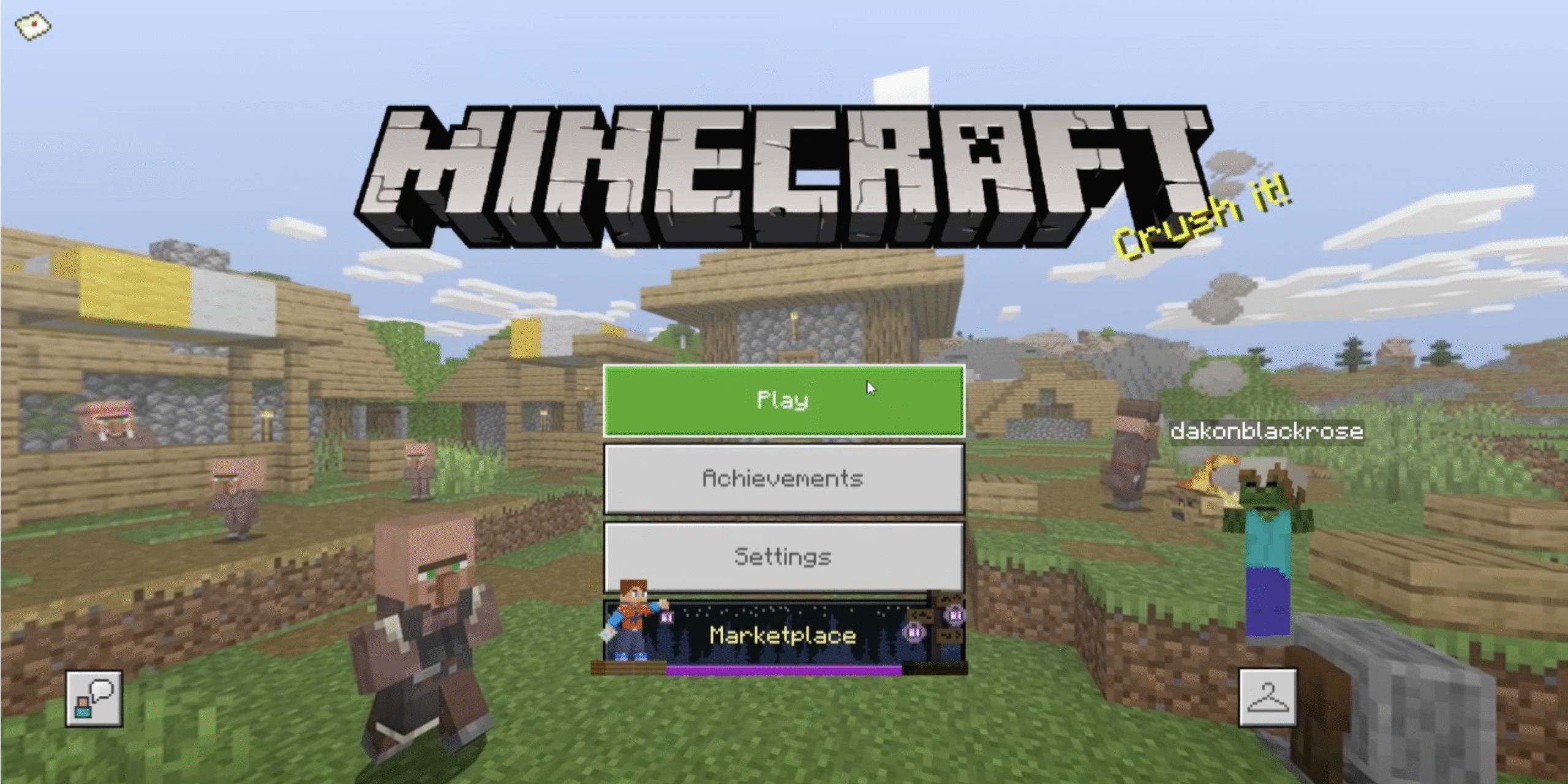
- Browse categories for worlds, skins, or texture and behavior packs.

- Select an add-on, then buy it with in-game currency (Minecoin). If you do not have enough Minecoins, the game will direct you to a separate purchase screen where you can buy bundles of Minecoins with real money.
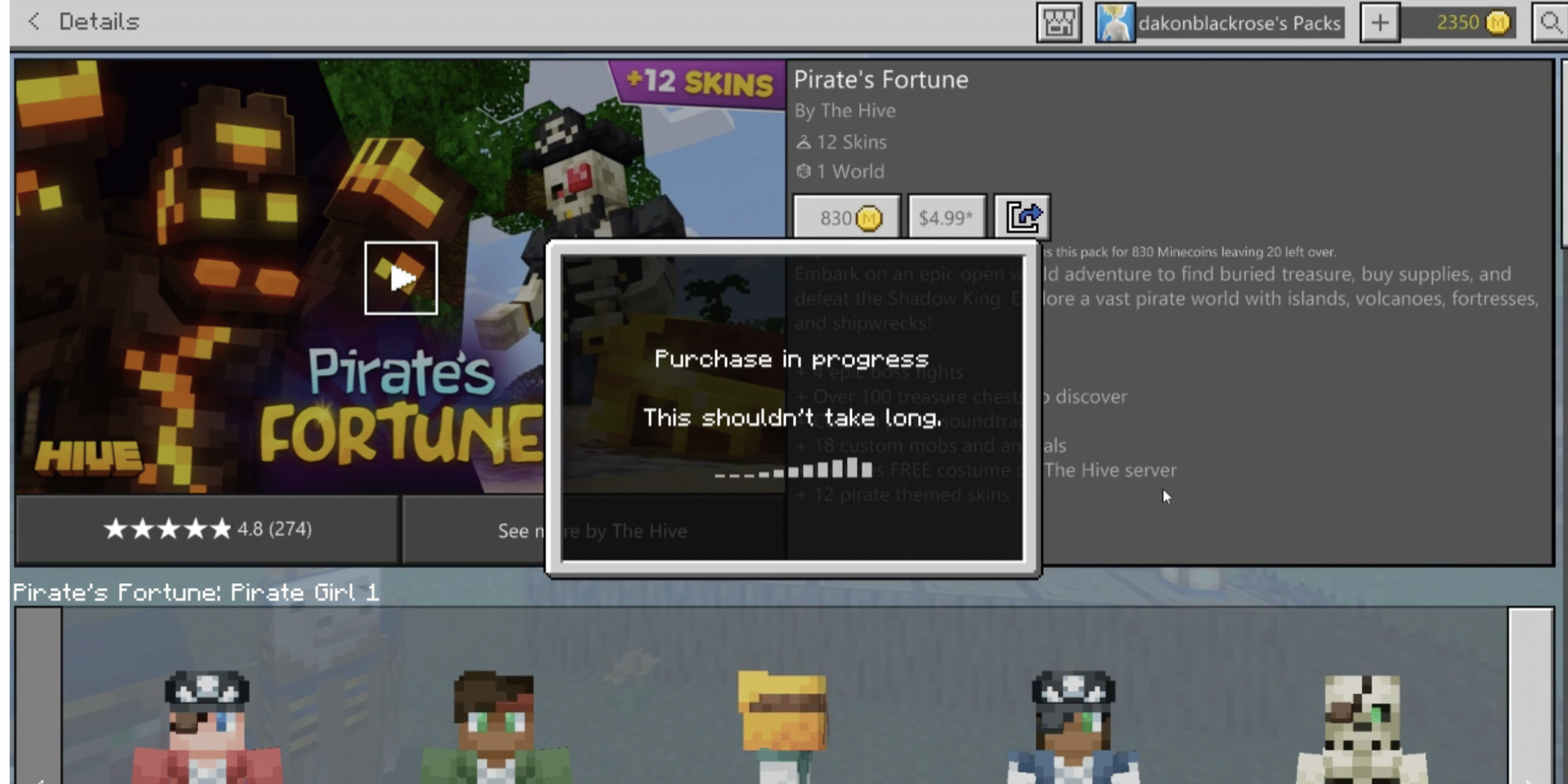
- Apply the content to a new or existing world.
- Enable Behavior Packs and Resource Packs from the world’s settings page before starting.
Method B: Import .mcaddon or .mcpack files manually
This method lets you install third-party add-ons that aren’t listed in the Marketplace. It’s possible, but requires more precision than the simplified version many guides show.
Edge can be used to find and download mods, but it may not always recognize .mcaddon and .mcpack files properly, sometimes renaming them to .zip or failing to download entirely. If that happens, you’ll need to rename or transfer the files manually using a file manager app.
- Open Microsoft Edge on Xbox, then navigate to a trusted site that offers Bedrock add-ons.
- Download the .mcaddon or .mcpack file. If Edge renames it to .zip, change the extension back using your file manager.
- Open My Files Explorer or Expansion for Explorers to access your downloads folder.
- Locate the mod file, then move it into Minecraft’s directory:
LocalState/games/com.mojang/
Within that folder, place Resource Packs insideresource_packsand Behavior Packs insidebehavior_packs. - Close the file app and restart Minecraft so it detects the new files. In rare cases, reinstalling or updating Minecraft helps the game recognize them.
- Once detected, the packs appear under Resource Packs or Behavior Packs in-game. Enable them before loading your world.
Note: Some free file managers limit folder access behind paid upgrades. Without those permissions, moving files into Minecraft’s directories might not work correctly.
Method C: Realm sync (PC to Xbox)
Using a Realm is a legitimate way to transfer a modded Bedrock world from PC to Xbox. This method is often simpler than manual imports.
- On PC, install the desired add-ons and open your Bedrock world.
- Upload that world to your Realm.
- On Xbox, join the same Realm and download the world locally.
- Open the local copy and confirm that Resource and Behavior Packs are active.
Method D: USB transfer (advanced)
USB imports work similarly to manual file management but are less consistent. You’ll still need a compatible file explorer and folder access.
- Download the .mcpack or .mcaddon to a USB drive on another device.
- Insert the USB into your Xbox and open your file explorer app.
- Copy the file to the Minecraft folders mentioned earlier.
- Restart Minecraft and verify that the pack imports correctly.
Enable packs in your world
- Go to Play, highlight your world, and select the pencil icon.
- Open Resource Packs and Behavior Packs.
- Activate your imported or downloaded packs so they appear under Active.
- Load the world to confirm that the add-ons work.
Compatibility and version tips
- Use packs built for the same version of Minecraft Bedrock as your console.
- Back up your worlds before adding new add-ons.
- Enable experimental toggles only if the mod creator specifically requires them.
- If packs don’t appear after installation, restart the console or reinstall Minecraft to refresh the cache.
Troubleshooting
- Pack won’t import: Rename the file extension back to .mcaddon or .mcpack and retry. Edge may save it incorrectly.
- World won’t load: Disable one pack at a time to isolate conflicts.
- Missing textures: Move the affected Resource Pack to the top of the active list.
- Not enough storage: Clear older worlds or unused packs before importing new ones.
- Marketplace errors: Sign out, restart the Xbox, and relaunch Minecraft.
FAQs
Can Xbox players use mods in Minecraft?
Yes, but only Bedrock-compatible add-ons work. Full Java mods (Forge or Fabric) aren’t supported on Xbox consoles.
How to install Minecraft mods on Xbox without Marketplace?
Use .mcaddon or .mcpack files with Edge and a file manager like My Files Explorer. Rename extensions if needed, move files into the proper com.mojang subfolders, and restart Minecraft before enabling them.
How to download Minecraft mods on Xbox Series X|S?
The same steps apply. Series X|S runs the Bedrock edition, so use Marketplace add-ons or manual file imports as described above.
Why doesn’t Xbox allow Java mods?
Console security limits file access and custom executables. Xbox supports only sandboxed Bedrock add-ons for stability and certification reasons.
Summary
- Marketplace add-ons are the easiest and safest mods for Xbox.
- Manual file imports work but may require renaming, paid file apps, and folder access.
- Realm sync is an effective way to move PC add-ons to console.
- Enable Behavior and Resource Packs in world settings.
- Match versions and back up saves before major installs.
Conclusion
The correct approach for how to download Minecraft mods on Xbox is to focus on Bedrock add-ons, not Java mods. Marketplace content remains the most reliable option, while manual installation offers more flexibility if you manage file types carefully. Use trusted sources, rename files if Edge changes extensions, and always back up your worlds before testing new packs. With patience and the right tools, your console Minecraft experience can feel just as creative as the PC version.
Discussion (0)
Be the first to comment.