




Minecraft Bedrock Edition is the modern, cross-platform version designed to run smoothly on Windows 10 and 11. Unlike Java Edition, it lets you play with friends across console, mobile, and PC. Here’s how to download and install it step-by-step.
Before you start
- Make sure your PC meets the minimum requirements. You’ll need Windows 10 or 11, at least 4 GB of RAM, and a GPU that supports DirectX 11. For smoother gameplay, aim for 8 GB of RAM and a dedicated graphics card. Bedrock Edition won’t run on macOS or Linux.
- You need a Microsoft account to download the app
Step 1: Buy or get Minecraft Bedrock Edition

You can download Bedrock Edition through the Microsoft Store, Xbox app, or the unified Minecraft Launcher. Choose whichever method fits your setup or subscription plan.
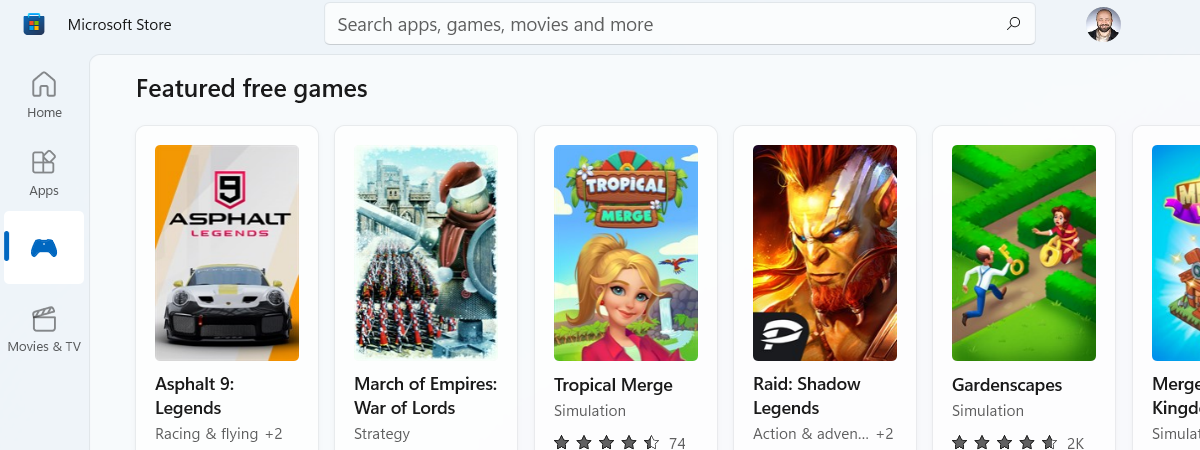
- From the Microsoft Store: Open the Microsoft Store, search for Minecraft for Windows, and click Get. Sign in if prompted and confirm your purchase or free access. The download will begin automatically.
- Via Xbox App or Game Pass: If you have an active Game Pass subscription, open the Xbox app, search for Minecraft, and select Install. You can launch the game directly after installation without an extra payment.
- Through the Minecraft Launcher: Download the Minecraft Launcher from the Store. Once installed, open it and select the Bedrock Edition tab on the left. Click Play to trigger the download and installation.
Step 2: Install Minecraft Bedrock Edition on Windows

After purchasing, install the game properly to ensure all files are added and linked to your account.
- Using the Microsoft Store: Go to Library > Minecraft > Install in the Store. Wait for the progress bar to finish and confirm that the Install button changes to Play.
- Using the Xbox App or Launcher: From the Xbox app, click Manage install to pick a location. If you’re using the Minecraft Launcher, ensure both Bedrock and Java show up under your profile—this confirms the unified version is installed correctly.
Step 3: Sign in and set up

Once installed, on the homepage, choose Sign in or Create Account in the launcher if this is your first time. Make sure it matches the account used to buy the game.
Finally, enable access for cross-play and cloud saves. You can also check Windows privacy settings if multiplayer or marketplace options appear disabled.
Step 4: Launch and verify the edition
Make sure you’re running the Bedrock Edition, not Java. The launcher shows both options side-by-side under one account.
Press the Windows key and select Play > Minecraft for Windows. The Bedrock version will open with the modern interface and marketplace tab. You can now confirm the cross-platform friends list and the in-game store. If you see these, you’re in Bedrock Edition.
Troubleshoot common Minecraft Bedrock Edition download issues
- Microsoft Store or Xbox App Errors: Open Settings > Apps > Microsoft Store > Advanced Options and click Reset. Restart your PC, then try the download again.
- Game Not Appearing After Purchase: Check the Library section of the Microsoft Store. If the game doesn’t show, log out and back in or reinstall the Minecraft Launcher.
- Account or License Problems: Verify ownership by opening the Store’s Owned items. If you see both Java and Bedrock listed, your entitlement is active. Otherwise, re-sync your Microsoft account.
Pro tips
- Get Bedrock free if you own Java Edition: If you previously bought Java Edition, you get Bedrock for free under the same account. To check the entitlement, open the Minecraft Launcher and verify that both Java Edition and Bedrock Edition appear on the left side of the Play screen.
- Redeem if missing: If Bedrock does not show up on your account despite purchasing Java, open the Microsoft Store’s account page and select Redeem Code or Gift Card to activate it manually.
- Optimize performance and gameplay: Update drivers and Windows, and adjust in-game settings
Lower the render distance or disable fancy graphics for smoother play on low-end systems. RTX options are available only on supported GPUs.
FAQs
Is Minecraft Bedrock free for Windows 11? It’s included if you own Java Edition or have an Xbox Game Pass subscription. Otherwise, you’ll need to purchase it once.
What’s the difference between Java and Bedrock? Bedrock offers cross-platform play and better performance, while Java supports mods and custom servers.
Can I play Bedrock offline? Yes. Launch the game once while online, and it will work offline afterward.
Why is the Install button missing in the Store? This usually means you’re not signed in with the account that owns the license.
Summary
- Check your system specs and Microsoft account.
- Buy or get Bedrock through the Store, Xbox App, or Launcher.
- Install and sign in using the same Microsoft account.
- Launch the Bedrock version and confirm your edition.
- Fix any Store or account errors if the install fails.
Conclusion
Once Minecraft Bedrock Edition is installed, you can enjoy cross-platform play with friends on consoles and mobile devices. The setup is quick, and future updates install automatically through the Microsoft Store or launcher. Enjoy building your world without limits.
Discussion (0)
Be the first to comment.