



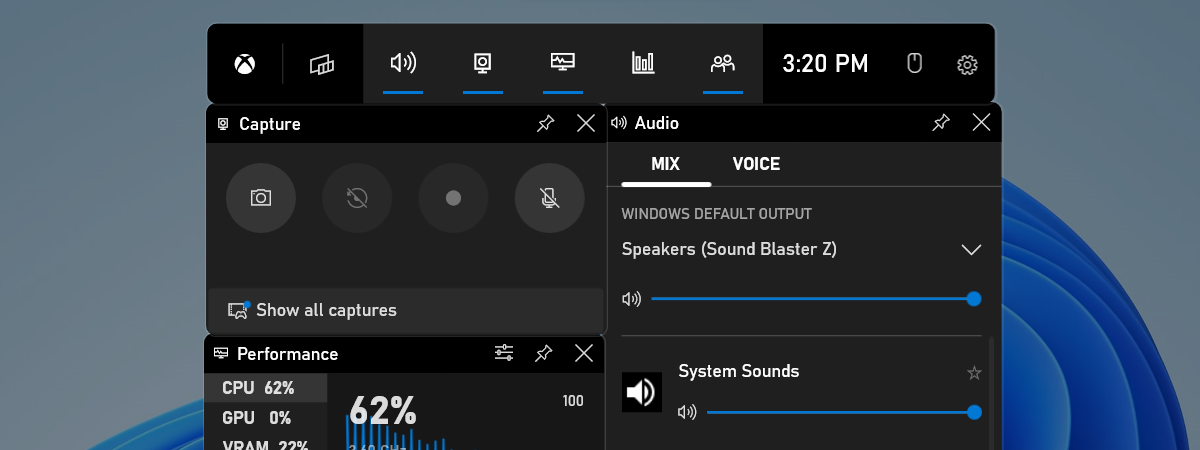
The Xbox Game Bar and the Game Mode found in Windows 11 and Windows 10 are helpful features Microsoft designed for gamers. However, it may happen that when you play your favorite game, and you press Windows + G on your keyboard, nothing happens. It’s like Windows + G simply is not working. The Xbox Game Bar is not opening, you can't enable the Xbox Game Bar, or you can’t enable Game Mode. If you have a similar problem, read this guide, and you might find a solution to fix this situation:
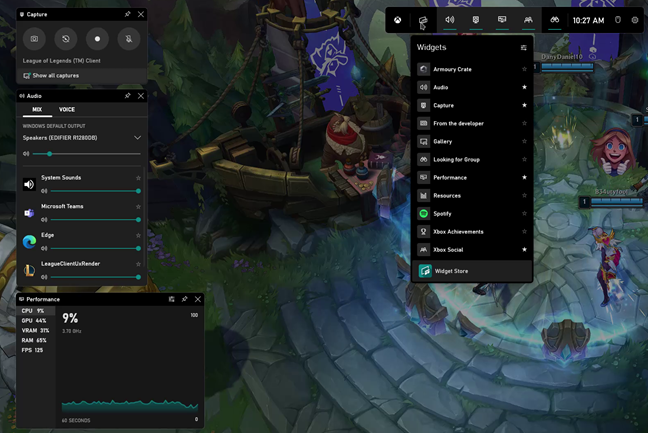
 Using the Xbox Game Bar in League of Legends
If the Xbox Game Bar does not open, or the Xbox Game Bar won't stay enabled, then you can’t use it to do things like taking screenshots or recording your game. It might be even more annoying if you’re used to having the Xbox Gaming Bar available on Windows outside of games, too, as its gaming features might not be available for the desktop or File Explorer. So what can you do to fix things?
Using the Xbox Game Bar in League of Legends
If the Xbox Game Bar does not open, or the Xbox Game Bar won't stay enabled, then you can’t use it to do things like taking screenshots or recording your game. It might be even more annoying if you’re used to having the Xbox Gaming Bar available on Windows outside of games, too, as its gaming features might not be available for the desktop or File Explorer. So what can you do to fix things?
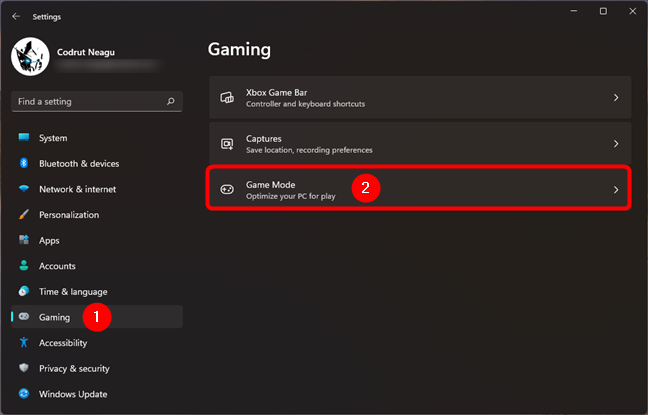
 Open Game Mode in Windows 11
Then, make sure that the Game Mode switch is turned on.
Open Game Mode in Windows 11
Then, make sure that the Game Mode switch is turned on.
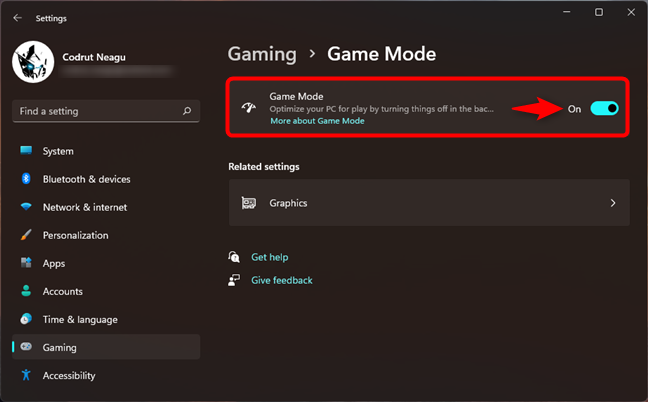
 Turning Game Mode on in Windows 11
If you’re using Windows 10, open the Settings app, head to Gaming, and ensure that Xbox Game Bar is selected on the left sidebar. Then, check whether the Xbox Game Bar is On. Under it, Windows 10 informs you that you should “Enable Xbox Game Bar for things like recording game clips, chatting with friends, and receiving game invites.”
Turning Game Mode on in Windows 11
If you’re using Windows 10, open the Settings app, head to Gaming, and ensure that Xbox Game Bar is selected on the left sidebar. Then, check whether the Xbox Game Bar is On. Under it, Windows 10 informs you that you should “Enable Xbox Game Bar for things like recording game clips, chatting with friends, and receiving game invites.”
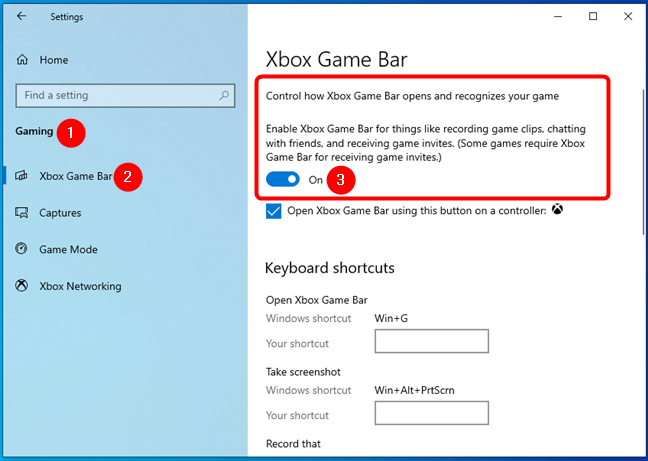
 Enable Xbox Game Bar in Windows 10
After you make sure that the Xbox Game Bar is enabled, select Game Mode on the left sidebar of the Settings app, and turn On the Game Mode switch too.
Enable Xbox Game Bar in Windows 10
After you make sure that the Xbox Game Bar is enabled, select Game Mode on the left sidebar of the Settings app, and turn On the Game Mode switch too.
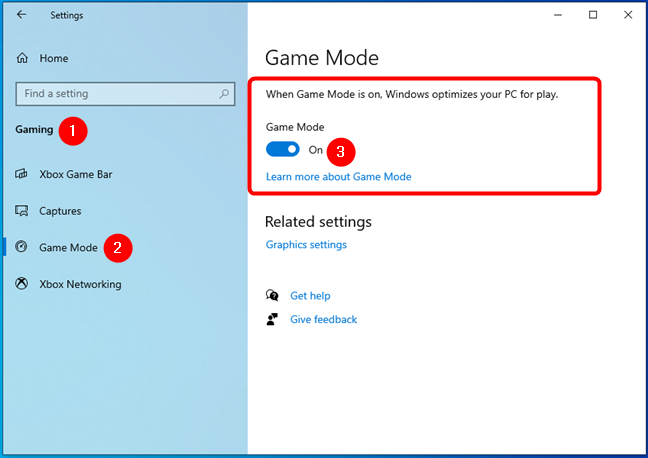
 Enable Game Mode in Windows 10
TIP: If you’d like to see how Game Mode affects gaming in real life, check this analysis: Game Mode in Windows: Testing real-life performance in modern games.
Enable Game Mode in Windows 10
TIP: If you’d like to see how Game Mode affects gaming in real life, check this analysis: Game Mode in Windows: Testing real-life performance in modern games.
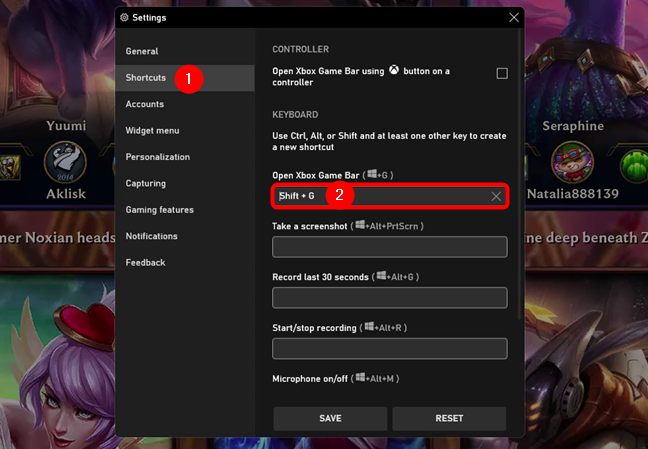
 Assigning a different keyboard shortcut to open the Xbox Game Bar
To learn how to change the Xbox Game Bar keyboard shortcuts in Windows 11, read this guide: 2 ways to change the keyboard shortcuts for the Xbox Game Bar in Windows.
Assigning a different keyboard shortcut to open the Xbox Game Bar
To learn how to change the Xbox Game Bar keyboard shortcuts in Windows 11, read this guide: 2 ways to change the keyboard shortcuts for the Xbox Game Bar in Windows.
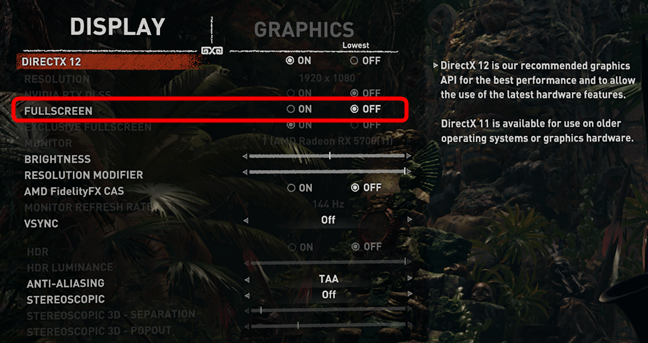
 Configuring Shadow of Tomb Raider to run in windowed mode
For the following example, we chose to play Assassin’s Creed: Valhalla. In this game, you have to go to “Options -> Screen” and then set the Window Mode to Borderless or Windowed.
Configuring Shadow of Tomb Raider to run in windowed mode
For the following example, we chose to play Assassin’s Creed: Valhalla. In this game, you have to go to “Options -> Screen” and then set the Window Mode to Borderless or Windowed.
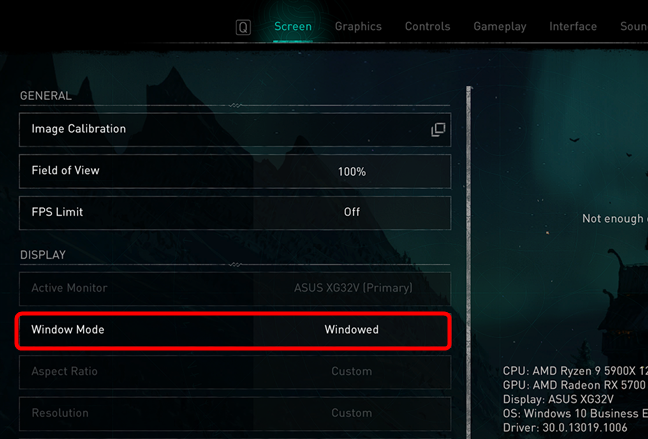
 Configuring Assassin’s Creed: Valhalla to run in windowed mode
Apply your changes, and then your game has to run in windowed mode. Now you should finally see the Xbox Game bar on the screen when you press the correct keys on your keyboard, and you should be able to use the Game Mode features for the game you are playing.
Configuring Assassin’s Creed: Valhalla to run in windowed mode
Apply your changes, and then your game has to run in windowed mode. Now you should finally see the Xbox Game bar on the screen when you press the correct keys on your keyboard, and you should be able to use the Game Mode features for the game you are playing.
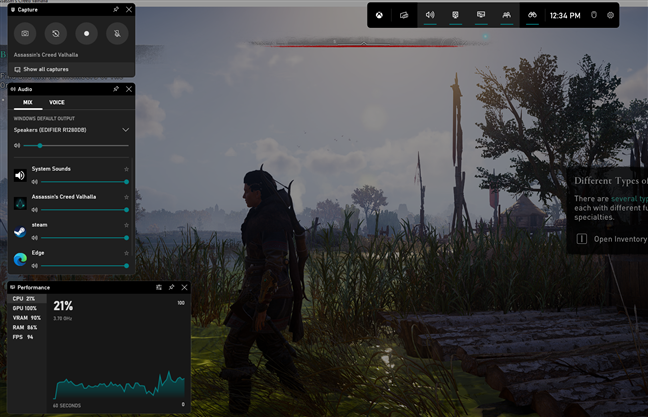
 Opening the Xbox Game bar in Assassin’s Creed: Valhalla
Note that if the game you play does not have a windowed mode setting, you should still be able to force it to run in windowed mode by pressing the Alt + Enter keys on your keyboard.
Opening the Xbox Game bar in Assassin’s Creed: Valhalla
Note that if the game you play does not have a windowed mode setting, you should still be able to force it to run in windowed mode by pressing the Alt + Enter keys on your keyboard.
The problem: The Xbox Game Bar is not working, or you can’t enable Game Mode
It may happen that you are playing a game in Windows 10, and you want to use the Xbox Game Bar. For that, you press the Windows + G keys and expect the Xbox Game Bar to show up on the screen, but nothing happens. The Xbox Game Bar is not opening, and it may seem that you can’t turn on Game Mode.Solution 1: Check that Windows’ Gaming features are enabled
First, you should double-check that the Game Mode is turned on in Windows. To do that in Windows 11, open the Settings app (Windows + I), select Gaming on the left sidebar, and click or tap on Game Mode on the right panel.Solution 2: Set and use different keyboard shortcuts for the Xbox Game Bar that don’t involve the Windows key
Some games or gaming keyboards may block the use of the Windows key during gameplay. Therefore, each time you press it, Windows ignores it. As a result, if you press the default Windows + G keys to show the Xbox Game Bar on the screen, nothing happens. However, Microsoft has a way for you to set your shortcuts to not include the Windows key. For example, you could set ALT + G as the keyboard shortcut for Xbox Game Bar to ALT + G.Solution 3: Set your game to run in a window, instead of taking the whole screen
Many of the older games released before 2017 run in full-screen mode and do not have built-in support for the Xbox Game bar and Game Mode. If you run such games in a window, instead of full-screen, you should be able to show the Xbox Game bar on the screen and use it to take screenshots, record videos, and so on. To help you out, let’s use two games as examples. Let’s assume that you play an action-adventure game such as Shadow of the Tomb Raider. Go to its Options, then to Display, and then set the Fullscreen mode to Off.

Discussion (11)
Doesnt work. Even if I use Windows key + G or any other shortcut (custom, or not) It will not open for shit. The only way I can open it is by searching for it in the Windows Search Menu. Please help.
Did you actually read our tutorial and the solutions we propose?
My game bar opens and I can record but when I go to select broadcast it will not let me enable webcam. I did everything Windows said by turing permissions and everything on. But when I say enable camera in broadcast it won’t let me move the slider without again saying permissions are not allowing use of camera while broadcasting. Anyone know what else to do besides move to Linux…..?
i haven’t tha bar of on/off
None of this worked. The game mode tab in settings just says “This PC supports game mode” and “Learn more about Game Mode” but there is no toggle switch to turn game mode on.
Why has no one responded to this. I have the same issue.
Tried ’em all. None worked. Guess i’ll look elsewhere.
You do not have Windows 10 updated, to include this feature. Please make it up to date and Game Mode will be available to you.
none of these fixes work. game bar wont open for anything, and when i search for it on my computer, it’s as if no record of it exists except for in the windows settings menu telling me how to customize a feature that isnt actually there.
It means that you do not have Windows 10 Creators Update. You have some older version of Windows 10 and you need to install all updates to this operating system.
So I have the update and I can’t enable the game bar. Every time I click the slider over if I close the window or click the back button as soon as I go back to the settings menu it is off. I also went into the registry and turned it on from there (set to 1) based on your web page and it still wont work. Hitting windows G doesn’t do anything.