




If you want to expand what your Fire TV Stick can do, downloading Filelinked is one of the fastest ways to access apps that are not available in the Amazon Appstore. Filelinked acts as a simple hub for downloading APK files, letting you install different tools and streaming apps without navigating multiple websites. At the time of writing, the method for installing Filelinked on Fire TV Stick still relies on sideloading, and the steps remain accurate and reliable for most Fire TV models.
To download Filelinked on your Fire TV Stick successfully, you first need to enable installations from unknown sources, install the Downloader app, grab the Filelinked APK, and complete the installation. Once set up, Filelinked allows you to enter codes that unlock curated lists of apps and utilities created by other users. Use the steps below to complete the installation process quickly and safely.
Follow these steps to download Filelinked on Fire TV Stick:
- Turn on your Fire TV Stick and open Settings from the top menu.
- Scroll to My Fire TV and select Developer Options.
- Enable Apps From Unknown Sources to allow sideloading.
- Return to the home screen and use the search bar to find the Downloader app.

- Install Downloader and grant it permission to access files on your device. Then launch it.
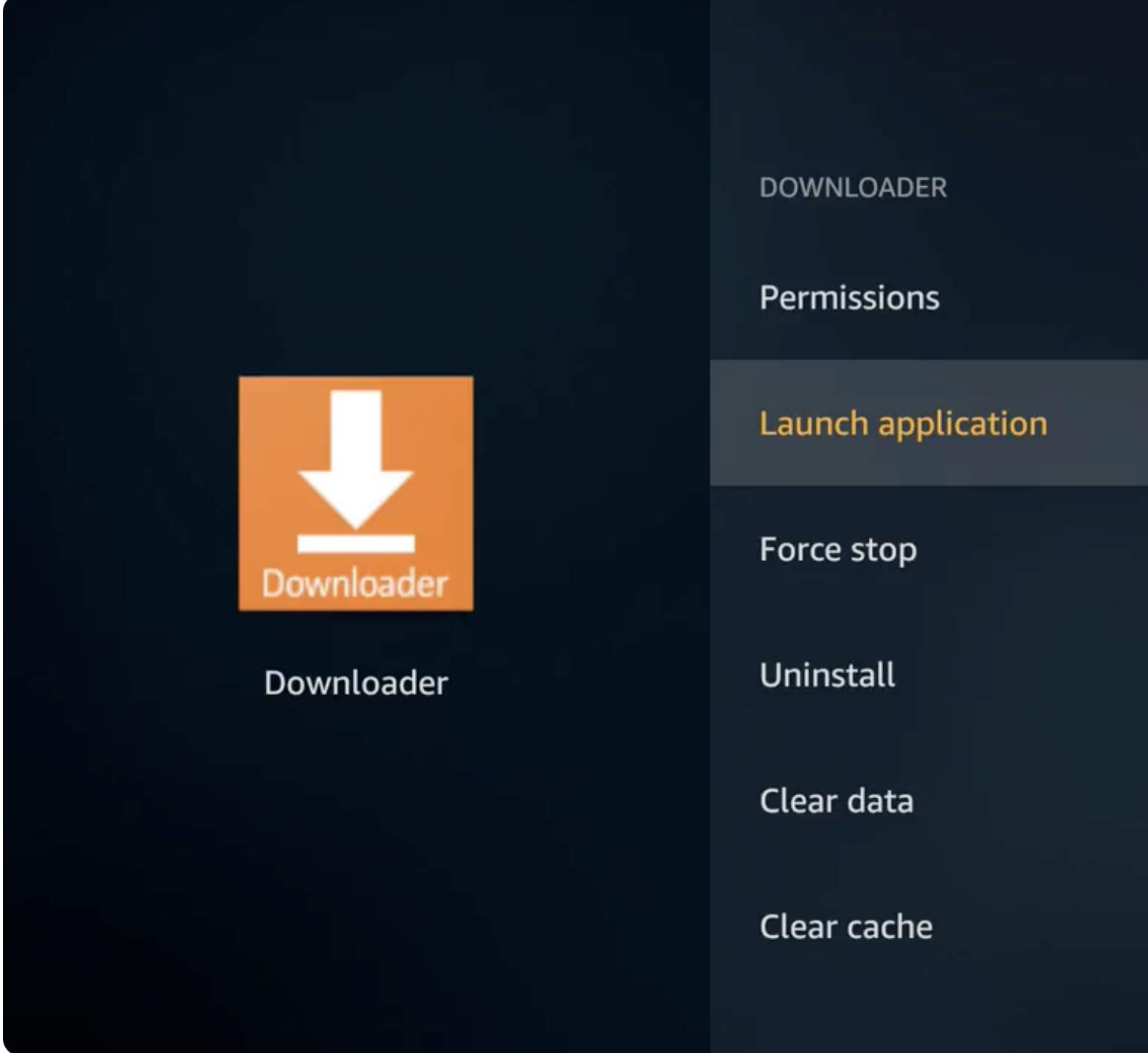
- Enter the download URL for the Filelinked APK.

- Select Go to start downloading the Filelinked installation file.
- When the APK finishes downloading, choose Install to add Filelinked to your Fire TV Stick.
- After installation, select Open or return to Your Apps & Channels to launch Filelinked.
- Enter a Filelinked code to browse available apps and start downloading them to your device.
Troubleshooting Common Problems
- Downloader Shows an Error: Make sure your Fire TV Stick is connected to Wi-Fi and that the URL for the Filelinked APK is typed correctly.
- Installation Blocked: Confirm that Apps From Unknown Sources is enabled in your Developer Options.
- Filelinked won’t open: Restart your Fire TV Stick or reinstall the Filelinked APK using Downloader.
- Codes Not Working: Filelinked codes can expire; try a different code from a trusted source.
Tips
- Keep Downloader installed since you may need it for future APK sideloading.
- Only use Filelinked codes from reliable communities to avoid harmful apps.
- Restart your Fire TV Stick after new installations to improve performance.
- Clear the Downloader cache occasionally if downloads fail.
FAQ
Is Filelinked Still Safe To Install? Yes. At the time of writing, Filelinked APKs still install correctly on Fire TV Stick, but always use trusted sources.
Do I Need a Computer? No. You can download Filelinked using the Downloader app directly on the Fire TV Stick.
Why Do I Need To Enable Unknown Sources? Because Filelinked is not available in the Amazon Appstore, it must be sideloaded.
Where Do I Find Filelinked Codes? Creators share codes in online communities, forums, and app-focused groups.
Summary
- You must enable unknown sources before installing Filelinked.
- Downloader is required to fetch the APK file.
- After downloading, install Filelinked directly on the Fire TV Stick.
- Codes let you access curated lists of apps and tools.
- Restart the device if Filelinked does not load correctly.
Conclusion
Downloading Filelinked on Fire TV Stick remains one of the easiest ways to sideload apps and expand the device’s capabilities. With the official App Store limiting specific tools, Filelinked provides a simple alternative for accessing additional apps through curated codes. By following the steps above, you can set up Filelinked safely and streamline how you install third-party apps on your Fire TV Stick.


Discussion (0)
Be the first to comment.