




RedBox TV used to be one of the most popular free streaming apps for Firestick users. It provided hundreds of live TV channels in multiple regions. However, since it’s not part of the Amazon Appstore, installing it requires sideloading. This guide explains how to safely download and install RedBox TV on Firestick in 2025.
Step 1: Enable apps from Unknown Sources
Press the Home button on your Firestick remote and go to Settings > My Fire TV > Developer Options. Next, activate Install Unknown Apps for the Downloader app.
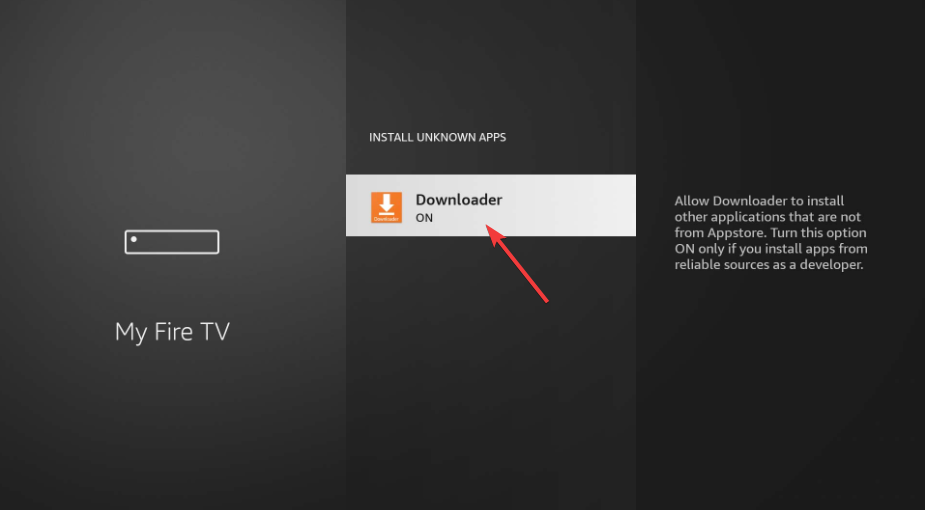
This allows the Firestick to install apps from outside the official store.
Step 2: Install the Downloader app
Open the Amazon Appstore and search for Downloader and select it. Now, click Get to install the app.
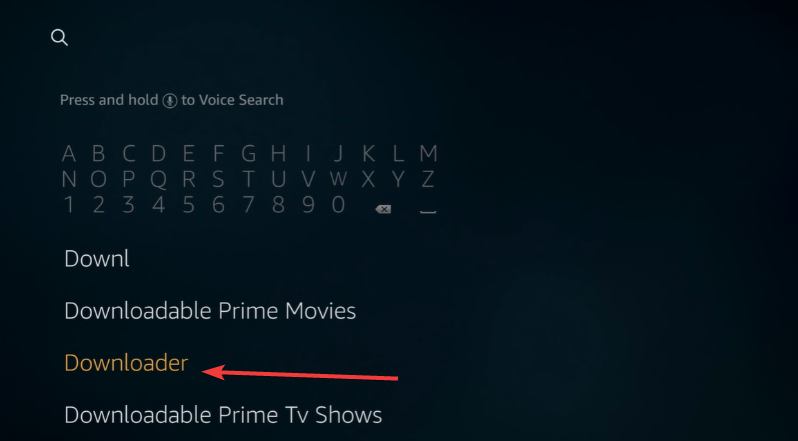
The Downloader app lets you fetch APK files directly from a verified URL.
Step 3: Enter the correct download URL
Open Downloader from your Firestick home screen and type the official RedBox TV APK URL into the field and press Go. Then, wait for the APK to download completely.

Tip: Always use links from a trustworthy source to avoid corrupted or malicious files.
Step 4: Install and launch RedBox TV
After the download finishes, click Install. Once the installation is complete, select Open to launch RedBox TV. If you prefer, move the app to your home screen under Your Apps & Channels.
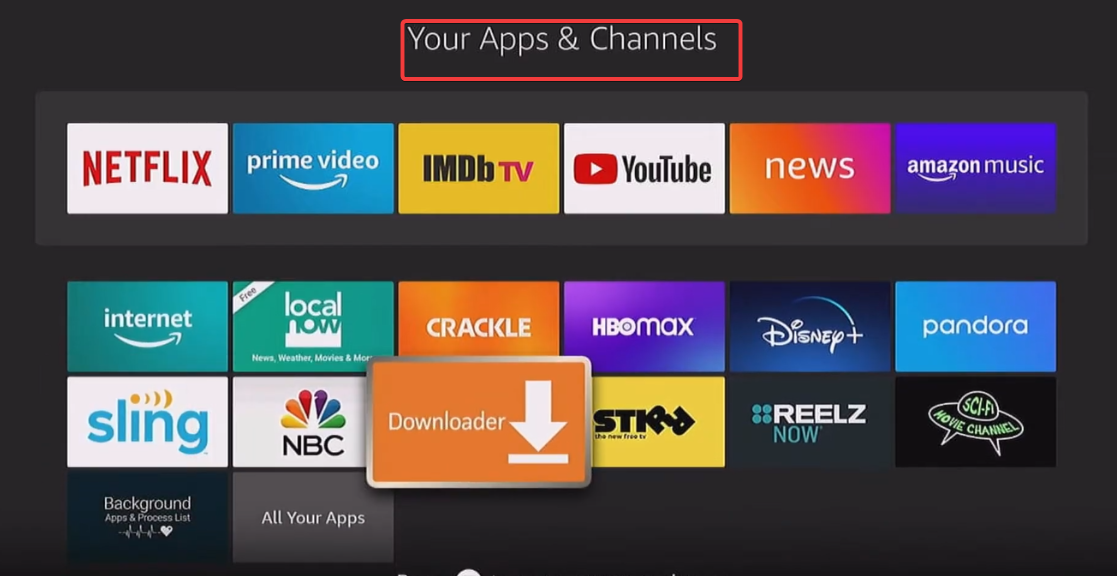
Tip: If RedBox TV doesn’t open, try restarting your Firestick or clearing the app cache from Settings > Applications.
Step 5: Update RedBox TV on Firestick
Sideloaded apps don’t update automatically. To get the latest version, revisit the same URL in Downloader, install the new APK, and overwrite the existing app. Doing this ensures compatibility with the latest Fire OS build.
Troubleshooting common issues
If RedBox TV won’t install, crashes, or buffers constantly, these quick fixes can help.
- Clear cache and app data: Go to Settings > Applications > Manage Installed Applications. Next, select RedBox TV and choose Clear Cache and Clear Data.
- Reinstall a fresh APK: If the app stops streaming, delete the current version and reinstall it using a verified APK source. This resolves most app not working issues.
- Check the internet or VPN connection: Live TV apps need a stable connection. Test your Wi-Fi and consider using a VPN if streams are blocked in your region.
Tips for downloading RedBox TV on Firestick
- Use verified APK sources only
- Some older Firestick models or outdated Fire OS versions may not support the latest RedBox TV builds. Ensure your device's firmware is up to date before installation.
- Don’t uninstall the Downloader app after setup. It’s useful for updating RedBox TV and other third-party apps safely.
- Use a VPN for privacy and access
- Regularly clear cache and data
- Bookmark the working download URL
FAQs
Can I get RedBox TV from the Amazon Appstore? No. RedBox TV is not listed in the official Amazon Appstore. You must sideload it manually.
Is RedBox TV free? Yes, but since it’s not an official app, some streams might not be licensed in your country.
Why is RedBox TV buffering or not loading channels? This usually happens due to weak internet or overloaded servers. Reconnect your VPN or try another source.
Is it safe to sideload apps on Firestick? Yes, if you only use verified APKs and keep your device updated. Avoid random download sites.
What’s the best VPN for Firestick? Check our guide on the best VPNs in 2025 for top recommendations that work smoothly with streaming apps.
Summary: Quick steps recap
- Enable Apps from Unknown Sources.
- Install Downloader from the App Store.
- Enter the RedBox TV download URL.
- Install the APK and launch the app.
- Use a VPN for privacy and region access.
Conclusion
Downloading RedBox TV on Firestick takes only a few minutes, but you should install responsibly. Always use trusted sources, keep your software updated, and protect your connection with a VPN. If the app stops working, switch to official free streaming services for a safer experience.


Discussion (0)
Be the first to comment.