




Airtable gives you a flexible way to organize projects, track work, and collaborate across devices. You can install it on Windows, macOS, iOS, and Android, or you can use it directly in your browser. This guide shows you exactly how to download Airtable on every platform and set it up with clear, simple steps.
1) Download Airtable on Windows
Windows users can install Airtable quickly by running the official desktop installer, following the steps below:
- Open your browser.
- Go to the Airtable download page.
- Click the Download Windows app button and save the file.


- Next, open the downloaded installer file.
- Click Yes when Windows asks for permission.
- Follow the on-screen setup steps until the installation finishes.
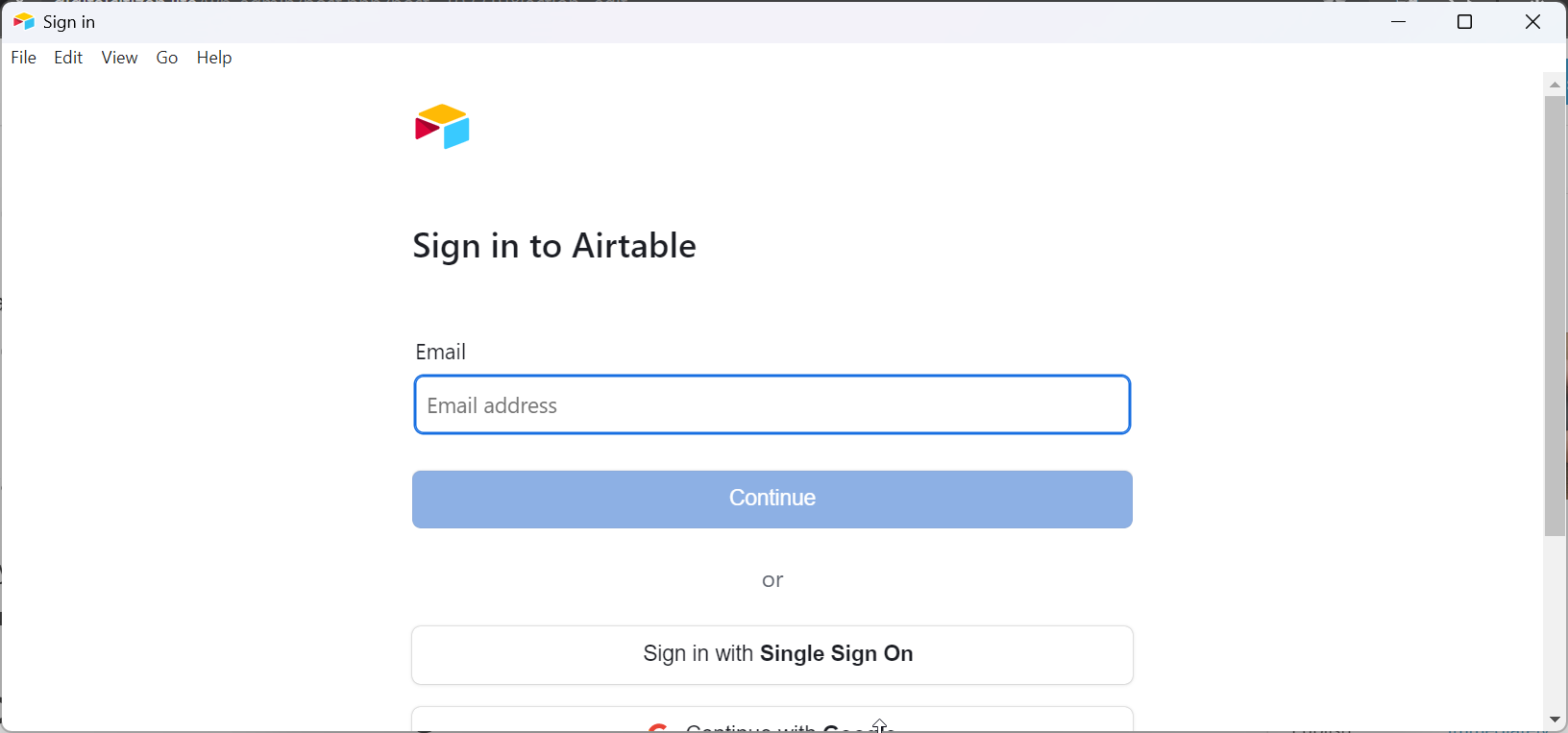
- Finally, launch the app and sign in to your workspace.

2) Download Airtable on macOS
Mac users can install Airtable through a standard disk image installer.
- Open Safari or another browser on your Mac.
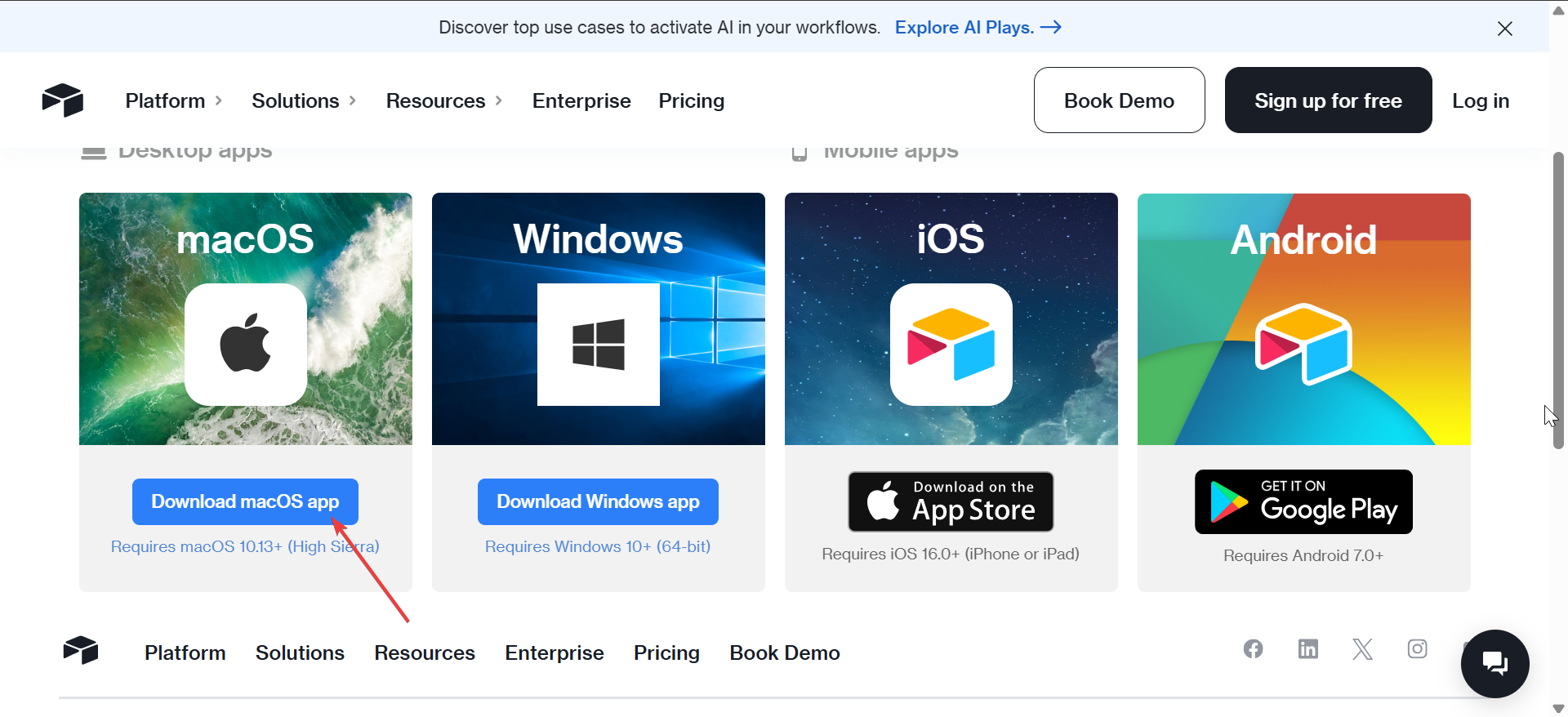
- Go to the Airtable download page.
- Click the Download macOS app button.
- Open the downloaded disk image file.
- Now, drag the Airtable icon into the Applications folder in the installer window.
- Close the installer window.
- Click the eject icon next to the Airtable disk image in Finder.
- Lastly, open the app and sign in.
3) Download Airtable on iPhone and iPad
You can install Airtable on your iOS device through the App Store, as shown below:
- Open the App Store on your iPhone or iPad, and search for Airtable.
- Select the app and tap the Get button
- Confirm the download with Face ID, Touch ID, or your Apple ID password.
- Now, tap Open when the install completes and log in to your workspace.
4) Download Airtable on Android
Android users can install Airtable from the Google Play Store.
- Open the Google Play Store on your phone or tablet, search for Airtable, and select the app.
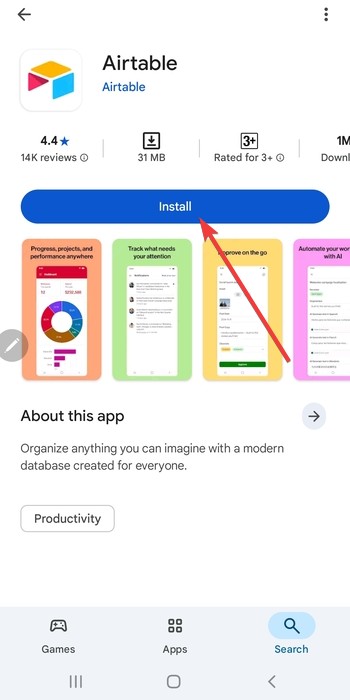
- Next, tap Install on the Airtable app page.

- Now, tap Open after the installation finishes.
- Lastly, sign in with your Airtable account to sync your workspace.


5) Troubleshooting download or install issues
- Installer will not start: Close the installer, download it again, and run it with administrator permissions. Temporarily pause aggressive antivirus modes if they block the file from running.
- App will not open after installation: Restart your device and check for operating system updates, then try again. If the app still fails, uninstall Airtable and perform a clean install.
- Cannot sign in: Confirm your email and password, and check whether you are using the correct workspace. Turn off VPN connections or security apps temporarily if they interfere with the login process.
- App store errors: Free space on your device, and verify that your country or region supports the Airtable app. If the install stalls, sign out of your app store account, restart the device, and sign in again.
Tips for faster setup
- Keep your operating system up to date before installing Airtable.
- Sign in with the same Airtable account on every device to sync consistently.
- Pin Airtable to your Start menu, taskbar, or Dock for one-click access.
- Use the browser version when you only need to make quick edits or checks.
FAQs
What devices support Airtable? How do I switch between the desktop and web versions?
Can I use Airtable offline? Does Airtable sync automatically across devices?
Summary
- Check system requirements for Windows, macOS, iOS, and Android.
- Download the installer or app from the correct platform source.
- Install and launch Airtable on your device.
- Sign in to your workspace to sync your bases.
- Use the browser version when you need quick access without installation.
Airtable installs quickly on any modern device, and each version syncs your data so you can move between Windows, macOS, iPhone, Android, and your browser without losing progress.


Discussion (0)
Be the first to comment.