




Duplicate contacts usually appear after syncing multiple accounts like iCloud, Gmail, or Outlook. You can remove them safely using built-in tools on your iPhone and Mac, as long as you follow the correct order and avoid re-sync issues.
Table of contents
- Before you start: Understand where duplicates come from
- How to delete duplicate contacts on iPhone
- How to delete duplicate contacts on Mac
- Best order: iPhone vs Mac cleanup
- How to remove duplicates using iCloud.com
- Fixes if duplicate contacts keep coming back
- Should you use third-party apps?
- Tips to avoid duplicate contacts in the future
- FAQs
- Summary
Before you start: Understand where duplicates come from
Duplicate contacts often come from syncing the same people across multiple accounts. iCloud, Google, Exchange, and SIM imports commonly create overlapping entries.
Check which accounts sync contacts
On iPhone, open Settings → Apps → Contacts → Contacts Accounts and review which services sync contacts. On Mac, open Contacts → Settings → Contacts Accounts to see the same list.

If more than one account syncs contacts, duplicates can appear even after cleanup.
How to delete duplicate contacts on iPhone
iOS includes a built-in duplicate detection feature that merges matching contacts automatically.
Use the “Duplicates found” card in Contacts
- Open the Contacts app.
- Tap View Duplicates under Duplicates found at the top of the contact list.


- Tap Merge all or review each duplicate manually.


This method works best when contacts share the same name, phone number, or email.
Manually merge contacts on iPhone
- Open one of the duplicate contacts.
- Tap Edit.
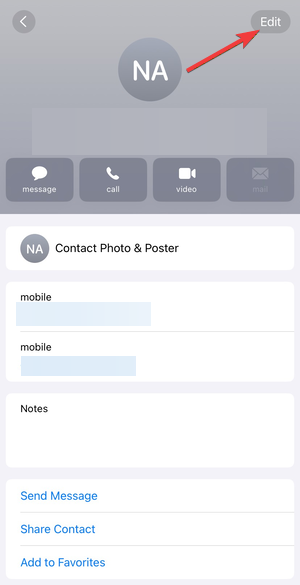

- Scroll down and tap Link Contacts.


- Select the matching contact and tap Link.
Use this option when automatic detection does not show duplicates.
How to delete duplicate contacts on Mac
macOS offers more control and faster bulk cleanup than iPhone.
Use “Look for duplicates” in the Contacts app
- Open the Contacts app.
- Click Card in the menu bar.
- Select Look for duplicates.
- Click Merge or Merge all.
macOS compares names, phone numbers, and email addresses more aggressively than iOS.
Manually merge or delete contacts on Mac
You can select multiple contacts, right-click, and choose Merge Selected Cards.
For incorrect entries, select the contact and press Delete.
Best order: iPhone vs Mac cleanup
Start cleanup on your Mac when possible. macOS merges contacts more reliably and reduces the chance of duplicates reappearing on iPhone after syncing.
After finishing on Mac, let iCloud sync fully before opening Contacts on iPhone.
How to remove duplicates using iCloud.com
iCloud.com helps when devices fail to sync or remain unavailable.
- Go to iCloud.com and sign in.
- Open Contacts.
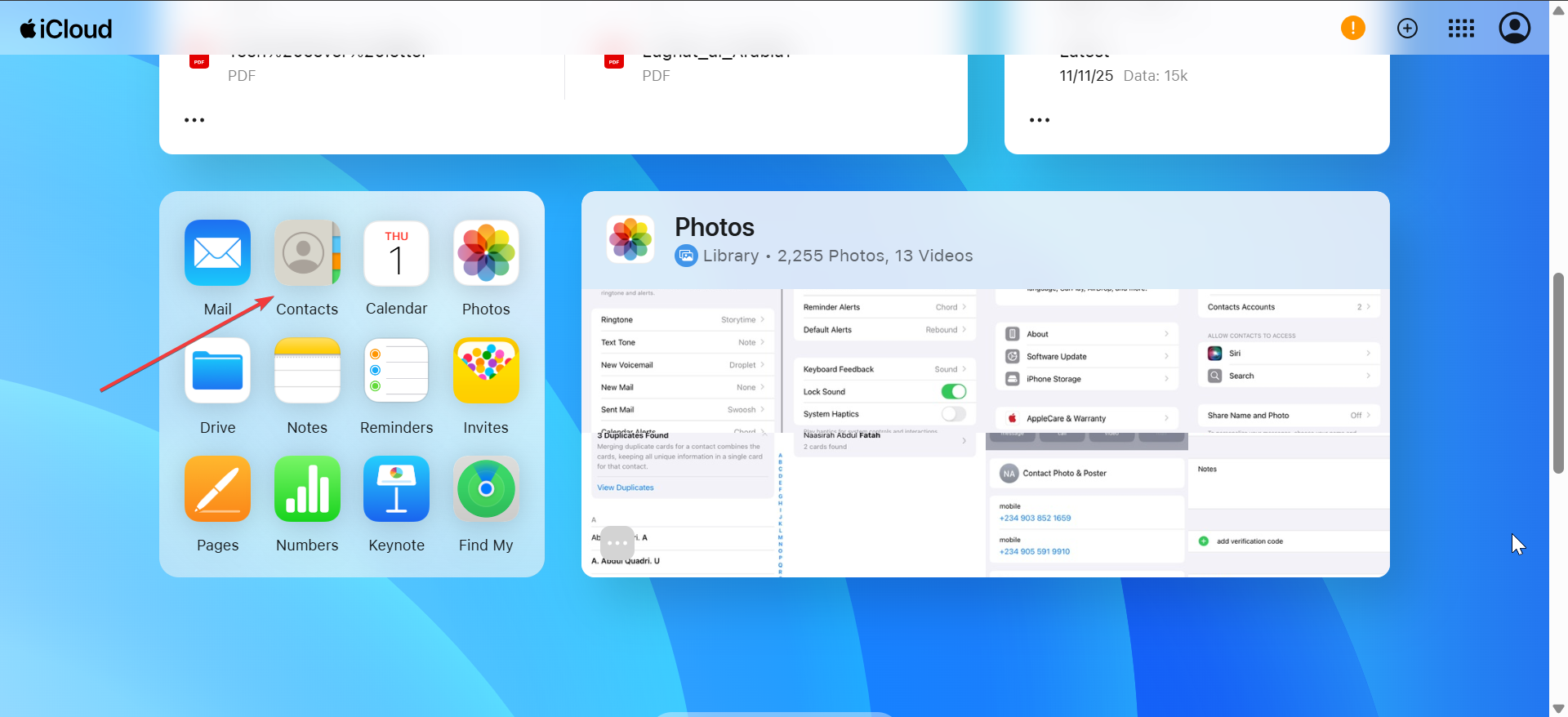

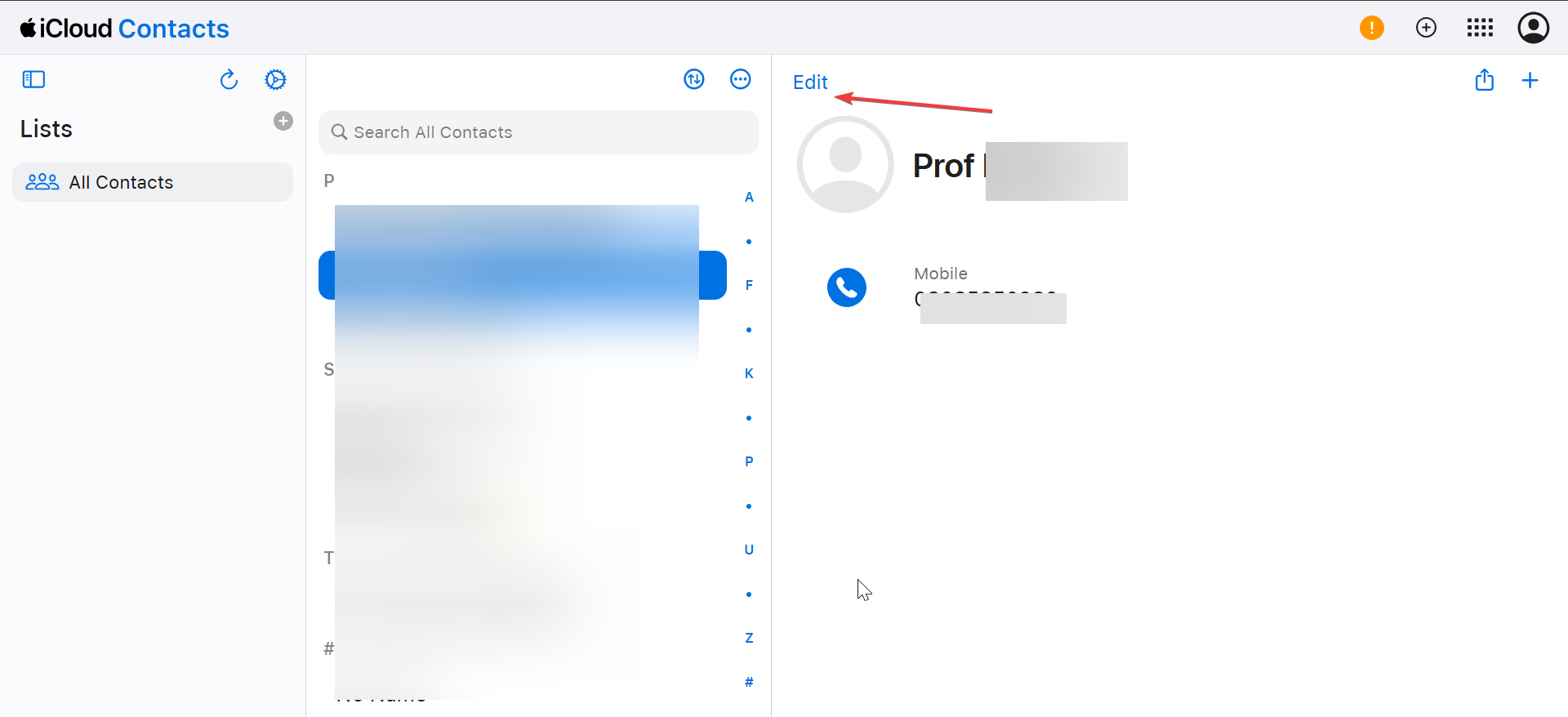
- Select duplicate contacts manually.
- Click the Edit option in the top left corner.
- Finally, scroll down and select Delete Contact.
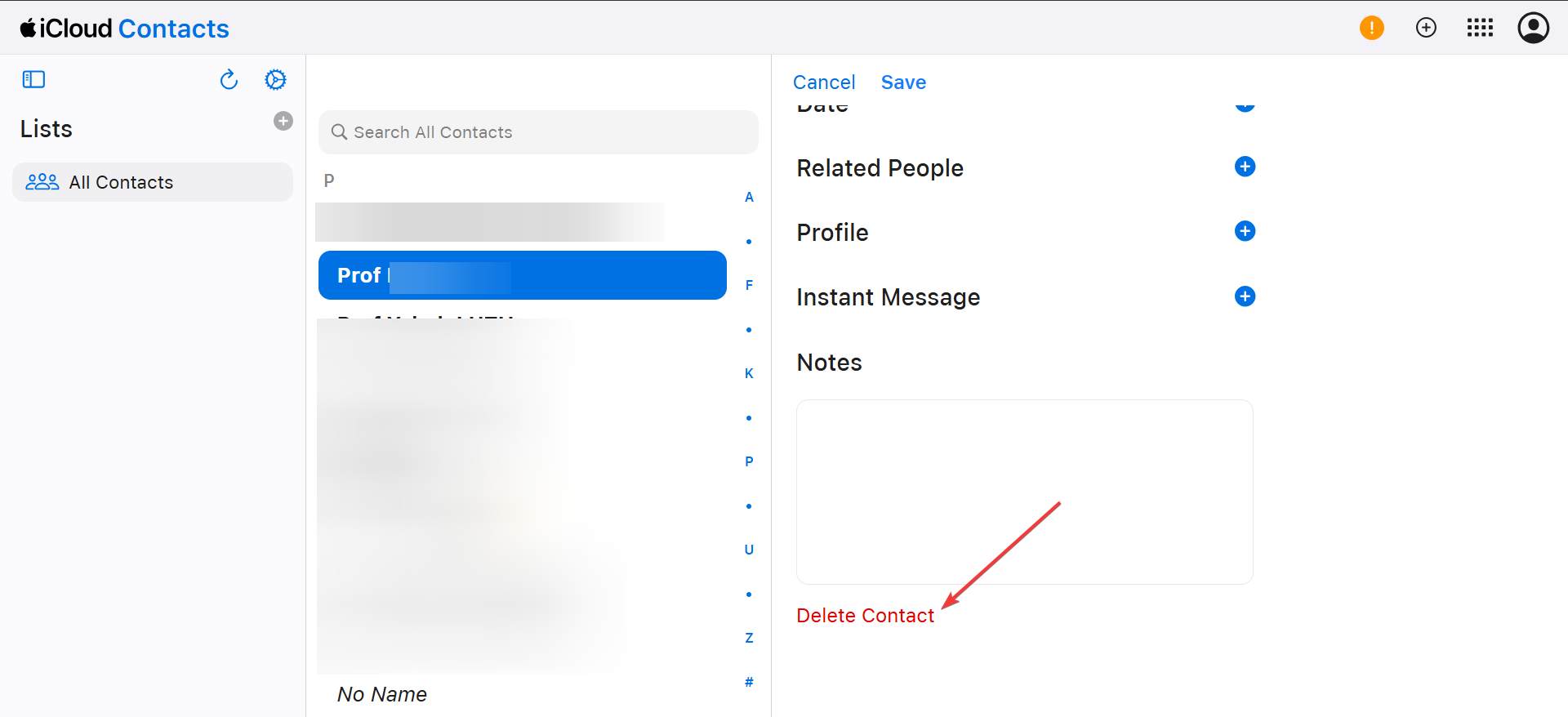
This method works well for quick cleanup across all devices.
Fixes if duplicate contacts keep coming back
- Disable extra contact accounts temporarily: Turn off contact syncing for Gmail or Outlook on all devices. Clean duplicates fully, then re-enable syncing one account at a time.
- Force a fresh iCloud contacts sync: On iPhone and Mac, disable Contacts under iCloud settings, restart the device, then turn it back on. This forces a clean sync.
Should you use third-party apps?
Most users do not need extra apps for duplicate removal. If you want to remove iCloud-based duplicates, the built-in tools are enough.
However, if you are dealing with large address books or messy imports from older devices, you can use external apps.
Tips to avoid duplicate contacts in the future
- Sync contacts through one primary account.
- Avoid importing contacts from SIM cards repeatedly.
- Review contact sync settings after adding new email accounts.
- Let iCloud finish syncing before editing contacts on another device.
FAQs
Why don’t I see the Duplicates option on iPhone?
iOS shows duplicates only when it detects strong matches like shared phone numbers or emails.
Why do duplicates return after merging?
Another account may still sync the same contacts and recreate entries.
Can I lose contact data when merging?
Merging keeps all unique fields from both contacts, including notes and phone numbers. But in cases where a contact disappears from your iPhone, you can force a fresh contact sync.
Does deleting duplicates remove contacts from all devices?
Yes, when you use iCloud, changes sync across all connected devices.
Summary
- Check which accounts sync contacts first.
- Merge duplicates on Mac before iPhone when possible.
- Use built-in iOS and macOS tools instead of apps.
- Fix sync issues if duplicates reappear.
Cleaning duplicate contacts works best when you control sync sources and follow a clear cleanup order. Once you finish merging and confirm iCloud sync completes, your contacts should stay clean across iPhone and Mac.


Discussion (0)
Be the first to comment.