



You can delete an email account in a few minutes if you follow the right steps. The process varies by provider, and each platform uses different menus and confirmation screens. The guide below shows you how to remove an account from your device or delete it permanently.
But before you delete your email account, ensure to back up messages, contacts, and attachments. Also, update online accounts tied to your email and check recovery windows and consequences. Once everything is set and verified, you can now proceed to the steps in this guide.
1) Delete a Gmail account
Remove only Gmail from Google
You keep your Google account active when you delete only Gmail.
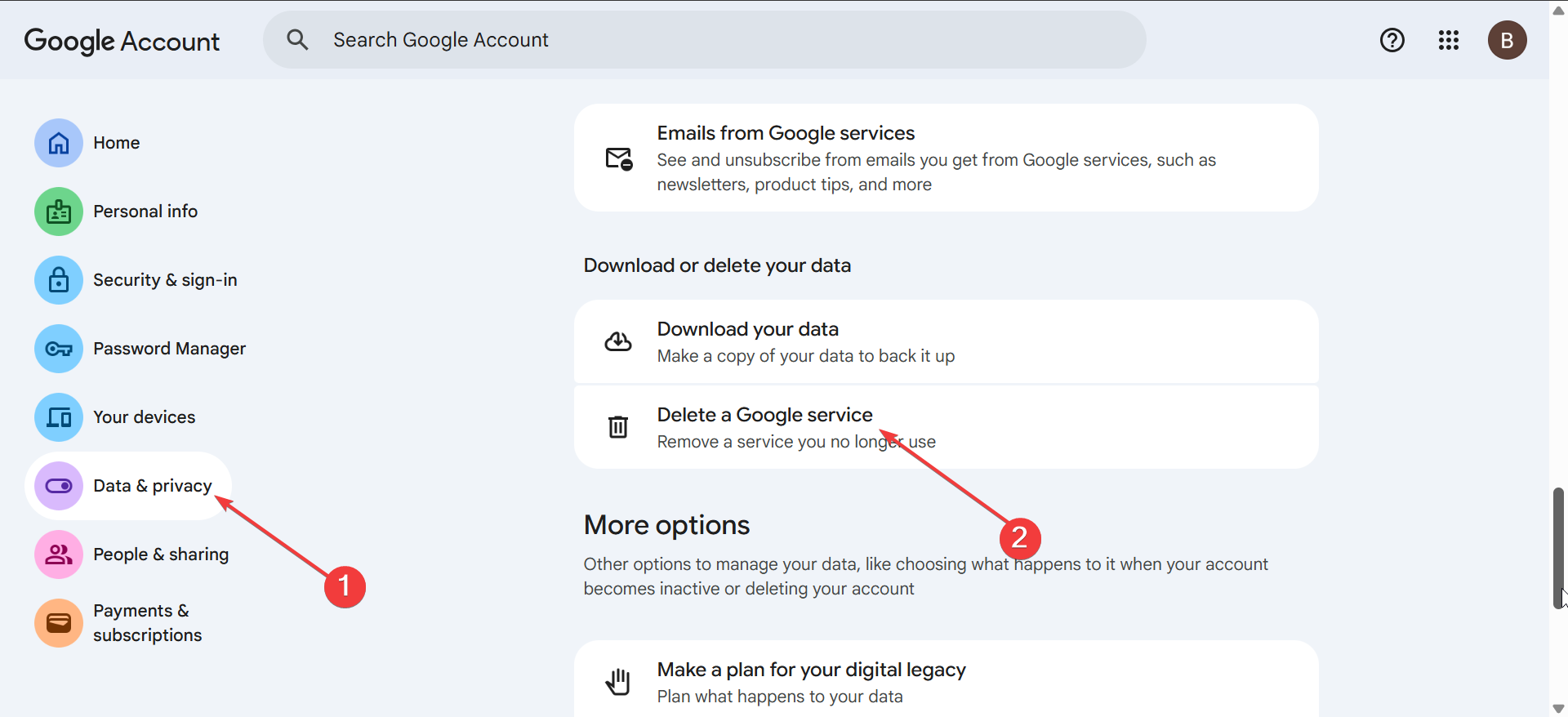
- Open Google Account settings.
- Select Data & privacy.
- Choose Delete a Google service.

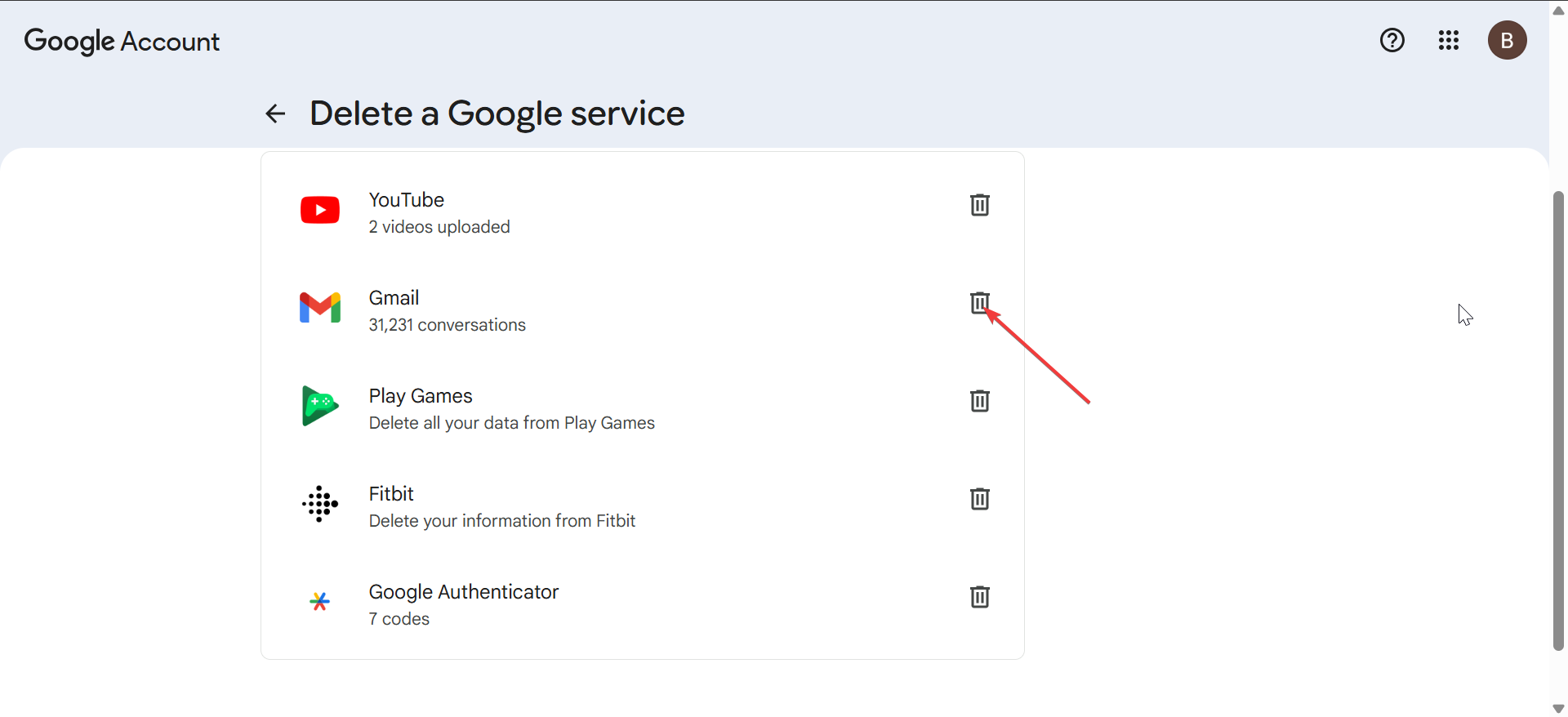
- Next, enter your password to confirm your identity.
- Now, select Gmail and follow the confirmation steps.
- Add a non-Gmail email to keep your Google account working.
Remove a Gmail account from a device (not permanent)
This removes the account from your phone or PC without deleting it.
- Open Settings.
- Tap Accounts on Android or Apps > Mail > Mail Accounts on iPhone.
- Select the Gmail account.
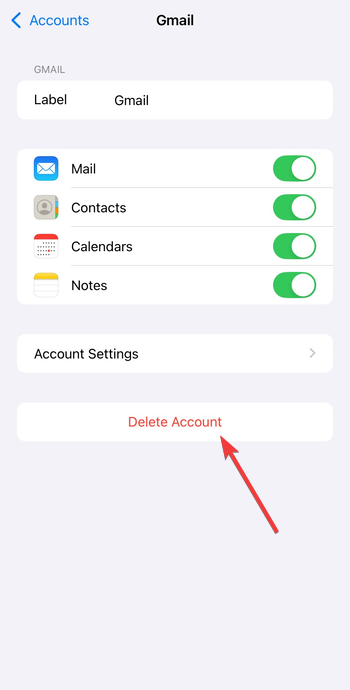

- Tap Delete account.
2) Delete a Yahoo Mail account
Permanently delete the Yahoo Mail account
Follow these steps to close your Yahoo Mail account.
- Sign in to your Yahoo account.
- Open Account security.
- Select Delete my account.
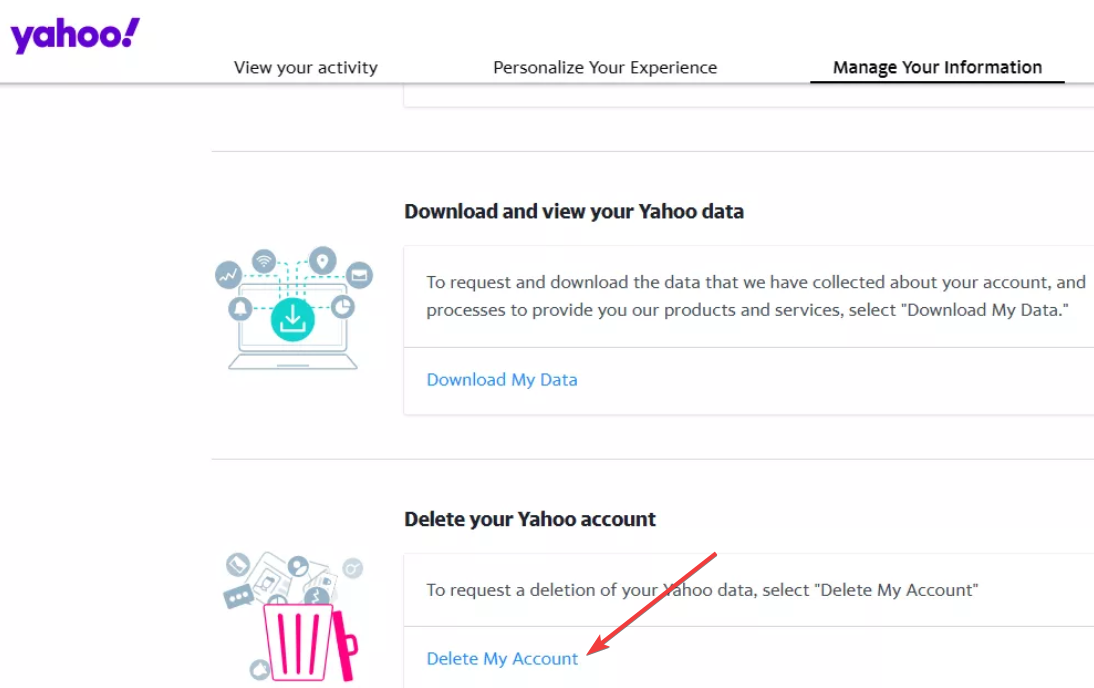

- Next, accept the risk related to deleting your account and click Continue delete my account.
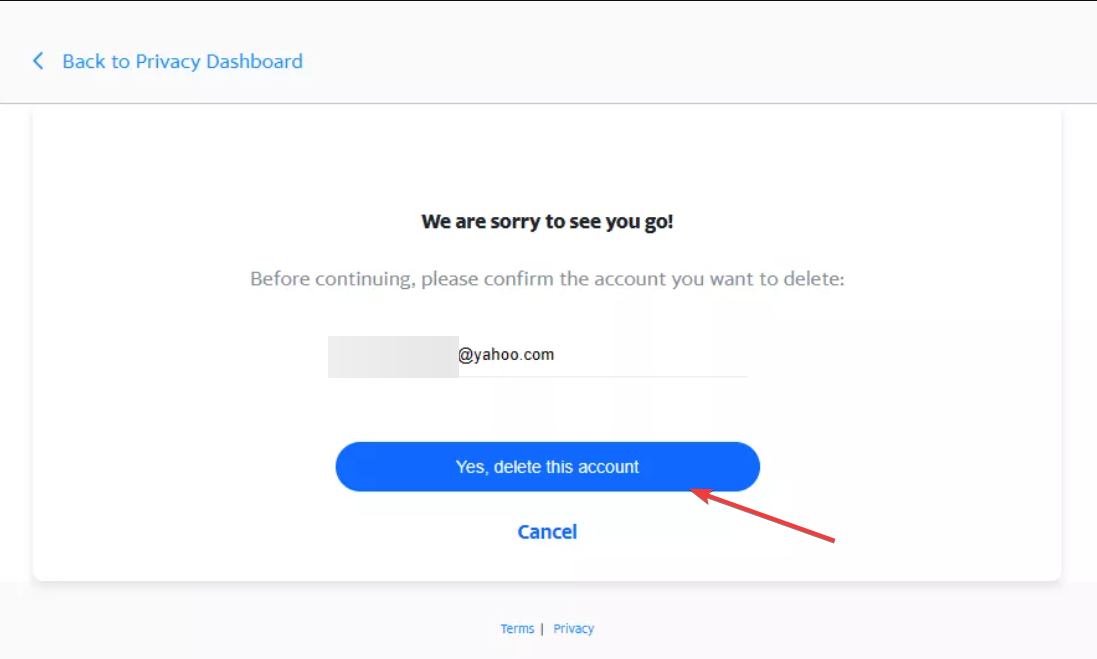
- Confirm your identity and click Yes, delete my account.

Remove Yahoo Mail from a device
Use these steps when you only want to remove Yahoo from a phone.
- Open Settings on your phone.
- Tap Mail or Accounts.
- Choose the Yahoo account.
- Tap Delete account to remove it locally.
3) Delete an Outlook / Hotmail / Live email account
Permanently close your Microsoft email account
Microsoft uses account-wide deletion, so you lose access to OneDrive, Skype, and other services.
- Open your Microsoft account settings.
- Go to Your info.
- Now, scroll down to the Account info section.
- Choose Close account.
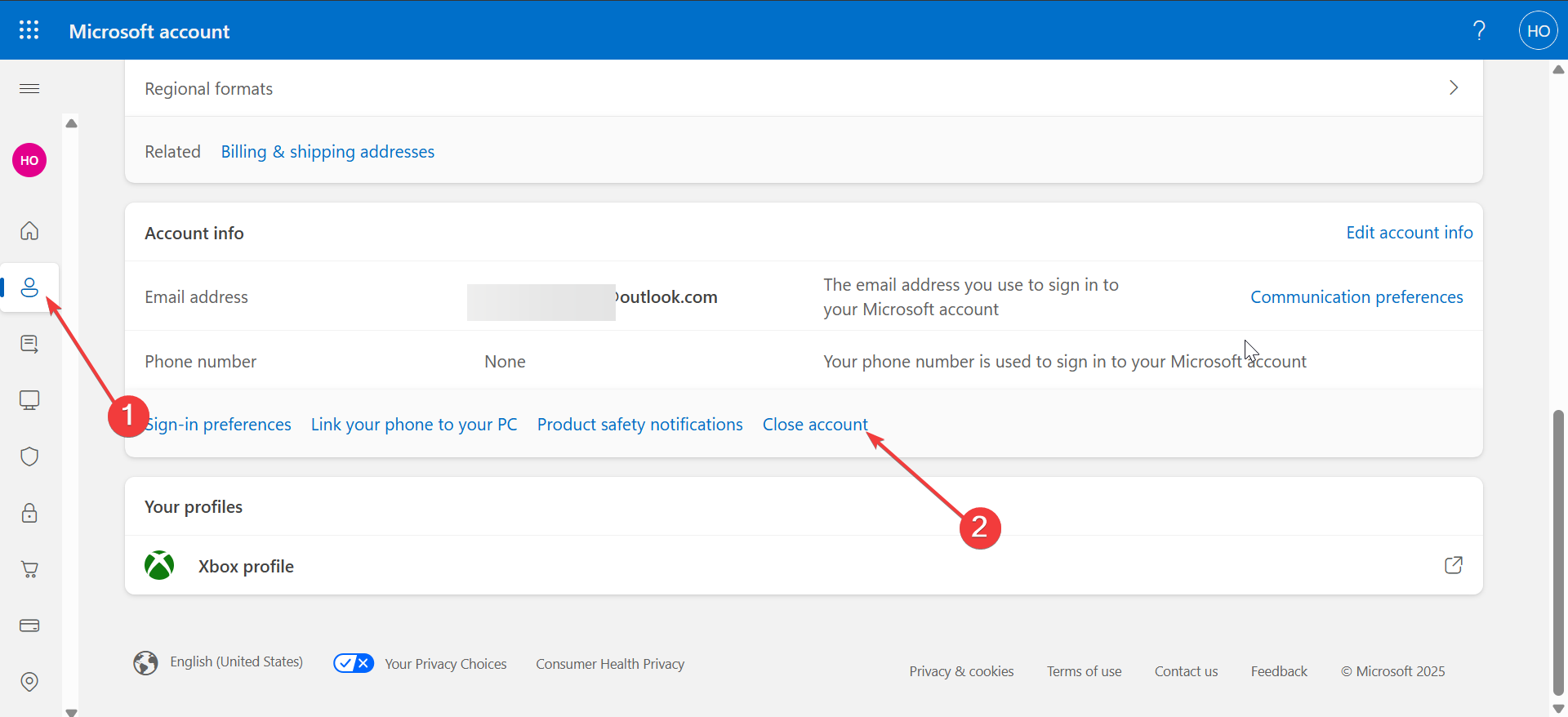
- Confirm your recovery options and finish the closure process.
Remove Outlook/Hotmail from Windows or mobile apps
Use these steps when you want to stop syncing email but keep the account.
In Windows Mail:
- Open Settings.
- Select Manage accounts.
- Choose the account.
- Click Delete account from this device.
On iPhone/Android:
- Open Settings.
- Tap Mail or Accounts.
- Select the Outlook account.
- Tap Delete account.
4) Delete an iCloud email account
Permanently delete an iCloud email
Apple ties iCloud Mail to your Apple ID, so you need to check how this affects your devices.
- Open Apple ID settings.
- Choose Data & privacy.
- Select Manage your data.
- Choose Delete your account.
- Follow the confirmation steps.
Remove iCloud Mail from an iPhone, iPad, or Mac
Turn off mail sync when you only want to remove iCloud Mail from a device.
On iPhone/iPad:
- Open Settings.
- Tap Apps > Mail.
- Select Mail Accounts.

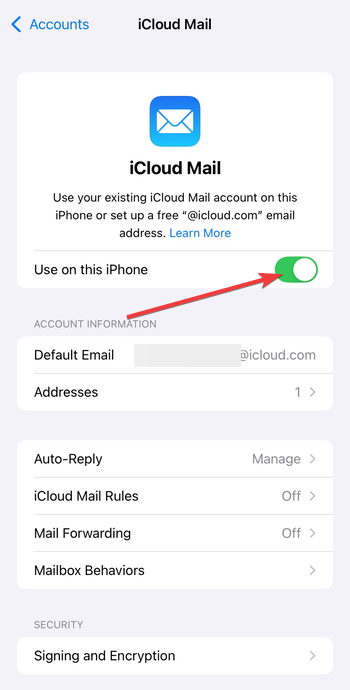
- Choose your iCloud account.
- Toggle off Use on this iPhone to remove the account.
On Mac:
- Open System Settings.
- Select Internet Accounts.
- Choose iCloud.
- Turn off Mail.
5) Delete a Proton Mail account
Permanently delete a Proton Mail account
Proton Mail erases data instantly for privacy reasons, so you need to confirm this choice carefully.
- Open Settings in your Proton Mail account.
- Select Account.
- Choose Delete account.
- Confirm the deletion.
Disable Proton Mail on devices
Remove Proton Mail from your phone or tablet when you only want to stop syncing email.
- Open your device Settings.
- Select Accounts.
- Tap the Proton account.
- Remove it from the device.
6) Delete a custom or domain-based email account
Follow these steps when you host email with a provider that uses a control panel such as cPanel or Plesk.
- Log in to your hosting dashboard.
- Open Email or Mail accounts.
- Select the mailbox you need to remove.
- Click Delete.
- Confirm the removal.
Tips for deleting an email account
- Use backups before you start.
- Update your recovery email on services you keep.
- Check your spam and trash for items you want to save.
- Notify important contacts before you close the account.
- Save two-factor authentication codes for accounts linked to your old address.
FAQs
What happens to emails sent to my deleted account? Most providers block new mail and return a delivery error to the sender.
Can I recover a deleted email account? Some providers allow recovery within a limited window, but others erase data permanently. But you can always create a new email later if you can't recover the deleted email account.
Does deleting an email delete cloud storage? Google, Microsoft, and Apple link mail to wider accounts, so deletion affects connected services.
Can I delete an email account from my phone only? Yes. Device removal stops syncing but keeps the account active online.
Summary
- Back up your email before you delete anything.
- Update online accounts linked to the email.
- Follow provider-specific steps to delete or remove the account.
- Remove accounts from devices when you only want to stop syncing.
- Confirm deletion and check recovery rules if you need them.
You complete the process quickly when you know what each provider requires. Gmail, Yahoo, Microsoft, Apple, Proton Mail, and hosted email systems all use different menus and confirmation screens. Choose the right method for your device or provider and keep backups ready so you avoid losing important data.


Discussion (0)
Be the first to comment.