




Want to check your iCloud Mail? Here’s how you can access it from multiple devices, including iPhone, Mac, Windows, and through a web browser. Whether you're on the go or working from home, we'll guide you through the process with easy-to-follow steps.
Before you start
- Ensure you have your Apple ID and password handy.
- Make sure your device has an active internet connection.
- If you plan to access iCloud Mail on a non-Apple device, ensure the latest browser is installed.
- If setting up for the first time, make sure iCloud is activated on your device.
Step 1: Access iCloud email on iPhone and iPad

Open the Mail app on your iOS device. Ensure your iCloud account is logged in by going to Settings > [Your Name] > iCloud, tapping on the Mail option, and toggling Use on this iPhone. You can now access your iCloud inbox directly from the Mail app.
Step 2: Access iCloud email on Mac
Open the Mail app on your Mac. Go to Apple Menu > System Preferences > iCloud and sign in with your Apple ID. Ensure that Mail is checked to sync your iCloud email, and you’ll be able to access it within the Mail app.
Step 3: Access iCloud email on a Windows PC
Open your browser and navigate to icloud.com. Sign in using your Apple ID and password. Click on Mail to access your iCloud email directly within the browser.

Tip: This is the same method you can use to access your iCloud email through a web browser from any non-Apple device.
Step 4: Set up email forwarding for external access
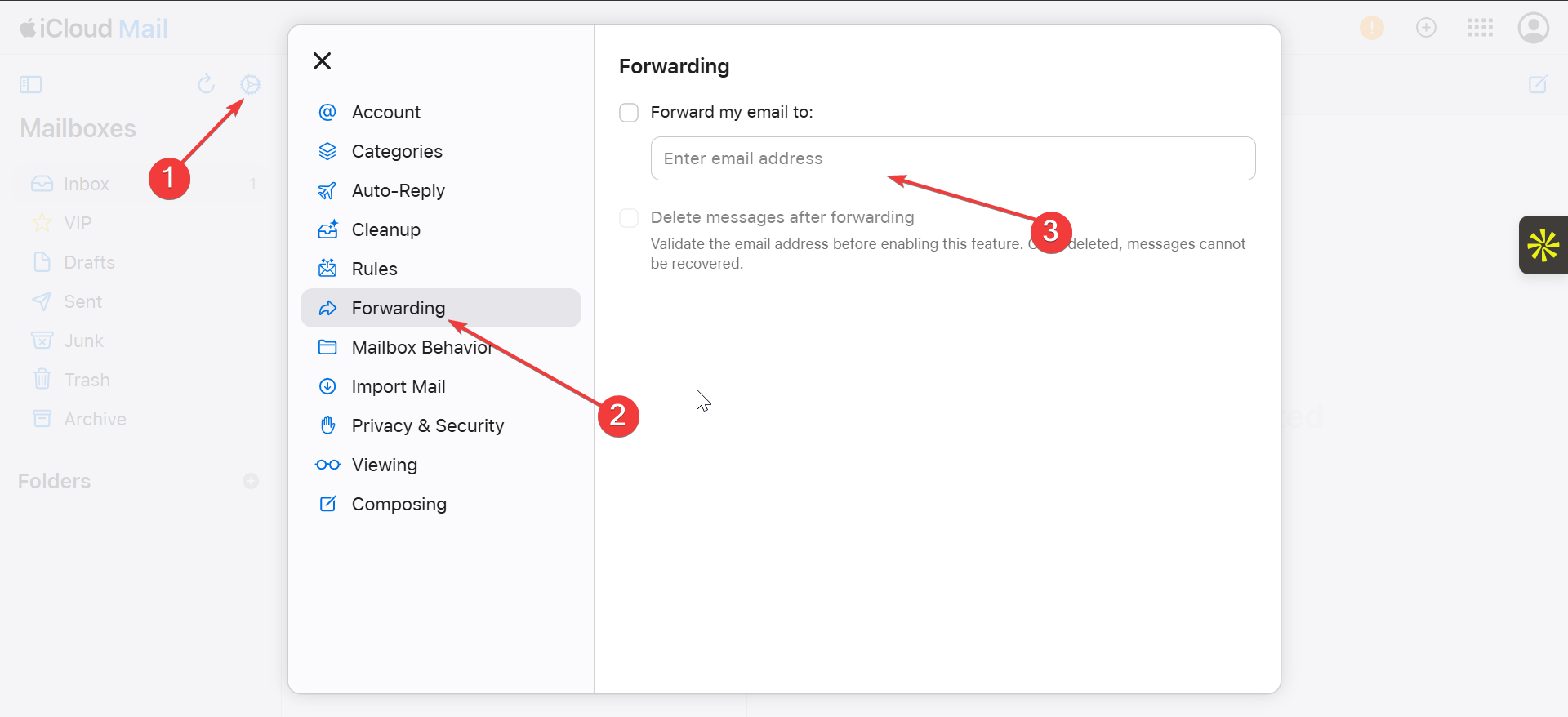
If you want to forward iCloud emails to another account, so that you can receive your email on the go on your preferred app, go to iCloud.com and click the Mail app. Now, click the Settings icon in the top right corner and select Forwarding in the left pane. Finally, enter your preferred forwarding email address and save.
Troubleshooting common iCloud email issues
- Unable to sign in: Make sure you're entering the correct Apple ID and password. If you’ve forgotten your password, reset it by visiting iforgot.apple.com. If you have two-factor authentication enabled, ensure you’ve received the verification code and enter it correctly.
- iCloud mail not syncing: Ensure that Mail is enabled in your iCloud settings across all devices. If syncing still doesn’t work, try toggling iCloud Mail off and back on in the settings. Also, check your internet connection to ensure it’s stable.
- iCloud mail loading slowly: If iCloud Mail is taking longer than usual to load, try clearing your browser’s cache or restarting the Mail app. Make sure your device’s software is up to date and check that there are no known outages with iCloud services.
- Cannot access iCloud mail on third-party email clients: Ensure you’ve correctly entered the IMAP and SMTP settings in the third-party email client. Visit the Apple Support page for the latest server information. You may also want to check if your email client supports iCloud’s two-step authentication or app-specific passwords.
- iCloud Mail app crashing: If the iCloud Mail app keeps crashing, try restarting your device. Ensure that the app is updated to the latest version. If the issue persists, uninstall and reinstall the app, or clear the app’s cache if possible.
Tips for Accessing iCloud Email
- Double-check that Mail is toggled on in iCloud settings on all your devices for smooth syncing.
- If you're on a Mac or iPhone, consider using the built-in iCloud Mail app for better integration and quicker access.
- If you can't sign in, try resetting your Apple ID password or using Apple’s two-factor authentication.
FAQs
How do I recover my iCloud email password? If you’ve forgotten your password, go to iforgot.apple.com and follow the steps to reset it.
Can I access iCloud email on Android? While the iCloud app isn’t available on Android, you can access iCloud email through the web browser by visiting icloud.com.
What if my iCloud email isn't syncing across devices? Ensure that you’re signed into iCloud with the same Apple ID on all devices, and that Mail syncing is enabled in iCloud settings.
Can I use third-party email clients with iCloud Mail? Yes, you can configure third-party email clients like Outlook or Thunderbird with your iCloud email by using the appropriate IMAP and SMTP server settings provided by Apple.
Summary
- Open the Mail app on iPhone/iPad or Mac, or visit iCloud.com on Windows or through a browser.
- Sign in with your Apple ID.
- Access your inbox, send, and manage your emails.
- Set up email forwarding if needed.
- Ensure syncing is enabled across all devices for seamless access.
Conclusion
Now you’re all set to access your iCloud email! Whether you're using a mobile device, desktop, or web browser, iCloud Mail is accessible across platforms. Keep an eye on syncing settings and troubleshoot common login issues if you encounter any problems.

Discussion (0)
Be the first to comment.