




You can convert photos to PDF on iPhone and iPad using built-in iOS tools, without installing extra apps. The Photos app offers the fastest option, while Files, Notes, and Shortcuts work better for organizing documents, scanning paperwork, or handling repeated conversions.
Table of contents
- Convert photos to PDF using the Photos app (fastest method)
- Convert photos to PDF using the Files app
- Convert photos to PDF using the Notes app
- Convert photos to PDF using Shortcuts
- iPhone vs iPad differences when converting photos to PDF
- Which method should you use
- Tips for creating clean PDFs on iOS
- FAQs
- Summary
Convert photos to PDF using the Photos app (fastest method)
The Photos app provides the quickest way to turn images into PDFs. This method works best when you want immediate results and minimal steps.
Convert a single photo to PDF
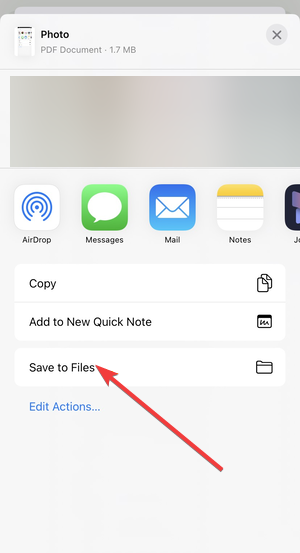
Open the Photos app and select the image you want to convert. Tap the Share button, choose Print, then tap the Share icon in the top right corner. Now, tap Save to Files to save the PDF file.
Convert multiple photos into one PDF
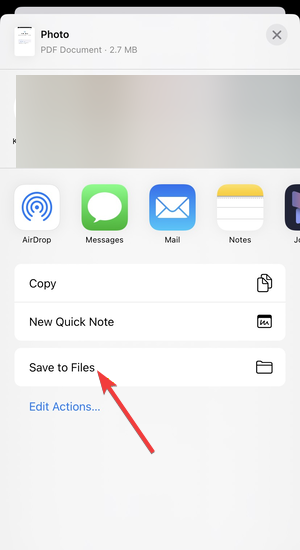
When you need to combine several images, open Photos and tap Select. Choose all relevant photos, tap Share, and select Print. Next, tap the Share icon at the top and tap Save to Files to save the pictures as a multi-page PDF file.
Convert photos to PDF using the Files app
If you want better control over storage and file naming, the Files app offers a more structured workflow. This approach works well for work, school, or long-term document storage.
Save photos to Files as a PDF
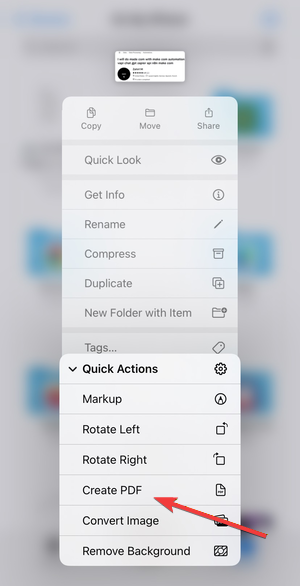
Start by selecting one or more images in Photos and tapping Share. Choose Save to Files and place the images in your preferred folder. Open Files, long-press the images, tap Quick Actions, and select Create PDF. Files generate a clean PDF in the same location.
Create a PDF folder for multiple photos
For larger batches, move all related images into a single folder inside Files. Long-press the images, then tap Create PDF. Files combines everything into one PDF, following the current file order.
Convert photos to PDF using the Notes app
Notes works best for document-style images such as receipts, contracts, or handwritten pages. It also adds scanning tools that improve readability.
Scan photos and export as PDF
Open Notes, create a new note, and tap the Camera icon. Select Scan Documents, capture the page, and adjust the edges if needed. After saving the scan, tap Share to export it as a PDF.
Add existing photos to Notes and save as PDF
You can also convert saved photos through Notes. Open a note, tap the Camera icon, and choose Choose Photo or Video. Add your images, tap Share, select Print, and pinch out on the preview to generate a PDF.
Convert photos to PDF using Shortcuts
If you convert photos often, Shortcuts can save time by automating the process. Once set up, everything runs in a single tap.
Use a prebuilt PDF shortcut
Open the Shortcuts app and browse Apple’s gallery for image-to-PDF shortcuts. After adding one, you can run it directly from the Photos share sheet whenever needed.
Create a custom photo-to-PDF shortcut
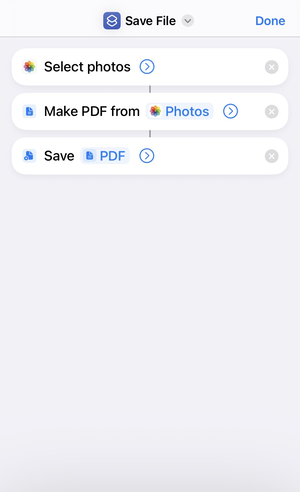
For more control, create a new shortcut with Select Photos as the first action. Add Make PDF, followed by Save File or Share. This setup lets you standardize file names and storage locations.
iPhone vs iPad differences when converting photos to PDF
While the conversion steps stay the same, the interface looks different. iPad shows more options thanks to the larger screen, and drag-and-drop support makes the Files app easier to use. iPhone keeps everything compact but still offers the same features.
Which method should you use
Each method fits a different scenario, so choosing the right one helps you work faster.
Best method for a single photo
Use the Photos app print gesture for instant results.
Best method for multiple photos
Use Photos for speed or Files for better organization.
Best method for scanned documents
Use the Notes app scanner for cleaner pages.
Best method for repeated conversions
Use Shortcuts to automate the workflow.
Tips for creating clean PDFs on iOS
- Rotate photos before converting to avoid sideways pages
- Rename files in Files for easier identification
- Sort images before creating a multi-page PDF
- Use Notes for edge detection and cleanup
- Store PDFs in iCloud Drive for quick access across devices
FAQs
Can I convert photos to PDF without apps?
Yes. Photos, Files, Notes, and Shortcuts handle everything natively.
Do PDFs keep their original quality?
Yes. iOS preserves image resolution unless you compress files manually.
Can I edit the PDF after converting?
You can annotate PDFs in Files or Notes, while advanced edits require third-party apps.
Summary
- Use the Photos app for the fastest photo-to-PDF conversion.
- Use Files when you need better naming and folder control.
- Use Notes for scanning and document-style images.
- Use Shortcuts for automation and repeat workflows.
Converting photos to PDF on iPhone and iPad takes only a few taps when you choose the right tool. Start with the Photos app for quick conversions, then switch to Files, Notes, or Shortcuts as your needs grow.


Discussion (0)
Be the first to comment.