




If you want to learn how to connect a PlayStation 4 to a laptop with HDMI, it’s important to understand how HDMI ports work. At the time of writing, almost all laptops include an HDMI-OUT port, which sends video out to a monitor or TV. The PS4 also uses HDMI-OUT. Because both devices output video, a simple HDMI-to-HDMI cable cannot display PS4 gameplay on a laptop screen. One device must have HDMI-IN to receive the video signal.
To create a setup that actually works, you must use hardware or software designed to receive the PS4’s signal. This guide explains the only fully accurate and supported methods available, including using a capture card with HDMI-IN and Sony’s official Remote Play app.
Many users try to connect the PS4 to a laptop using an HDMI cable, but the laptop won’t display anything. This is normal. Both ports are HDMI-OUT and cannot communicate with each other. HDMI cables cannot convert an output signal into an input signal on their own.
- PS4 HDMI port: HDMI-OUT only
- Typical laptop HDMI port: HDMI-OUT only
- HDMI-OUT cannot receive video from another HDMI-OUT device
To fix this, you need an HDMI-IN device or Sony’s software streaming option.
The Only Working Methods To Use A Laptop As A PS4 Display
You can connect a PS4 to a laptop using one of these fully supported methods:
- Use a capture card with HDMI-IN (Elgato, AverMedia, and similar)
- Use Sony Remote Play software to stream PS4 video to the laptop
- Use a rare laptop model that includes an actual HDMI-IN port
The capture card method is the closest to a true “HDMI connection,” while Remote Play offers the easiest setup.
Method 1: Connect PS4 To Laptop Using A Capture Card
A capture card acts as the HDMI-IN port your laptop does not have. The PS4 sends video to the capture card over HDMI, and the capture card sends the processed video to your laptop over USB.
What You Need
- PS4 console
- HDMI cable
- USB capture card with HDMI-IN (Elgato HD60 S, AverMedia Live Gamer Mini, etc.)
- Windows or macOS laptop with a USB 3.0 port
- OBS Studio or the capture card’s companion software
How To Connect The PS4 To Your Laptop Using A Capture Card
- Connect the PS4 HDMI cable to the capture card’s HDMI-IN port.
- Plug the capture card into your laptop using the included USB cable.
- Install OBS Studio or the capture card’s official software.
- Open the software and select the capture card as your video input.
- Turn on your PS4 and wait for the preview window to appear.
Your laptop now displays PS4 gameplay through the capture card. This method works for recording, streaming, and general gameplay.
Method 2: Connect PS4 To Laptop Using Sony Remote Play
Remote Play is Sony PlayStation's official app that streams PS4 gameplay to a laptop over Wi-Fi. This is the easiest method and does not require any special hardware.
What You Need
- PS4 console updated to the latest firmware
- A Windows or macOS laptop
- DualShock 4 controller with USB cable or Bluetooth
- Strong home Wi-Fi network
How To Use Remote Play
- Download Remote Play from Sony’s official website.

- Install and launch the app on your laptop.

- Sign in with your PlayStation Network account.
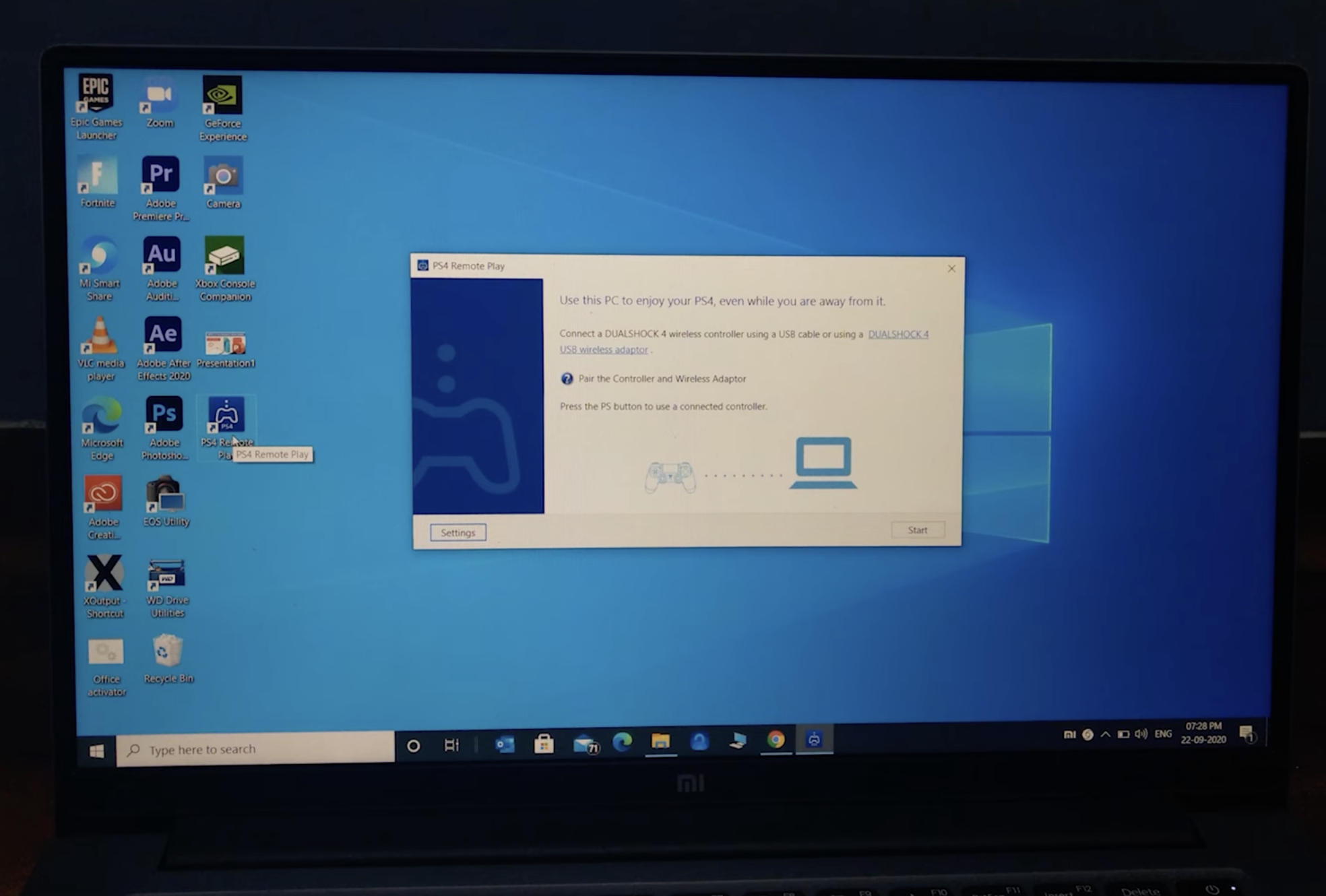
- Connect your controller to the laptop.
- Turn on your PS4 and select “Start.”
Remote Play will display your PS4 screen inside the app window and stream gameplay to your laptop.
Method 3: Use A Laptop With HDMI-IN (Very Rare)
A small number of high-end gaming laptops, such as older Alienware models, include HDMI-IN. If your laptop supports HDMI-IN, you can connect the PS4 directly using an HDMI cable.
- Locate the HDMI-IN port on your laptop.
- Connect the PS4 HDMI cable to the HDMI-IN port.
- Switch the laptop’s video source mode (usually through the Function keys).
This method works only if your laptop specifically has HDMI-IN, which most do not.
Choosing The Best Method
- Capture card: Best for HDMI accuracy, lowest latency, and recording.
- Remote Play: Best for ease of use and budget setups.
- HDMI-IN laptop: Works only on rare models.
Your choice depends on your hardware, budget, and how you plan to use your PS4 gameplay on the laptop.
Troubleshooting Common Problems
- Laptop shows a black screen when connecting the PS4 ➝ This happens when both devices use HDMI-OUT; switch to a capture card or Remote Play.
- Capture card not detected ➝ Try another USB 3.0 port, reinstall drivers, or restart OBS Studio.
- High latency when using Remote Play ➝ Move closer to the router, use Ethernet for the PS4, or switch to a 5 GHz Wi-Fi band.
- No audio in the capture card preview ➝ Enable audio monitoring inside OBS or the capture card’s software.
- Remote Play cannot find the PS4 ➝ Ensure the PS4 and laptop are on the same network, and enable “Enable Remote Play” in Settings.
- Controller not responding in Remote Play ➝ Reconnect via USB or re-pair over Bluetooth.
- Video not showing on a rare HDMI-IN laptop ➝ Confirm the port is truly HDMI-IN and switch the laptop’s input mode with the Function keys.
Tips
- Use a USB 3.0 capture card for smoother video and lower latency.
- If possible, connect your PS4 to the router with Ethernet for a more stable Remote Play connection.
- Close background apps when using Remote Play to improve performance.
- Use a 5 GHz Wi-Fi network to reduce lag and improve stream quality.
- Update your PS4, capture card drivers, and OBS Studio before starting.
- Position the laptop close to the router for the best wireless throughput.
- If you plan to record gameplay, configure OBS scenes before connecting the PS4.
FAQ
Can I use a normal HDMI cable to connect my PS4 to my laptop?
No. Both devices use HDMI-OUT, so the laptop cannot receive video.
Does any laptop come with HDMI-IN?
Only a few older gaming laptops (like some Alienware models) included HDMI-IN. Most laptops do not support it.
Is a capture card required?
It is required if you want a true HDMI-based connection. Otherwise, you must use Remote Play.
Is Remote Play free?
Yes, Sony provides it free for Windows and macOS.
Will Remote Play work without the internet?
Yes, as long as the PS4 and laptop are on the same local Wi-Fi network.
Can I use Remote Play with a weak Wi-Fi signal?
It will work, but video quality and input response may suffer.
Can I use Chromebook for PS4 Remote Play?
No. Remote Play supports only Windows and macOS.
Summary
- You cannot use an HDMI cable alone because both the PS4 and laptop only output video.
- A capture card with HDMI-IN provides the closest thing to a real HDMI connection.
- Sony Remote Play is the easiest method and works over Wi-Fi without extra hardware.
- A tiny number of laptops include true HDMI-IN; only those can accept PS4 video directly.
- Choosing the right method depends on your budget, goals, and available hardware.
Conclusion
Learning how to connect a PS4 to a laptop with HDMI requires understanding that laptops cannot accept HDMI video signals directly. By using a capture card, Sony Remote Play, or a rare HDMI-IN laptop, you can reliably display PS4 gameplay on your laptop with high-quality results. These fully accurate methods ensure compatibility and provide the best experience possible at the time of writing.


Discussion (0)
Be the first to comment.