




Before you upgrade or fix your PlayStation system, make sure you have the essentials ready. You’ll need a computer with a stable internet connection and a USB flash drive formatted as FAT32 or exFAT. This drive will store the reinstallation file, so confirm it has enough free space; at least 2 GB is ideal. Once prepared, you can safely download and transfer the system software to update or reinstall your PS4 or PS5.
Step 1: Set Up Your USB Drive
Insert your USB flash drive into your computer and open it. Inside, create a new folder named PS4 or PS5 (depending on your console, in all uppercase). This folder is required for your PlayStation console to recognize the update.
Then, open the console-specific folder (PS4 or PS5) and create another subfolder inside it called UPDATE. Your update file will be saved here later, so double-check the spelling and folder structure.
- PS4 Structure: USB Drive:/PS4/UPDATE/
- PS5 Structure: USB Drive:/PS5/UPDATE/

Step 2: Download the System Reinstallation File
Go to the official PlayStation support website using your computer. Navigate to the System Software section for PlayStation 4 or PlayStation 5, then scroll to find the "Reinstall system software" option. Click the download link to get the latest system software file (which is significantly larger than a standard update file).
Once downloaded, save the file directly into the UPDATE folder you created earlier.
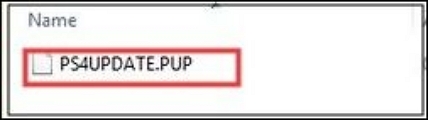
- For PS4, the file name must remain PS4UPDATE.PUP.
- For PS5, the file name must remain PS5UPDATE.PUP.
Do not rename the file or unzip it. Ensure you delete any old update files from your USB or computer before saving this one.
Step 3: Connect the USB Drive to Your PlayStation
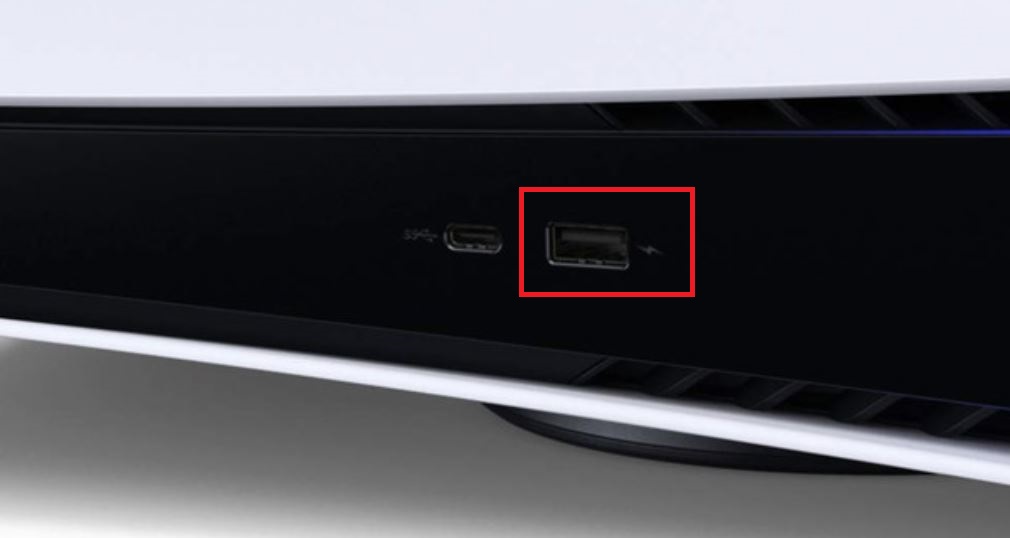
Safely eject the USB drive from your computer and plug it into one of the USB ports on your PlayStation 4/5 console. Make sure the console is powered on and that the drive is fully inserted.
Step 4: Boot into Safe Mode
Unlike normal updates, system reinstallation requires booting the console in Safe Mode to access the specific reinstallation option.
- Ensure the console is completely off (no lights).
- Press and hold the power button.
- Release the power button after you hear the second beep (one beep when you first press it, another seven seconds later).
- Connect your DualShock 4 or DualSense controller to the console using a USB cable.
- Press the PS button on the controller to sync it.
- The Safe Mode menu will appear.
Step 5: Install the System Software from Safe Mode
In the Safe Mode menu, use your controller to navigate to:
- For PS4: Option 3: Update System Software > Update from USB Storage Device
- For PS5: Option 3: Update System Software > Update from USB Drive
The console will detect the PS4UPDATE.PUP or PS5UPDATE.PUP file from the USB drive. Select OK or Accept to proceed with the reinstallation.
Important: This process will delete all user data and settings from the console.
During the installation, avoid disconnecting the power or removing the USB drive. The process may take several minutes. Once complete, your PlayStation will automatically restart with the newly reinstalled system software.
Step 6: Confirm the Update
After your console restarts, return to Settings > System > System Information to confirm that your system software is now running the latest version. You can now enjoy an optimized, more stable gaming experience.
Conclusion
By following these steps, you’ve successfully downloaded and installed the PlayStation reinstallation file using a USB drive. Whether you’re fixing software issues or performing a clean update, this method ensures your PS4/PS5 system stays stable and ready for gaming.
Keeping your console up to date also improves performance, adds new features, and prevents compatibility issues with new games. With just a few minutes of setup, your PlayStation will be refreshed and running smoothly again.



Discussion (0)
Be the first to comment.