



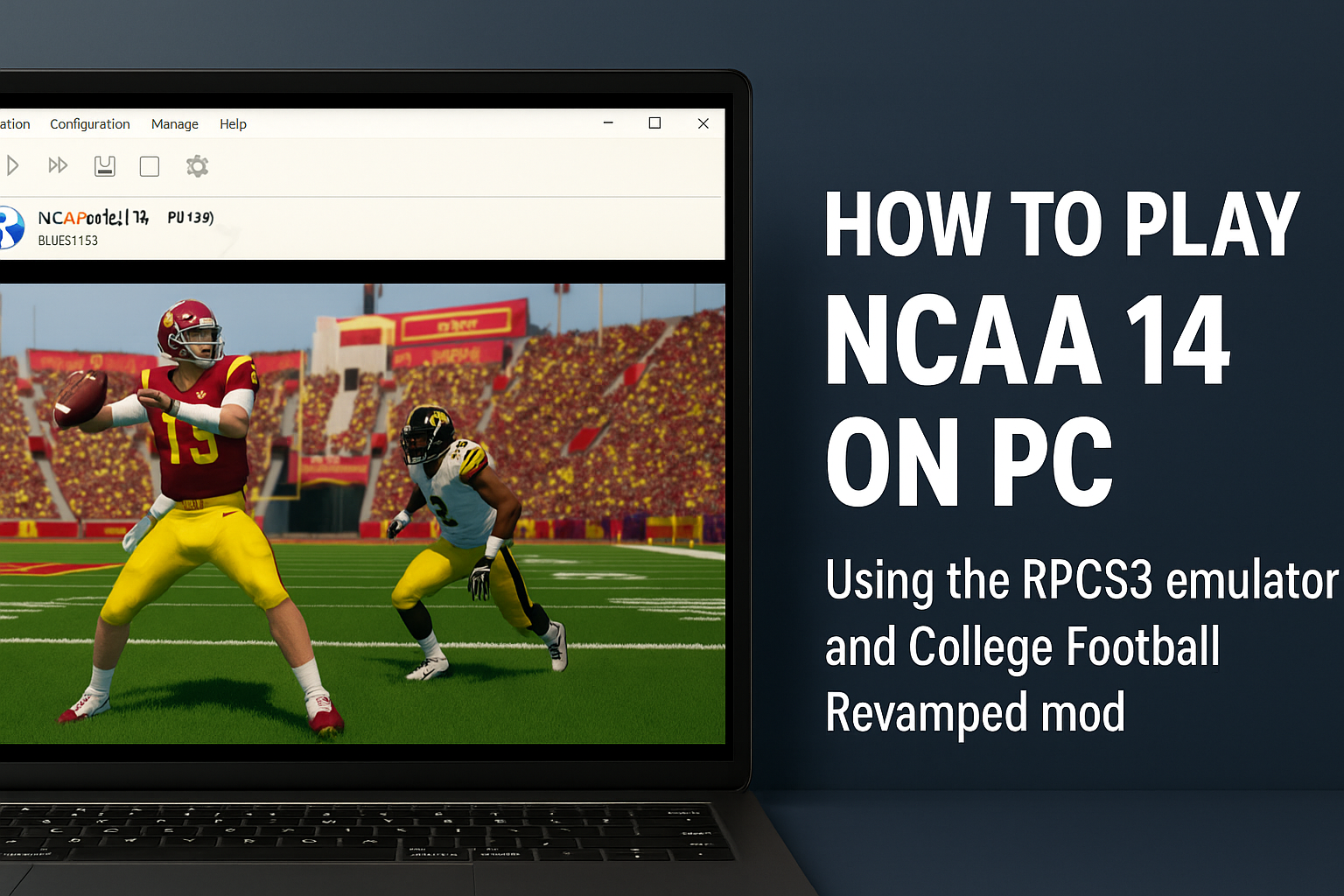
NCAA Football 14 remains one of the most beloved college football games ever made, but it was only released for PlayStation 3 and Xbox 360 and never got a PC release. Luckily, modern emulation makes it possible to play NCAA 14 on Windows with smooth performance, better visuals, and updated rosters. Here’s how to set everything up legally and safely.
Step 1: Check your PC requirements
Before starting, make sure your computer can handle PlayStation 3 emulation. RPCS3 is resource-intensive, so performance depends on your CPU and GPU strength.
| Component | Minimum | Recommended |
|---|---|---|
| CPU | Intel i5-6600K / AMD Ryzen 5 1600 | Intel i7-8700K / Ryzen 7 3700X |
| GPU | GTX 1060 / RX 580 | RTX 3060 / RX 6700 XT |
| RAM | 8 GB | 16 GB+ |
| Storage | 50 GB free space | SSD with 50 GB free |
Step 2: Download and install the RPCS3 emulator
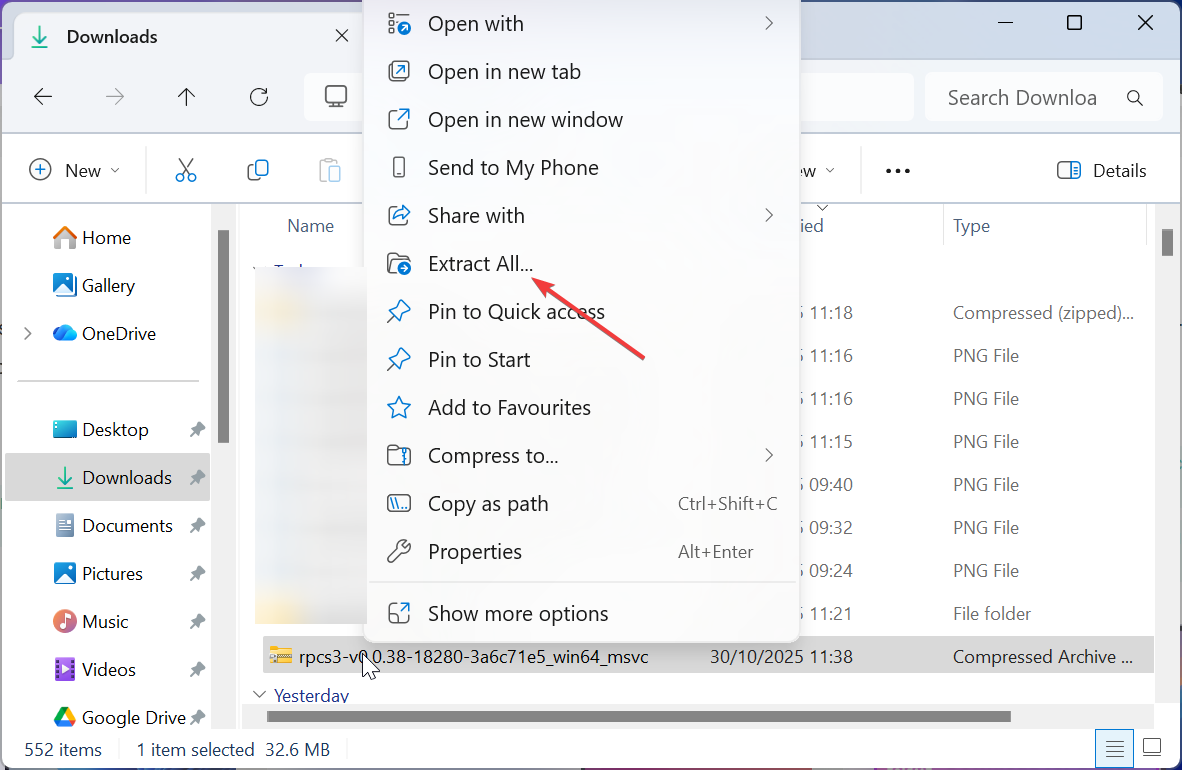
Visit the official RPCS3 site and download the latest Windows build. Right-click the folder and select Extract all. Then click the Extract button on the next pop-up to extract the files.
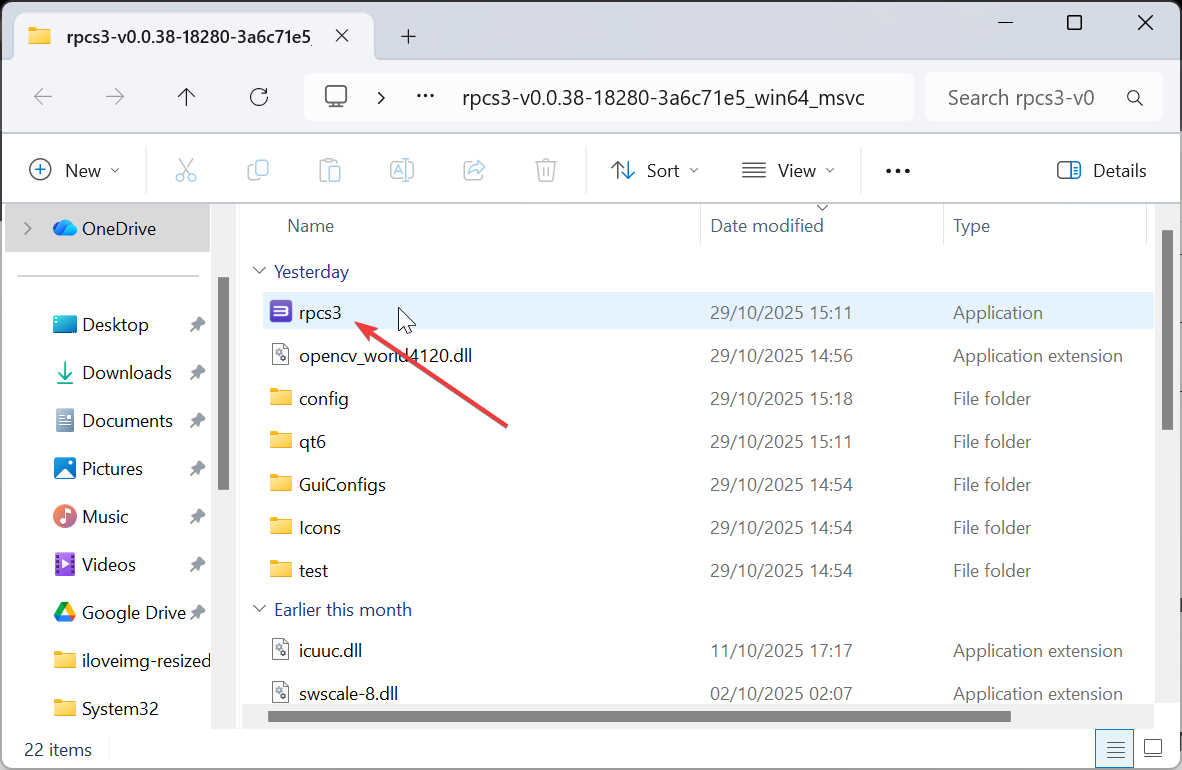
Now, double-click the RPCS3 application file to install the emulator and follow the onscreen instructions. Make sure to check the I have read the quick guide box to be able to continue. Next, open RPCS3, then go to File > Install Firmware. Select the firmware file you’ll download in the next step.
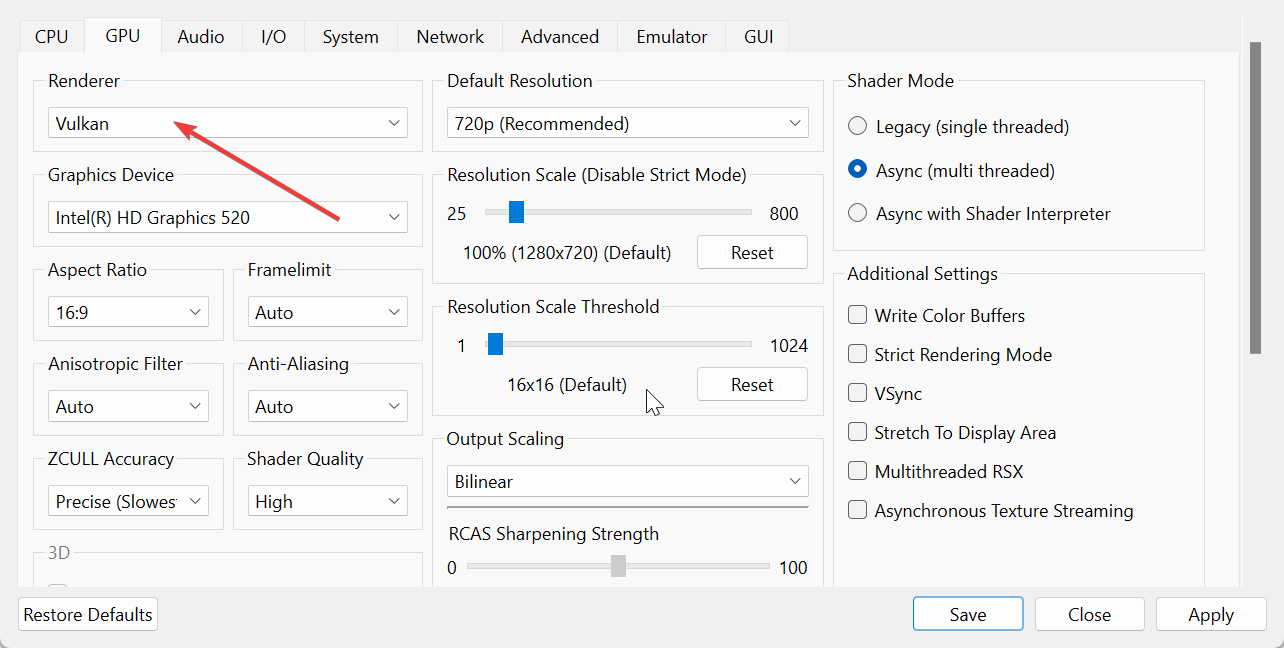
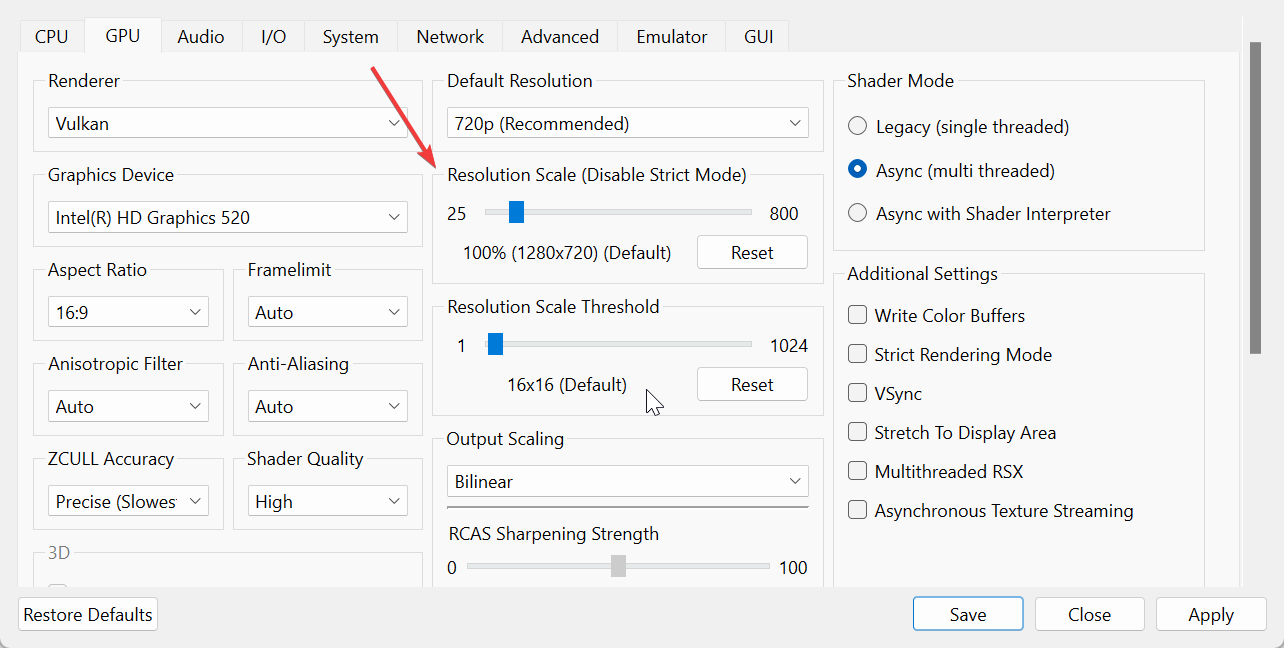
Under Configuration > GPU, choose Vulkan as the renderer for better performance, enable Write Color Buffers, and use the LLVM Recompiler for both CPU and PPU options.
Tip: Avoid third-party download sources to prevent tampered files.
Step 3: Dump your copy of NCAA 14
You must legally own a copy of NCAA 14. Use a PlayStation 3 with custom firmware and the PS3 Disc Dumper utility to copy the disc contents to a USB drive or your PC. This creates a playable game folder or ISO that RPCS3 can read.
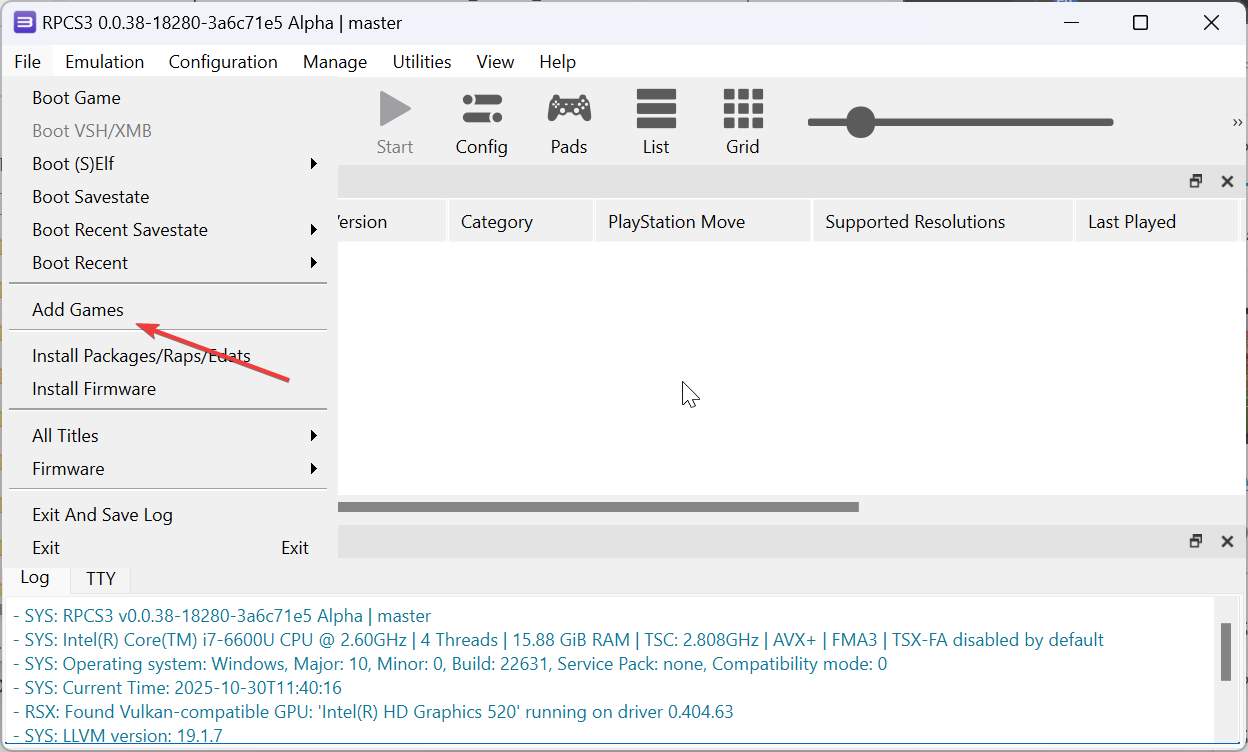
To import the game into RPCS3, click File > Add Games and select the folder containing your dumped files. The emulator will add the game to your library. You’ll see the NCAA 14 title appear in the main window.
Step 4: Install PS3 firmware
RPCS3 requires the official PlayStation 3 firmware to run any games. Download the latest firmware update file (PS3UPDAT.PUP) from the PlayStation website. Go to File > Install Firmware in RPCS3 and select that file.
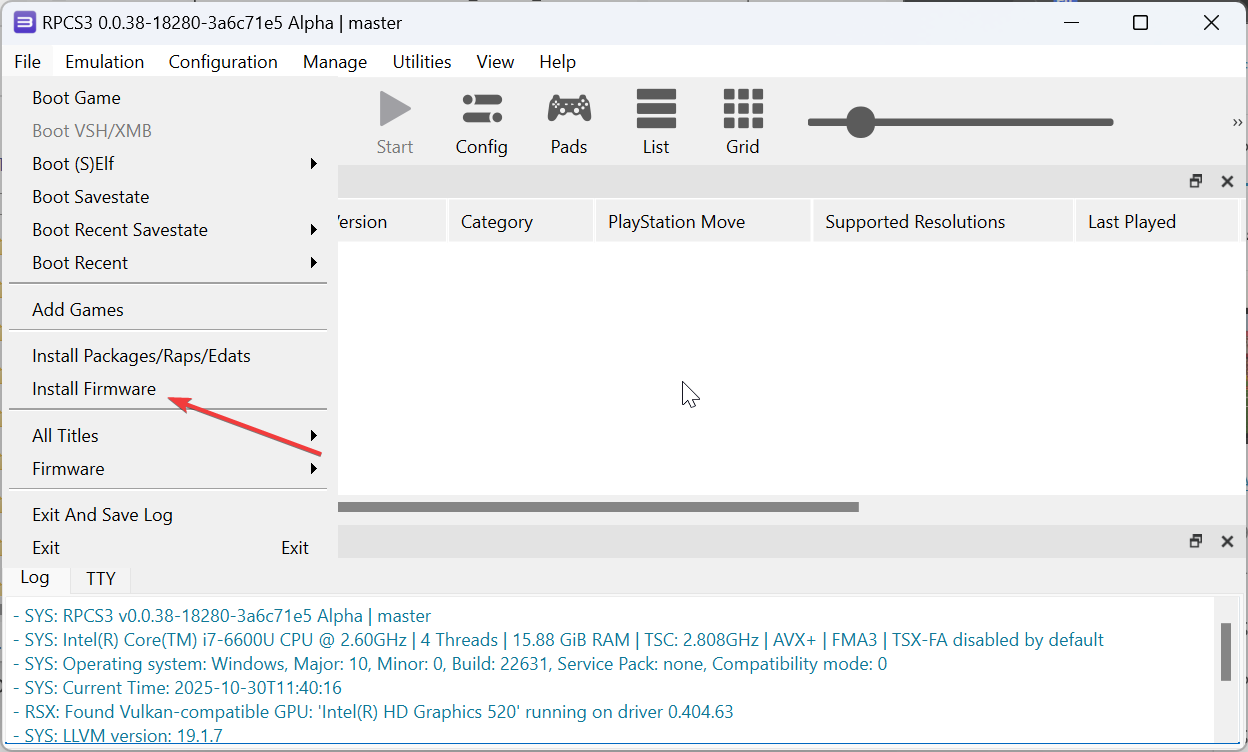
Once installed, you can boot NCAA 14 safely with the emulator.
Step 5: Optimize settings for smooth gameplay
Performance varies depending on your system. Set the Resolution Scale to 150% for sharper visuals, enable VSync to prevent screen tearing, and precompile shaders to minimize stutter during gameplay. If the game lags, lower the resolution or disable anti-aliasing.
You can also connect an Xbox controller or DualShock 4 using USB or Bluetooth. In Pads settings, set the handler to XInput for Xbox or DualShock 4 for PlayStation controllers. Test buttons to ensure correct mapping before launching the game.
Step 6: Add the College Football Revamped Mod (Optional)
The College Football Revamped mod updates uniforms, fields, and logos to reflect modern college football. Download the College Football Revamped PC version and copy its patch folder into the RPCS3 game directory. Launch RPCS3, right-click NCAA 14, and choose Apply Game Patch.
Tip: To enhance realism, install the latest roster and texture packs from the mod community. These updates include current teams and players, making the experience closer to a modern EA Sports release.
Step 7: Play NCAA 14 on PC
Double-click the game icon in RPCS3 to launch it. Once loaded, adjust camera angles, start a Road to Glory or Dynasty mode, and enjoy full controller support just like on console. Your saves are stored locally in the RPCS3 directory under dev_hdd0/savedata.
Troubleshoot common issues
- NCAA 14 stutters or fails to launch: This is often due to bad firmware or outdated shaders. Try rebuilding shaders under Manage Cache or updating to the latest RPCS3 build.
- Game crashes or freezes: Crashes often occur from mismatched game versions or corrupt save data. Delete temporary files, verify your game folder, and reimport your dump if needed. Keeping RPCS3 updated resolves most issues automatically.
Tips for better gameplay
- Use an SSD for faster load times.
- Update RPCS3 monthly for performance improvements.
- Enable 120 Hz mode on supported monitors for smoother animation.
- Join the mod community to get updated uniforms and rosters each season.
- Back up your saves before installing new patches or mods.
- Play head-to-head by streaming via Parsec or Steam Remote Play. Both options let friends control a virtual second controller as if sitting next to you.
FAQs
- Can I play NCAA 14 without a PS3? Yes, through the RPCS3 emulator if you legally own the disc.
- Is NCAA 14 available on Steam? No. EA Sports has not released it for PC or Steam.
- Why does the game run slowly? Usually due to CPU bottlenecks or missing shader compilation. Adjust graphics settings and precompile shaders.
- How do I update the College Football Revamped mod? Replace your patch folder with the latest version and reapply it in RPCS3.
Summary: Key steps recap
- Confirm your PC meets emulator requirements.
- Install RPCS3 and the official PS3 firmware.
- Dump your legal copy of NCAA 14.
- Configure graphics and controller settings.
- Optionally install the College Football Revamped mod.
- Launch and enjoy NCAA 14 with modern visuals on PC.
Conclusion
Playing NCAA 14 on PC is an exciting way to relive the classic college football experience with enhanced graphics and updated rosters. By following these steps, you can enjoy the game through the RPCS3 emulator, along with the College Football Revamped mod for a modern touch. While the setup requires a bit of effort, it’s well worth it for fans of the series. Just remember to keep your game files legal, and enjoy the gameplay!

Discussion (0)
Be the first to comment.