




Flash Player no longer runs in modern versions of Google Chrome. Google removed Flash from Chrome in 2021, so you cannot view or check a Flash Player version anywhere in the browser. You can still verify whether a legacy Flash file remains on your system or whether Chrome loads any Flash components.
Table of contents
- Why you can’t check Flash Player version directly anymore
- How to confirm whether Flash Player exists in your Chrome installation
- How to check Flash Player version in older Chrome installations
- What to do if you still need Flash content
- Why you should avoid unofficial Flash downloads
- Troubleshooting
- Tips
- FAQs
- Summary
Why you can’t check Flash Player version directly anymore
Chrome does not include the Flash plugin, so version details no longer appear in settings or components. If a site asks you to enable or update Flash, the request usually comes from outdated code on the website.
How to confirm whether Flash Player exists in your Chrome installation
You can confirm Chrome’s Flash status with a few quick checks. These methods show whether any Flash-related components remain active.
Check from Chrome’s components page
- Open Chrome.
- Enter chrome://components in the address bar.


- Look for Adobe Flash Player in the list.
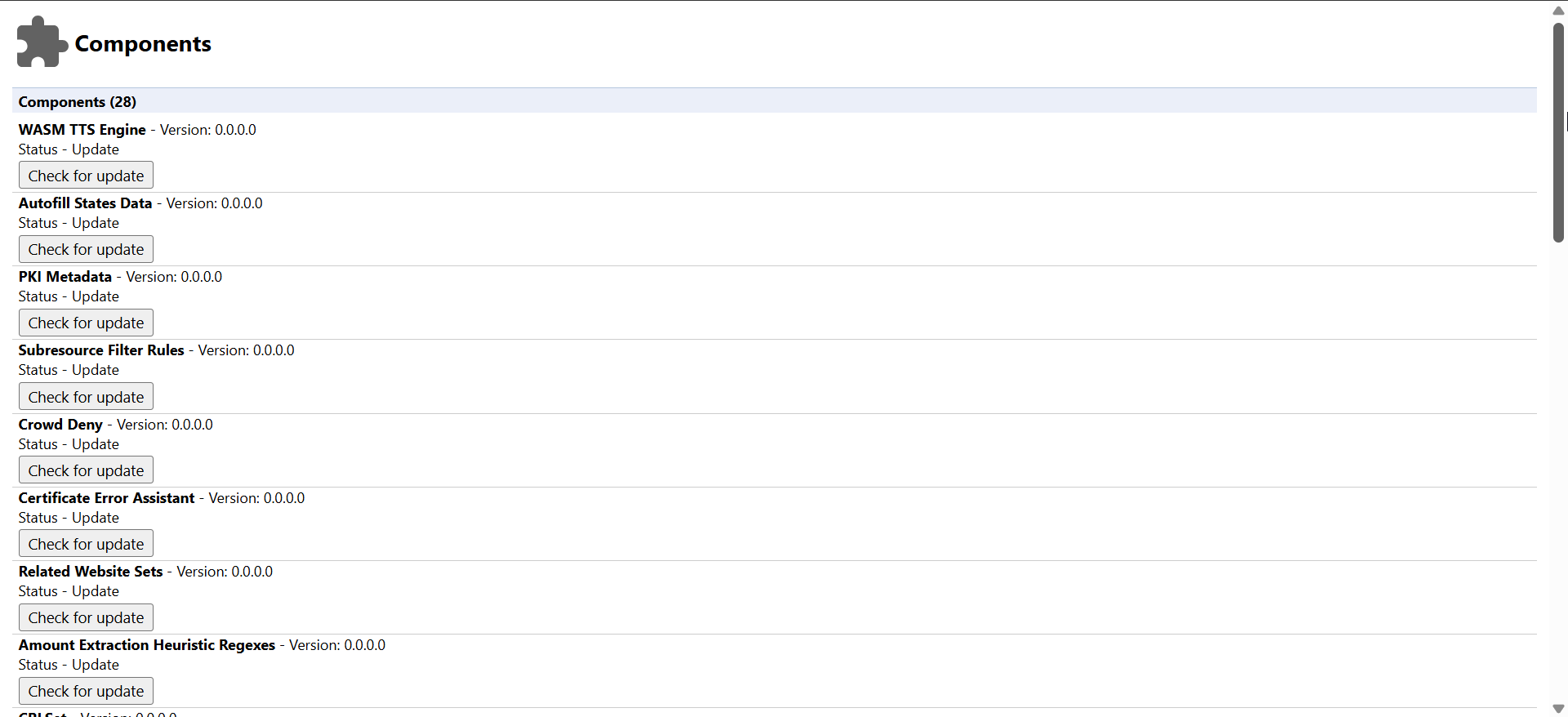

- If you don’t see it, Chrome does not include Flash.
- If it appears in an older build, Chrome still prevents it from running.
Check from Chrome settings
You can also check the Flash player version via the Chrome browser settings, as shown below:
- Open Chrome.
- Select Menu > Settings.
- Open Privacy and security.
- Select Site settings.

- Scroll to locate Flash permissions.
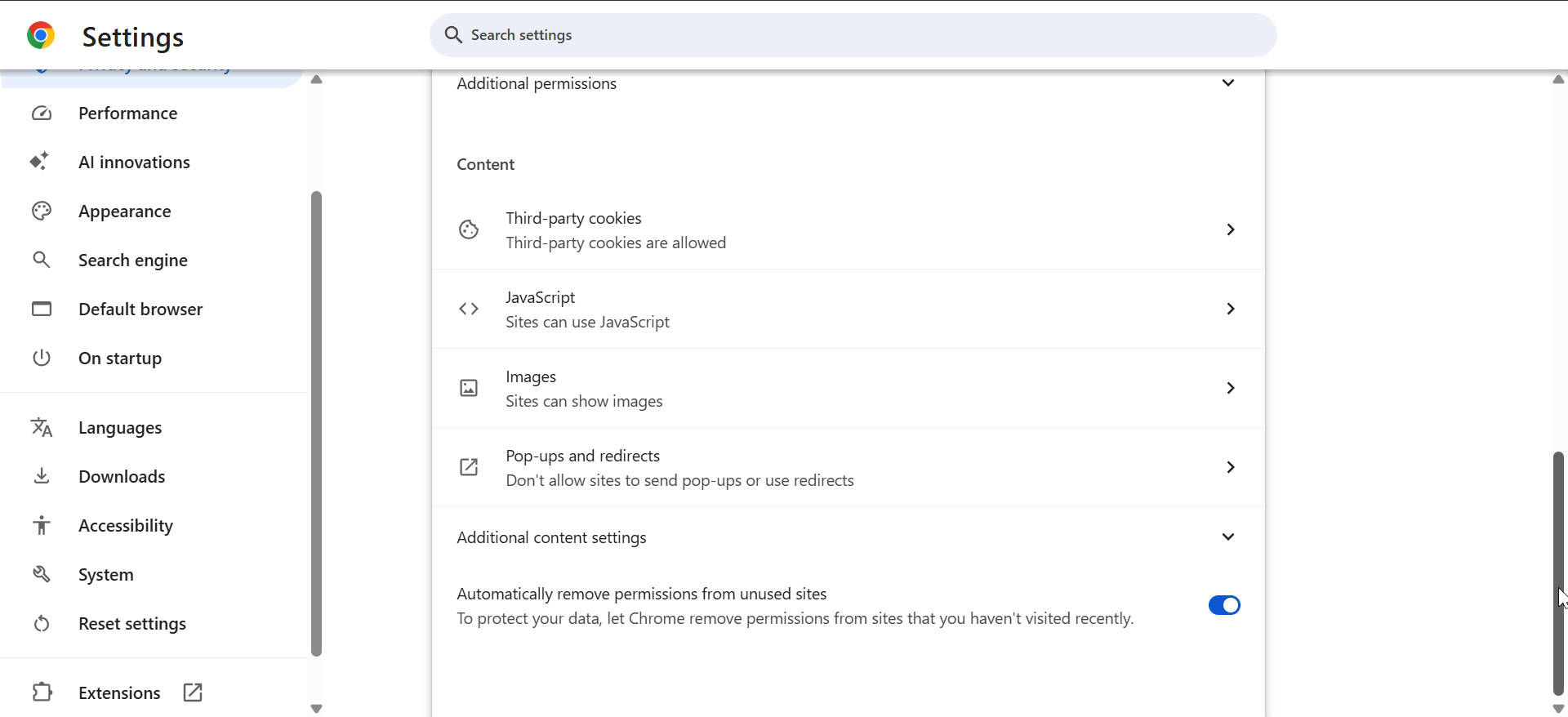
- If Flash does not appear, Chrome has fully removed it.
Check your system for old Flash files
- Press Windows + S and search for Flash32.exe or pepflashplayer.dll.
- Delete any leftover files from old installations.
- Restart Chrome after removing them.
How to check Flash Player version in older Chrome installations
Some enterprises freeze Chrome versions for legacy apps. In those cases, you can still confirm Flash versions through older menus.
Using the legacy plugin page
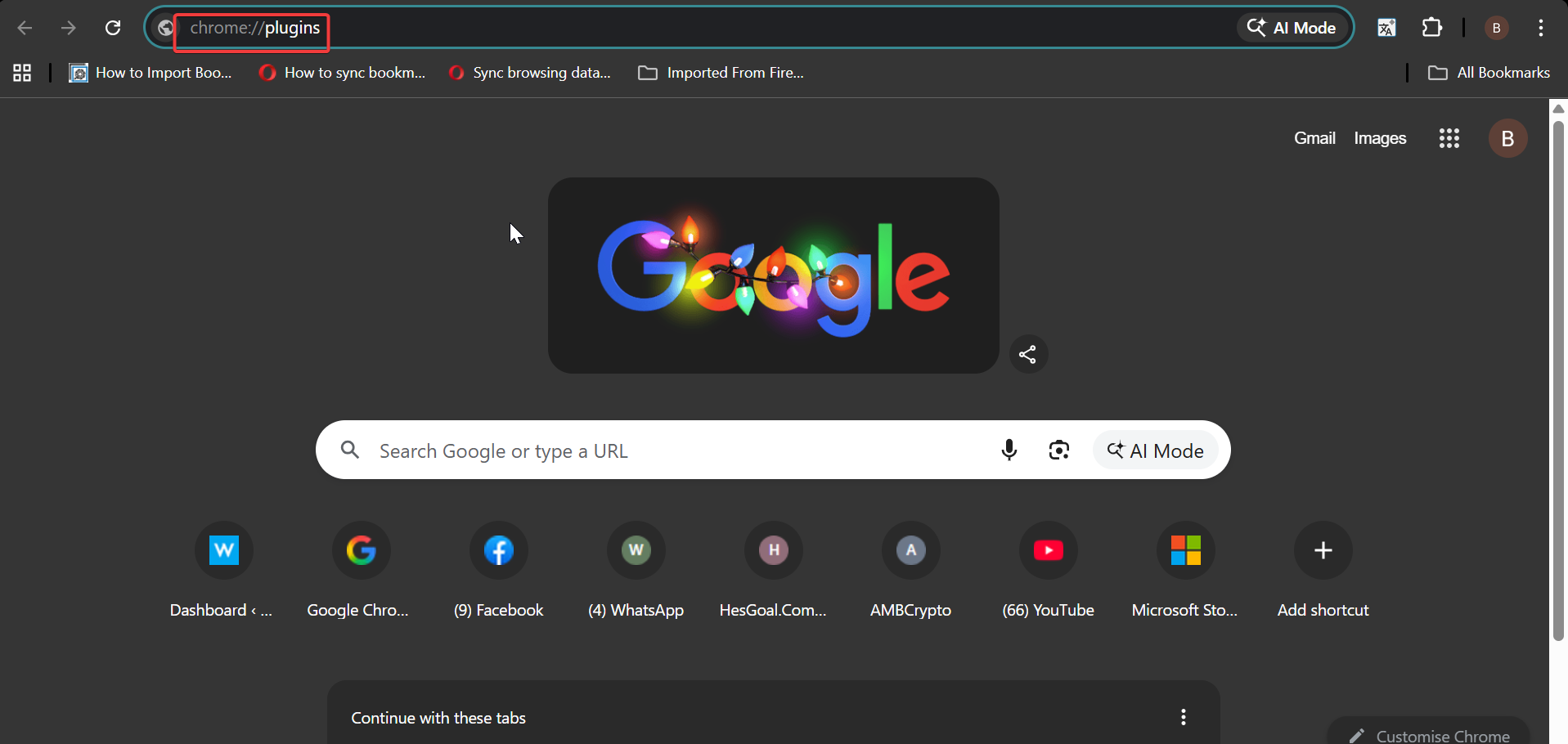
Older versions used chrome://plugins to show Flash details. Google removed this page, so it only works in outdated builds.
Using the Flash test page
The former Adobe test page displayed version details. Since Adobe shut down Flash, the page no longer loads Flash content.
What to do if you still need Flash content
Modern browsers cannot run Flash files, but secure alternatives exist for archived projects or research purposes.
Use preserved Flash content platforms
Tools like Ruffle and Flashpoint load Flash games or animations with built-in emulation. These platforms run safely without installing Flash Player.

Use virtual machines for corporate legacy apps
Some organizations still use Flash dashboards or training modules. IT teams often run them inside an isolated virtual machine to avoid security risks.
Why you should avoid unofficial Flash downloads
Flash Player no longer receives security updates. Unofficial installers often contain malware or outdated components that expose your device to attacks. You should avoid any website claiming to restore Flash in Chrome.
Troubleshooting
If a website shows messages like “Update Flash” or “Enable Flash”:
- Refresh the page to confirm it is not a cached script.
- Contact the site owner to request HTML5 updates.
- Try loading the page in an emulation tool if it hosts old SWF files.
- Remove any old Flash remnants from your device to prevent conflicts.
Tips
- Use Chrome’s current version to stay secure.
- Avoid enabling Flash through third-party extensions.
- Run legacy Flash files in emulators instead of your main browser.
- Keep archived SWF files offline to prevent accidental execution.
- Use a virtual machine if you must open unreplaced legacy systems.
FAQs
Why doesn’t Chrome show Flash Player anymore? Chrome removed Flash support completely after Adobe ended the product.
Can I re-enable Flash using an extension? No. Extensions cannot restore native Flash functionality and usually pose security risks.
Why do some sites still ask for Flash updates? These sites use outdated code that never transitioned to HTML5.
Can other browsers run Flash? No supported browser runs Flash. Only emulators or controlled virtual machines work safely.
Summary
- Chrome no longer includes or displays Flash Player version details.
- You can confirm Flash’s absence using Chrome’s components and settings pages.
- Older Chrome versions show Flash details only through removed legacy options.
- Safe Flash alternatives include Ruffle, Flashpoint, and virtual machines.
- Avoid unofficial Flash downloads because they present security threats.
Chrome’s removal of Flash improves security and simplifies browsing. If you need to work with old Flash content, use safe emulators or an isolated environment instead of trying to restore Flash in Chrome.

Discussion (0)
Be the first to comment.