




Adding Grammarly to Chrome improves your writing everywhere you type online. The extension checks spelling, grammar, clarity, and tone across Gmail, Google Docs, social media, and web forms. Use this guide to install it from the Web Store, set it up, and fix the most common problems.
Step 1: Install Grammarly for Chrome
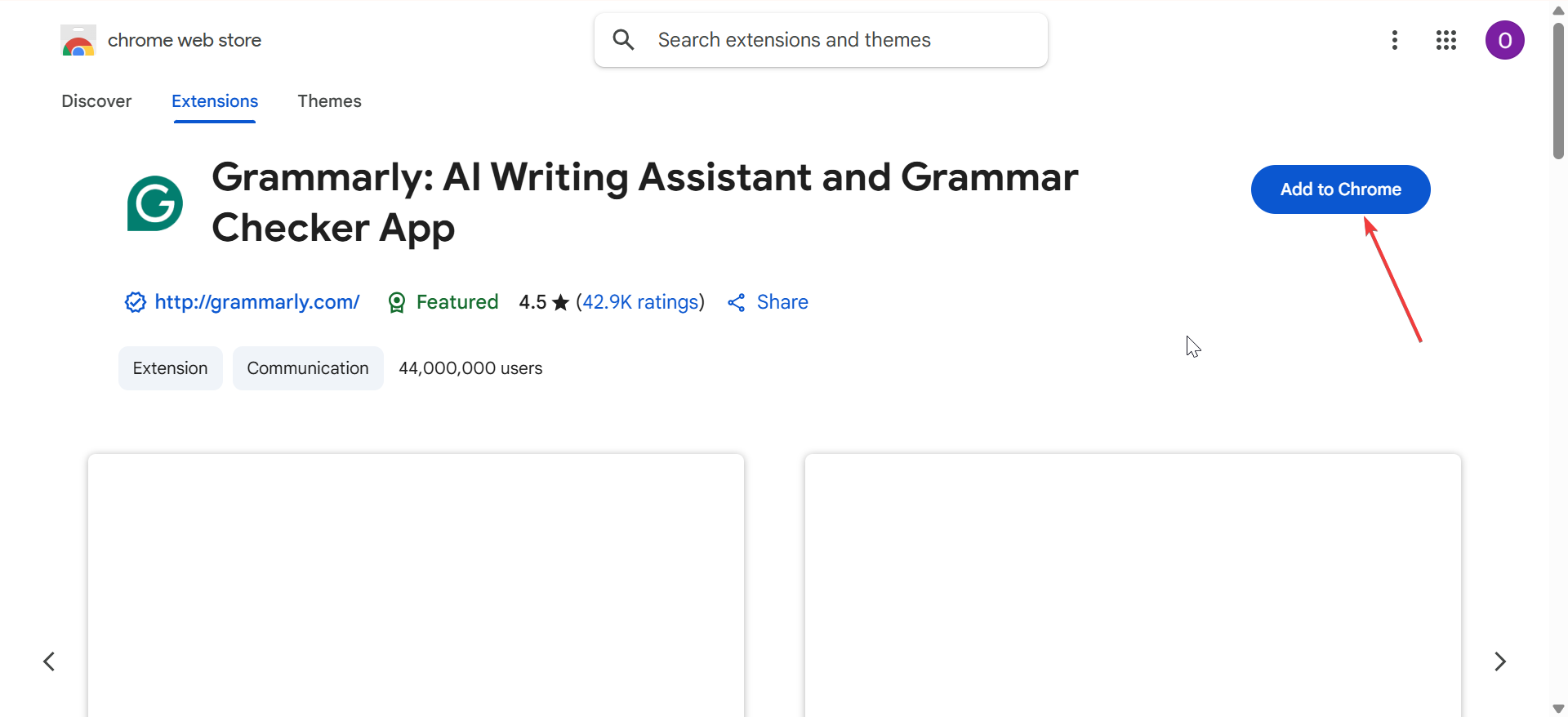
Open a new tab in Chrome and search for the Chrome Web Store. Next, search Grammarly on the Web Store using the Search bar. Now, click Add to Chrome on the Grammarly listing and confirm the prompt. Chrome then adds the extension and prepares it for use on supported sites.
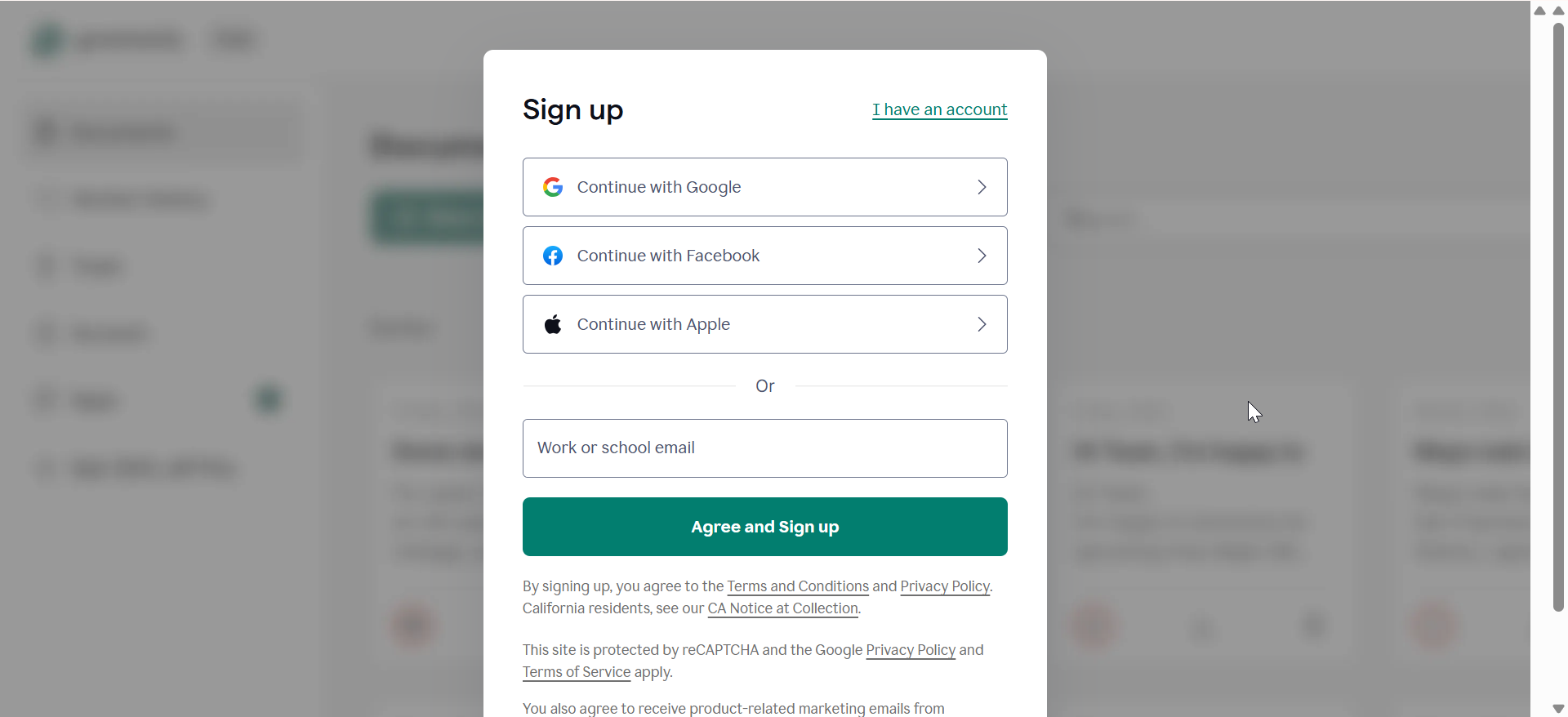
From here, click the Grammarly icon in the toolbar and sign in to your account. This step syncs your writing preferences, personal dictionary, and style settings across devices. Lastly, click the Extension icon on the toolbar and click the Pin icon before Grammarly to pin it.
Step 2: Set up Grammarly after installing
Open the Grammarly extension settings and check site access options. Allow Grammarly on the sites where you write, such as email, documents, and social networks.
Next, choose your preferred English variant, tone, and formality level. Add words you use often to your personal dictionary so Grammarly does not flag them as errors.

Lastly, open a Google Docs document and look for the Grammarly sidebar or G icon. If you see underlines and suggestions, the extension works correctly on that page.
Step 3: Use Grammarly inside Chrome
Using Grammarly in popular platforms like Gmail, Outlook Web, Google Docs, and social media platforms is pretty straightforward. Once the Extension is active, you can start typing or paste your message, and Grammarly will underline places where improvements can be made.
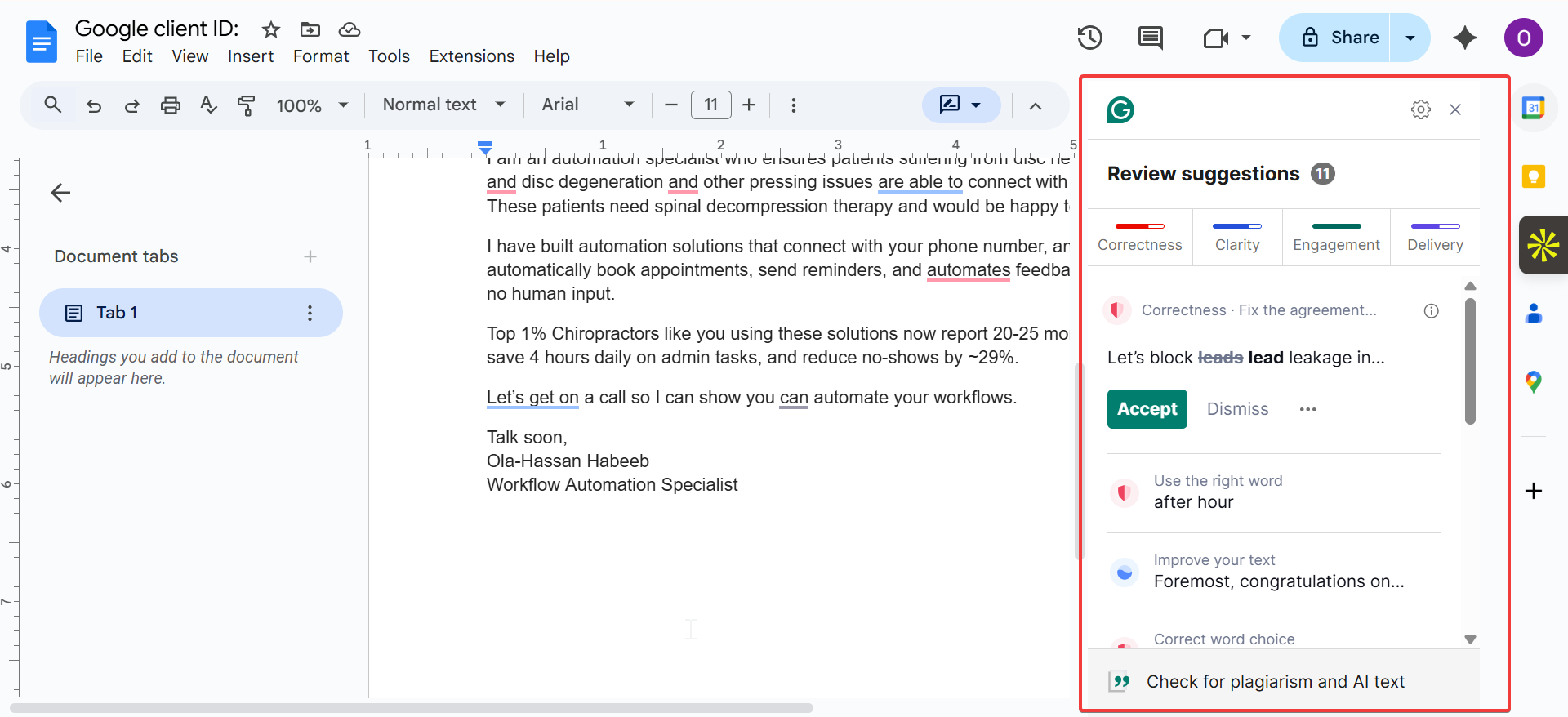
If you are using the paid version, you can open the Sidebar for more detailed tone, clarity, or conciseness suggestions
Fix Grammarly not working in Chrome
- Check Chrome version and update the browser: Click the menu in Chrome, go to Help > About Google Chrome, and let it check for updates. Install the latest version so Grammarly can work with the current browser engine.
- Disable conflicting extensions: Open the Extensions page and temporarily disable other grammar or spell-check tools. Reload your document or email and test Grammarly again to see if a conflict caused the issue.
- Allow Grammarly extension permissions: On the Extensions page, open Grammarly details and review its permissions. Make sure it can read and change data on the sites where you expect it to run.
- Clear cache or reset Chrome settings: Clear cached files and cookies if Grammarly still fails to load. If problems continue, reset Chrome settings to default and then reinstall Grammarly.
Tips for better Grammarly performance in Chrome
- Use Grammarly with Chrome profiles
- Use keyboard shortcuts for quick edits
- Combine Grammarly with Chrome spell check
FAQs
Does Grammarly work on Chromebooks? Yes. Install the Grammarly extension in Chrome on your Chromebook, then sign in. The extension works in Google Docs, Gmail, and other sites as it does on Windows or macOS.
Why is the Grammarly icon missing? Open the Extensions menu and look for Grammarly in the list. If it appears there, click the pin icon so the G logo returns to the toolbar.
Does Grammarly work offline? No. Grammarly needs an internet connection to send your text to its servers and produce suggestions. If your connection drops, wait until you go online again.
Can I use Grammarly without creating an account? No. You must create a free or paid Grammarly account before you can use the Chrome extension. The account stores your preferences, dictionary, and subscription level.
Summary
- Install the Grammarly Chrome extension from the Chrome Web Store.
- Pin the Grammarly icon so you can confirm that it runs in the background.
- Sign in to your Grammarly account to sync preferences and dictionaries.
- Adjust site access, tone, and language settings for your writing needs.
- Update Chrome, disable conflicts, and reset settings if Grammarly stops working.
Conclusion
When you add Grammarly to Chrome and configure it correctly, you get consistent writing help in email, documents, and everyday web forms. Follow the steps in this guide, then use the troubleshooting tips only if something breaks. Once Grammarly runs smoothly, you can focus on your message instead of worrying about typos and grammar errors.


Discussion (0)
Be the first to comment.