




Changing your Discord background lets you personalize the app and make the interface easier to read. Discord offers safe built-in options, and you can also use advanced tools to add custom themes if you understand the risks.
This guide walks you through every method, including mobile steps and troubleshooting.
1) What you can customize in Discord
Discord supports Dark, Light, and AMOLED themes across desktop and mobile. These themes change the background color and overall interface tone.
Advanced users can install custom themes, but those rely on third-party tools and are not officially supported.
2) Change the background using Discord’s built-in themes
The safest way to change your background uses Discord’s native Appearance settings. These options apply instantly and do not require extra downloads.
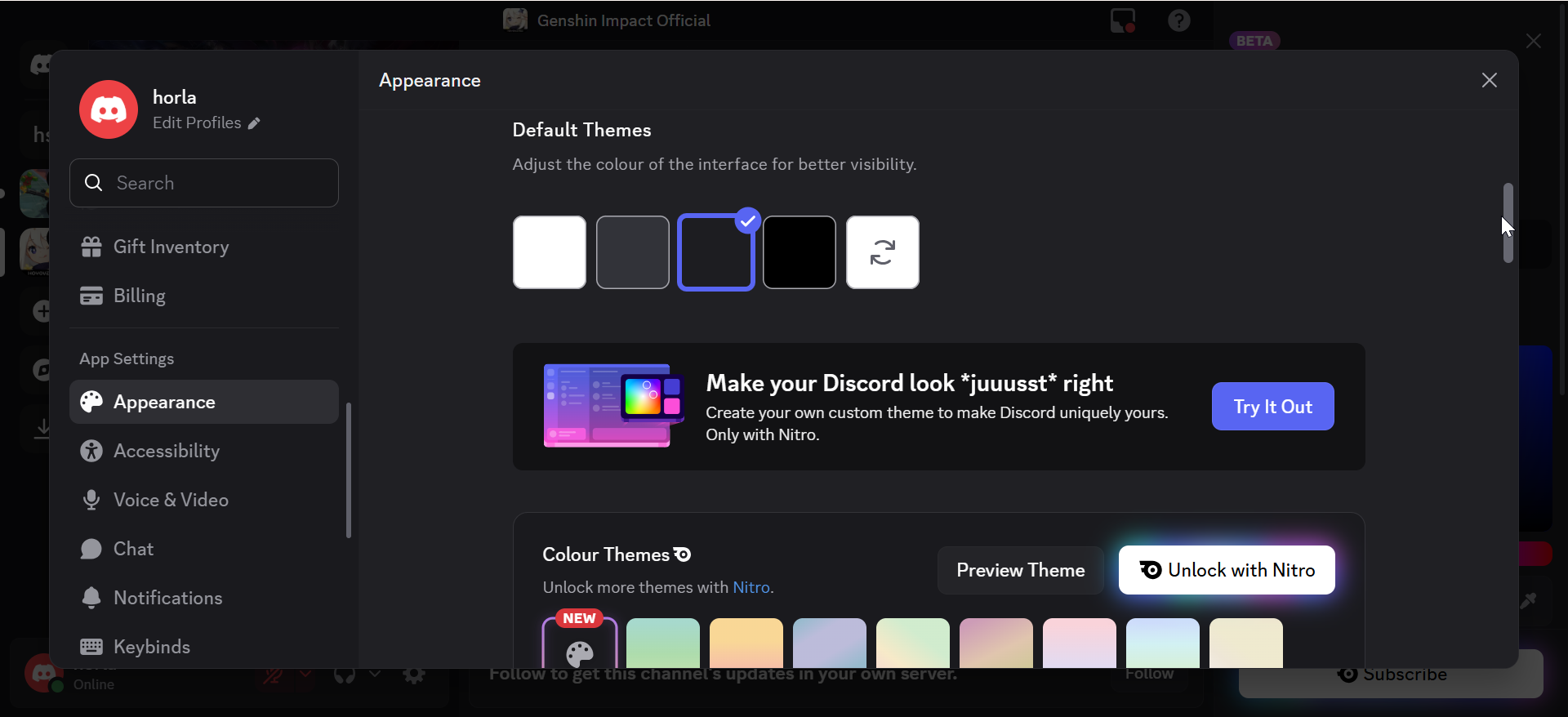
Change the background on desktop
Login on the Discord app, open Settings, select Appearance, and choose Dark or Light. The desktop app applies your choice immediately on both Windows and macOS.
Change the background on iPhone and iPad
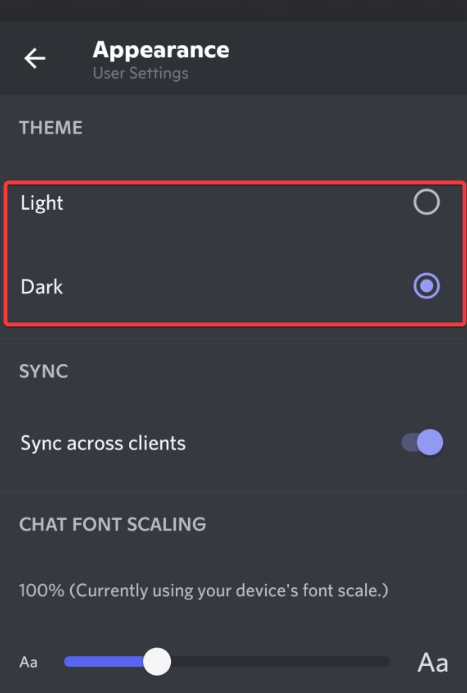
Tap your profile icon, open Appearance, and pick a theme. iOS supports Light and Dark modes, and changes apply across all servers and chats.
Change the background on Android
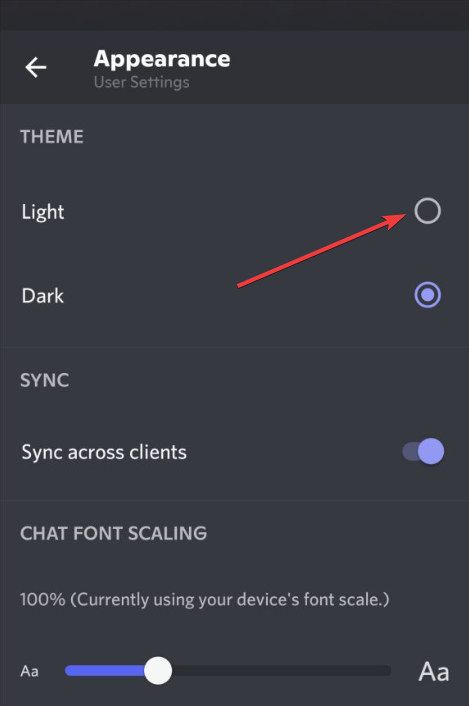
Open Settings, choose Appearance, and select Dark or Light. The Dark option gives Android users a deeper black background that can reduce battery usage on some displays.
3) Use accessibility settings to modify visual contrast
If readability matters more than aesthetics, Discord offers contrast and motion controls. These settings adjust how panels, text, and animations behave.
Adjust contrast and chat background behavior
Turn on High contrast mode to improve panel separation and message visibility. You can also reduce animations to make the interface feel cleaner and more stable.
4) Add a custom Discord background safely (without BetterDiscord)
System-level accessibility tools let you recolor the Discord window without modifying the app. These methods stay within Discord’s Terms of Service and work across other apps too.
Use system color filters on Windows or macOS
On Windows, you can open Settings, then Accessibility, and enable Color filters to tint the entire screen. On macOS, open System settings, then Accessibility, and adjust Display options such as color filters or contrast.
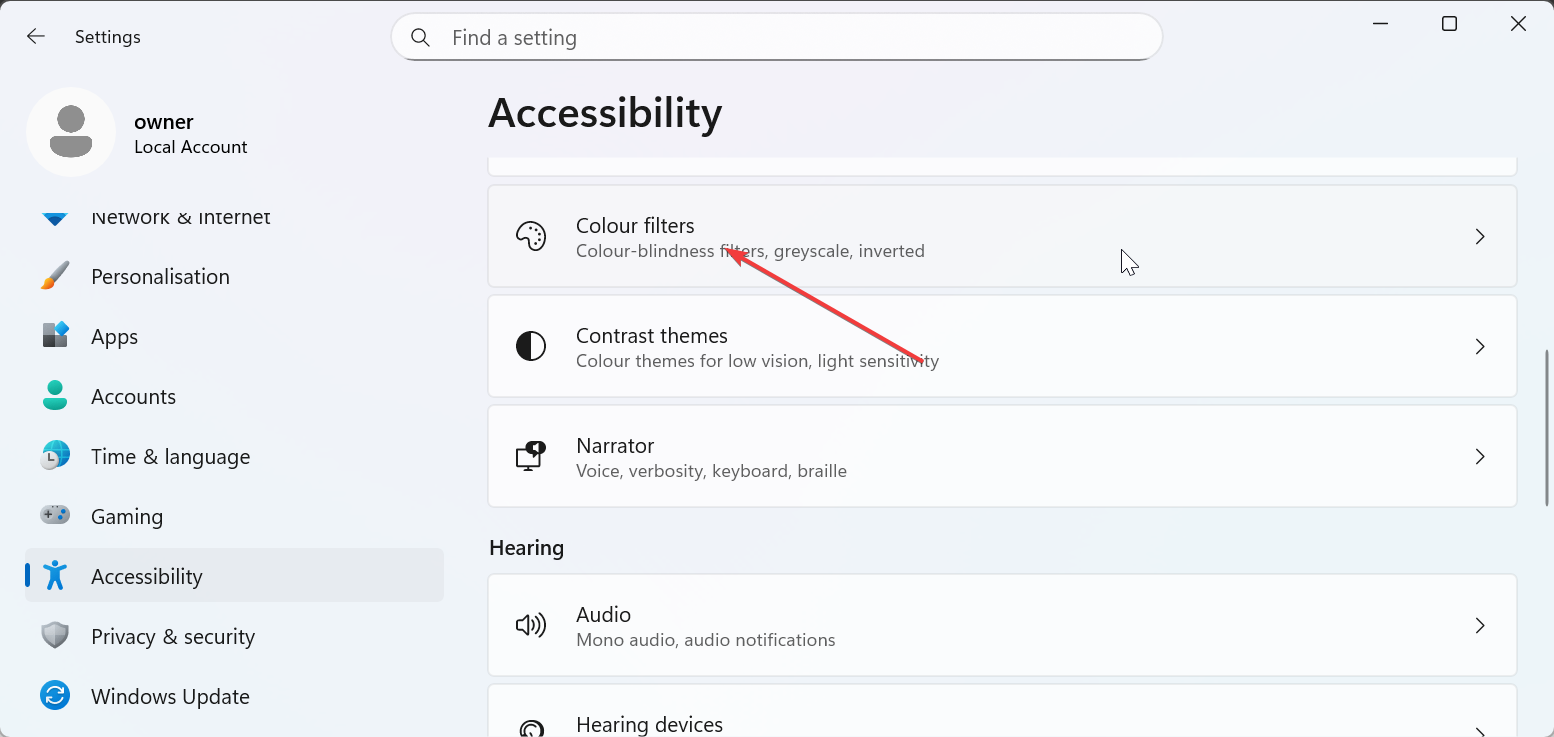
These filters change the way Discord looks without installing any unofficial tools, which keeps your account safer.
5) Add a custom background using BetterDiscord (advanced users)
BetterDiscord allows full custom themes and background images. However, it modifies the official client and sits outside Discord’s supported ecosystem.
Use this option only if you understand the risks and accept that Discord support might not help with issues related to client modifications.
Install BetterDiscord
Download the BetterDiscord installer from the official website and double-click the downloaded file to run it on your computer. Select your Discord installation during the installation and follow the onscreen instructions to let it apply the changes.
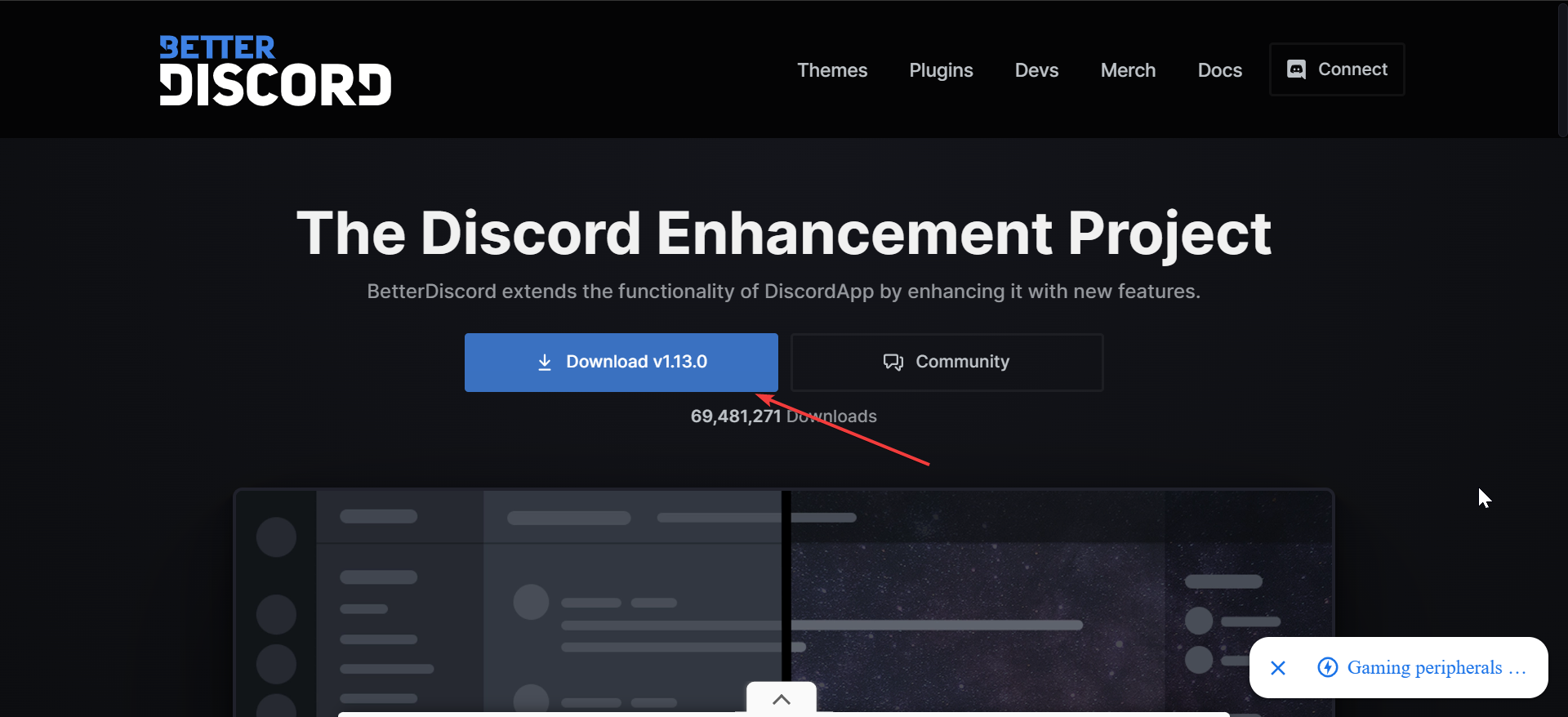
Once the process finishes, restart Discord so the new options can load properly.
Download and apply a custom theme
Download a theme file from the BetterDiscord Theme page, then place it in the BetterDiscord Themes folder. Open Settings on Discord, scroll to the BetterDiscord section, and select Themes. Next, click the Open theme folder button to ensure that BetterDiscord recognizes the theme.

Now, select the theme and toggle the switch before it to activate. Finally, refresh Discord to see the updated background. You can switch between multiple themes by toggling them on and off.
Troubleshooting common issues
- Themes not appearing or refusing to load: Make sure your theme file sits in the correct Themes folder and uses the required filename format. If you moved the file while Discord was open, restart the app so it can rescan the folder. You should also check that the theme has been toggled on in the BetterDiscord settings panel.
- Background resets after an update: Discord updates can disable custom themes or break client modifications. After a major update, open the BetterDiscord Themes panel and re-enable your theme. If the modification stopped working entirely, reinstall BetterDiscord and then restore your theme files from a backup.
Tips for safely customizing Discord
- Choose native themes if you want the fastest and safest results.
- Limit third-party tools to avoid performance problems or unexpected errors.
- Keep a backup of custom theme files before major Discord updates.
- Avoid editing theme files you do not understand, especially complex CSS rules.
- Use system-level filters if you mainly want more comfortable colors or contrast.
FAQs
Can I use a custom image as a Discord background without third-party tools? Discord does not support custom image backgrounds natively, but you can change theme colors and use system color filters to adjust how the app looks.
Are BetterDiscord themes allowed by Discord? BetterDiscord themes are unofficial and modify the client, so they are not officially supported by Discord. You should use them only if you understand the potential risks.
How do I revert to the default Discord background? You can revert to the default theme by opening Settings, selecting Appearance, and choosing the standard Light or Dark mode.
How do I uninstall BetterDiscord if I no longer want custom themes? Run the BetterDiscord installer again and choose the uninstall option for your Discord client. After that, reinstall the standard Discord app if needed to restore normal behavior.
Summary
- Open Appearance settings in Discord to switch between Light, Dark, or AMOLED themes.
- Use accessibility features like high contrast and reduced motion to improve readability.
- Apply safe background changes using system-level color filters on Windows or macOS.
- Use BetterDiscord for full custom themes only if you accept the risks of client modifications.
- Fix issues by checking your theme folder, re-enabling themes, and reinstalling tools after updates.
Conclusion
Changing your Discord background gives the app a personalized feel while improving visibility on your devices. Start with the built-in themes for a quick upgrade, or explore advanced tools if you want full control over how Discord looks while keeping an eye on safety and reliability.


Discussion (0)
Be the first to comment.