




Modern laptops and desktops often ship with fewer USB ports than users actually need. Slim designs, USB-C transitions, and limited I/O make it difficult to connect multiple devices at once.
At the time of writing, there are four reliable ways to add USB ports to a laptop or PC. The right option depends on whether you prioritize portability, power delivery, or a permanent upgrade.
Use A USB Hub
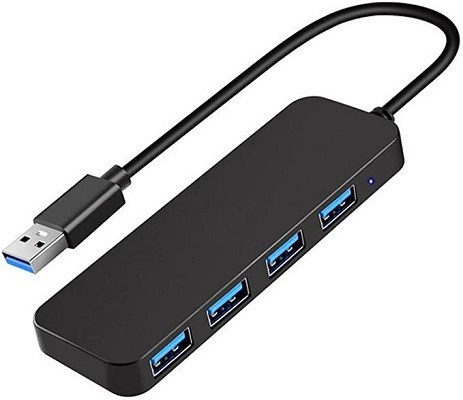
A USB hub is the easiest and most affordable way to expand USB ports on a computer. It connects to one existing USB port and splits it into multiple usable ports.
- Plug the USB hub into an available USB-A or USB-C port
- Connect peripherals like keyboards, mice, flash drives, or webcams
- Use powered hubs for devices that require more power
USB hubs work well for everyday accessories and travel setups.
Use A Docking Station
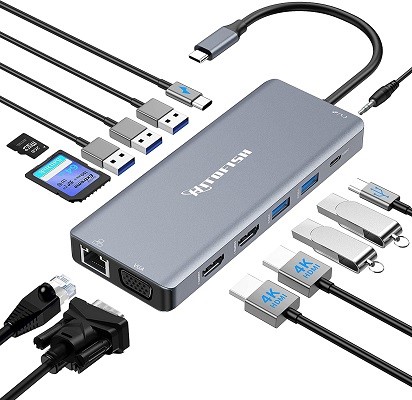
Docking stations are advanced USB hubs designed for fixed workspaces. They provide more ports, higher bandwidth, and often include their own power supply.
- Connect the docking station to your laptop using USB-C or Thunderbolt
- Attach monitors, Ethernet, USB devices, and audio peripherals
- Power your laptop through the dock if supported
Docking stations are best for desks and multi-monitor setups.
Use USB Adapters
USB adapters convert one port type into another. They are ideal when your device has USB-C ports but your accessories use USB-A.
- Connect the adapter to your laptop or PC
- Attach the peripheral to the adapter
- Use adapters for Ethernet, HDMI, or additional USB ports
Adapters are compact and easy to carry, but usually add fewer ports.
Install A PCIe USB Expansion Card (Desktop Only)
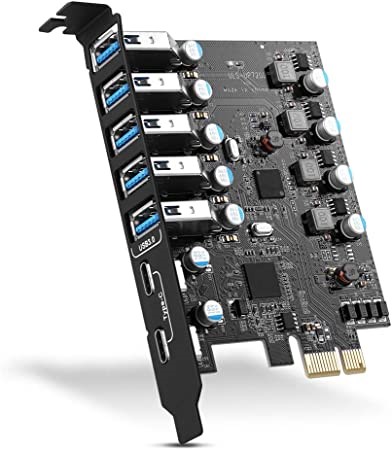
Desktop users can permanently add USB ports using a PCIe expansion card installed on the motherboard.
- Power off and unplug the desktop PC
- Insert the PCIe USB expansion card into an available slot
- Secure the card and restart the system
This method offers the best performance and power delivery for desktops.
Troubleshooting Common Problems
If connected devices are not detected, check whether the hub or adapter is powered. Unpowered hubs may not support high-draw devices.
Older USB versions can also limit data speeds or compatibility.
Tips
- Use powered hubs for external drives and cameras
- Check USB version compatibility before buying
- Avoid daisy-chaining multiple hubs
- Use docking stations for fixed desk setups
FAQ
Can adding USB ports affect performance?
Generally no, unless many high-power devices are connected simultaneously.
Are USB hubs safe to use?
Yes, when purchased from reputable brands.
Can laptops use PCIe expansion cards?
No. PCIe cards only work with desktop computers.
Do USB hubs work with Windows and macOS?
Most USB hubs are plug-and-play on both systems.
Summary
- USB hubs are simple and portable
- Docking stations suit desk setups
- Adapters convert existing ports
- PCIe cards permanently upgrade desktops
Conclusion
Adding USB ports to a laptop or PC is easier than replacing your device. Whether you choose a USB hub, docking station, adapter, or expansion card depends on how and where you use your computer.
Choosing the right method ensures better connectivity without sacrificing performance or convenience.

Discussion (0)
Be the first to comment.